A custom workflow’s filter conditions are used to define which service requests or workorder validation requests are associated with it.
- Go to Configuration > System Preferences > Workflow Configuration.
- Click on an existing workflow entry in the Workflow grid or continue with the creation process. The workflow opens on the Configure tab.
-
Scroll to Set Conditions. Filter options appear on the left-hand side of this section.
Note: The filters match specific action types and request types. This means that you can only access filters that are relevant to conditions that you are setting. Filter criteria are sorted by Action Type so you always have pertinent criteria for the workflow being set.
- Click a filter to add.
-
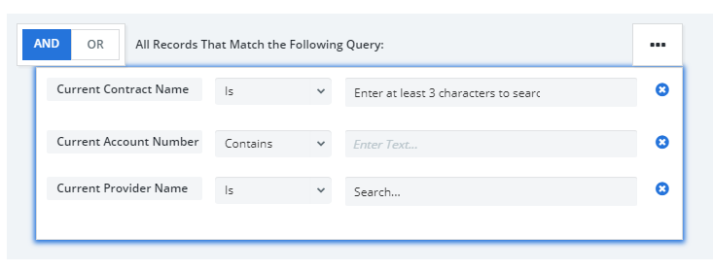
-
Add a filter group, click the "...". A filter block appears.
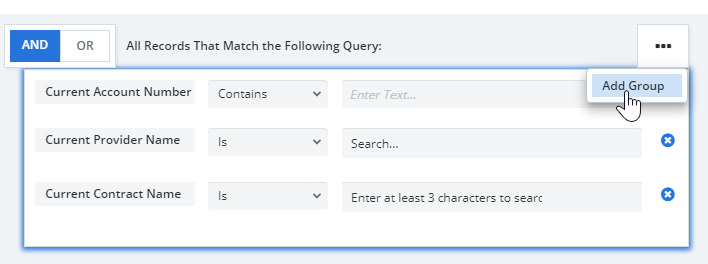
Note: each additional group you add represents a child condition to the first condition you set. Child conditions are denoted by the indented space. Child groups can have their own child groups as well. To remove child condition groups, click on the "..." then click "Remove Group" to remove the child group.
-
Click filters to add to the group.
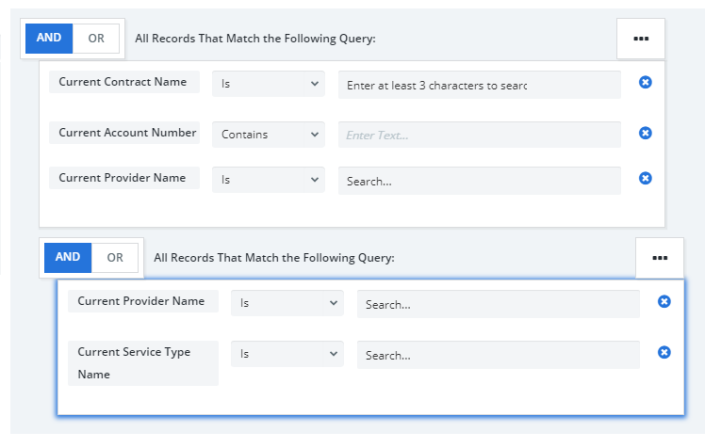
- Repeat steps 4-6 to add more filters to different groups.
- Select a filter operator.
- Define your filter condition.
- Click And Or at the top of each group to configure how the filters are interpreted.
- When the And condition is selected, the workflow is applied to requests that satisfies all conditions defined in the group.
When the Or condition is selected, the workflow is applied to requests that satisfies any of the conditions defined in the group.
Note: By default, the And condition is selected for all groups and is highlighted in orange. Click on the And/Or toggle switch located at the group’s top-left corner to switch between both conditions.
-
Click Generate to review the expression of the filter conditions.
Caution: Clicking Generate does not save your changes. It only previews the conditional logic you have set.
- Click Apply to save the changes made. The filter conditions you have added is saved and bookmarked.
Note: Note: If the workflow is missing any mandatory field, you are unable to save and apply the changes you have defined.
The default approver and the filter conditions must be defined to properly save the changes. Otherwise, a message opens to notify you about the missing mandatory field(s).
Discard or Cancel:
- Click Cancel to discard all changes since the workflow was last saved.
Remove any filter conditions you have defined for a workflow:
- Click on the x icon displayed on the right-hand side of the filter.
- Click on the Apply button to save the changes applied.
Remove all filter conditions and sub-groups:
- Click on the Clear All button.
- Click on the Apply button to save the changes applied.