Cimpl Summer Release - June 2024
Enhancements/Improvements
Self Service
-
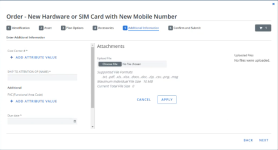
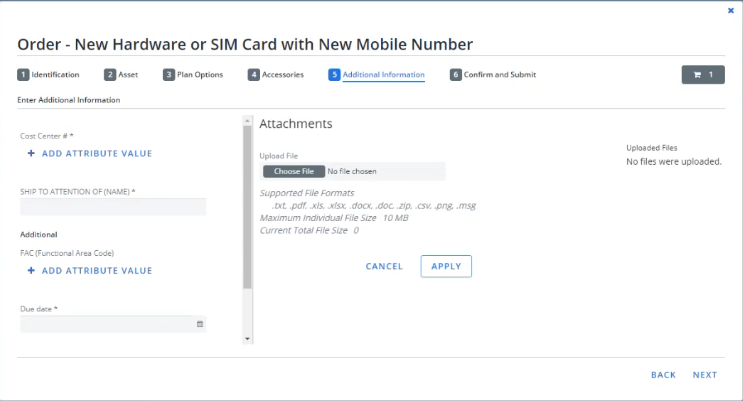
You can now add a file to a new request or upgrade. The file is attached to the request in the Request Center and the workorder.
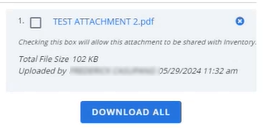
Note: You must select the following checkbox to save the attachment from the workorder to the inventory.
Inventory
Workorder Center
-
You can now search for a workorder by the following properties:
-
Site Address Line 1
-
Site Address Line 2
-
Site City
-
Site Location Name
-
Site Location Number
-
Site Postal Code
-
-
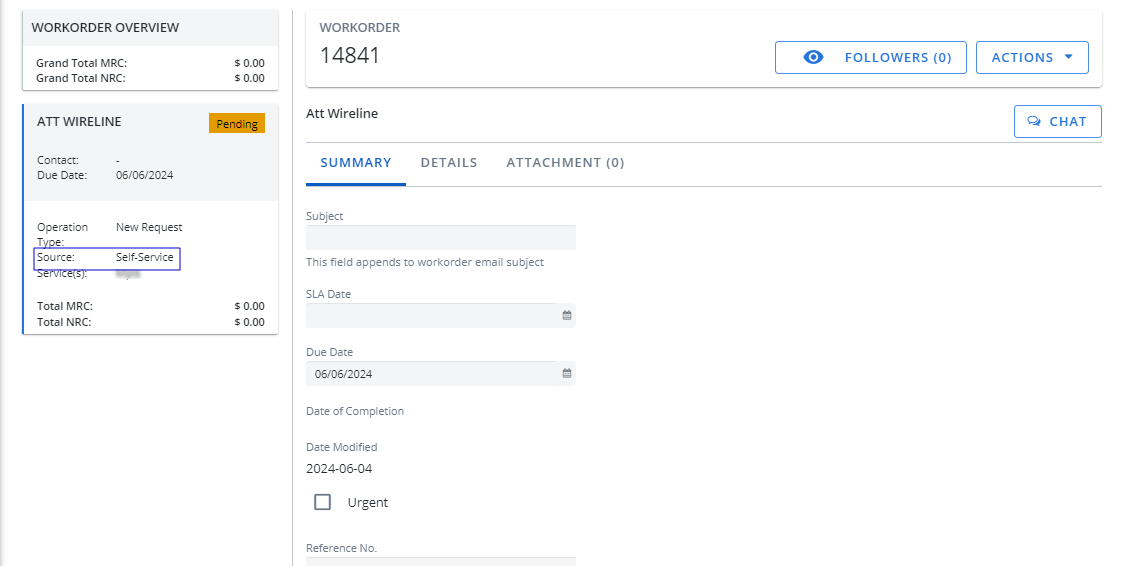
The Source of the workorder has been added to the Workorder Overview. It displays where the workorder was placed: Self Service, MACD, API or Quotation.
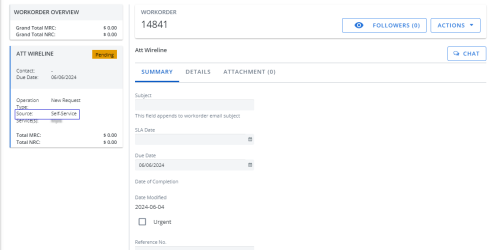
-
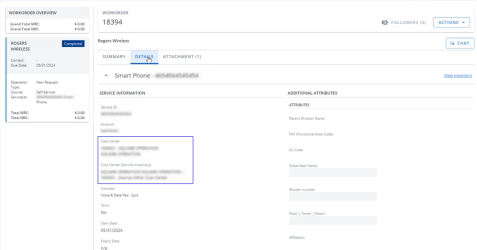
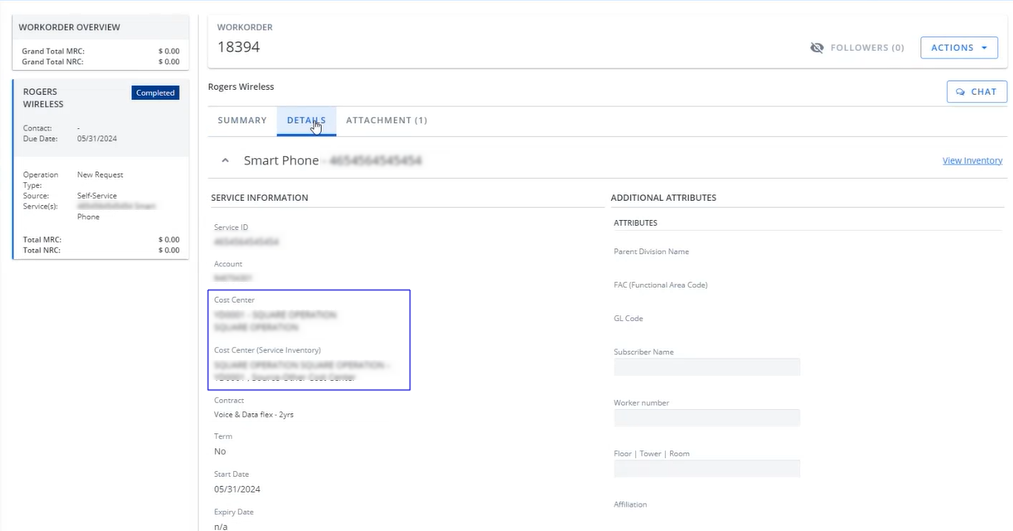
The cost center from both the workorder and the inventory have been added to the Details tab.
Billing Center
AP Posting
-
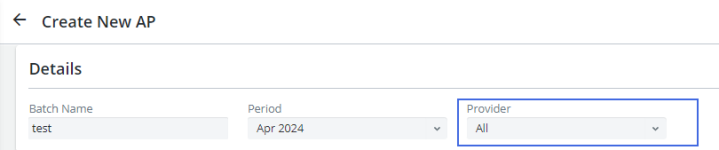
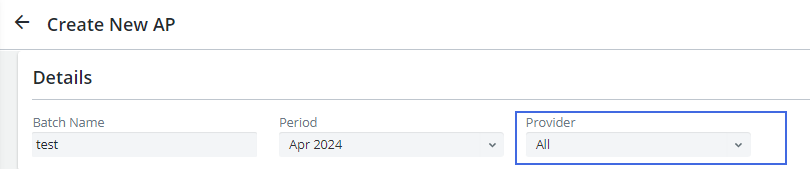
You can now generate an AP file for a specific provider by selecting the provider from the Provider dropdown menu.
Discrepancy Tracker
-
In Advanced Analysis, when you create a service for a missing service, you can now add the cost center.
Payment Readiness
-
We have enhanced the user experience by adding the Stop Payment and Threshold Breach Warning invoice alerts.

-
You can now search by threshold breached with the following filters:
-
OK
-
Stop Payment Max Amount
-
Stop Payment Threshold Breach
-
Warning
-
-
The following is the required configuration to run a Stop Payment validation process:
-
Configure Validations (you must have access to Billing Center Configuration):
-
Go to Configuration > Billing Center Configuration.
-
Click the Payment Readiness tab.
-
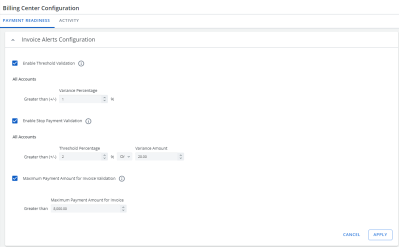
Configure the following validations:
-
Enable Threshold Validation: Display a warning message when the account(s) exceeds the set threshold.
-
Enable Stop Payment Validation: Flag as Stop Payment when the account(s) exceeds the set threshold.
-
Maximum Payment Amount for Invoice Validation: Flag as Stop Payment when an invoice exceeds the set maximum payment amount allowed.
-
-
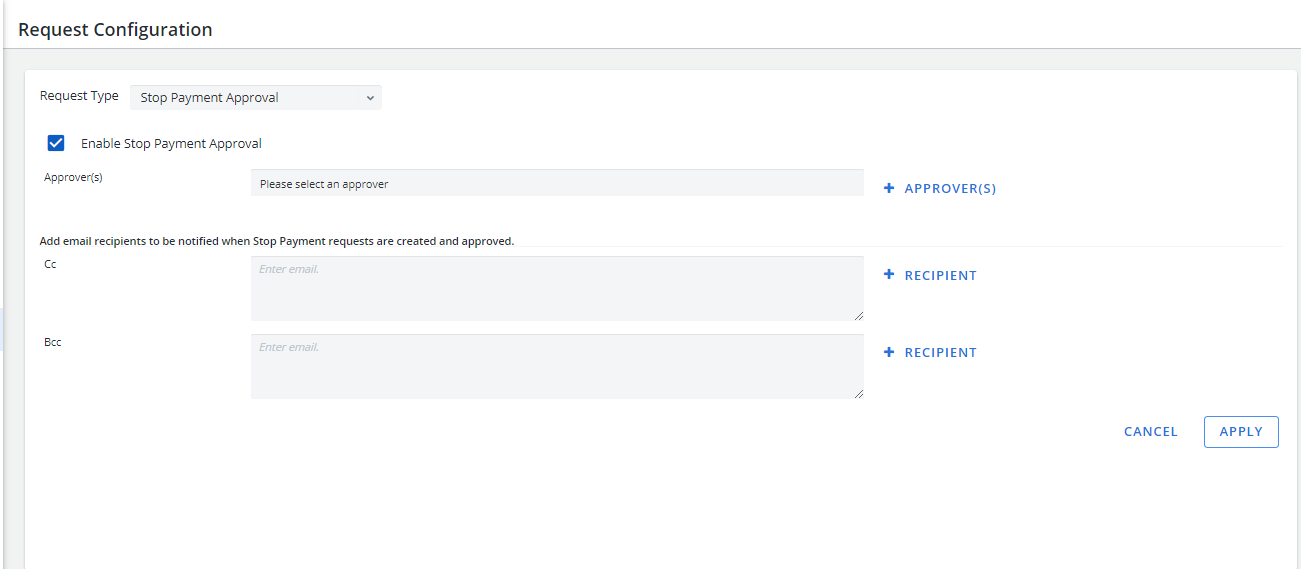
Configure Stop Payment Approval requests (you must have access to Requests):
-
Go to Configuration > Request Configuration.
-
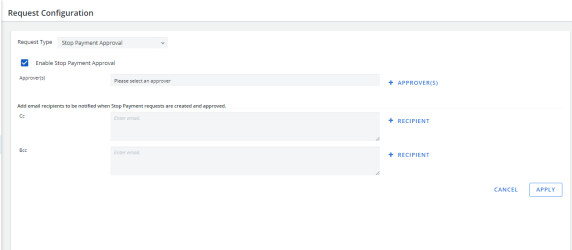
Select Stop Payment Approval from the Request Type dropdown menu.
-
Click the Enable Stop Payment Approval checkbox.
-
Click Approver(s) and select the users who can approve Stop Payment requests.
-
Click Recipient next to the CC box and type the email address(es) for the recipients to be notified when Stop Payment requests are created and approved.
-
Optional: Click Recipient next to the Bcc box and type the email address(es) for the recipients to be notified when Stop Payment requests are created and approved with a blind copy.
-
Click Apply.
-
To approve/reject Stop Payment Requests, users must have access to Requests and be added as an Approver.
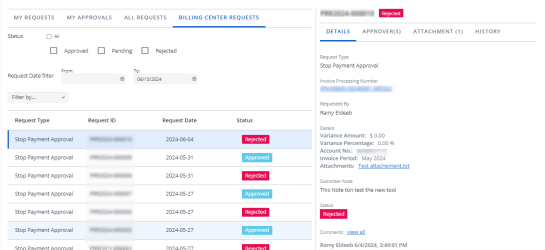
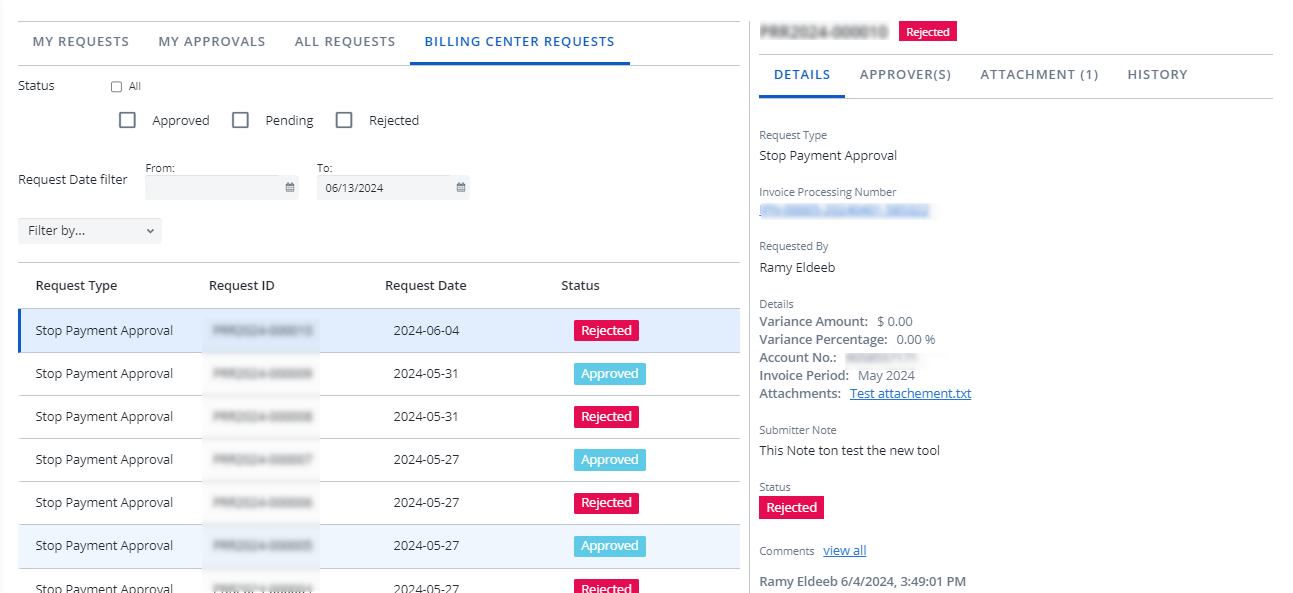
- To view and approve/reject Stop Payment Requests (you must have access to Requests):
Go to Requests > Request Center.
Click the Billing Center Request tab.
-
-
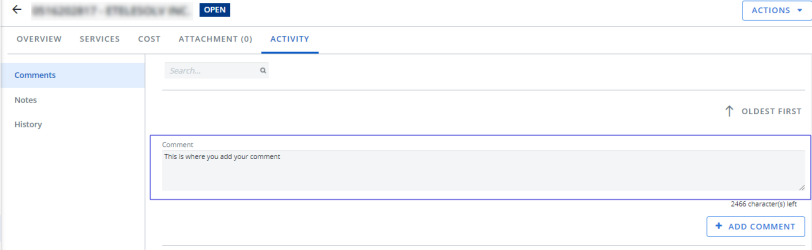
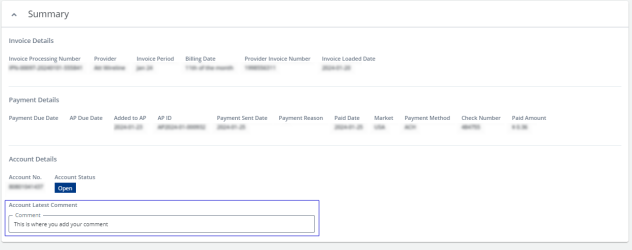
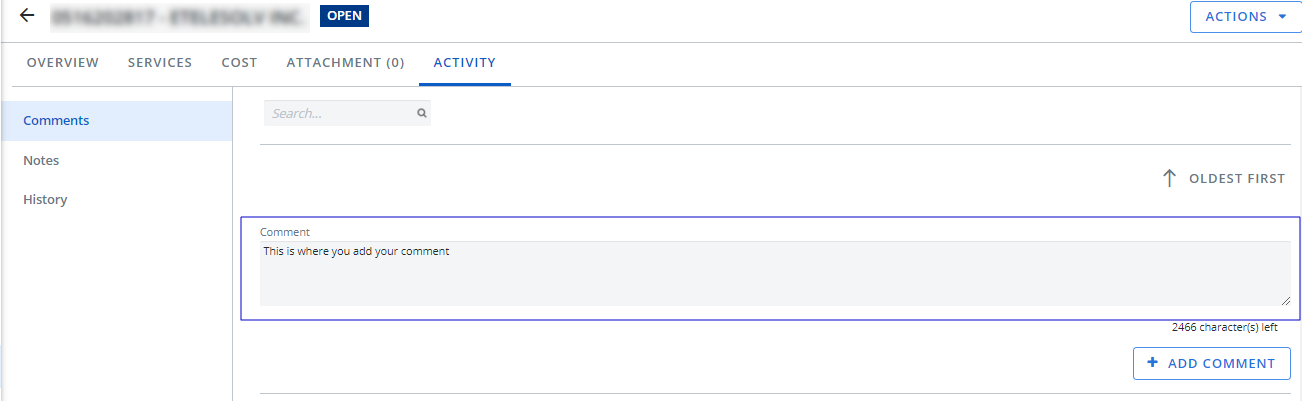
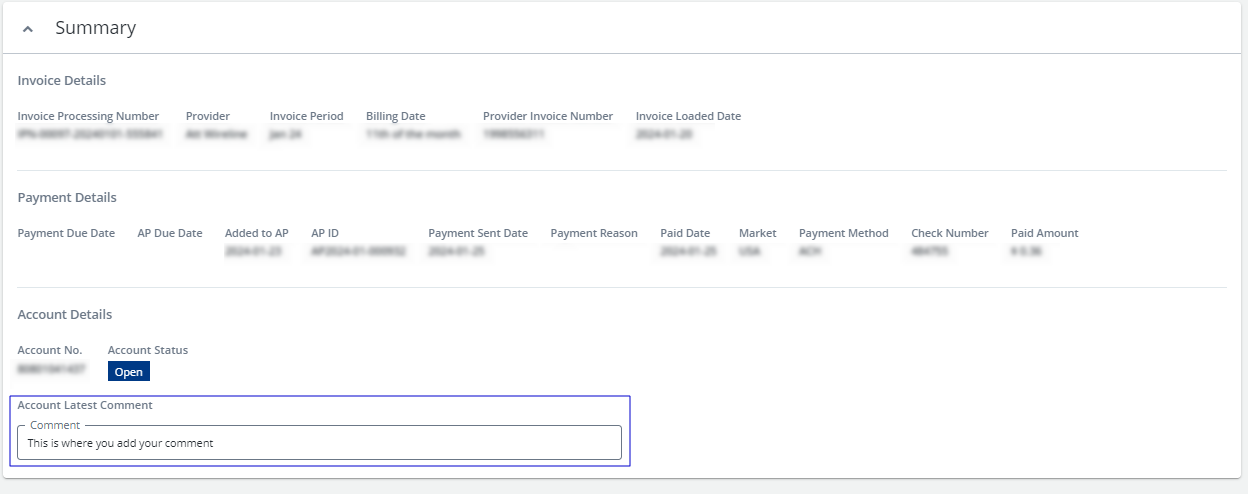
The Summary card now includes the Account Latest Comment field that shows the most recent comment added in the account's Comments section.
-
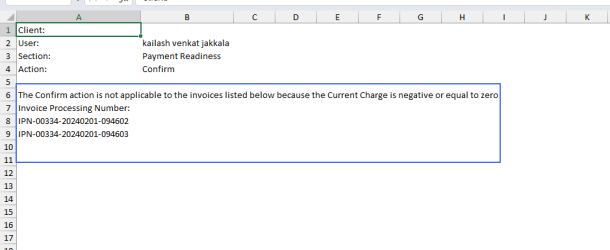
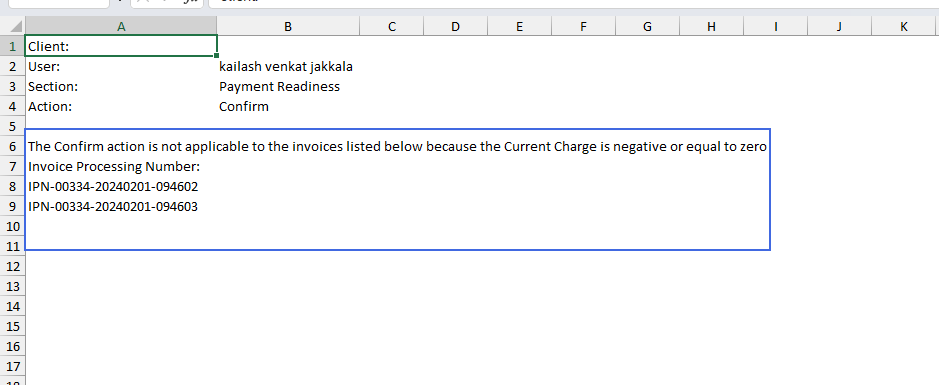
You can no longer confirm invoices with zero or negative amounts. When using Bulk Action, the unconfirmed invoice(s) will be added to the "The Confirm action is not applicable to the invoices listed below because the Current Charge is negative or equal to zero" section in the log.
-
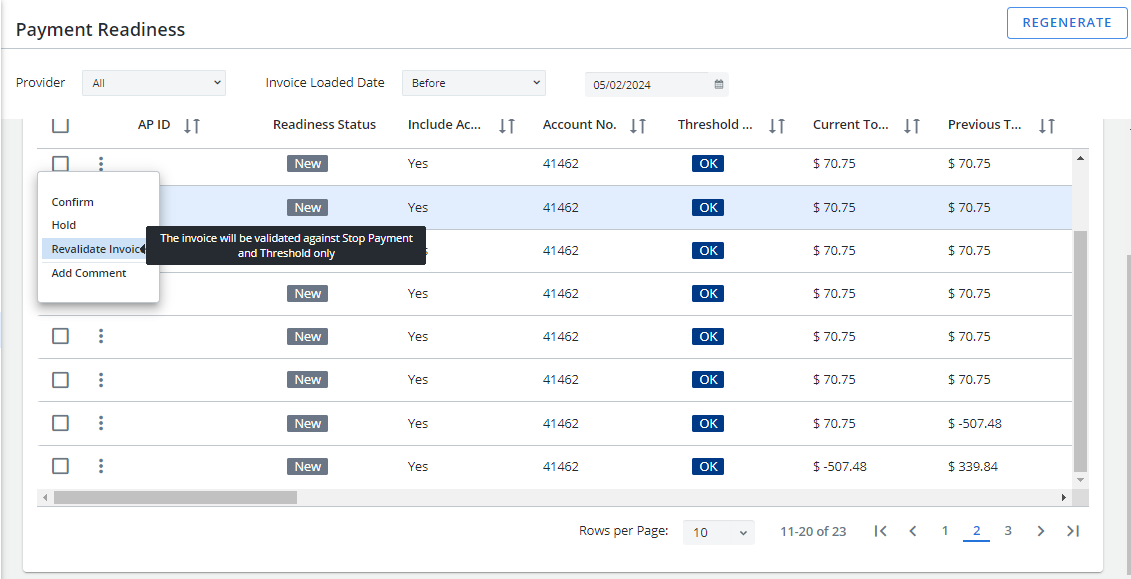
The Revalidate Invoice option has been added to the Invoice action list, allowing you to validate an invoice against Stop Payment and/or threshold validations. Click More Options
 and click Revalidate Invoice.
Note: This option is disabled when the invoice is associated with an AP ID or in the “Confirmed” state.
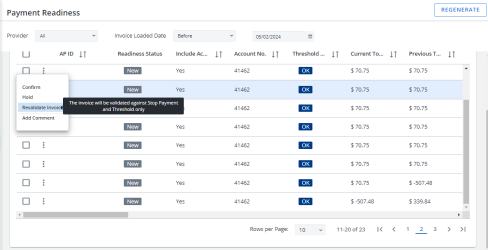
Note: If the revalidation fails, the existing exception status will change to Failed.
-
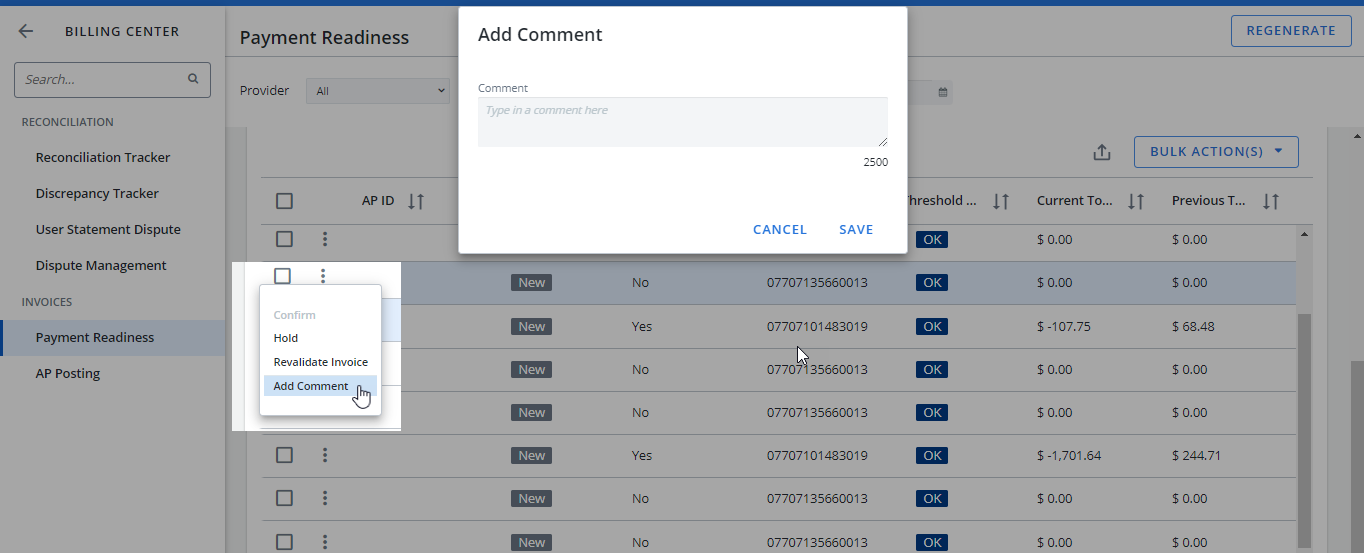
The Add Comment option has been added to the Invoice action list, allowing you to add comments on invoices from the Payment Readiness grid. Click More Options
and click Add Comment. The Add Comment dialog box displays. Type your comment and click Save.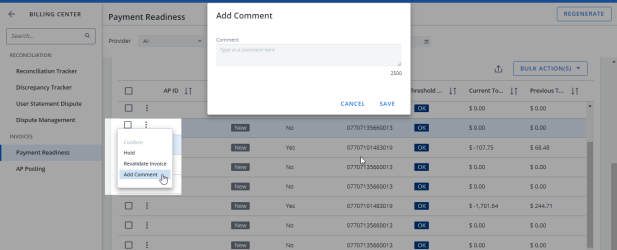
Inventory
We have improved the user experience with streamlined process options and new functions to assist in managing corporate-owned devices.
Inventory Management
-
In Used For and Rules, you can now type a keyword to search for an option from the dropdown menu.
-
The exported User Statement spreadsheet now contains the total amount.
Request Center
-
The Billing Center Request tab has been added, allowing you to approve or reject Stop Payment Approval requests.
This tab is enabled based on permission and is specific to Stop Payment Requests created from the Billing Center.
Reports
-
Hardware Lease Start Date and Hardware Lease End Date have been added to the Inventory Base and Inventory Live reports.
Configuration
Billing Center Configuration
The new Billing Center Configuration tab has been added to allow you to configure thresholds, warnings, and maximum payment amounts for your stop payments. All changes are added to the log on the Activity tab.
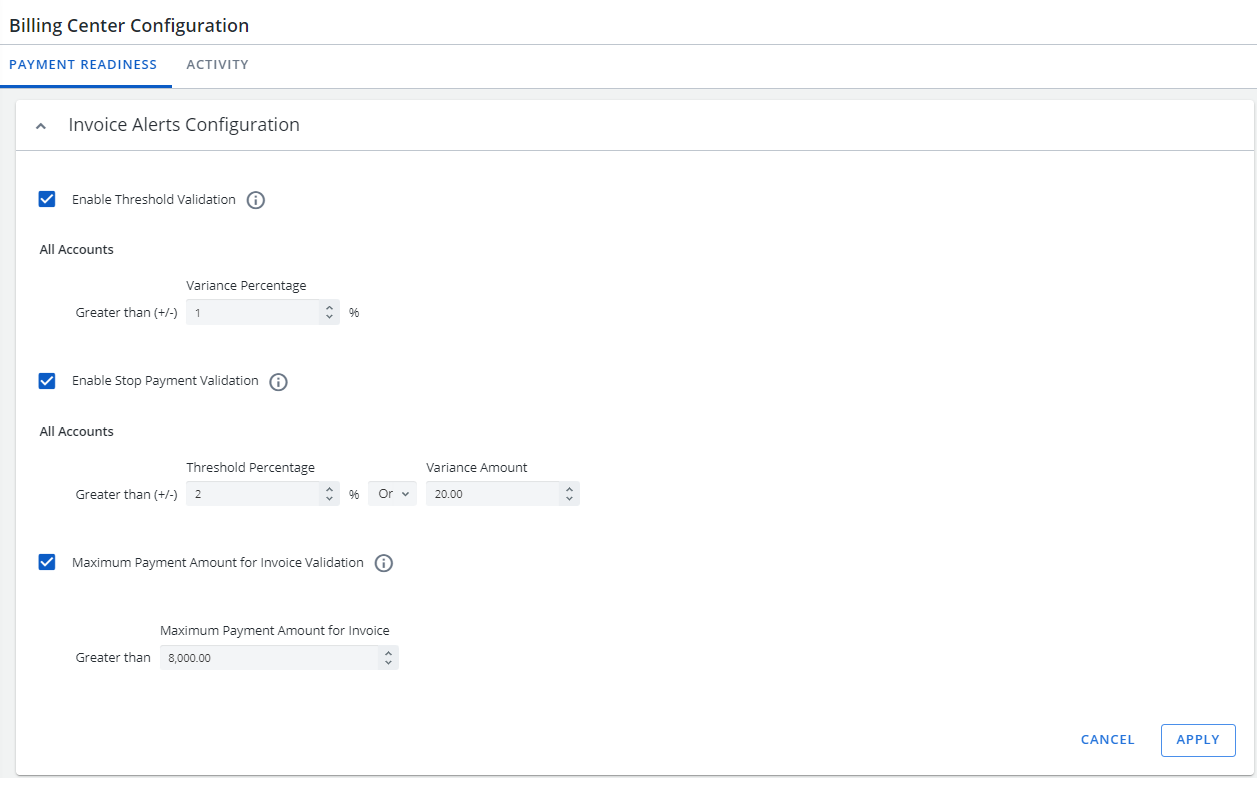
The form contains the following checkboxes:
-
Enable Threshold Validation: Display a warning message when the account(s) exceeds the set threshold.
-
Enable Stop Payment Validation: Flag as Stop Payment when the account(s) exceeds the set threshold.
-
Maximum Payment Amount for Invoice Validation: Flag as Stop Payment when an invoice exceeds the set maximum payment amount allowed.
Email Templates
-
The Template Type list is now arranged alphabetically.
-
The Summary Detail placeholder, which adds the details of all generated AP files (including the AP file name) to the email, has been added to all AP Validation templates.
-
The following templates have been added:
-
Stop Payment Request Approval
-
Stop Payment Request Approved
-
Stop Payment Request Rejection
-
Request Configuration
-
The Stop Payment Approval request type has been added to enable/disable stop payment approvals.
System Access
-
You can now add access to additional cost centers for Self Service.
-
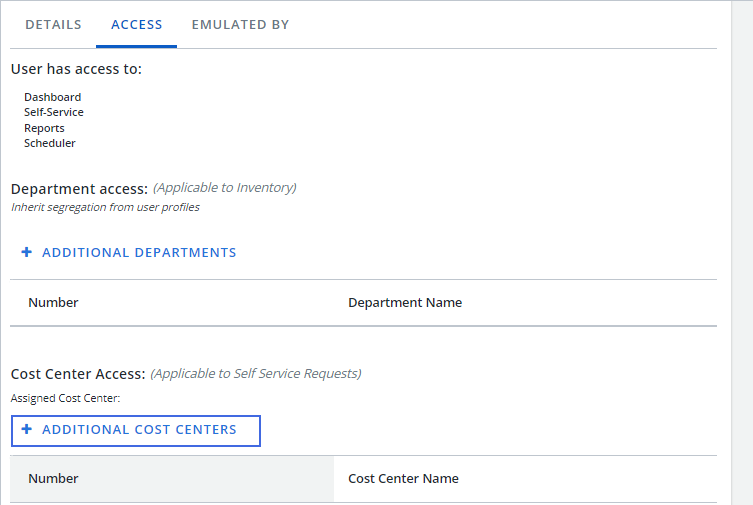
From Configuration, click System Access and click a user.
-
Click the Access tab and click Additional Cost Centers in the Cost Center Access section.
The Filters dialog box displays.
-
Click the cost center you want to add. The cost center will automatically be added to the Cost Center Access list.
-
Tenant Options
Parameters
-
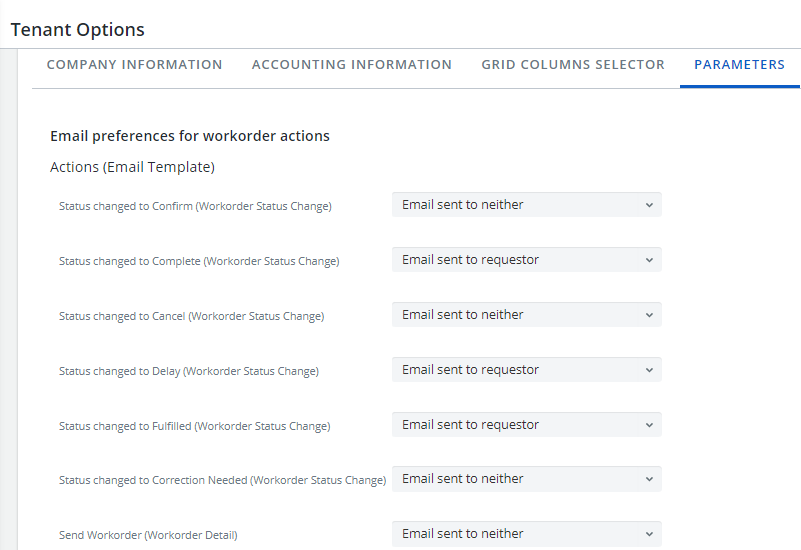
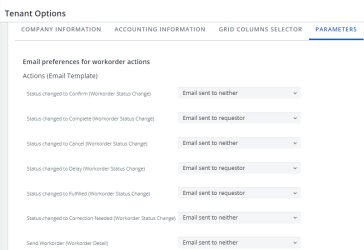
Email preferences for workorder actions: We have added options for configuring notifications when changing the status of a workorder. You can choose to notify the requestor, the workorder owner, both, or neither.
The image below shows default selections for all workorder actions.
-
Cost Center Parameters: The following cost center parameters have been added:
-
Cost Center: Visible in Self Service Reports
-
Cost Center: Mandatory for Self Service Requests
-
Cost Center: Mandatory for Workorders
-
Cost Center: Mandatory for Inventory Details Screen (Cost Center tab in Inventory)
-
Cost Center: Mandatory for Accounts section
-