2019 R1 Release Notes
The Eclipse PPM team will be releasing 2019R1 on December 8th. This release will continue progress towards feature parity with the addition of the Portfolio/Program Timeline dashboard view and additional features added to the new Work Planner. 2019R1 also focused on delivering more than 25 Customer Enhancements!
Feature Migration
Dashboards
Timeline
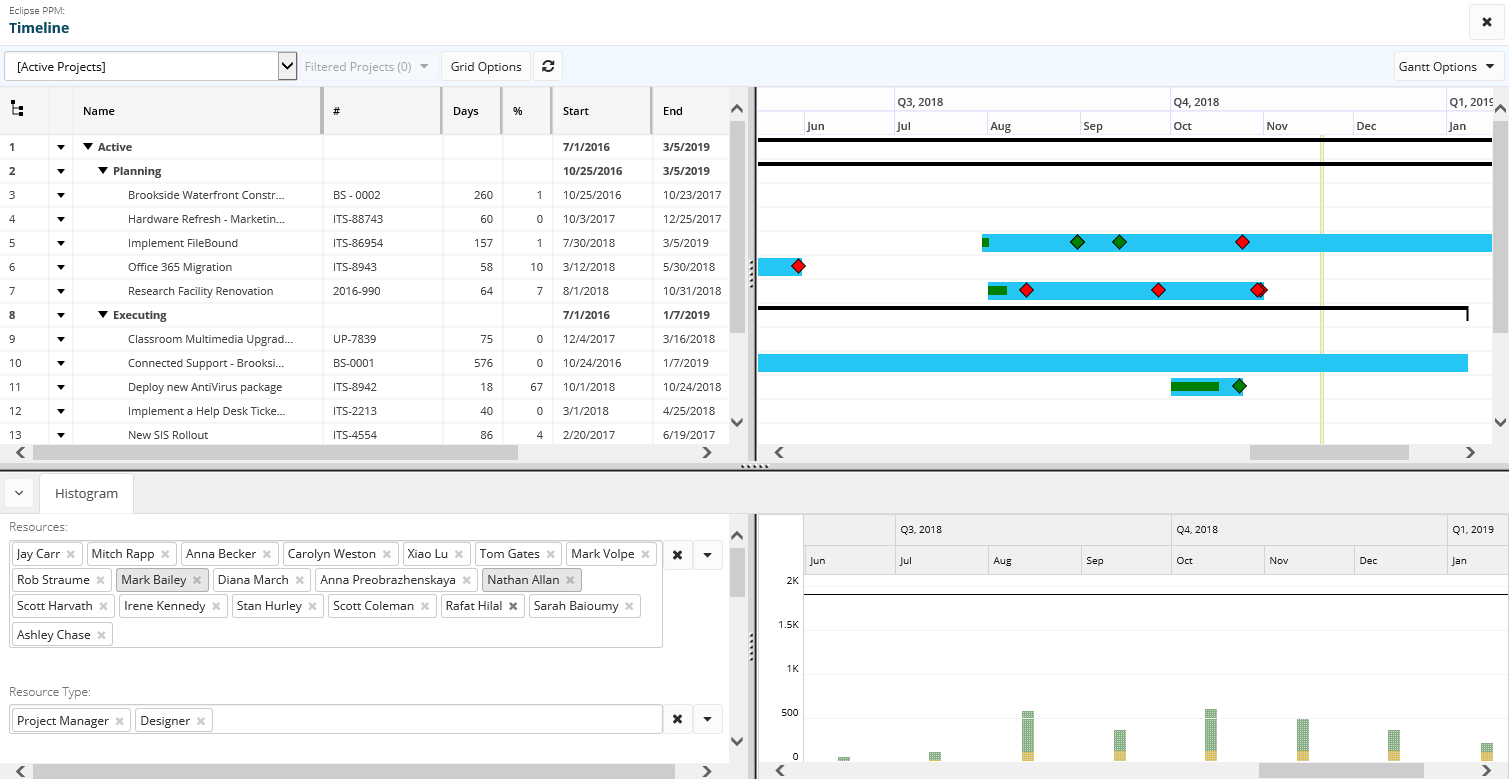
The Timeline allows customers to see a list of projects with a simple Gantt representation of each project, along with a synchronized effort histogram.
Projects
Work Plan - Schedule
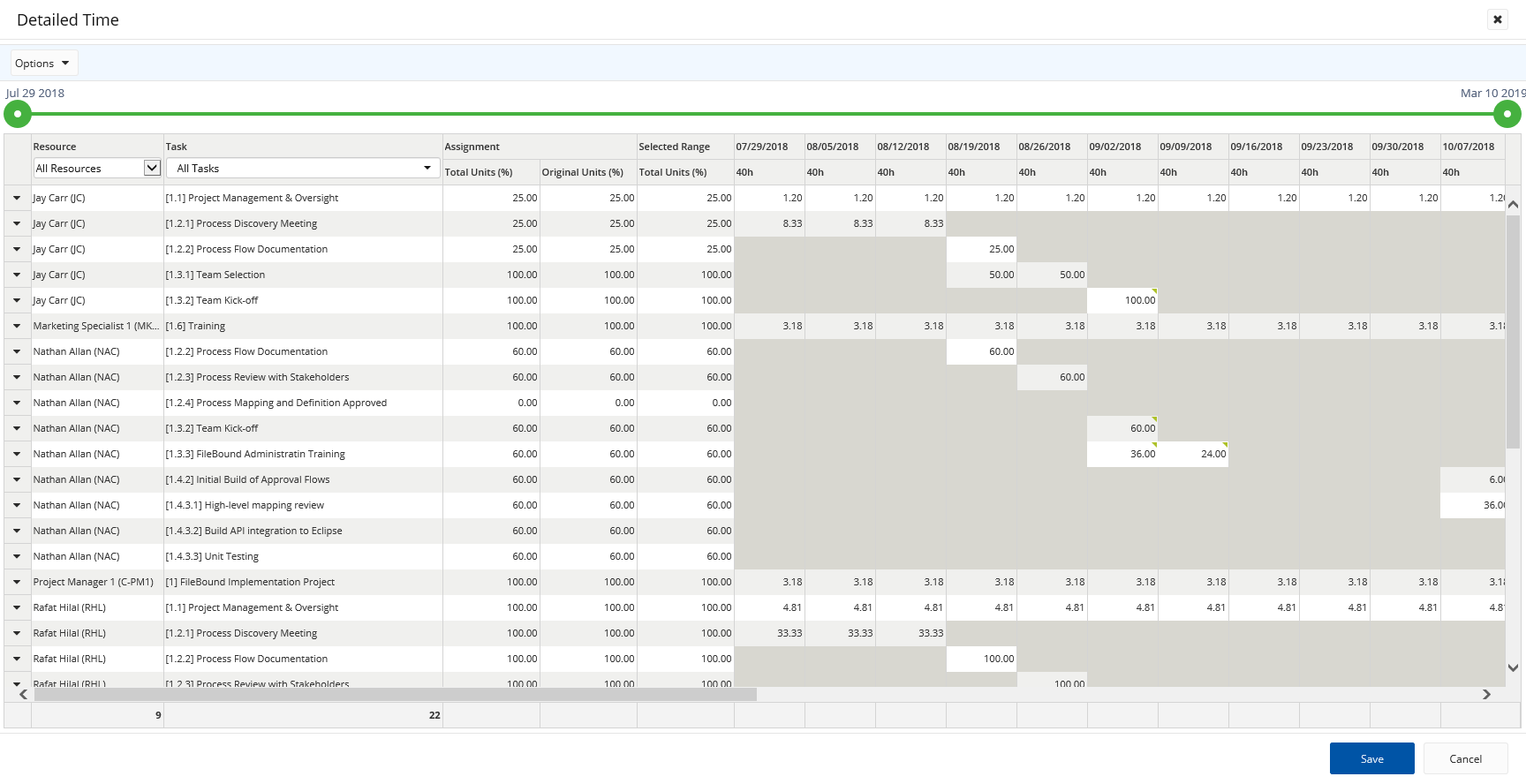
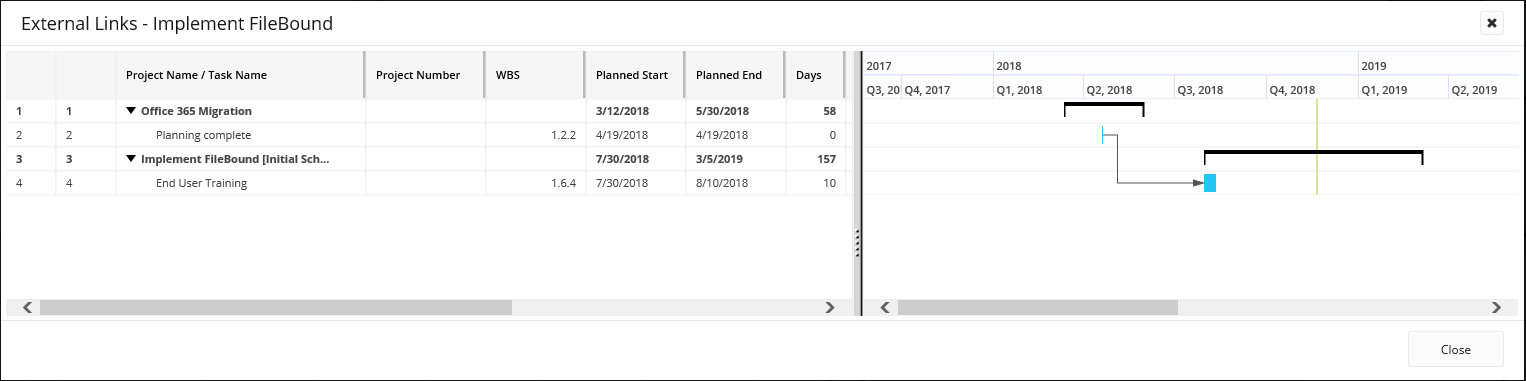
The new Eclipse PPM Work planner was introduced in the last release with the core functionality. This release continues to build upon the features, which includes several exciting enhancements to improve the user experience, and some advanced features to support complex scheduling like “MSP Integration”, “Detailed Time” and “External Predecessors”.
External Links
Other Migrated Items
User Audit Log
User records now view the Audit Log detail from the User Menu. This feature provides Administrators with the ability to see a history of created, modified or deleted records for a given user.
Project Requests
Project Request pages can now be launched from within the current version of Eclipse PPM.
Customer Driven Enhancements
Through the Upland Enhancement Request process and ongoing dialogue with users, the Eclipse PPM product team has delivered 26 enhancements for this release.
|
Reference |
Description |
Notes |
|---|---|---|
| ECL-3109 | Dashboard - Chart Panels - Add counts to individual chart groups (so no hover required) | In the Dashboards screen, we have several charting options available. Prior to this enhancement, the user would need to hover the bar/column object to see the count of the bar. After this enhancement, users will notice the count is written as a piece of text at the end of the bar/column so the user doesn't need to hover to see the value. |
| ECL-3149 | Administration - Configuration - Resource - Default Default Allocation (not a typo) | There is a new option on the Resource Settings page allowing users to configure the "default default" allocation value that is used when creating a new resource. |
| ECL-3195 | Reports - Project Financial Extract - Add "Paid" column to extract | In the "Project Financial Extract Report", we have added a column to show the "Paid" value for expenditures. |
| ECL-3410 | Administration - User - Prompt to disable user on failed delete | Prior to this fix, a user that tried to delete a user that had been used would receive an error message saying "cannot be deleted".The reason for this is because the used user is tied to audit records. After this fix, instead of simply receiving an error message, we'll give the user an accelerator to deactivate the user instead. |
| ECL-3462 | Dashboards - Add tall panel to the 4 list panels. | Users who configure dashboards will now be able to choose the "Tall Panel" option for all list panel types. When selected, the panels will be double their previous height. |
| ECL-4088 | UI - Add "Insert before" and "Insert after" options to tree editing | In our tree editors (organization structure tree, portfolio structure tree, tags tree) we have adjusted the insert options to allow "Insert At Top" and "Insert At Bottom" instead of always appending the new item at the bottom of the selected node. This will make give users an improved experience when editing larger trees. |
| ECL-4439 | Report Templates - Expose "TaskResources" on task lists. |
In Report Templates, we have several task lists that are available in single project mode:
After this enhancement is deployed, users will be able to extract a field called "TaskResources" which will output a comma separated list of resource names, ordered by fullname, with the assignment percentages, for example: "Cameron Brown [30%], Michael Gamel, Rob Straume [32%]" |
| ECL-4653 | Reports - Baseline Extract - Add option to filter out changed data | Prior to this enhancement, the "Baseline Extract Report" would only pull results where the current schedule and baseline schedule had differences (at least one task on the baseline differed from it's corresponding scheduled task). Users can now choose an option to show the filtered results (like before) or all the results (no filter). |
| ECL-5086 | Reports - Financial Extract - Add "Memo" field to report. | In the "Project Financial Extract Report", we have added a column to show the "Memo" value for expenditures. |
| ECL-5286 | Typeaheads - Increase the results to 25 | The typeahead controls used throughout the application now return up to 25 matching records instead of 10. |
| ECL-5525 | Timesheet - Show hierarchy on task list | We have added the task hierarchy control (that was first released in 2018R2 on the Task Lists) to the timesheet. The control allows the user to see the task hierarchy for any task on the timesheet. |
| ECL-5563 | Project - Resources - Append "Project Owner" to the list of resources | The "Project - Resources" screen previously listed any resource that had a role on the project, AND any resource on the resource plan for the project, AND any resource on the work plan for the project. We have now included the "Project Owner" as well. |
| ECL-5611 | Dashboard - Add context menu option allowing users to edit project profile fields without leaving dashboard | Users with edit permissions can now edit project details directly from the dashboard screen using the "Edit Project" action located in the context menu. |
| ECL-5865 | Project - Resources - Add additional filters to the resources list |
Seven new filters have been added to the "Project - Resources" screen including:
|
| ECL-6206 | Project - Resources - Allow adding multiple resources using pattern from new Team Builder piece in Work Plan Tool | Prior to this release, users needed to type a resource to a project by typing the first few characters of their name into a typeahead control. While that was functional and allowed the user to accomplish their goal of adding resources to a project, it was cumbersome and tedious to add multiple resources. With the 2019R1 release, we will add the option to append one or more resources (in one action) from a filter. |
| ECL-6207 | UI - Toastr Popup Timer Adjustments | Eclipse employs a "toast" to notify users about the status of an action. For example, after changing the percent complete of a task from the task list, they would see a green toast telling them the action was done. The toast would show up for 5 seconds before automatically disappearing. Customers have asked for a longer timeout period before the message disappears so we have adjusted the value to 8 seconds. |
| ECL-6208 | UI - Comments Popup - Adjust label to "Notify the people I've mentioned via email" | In our comments popup, we have adjusted the label on the notify checkbox to say "Notify the people I've mentioned +via email+". There is no behavior change here. We are simply making it clear that they will receive an email notification. |
| ECL-6209 | Administration - User List - Add an "Is Resource" column to the grid. | In the User List, we have added a new column labelled "Is Resource" which will tell if the user is also an Eclipse resource. The column will also have a filter allowing users to filter the list. |
| ECL-6210 | Home (Project / Risk / Issue) - Show the description on the header for each object. | In the Project / Risk / Issue header, we will now show an info icon. If the user hovers the icon, they will be able to see the description of the object. |
| ECL-6211 | Risks - Ensure the "Close Risk and Create Issue" action shows up on context menus | Eclipse offers the ability to "close a risk and create a linked issue" in one step. With the 2019R1 release, we will be exposing that feature in several more places. |
| ECL-6212 | Work Plan Tool - Add "WBS" to the default column set (for both projects and project templates in case they are different) | When editing a work plan, we have added the "WBS" column to the default column set. Users are still free to maintain their own column preferences, but new users will see that column by default. |
| ECL-6214 | Work Plan Tool - Task Pop-up - When adding resources, pre-populate the type ahead with the list of Resource Sheet resources without having to type | In the task pop-up, we have a typeahead that allows users to add resources to a task. We will pre-populate the drop-down with the list of resources from the Resource Sheet to improve the experience (so the user doesn't have to type any characters first). |
| ECL-6215 | Work Plan View - Adjust verbiage on creating a new plan by copying from this project | Some customers have expressed concern about not being able to copy a plan from a project. We have adjusted the menus to make the action clearer by adding a "Import from this project" option. |
| ECL-6232 | Administration - Templates - Project - Add "Is Request Enabled" column to template list | Organizations using Project Request templates can now quickly identify which project templates have this feature enabled. |
| ECL-5270 | Work Plan Tool - Allow a double-click on Gantt bar to open the task pop-up | Work Plan task can now be opened from the Gantt with a double click on the bar. |
| ECL-5280 | Work Plan Tool - Allow drag-n-drop to update percent complete | The % complete for a task can now be adjusted on the Gantt bar by dragging the progress bar |