Add Panels to a Created Dashboard
Eclipse users can add more panels, to any of the dashboards they created, at any time.
To add panels to a created dashboard
- On the left icon bar, click the Dashboards icon
 .
.
The Dashboards page opens.
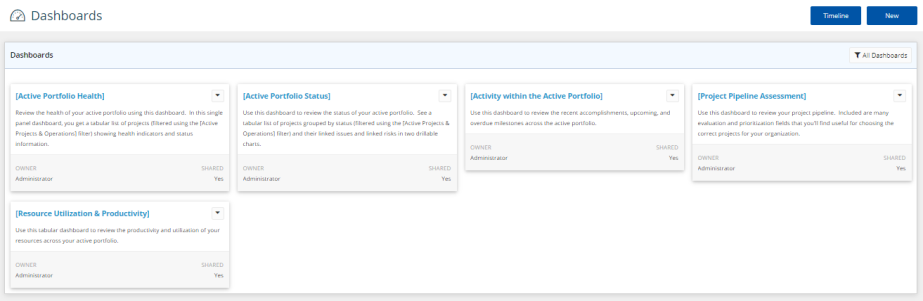
- On the Dashboards page, click the dashboard name you want to add panels to.
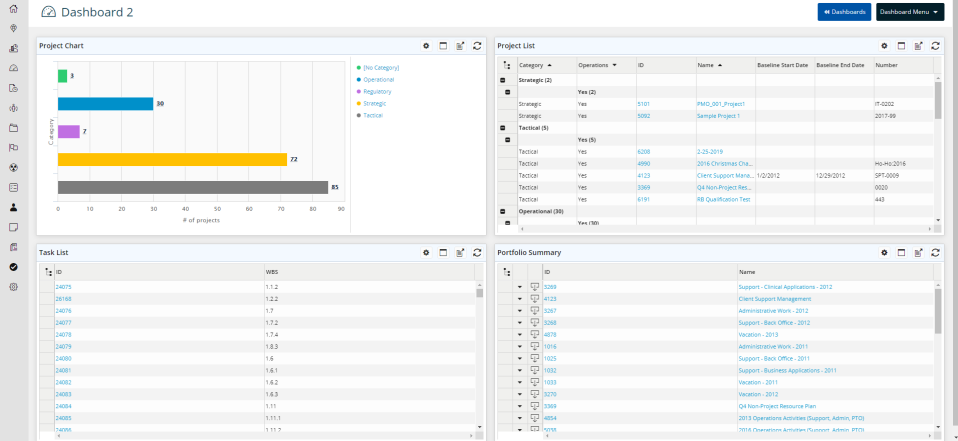
- At the upper-right corner of the dashboard page, click Dashboard Menu.
A drop-down menu is displayed.
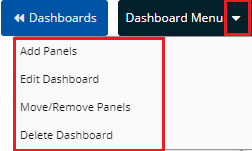
- On the drop-down menu, click Add Panels.
The Add Panels dialog box is displayed.
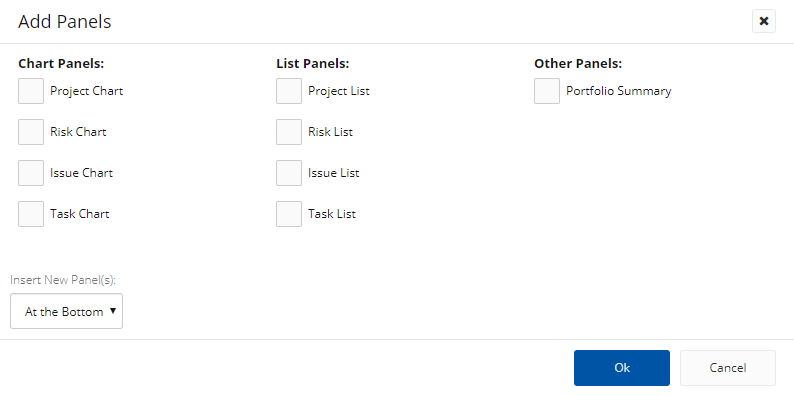
- On the Add Panels dialog box, select the check box next to the panel(s) you want to include in the dashboard.
- Click the arrow under Insert New Panel(s), and then select whether you need the selected panels to appear at the bottom or at the top of the dashboard page.
- Click OK.
The selected panel appears blank on the dashboard page.
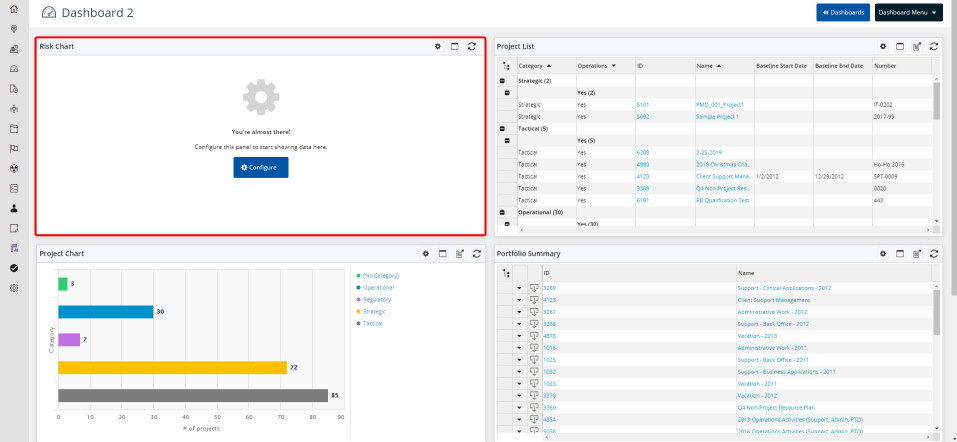
Note: The added panel(s) must be configured. The panels configuration options vary based on the type of panel (Chart or List) selected. For more information on configuring dashboard panels, please refer to the Configure Chart Panels article and the Configure List/Portfolio Summary Panels article under Manage Dashboard Panels.