Run a Report within Eclipse
Eclipse PPM provides a number of options to meet your reporting needs. These range from structured native reports to data extracts for further manipulation & formatting in Excel. Additionally, a comprehensive list of REST APIs are available to export your data to other sources for reporting.
To run a report from the Microsoft Excel Add-In
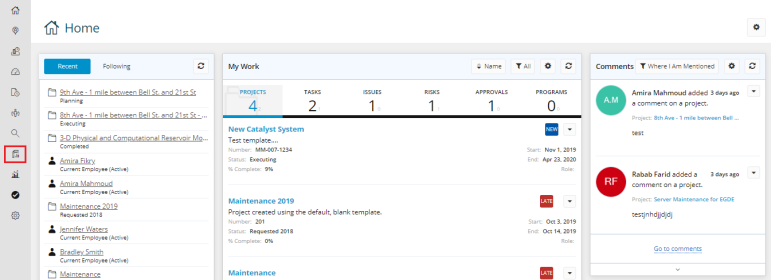
- On the left icon bar, click the Reports icon
 .
.
The Reports page is displayed.
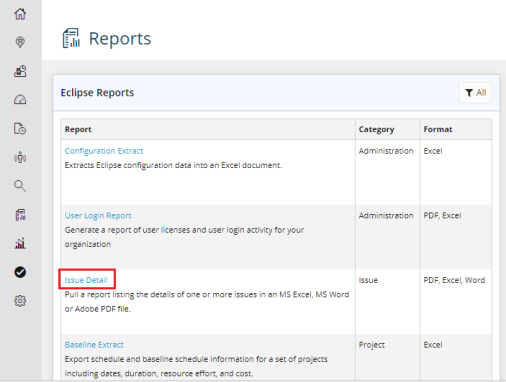
- On the Reports page, under Eclipse Reports, click the required report.
A pop-up window is displayed.
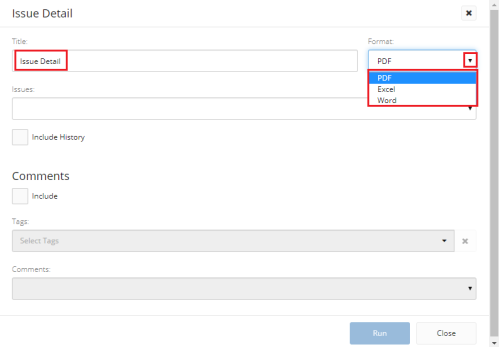
- In the Title field, edit the report name if required.
- Click the arrow in the Format field.
A drop-down menu is displayed. - Select the format required.
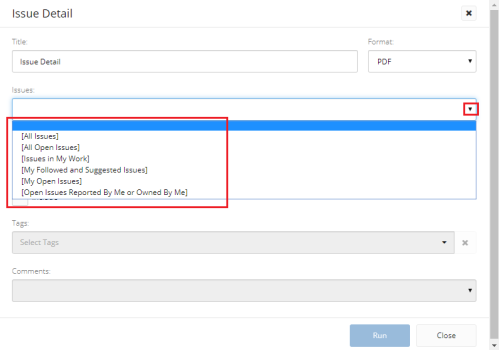
- Click the arrow in the Issues field.
A drop-down menu is displayed. - Select the issue type required.
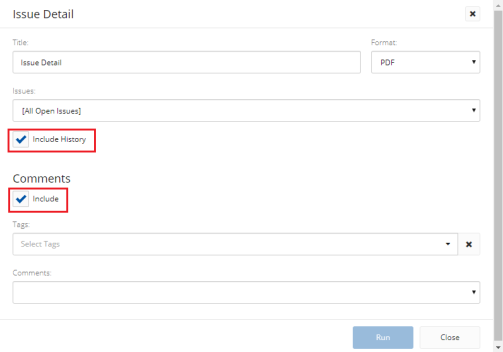
- Select the check box next to Include History to include issues history.
- Under Comments, select the check box next to Include to include comments.
- Click the arrow in the Tags field.
A drop-down menu is displayed. - Select the tag required.
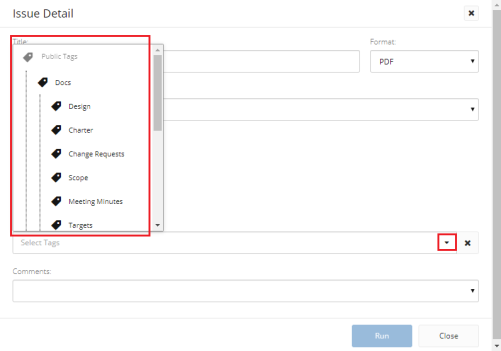
Note: You can click Delete icon  next to the selected tag at any time to delete the tag you added.
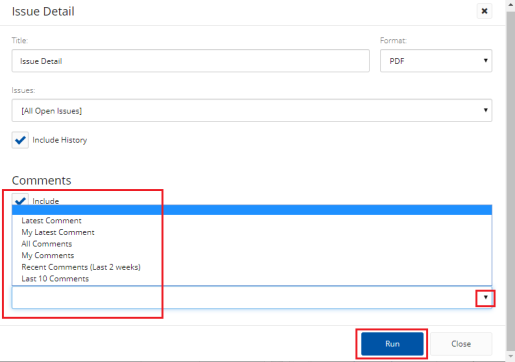
- Click the arrow in the Comments field.
A drop-down menu is displayed. - Select the comment category required.
- Click Run.
The report is downloaded to your machine.