Caution: With the 9.0 release, the Windows Viewer has been fully deprecated. It is no longer supported or offered in anyway. Please migrate to using Web Viewer immediately.
The Web Viewer allows you to view and modify documents that are stored within a file. You can set a default viewer in your User Preferences. See Edit your preferences for more information.
Note: FileBound document viewers support TIFF images up to 10200 x 13200 pixels with resolutions of 600 DPI or less.
There are two different types of web viewers available in FileBound:
- New Web Viewer: A new version of the Web Viewer has been elevated out of Beta and is now the default web viewer experience. It enhances the overall experience and you will notice a significant improvement in speed and performance, especially with high-volume dividers/separators and line items.
- Legacy Web Viewer: The old default web viewer is now called Legacy Web Viewer and will be behind a feature flag. Reach out to your Partner Account Manager or Customer Success Manager if you need help accessing the legacy web viewer for any reason. All efforts should be taken to use the New Web Viewer moving forward because the Legacy Web Viewer will eventually be deprecated in a future release.
Web Viewer interface
The Web Viewer has many components that provide various functions for files and documents.
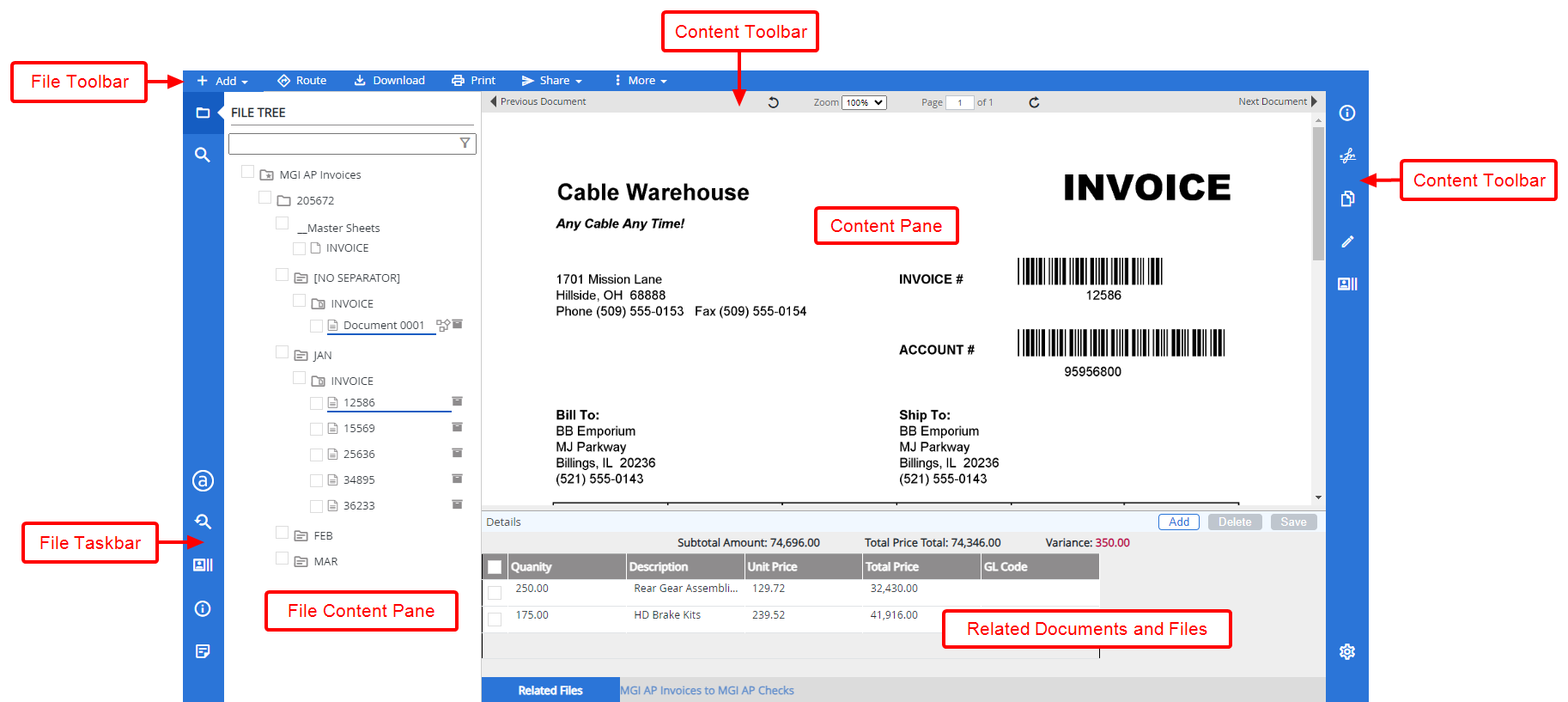
File Content Pane: Displays file related information including the File Tree, File Details, and File Notes. See The File Tree for more information.
Content Pane: Displays the document page that is selected in the File Content pane.
File Toolbar: Contains functions mostly related to files and it is displayed above the File Content pane. See The File Toolbar for more information.
Content Toolbar: Contains functions mostly related to the selected document page and it is displayed above the Content pane. See The Content Toolbar for more information.
File Taskbar: Contains functions related to the selected file. See The File Taskbar for more information.
Content Taskbar: Contains functions related to the selected document. See The Content Taskbar for more information.
Related Documents and Files: Displays documents and files from relationships configured for the project. See Related documents and Related files for more information.