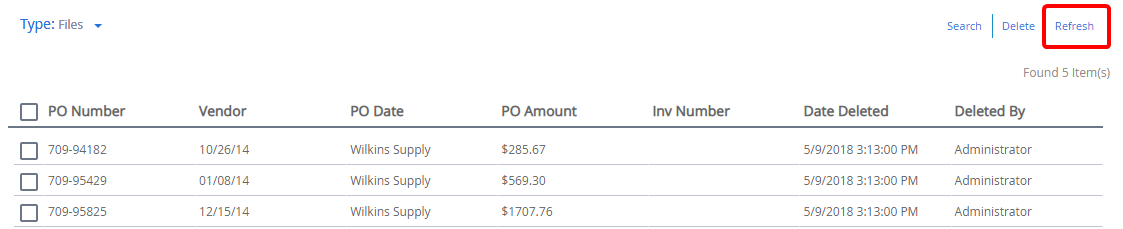
The Recycle Bin stores files and documents before they are permanently deleted from the system. When the Recycle Bin is turned on, files and documents deleted from the system are moved to the Recycle Bin. From the Recycle Bin, files and documents can be restored or permanently deleted.
Users with the Empty File Recycle Bin right can access files deleted by themselves or other members of their group in the Recycle Bin. Users with the Empty Document Recycle Bin right can access documents deleted by themselves or other members of their group in the Recycle Bin.
You can access the Recycle Bin from the Navigation menu.
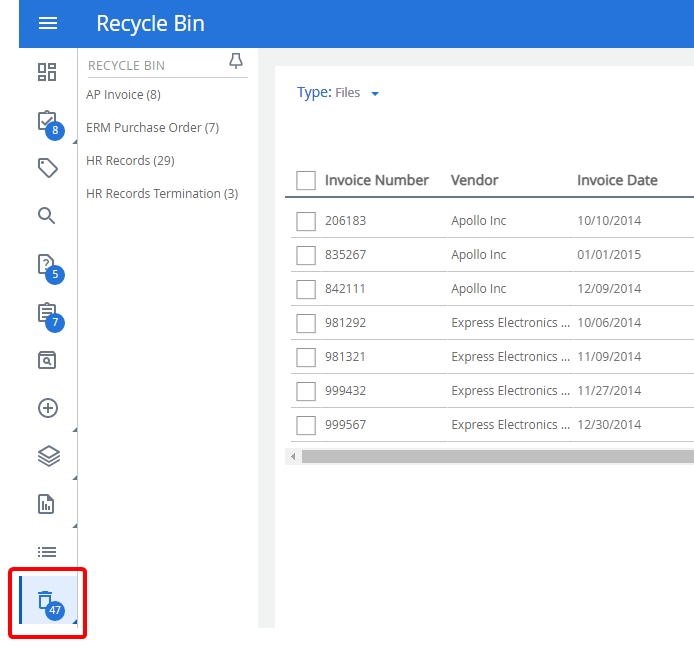
Topics include:
Restore a file or document from the Recycle Bin
Delete files or documents from the Recycle Bin
Delete files or documents from the Recycle Bin
Search the Recycle Bin
You can search for files or documents that have been moved to the Recycle Bin. The search is performed only within the selected project.
-
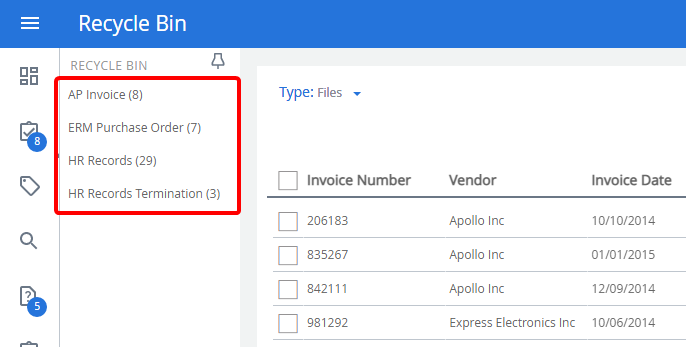
Select a project.
-
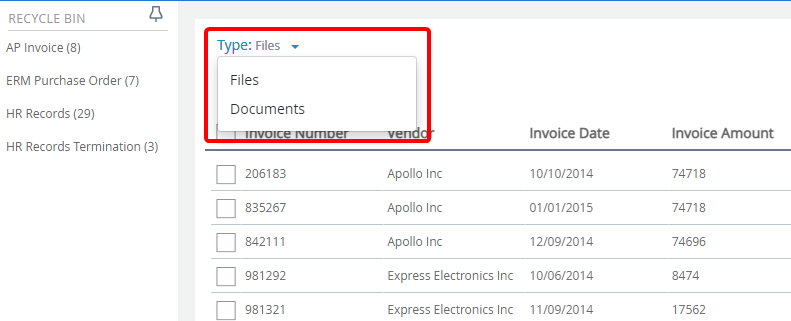
Select Files or Documents from the Type filter.
-
Click Search.

-
In the Search Recycle Bin window, enter project search criteria in the index field boxes, then click Search.
Note: The Project list cannot be changed because the project has already been selected on the Clipboard.
Restore a file or document from the Recycle Bin
You can restore files or documents that have been moved to the Recycle Bin.
When you restore a file, all documents that are part of the file will remain in the Recycle Bin.
-
Select a project.
-
Select Files or Documents from the Type filter.
-
Select the check box next to the file(s) or document(s) you want to restore, then click Restore.

Delete files or documents from the Recycle Bin
When you delete a file or document, it is moved to the Recycle Bin instead of being permanently deleted from FileBound. To permanently delete a file or document, delete it from the Recycle Bin.
-
Select a project.
-
Select Files or Documents from the Type filter.
-
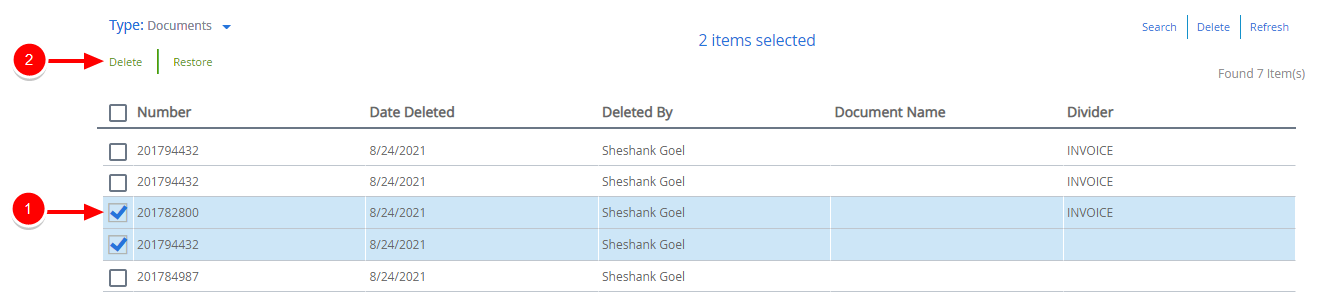
Select the check box next to the file(s) or document(s) you want to delete, then click Delete.
Delete an entire page of files or documents from the Recycle Bin
When the Recycle Bin contains several pages of files or documents, you can delete all items on a page at once.
-
Select a project.
-
Select Files or Documents from the Type filter.
-
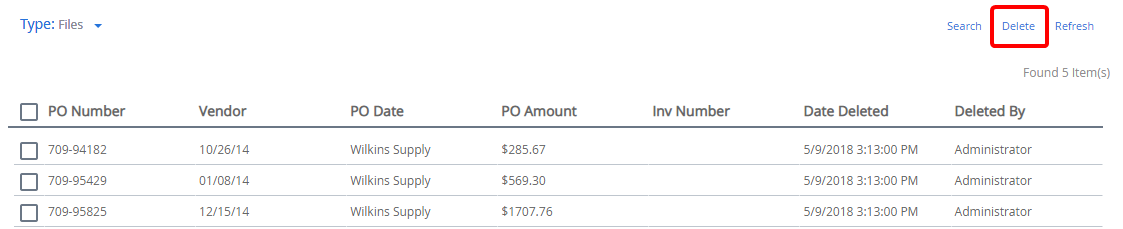
Click Delete.
-
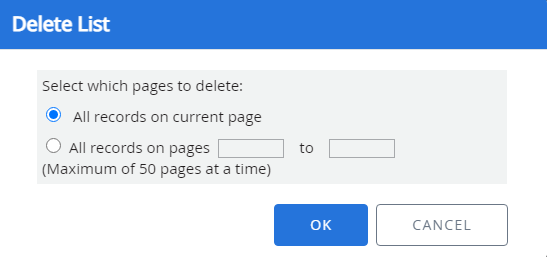
Select which pages to delete, then click OK.
Refresh the Recycle Bin
To update the list of files or documents for a project in the Recycle Bin, refresh the list.
-
Select a project.
-
Select Files or Documents from the Type filter.
-
Click Refresh.