About FTP and FTPS Support
The following is required if you plan to send documents to a network folder using FTP or FTPS.
- FTP server
- HP CR End User Interface Client
- HP MFP device configured with the Embedded Device Client for HP OXPd (any model)
Refer to the following Help topics for information about configuration and sending documents to a Web Client or HP MFP destination via FTP /FTPS.
 FTPS support configuration
Setting up and configuring FTP server for FTP/FTPS support
- Launch the server manager.
- Navigate to Roles > Web server(IIS).
- Click on Add Role Services.
- Select the FTP server and click Install.
- The FTP server is installed on the HP CR Server.
Creating an FTPS site
- Launch Internet Information Services (IIS) Manager.
- Double-click on the Server Certificates and create the “Self-assigned” certificate.
- Expand the tree view and, in the Connections pane, expand the tree for the server name. Select Sites.
- From the Actions pane, select Add FTP Site.
- Complete the Add FTP Site wizard.
- In the FTP site name field, enter a name for this FTP site.
- In the Physical path field, enter the location of your site or where you want the FTP site files to go.
- Click Next.
- Set the IP address that you want to use for FTP.
- Select Allow SSL.
- Select the created “Self-assigned” certificate from the SSL Certificate drop-down list.
- Click Next.
- Select Basic authentication.
- Select All users on the Allow access to drop-down.
- Select Read and Write from Permissions.
- Click Finish.
- You should see the name of your FTP site under the main Sites pane.
- Double-click on the FTP site that you set up from the main pane, or expand Sites from the tree view and select the FTP site that you set up.
- Check folder permissions on the folder to which you pointed the FTP site.
- Click Edit Permissions under the Actions pane.
- Click the Security tab. Add Everyone and give all permissions to it.
- Make sure the user that you created above has modify rights to the folder.
- With the FTP site that you created above selected in the IIS Manager, launch the FTP User Isolation module by clicking on the FTP User Isolation icon.
- Change the isolation method from FTP root directory to User name directory (disable global virtual directories).
- Click Apply under the Actions pane.
- Go back to the root of your FTP Site.
- Create a virtual directory named Local User (for example: User A).
- Right-click on Test FTP Site from the tree view and select Add Virtual Directory.
- Enter the Alias as LocalUser (for example: User A). Note that this name is case-sensitive.
- Enter the Physical path as the path given for FTP site. For example: C:\inetpub\ftproot
- Click OK.
- Authorize the domain users in FTP.
- In IIS Manager, select your FTP Site and then the FTP Authorization Rules module.
- You can authorize users to access the FTP site using one of these options.
Add the individual users or groups.
Allow all authenticated users. By default, individual users or a user group are added when setting up isolated users.
Testing the FTPS connection
To test the FTPS connection, install FileZilla Client.
- Install FileZilla(3.5.3).
- Launch FileZilla.
- Navigate to File > Site manager > New Site.
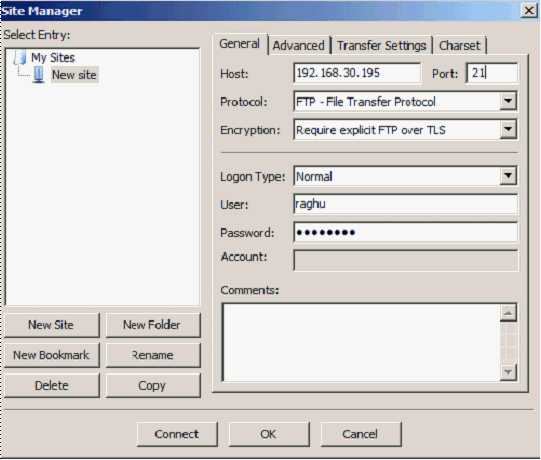
- Provide the details for the respective fields and click Connect.
- FTPS site will be connected to the specified path.
FTPS support configuration on the HP CR Server
FTP support is installed, by default, for HP CR. To verify that FTP support is properly installed, complete the procedure in Adding a network folder, if you have not already done so.
Sending to a Web Client FTP(S) destination
- Install and configure the HP CR Web Client.
- Open the Web Client.
- Select Messages > New.
- In the New Message dialog, select Folder from Recipient Type.
- Select a Format for the delivery.
- Click Add and select a Folder from the configured Folder destinations.
- Click OK and then Send to send the message to the HP CR Server.
- The job will be delivered to the destination via FTP.
Sending to a HP MFP FTP(S) destination
Method One: Creating an Embedded Directive for use with FTP(S)
- Open the Web Client and select Distributions > New.
- In the New Message dialog, select Network Folder as the Type.
- In the Select destination drop-down select the FTP folder.
- Complete all needed fields to send a message, and then send the message to the HP CR Server.
- Go to the HP MFP.
- Select Public Distributions (or Personal Distributions).
- Select the newly created Embedded Directive that will be using FTP.
- Scan a document.
Method Two: Creating a new button on the device using FTP(S) to a network folder
- From the Web client, create an Embedded Directive that:
- Is public (published). In this way when it is used, the job will be from the scanning user rather than the Embedded Directive owner.
- Routes to the Network folder using FTP.
- Right-click on the device group and select Properties.
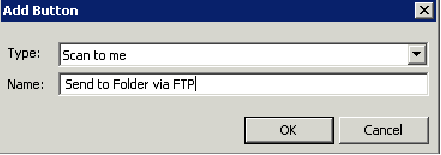
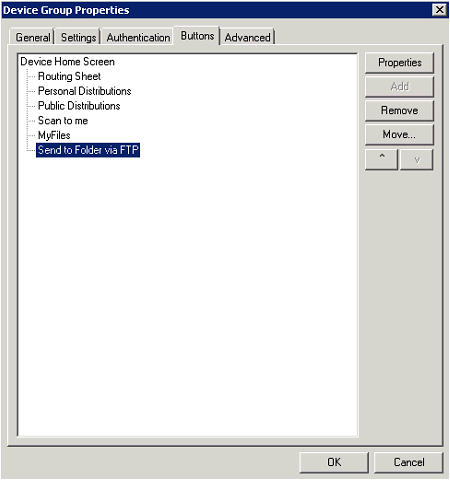
- Click on the Buttons tab and select Add.
- In the Add Button dialog, select Scan to Distribution in the Type drop-down.
-
Enter a Name for the button and click OK.
- In the Device Home Screen tree view, select the new button that was just created and click the Properties button.
- When the Button Properties dialog opens, click the Options tab.
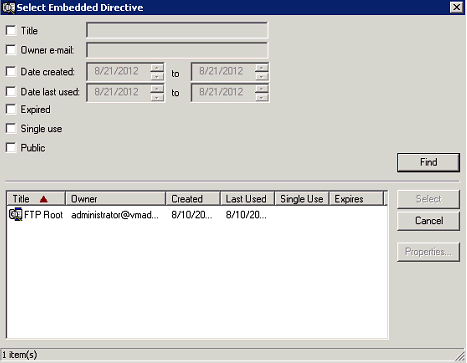
- To choose a Scan Distribution, click the Select button.
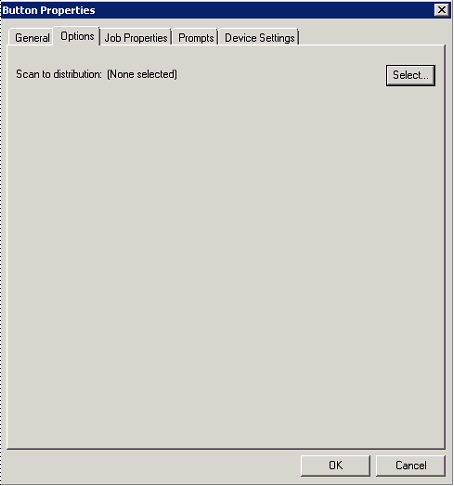
- Search for and locate the Embedded Directive that will send via FTP to a network folder. Highlight the Embedded Directive and click Select.
- Click OK to complete the setup.
- A new button will be available on the device that will use FTP to scan to a network folder.