HP CR Client MyFiles Group Folders
Before you begin
Active Directory Group assignment must be completed before setting up My Files group folders. The group folders are generated based on the Active Directory Groups list assigned to an authenticated user. The server checks to see if the group folder exists and then displays it for the appropriate members of a group.
Administrators must complete the following tasks.
-
Install and set up the Server and HP CR Client.
-
Set up My Files group folders.
Setting up MyFiles Group Folders
Administrators can set up My Files group folders by using Configuration > HP CR Client > Profile Properties in the Server Administrator.
To set up My Files group folders
-
Start the Server Administrator.
-
Expand Configuration.
-
Select HP CR Client. The Profiles appear in the Details pane.
-
Select the appropriate profile, for example, Default. The Profile Properties dialog box appears.
-
Select the Applications tab.
-
Select My Files in the Name/Description table. The My Files Application Properties dialog box appears.
-
Select the Options tab.
See the My Files Application Properties dialog box example below.
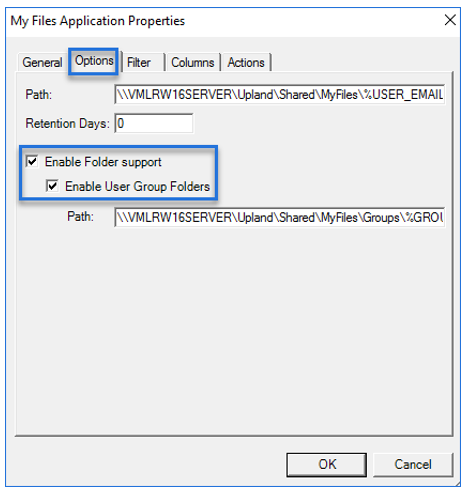
Note: A default path to send documents to a user’s email address is predefined for you. You can set the number of retention days for users’ documents by using the Retention Days box.
-
Select Enable Folder support.
Note: Choose Enable Folder support only if you want users to manage their own personal folders and not group folders.
-
Select Enable User Group Folders.
Note: Choose both Enable Folder support and Enable User Group Folders if you want users to manage their personal and group folders.
-
Use the default path or specify your own in the Path box.
Note: Use the same Path naming convention \\Servername\....\RootFolderName when specifying your own path and root folder.
-
Select OK on the My Files Application Properties dialog box.
-
Select OK on the Profile Properties dialog box.
See also