A Document Set is a set of documents that are related to specific workflow processes. Document sets can be used in a variety of ways. See examples below.
-
HR New Hire Document Set – all documents related to the hiring process of a new employee
-
Legal Case Document Set – all documents related to a client’s legal matter
-
Loan Document Set – all documents related to a client’s loan application
-
Hospital Patient Document Set – all documents related to a patient’s care
Understanding the Document Sets workflow
Administrators create document sets based on your company’s processes. Document sets is an internal label that can be renamed to be more descriptive and reflect your specific workflow process. Contact your Administrator to find out if the document sets label has been renamed.
You will select the categories and form types associated with a particular document set and capture the appropriate properties by creating Scan Reservations or Batch Routing Sheets.
Using the Scan Reservation or Batch Routing Sheets created, you scan the documents that are delivered by the server based on the workflow rule(s) established by the Administrator.
Note: Scan reservations are considered personal distributions. You cannot view or execute another user's personal distributions only your own at a device.
Loan Document Set Example
The Loan Document Set will be used as an example in the next series of steps for illustrative purposes only and may not reflect your specific workflow configuration. Form fields and form type properties are used to uniquely identify the documents associated with a process.
In the Loan Document Set scenario, there is a Home Loan category and the following form types.
-
Mortgage Application
-
Credit Report
-
Employment Verification
-
Checking Savings Bank Statement
-
W2 Wages
Categories are created to organize the form types associated with a document set. Form types are placeholders that represent the forms that will be scanned at a device. The forms are routed by the server based on the rules created by your Administrator. The Scan Reservations or Batch Routing Sheets created contain the following distribution/destination information.
-
Document Set Category
-
Form Types
-
Form Fields - used to identify and classify the form types.
-
Form Field properties
-
Form Type properties
Properties are used to provide additional information about form fields and form types.
 Loan Document Set Example at a Glance
|
Document Sets Legend |
Description |
|---|---|
|
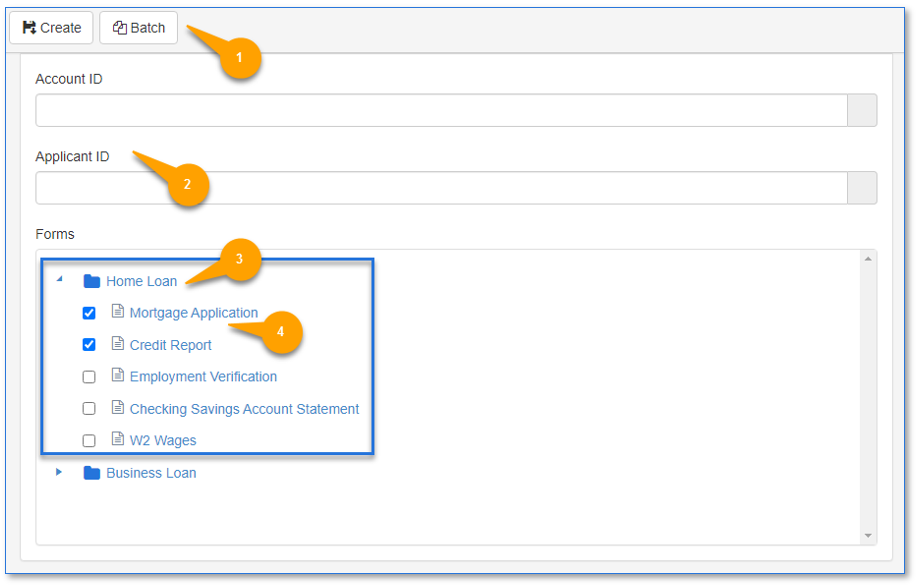
1. Create, Batch buttons |
Use the following buttons to:
Note: The default actions listed above can be changed by your Administrator, if necessary. |
|
2. Form fields |
Use the form fields, for example, Account ID to enter the appropriate information for your document set workflow. |
|
3. Category |
Use the Category folder, for example, Home Loan to expand and collapse the folder. The folder contains the form types you will be selecting, for example, Mortgage Application for Device Client users. |
| 4. Form types |
Select the form types to identify the forms needed for scanning at a device. |
Accessing Document Sets
-
Open HP CR Client from your browser.
-
Select the Document Sets tile.
Note: Contact your Administrator if you do not know the URL.
Form fields
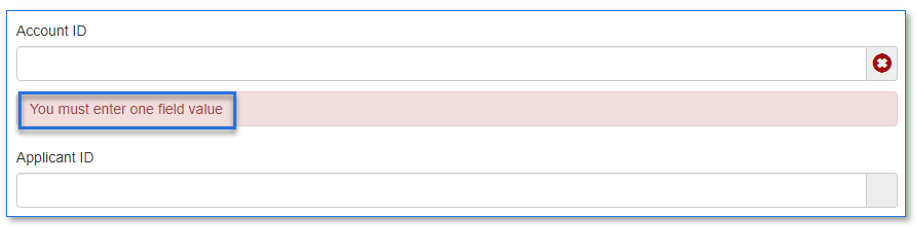
At least one form field must be specified. An error message appears if both form fields are left blank. This occurs when the Scan Reservation or Batch Routing Sheet buttons are selected.
-
Type the appropriate information in the form fields provided.
Note: Form fields may have other parameters set like validation to ensure the data being entered is accurate. For example, a form field could have a length validation to ensure a field value is not less than or does not exceed a certain number of characters.
Categories
Document Sets can be organized into different categories. These categories will appear as folders in the HP CR Client UI (User Interface) and at a device when using Scan Reservations.
-
Select the appropriate category folder to view the form types.
Form types
The categories contain the form types that Device Client users will need to fulfill their document workflow process.
-
Select the appropriate form types, for example, Mortgage Application.
Creating Scan Reservation
A Scan Reservation contains information about a scanned document’s destination and properties.
-
Select Create to generate a scan reservation.
The categories and form types that you selected will appear at the device.
Creating Batch Routing Sheet
Batch Routing Sheets contain a barcode (ID value) that is looked up in the Message Server database to find the scan reservation. Multiple routing sheets are generated when multiple form types are selected. Based on the Loan Document Set example, the Account ID, form type titles and barcode that contains additional properties appears on the routing sheets.
-
Select Batch to generate the batch routing sheets after entering the form fields information and selecting the appropriate form types.
Document Sets messages
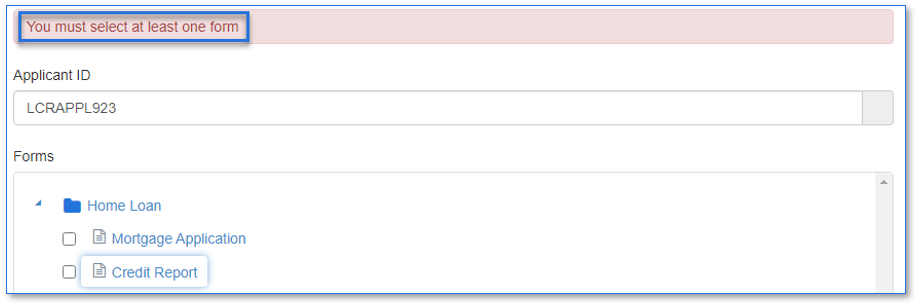
The following messages are displayed if any information is missing or has not been selected when you select the Create or Batch buttons.
Form field message
Form type message
Validation message
Validation message is displayed only if validation has been set on the form field. Validation is optional and set up by an Administrator.
In the following example, a field length validation is set on the Account ID form field to ensure the minimum and maximum field length characters are specified.

See also
Using Document Sets for Device Client Users