InGenius Data Import
The InGenius Data Import is used to import configuration data for customers moving from previous versions of InGenius. It is not meant to be intended to be a general data import utility.
Caution: It is recommended to perform an InGenius data import or backup with assistance from an InGenius specialist. Please contact InGenius Customer Care at ingenius_support@uplandsoftware.com for more information.
Data Migration from Previous Installation
This section outlines how to export data from a previously installed version of either InGenius Connect or InGenius Connector Enterprise, and how to import that data into the latest release. Follow the export section below that corresponds with your previous installation of InGenius:
After exporting, proceed to the import instructions:
Export Data from InGenius Connect
Data from a previous installation of InGenius Connect can be exported through the Admin App | Support & Documentation page.
-
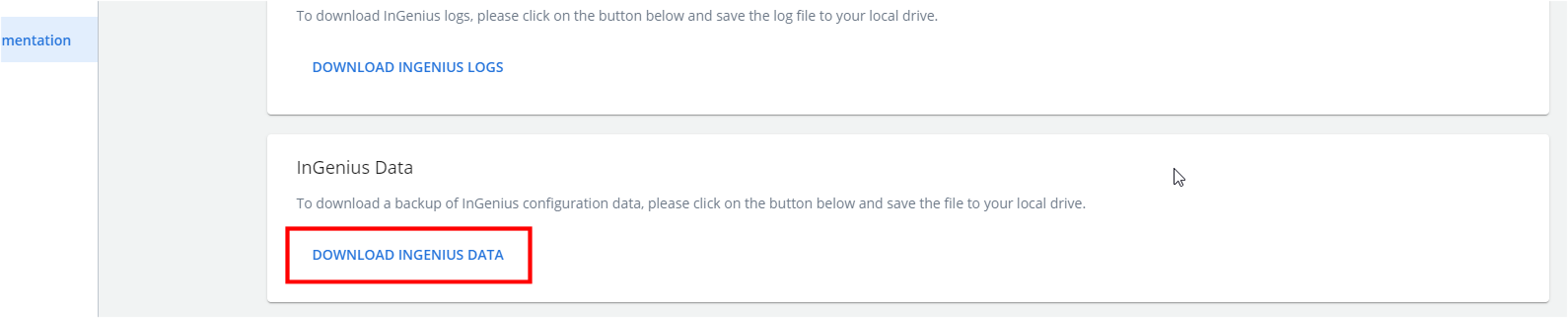
Navigate near the bottom of the page to the InGenius Data card and click the "Download InGenius Data" button. This will download a zip folder of data from your installation.
Export Data from InGenius Connector Enterprise
Data from a previous installation of InGenius Connector Enterprise must be exported directly from the server machine. Follow the steps below:
-
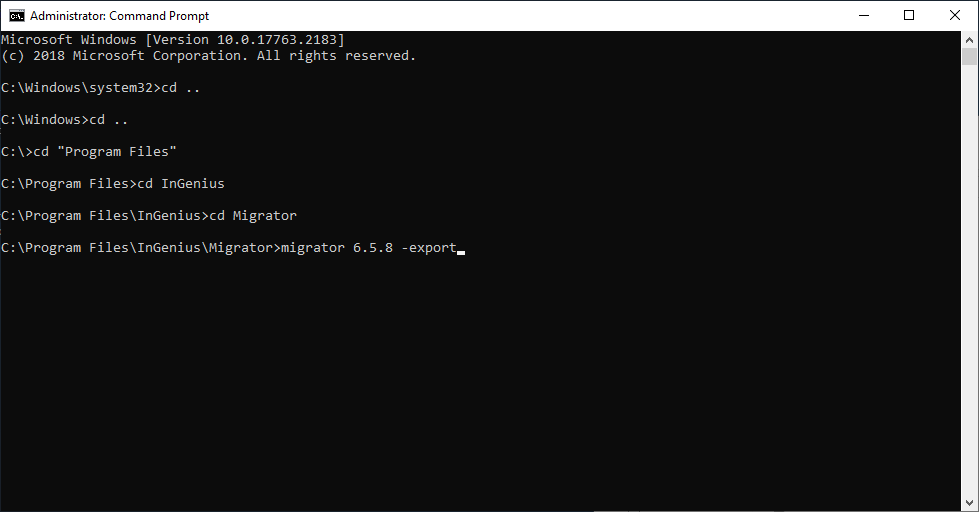
On the machine hosting the InGenius Connector Enterprise server, open a Command Prompt window in Administrator mode.
-
Change directories within the Command Prompt window to the Migrator folder within the InGenius Connecter Enterprise install directory.
-
Default Migrator folder path - "C:\Program Files\InGenius\Migrator
-
-
Run the following command:
Copymigrator <currentVersion> -export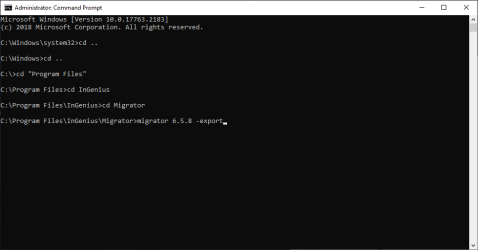
-
A new directory will be created containing the exported data:
-
Default exported directory path - "C:/Program Files/InGenius/Migrator/InGeniusConnectMigrationData
-
The directory will contain:
-
Configuration.xml
-
Data.xml
-
A folder for each CRM integration. (Salesforce, Microsoft Dynamics...)
-
-
-
Right click the InGeniusConnectMigrationData folder and compress it into a zip folder.
Import Data into InGenius Connect
The InGenius Data Import card on the Support page can be used to import previously exported zip files.
Note: An active InGenius license is required to import data.
Note: The following are the supported entity types that can be imported from a previous installation of InGenius Connect:
-
Client settings profiles
-
Device assignment profiles
-
Intelligent dialing profiles
-
Localization profiles
-
Telephony provider profiles
-
Managed groups
-
Users
-
In the Admin App, navigate to the Support page and find the "InGenius Data Import" card near the bottom of the page, click Import InGenius Data.
-
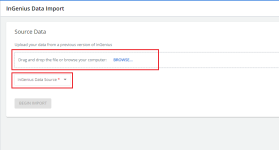
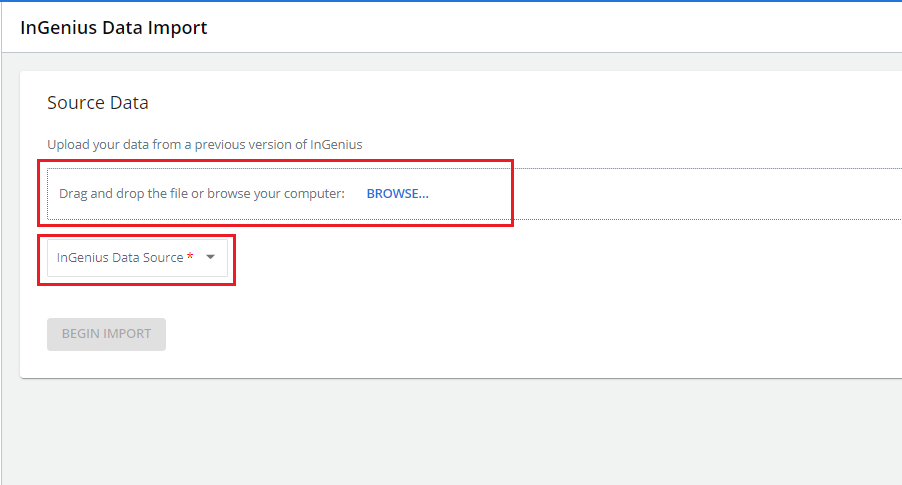
In the InGenius Data Import page, click on "Browse..." and find the exported InGenius data zip file, or drag it into the file box under Source Data.
-
Click on the 'InGenius Data Source' dropdown and select the version of InGenius that the data originates from , then click Begin Import to process the zip file.
-
Before the import action is complete, you will be presented with a summary page detailing the data that will be imported. After reviewing this page, click Import.
Note: There will be a green confirmation box in the top right corner if the import is successful.