Initial Setup
An Upland team member will provide a download link and will walk through the managed package installation.
An Upland team member will provide a download link and will walk through the solution file installation.
Install the Apex Package
The Apex package installs the InGenius Admin App and InGenius client apps within Salesforce. The Admin App allows you to manage your InGenius product from within Salesforce.
To install the Apex package:
- Click the link to the Apex installation provided by InGenius.
- Log into Salesforce.
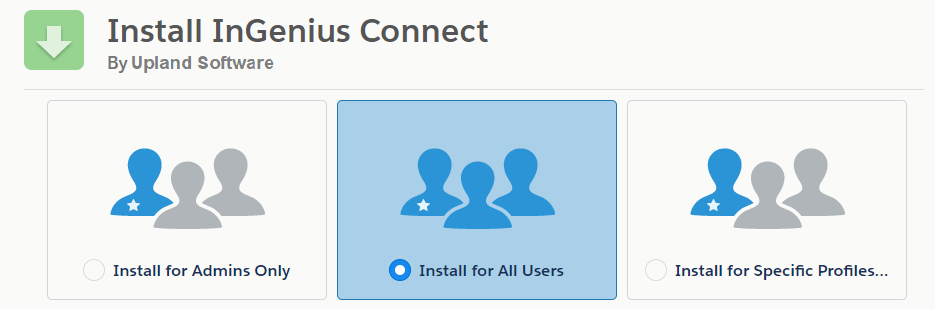
- Select Install for All Users.
- Select Install.
- A message appears when the install is complete.
Note: It is recommended to completely install the Apex package, which in some rare circumstances may take up to eight hours.
Import the InGenius Solution File
To integrate support for D365 with InGenius and install the InGenius Admin App, you will be provided with an InGenius Solution zip file that must be imported into your environment.
Note: If you have not been provided with a zip file for your deployment yet, contact the InGenius Support team before proceeding.
-
Login to your D365 environment and select the settings cog wheel from the top menu bar, and then select Advanced Settings.
-
Navigate to Customizations | Solutions and click Import Solution.
-
Click Browse, then select the InGenius Solution zip file you have been provided, click Open, then click Import.
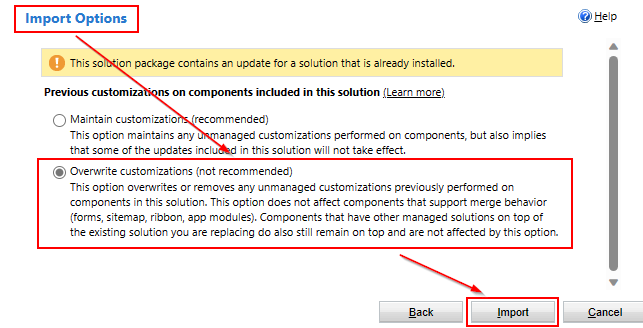
Note: If you are overwriting an existing solution file, select the 'Overwrite customizations (not recommended)' option when prompted and click Import.
-
Wait for a message at the top of the page to indicate that your import has been completed successfully. Once the solution file has been imported, you will see a summary page. Click Close to complete the import.
Configure InGenius Authenticator
In order to integrate the InGenius authenticator, a private key must be generated for the token to communicate with. This can be done simply from within InGenius Admin in your D365 environment. Follow the steps below:
-
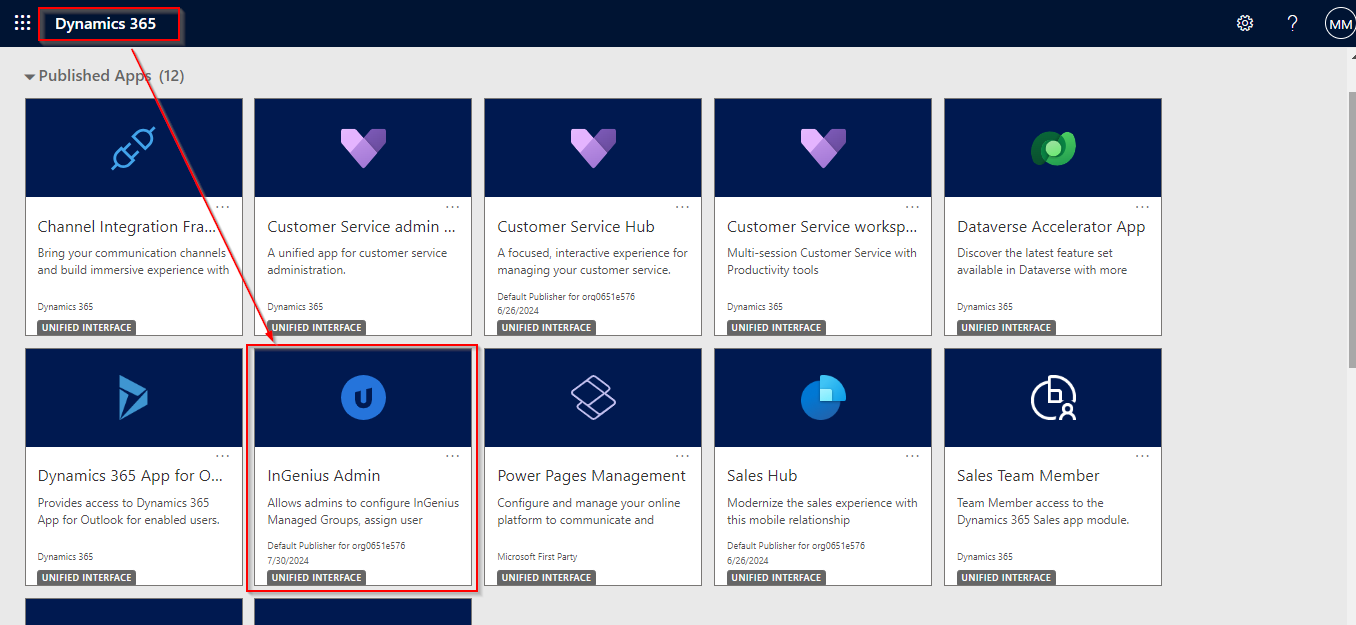
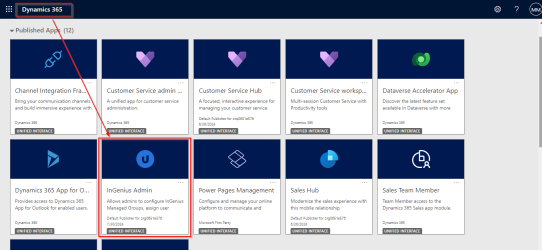
Login to your D365 environment and navigate to the InGenius Admin app.
-
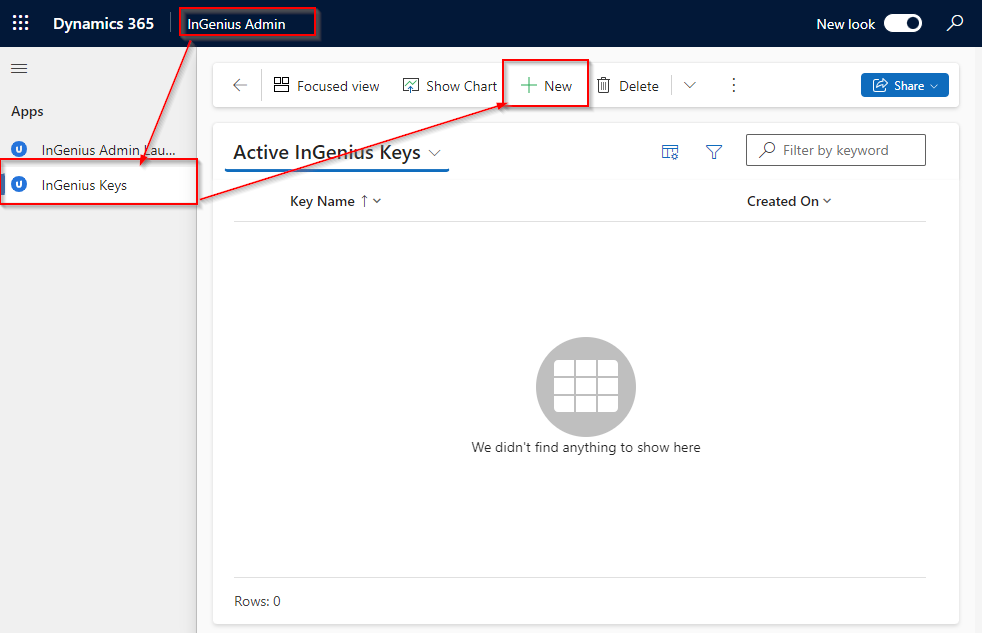
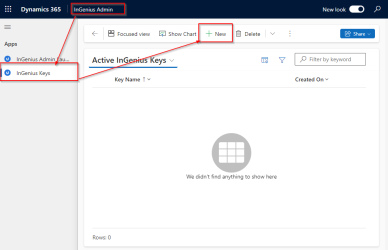
From the left navigation panel, select InGenius Keys and then select the + New button from the top menu.
-
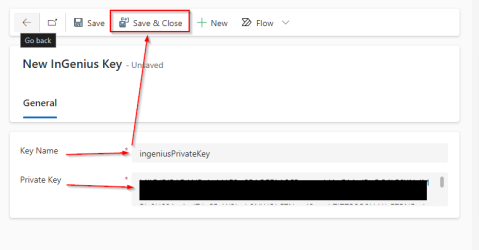
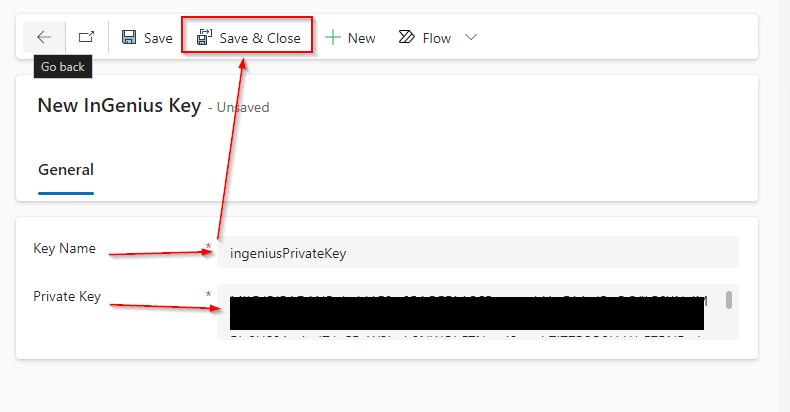
Your InGenius Key will auto-generate and no further changes are necessary. Select Save & Close from the top menu.