Content Operations Report
To download the template, click on the link below:
The Kapost Content Operations Power BI template gives marketing and content teams a ready-to-use analytics report built directly on top of Kapost data. It brings content, ideas, and content task activity into one interactive report so teams can track how content moves through its lifecycle, measure delivery speed, and see who is working on what without building reports from scratch.
How This Template Helps?
-
Use a single reporting view for content, ideas, and content tasks.
-
Monitor throughput, stage timing, and approval rates.
-
Explore data interactively with filters and cross-filtering.
-
Track SLA performance and overdue task volume.
-
Analyze content using your own custom fields.
Report Structure
The template contains seven report pages. Each page includes the Kapost logo and a common set of filters, such as dates, content type, assignee, status, and related dimensions, so readers can slice the data by team, content type, or time period.
| Report Page | What it answers |
|---|---|
| Overview | How much content is in progress or complete, how fast it moves, and how ideas are performing |
| Content by Stage and Custom Field | How content is distributed across content types and custom field values for a selected stage |
| Content Monthly Charts | How content volume and stage-transition time trend month by month |
| Raw Content | Which individual content items entered a given stage, and when |
| Completed SLA | Whether average time from In Progress to Complete is within the SLA target |
| Task Management | How many content tasks exist, who owns them, and what their status is |
| Completed Tasks | How long completed content tasks take, by content type, assignee, and deadline |
Content Lifecycle Stages
Several pages refer to a content item's stage. Content moves through three core stages:
| Stage | Meaning |
|---|---|
| Planned | Content has been scheduled or planned but work has not started. |
| In Progress | Work on the content has started |
| Complete | Content has been completed |
Note: The First Transition Date filter refers to the date a content item first entered the selected stage.
Page-By-Page Guide
Overview
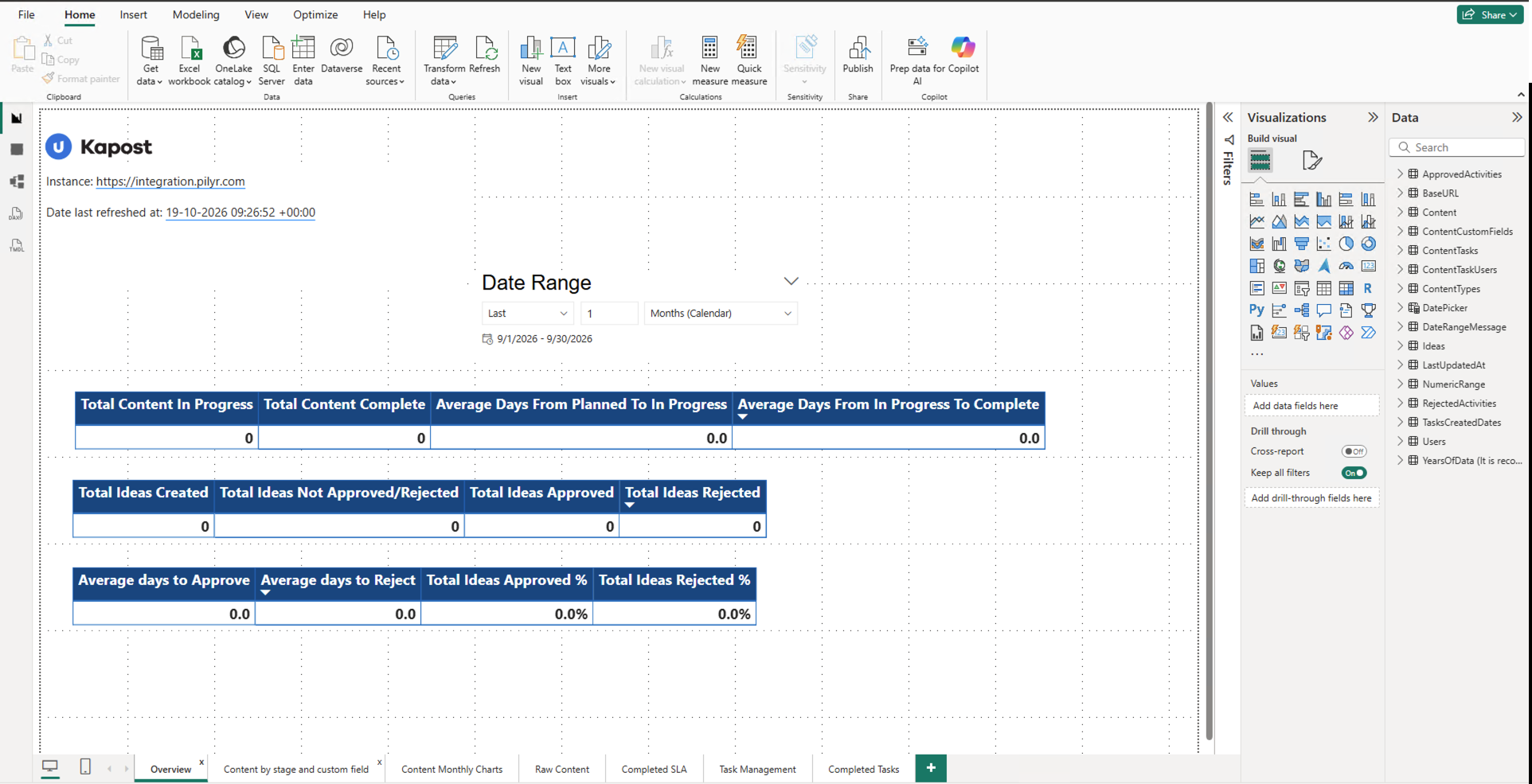
The Overview page acts as the report's executive summary. It summarizes content throughput, delivery speed, and idea approval for the selected time period.
Header Information
-
Instance: The Kapost site the data comes from.
-
Date last refreshed at: When the data was last refreshed, so users can confirm they are looking at current data.
Filter
-
Date Range: A relative date filter, such as Last 1 Months (Calendar), that controls every number on the page.
KPI Cards
| Group | Card | Description |
|---|---|---|
| Content Metrics | Total Content In Progress | Number of content items currently in the In Progress stage whose first In Progress date falls in the date range; if an item has no In Progress date, its creation date is used |
| Content metrics | Total Content Complete | Number of content items currently in the Complete stage whose first Complete date falls in the date range |
| Content metrics | Average Days From Planned To In Progress | Average time content waits between being planned and work starting |
| Content metrics | Average Days From In Progress To Complete | Average time content takes to be completed once work starts |
| Idea metrics | Total Ideas Created | Ideas submitted in the date range |
| Idea metrics | Total Ideas Not Approved/Rejected | Ideas created in the date range that are still awaiting a decision |
| Idea metrics | Total Ideas Approved | Ideas that were approved |
| Idea metrics | Total Ideas Rejected | Ideas that were rejected |
| Idea decision metrics | Average days to Approve | Average time taken to approve an idea |
| Idea decision metrics | Average days to Reject | Average time taken to reject an idea |
| Idea decision metrics | Total Ideas Approved % | Share of ideas that were approved |
| Idea decision metrics | Total Ideas Rejected % | Share of ideas that were rejected |
Use this page to confirm how much content is moving, whether stage-to-stage times are healthy, and how the idea pipeline is converting.
Tip: If all cards show 0, no activity fell inside the selected date range. Widen the Date Range filter, for example to "Last 12 Months".
Content by Stage and Custom Field
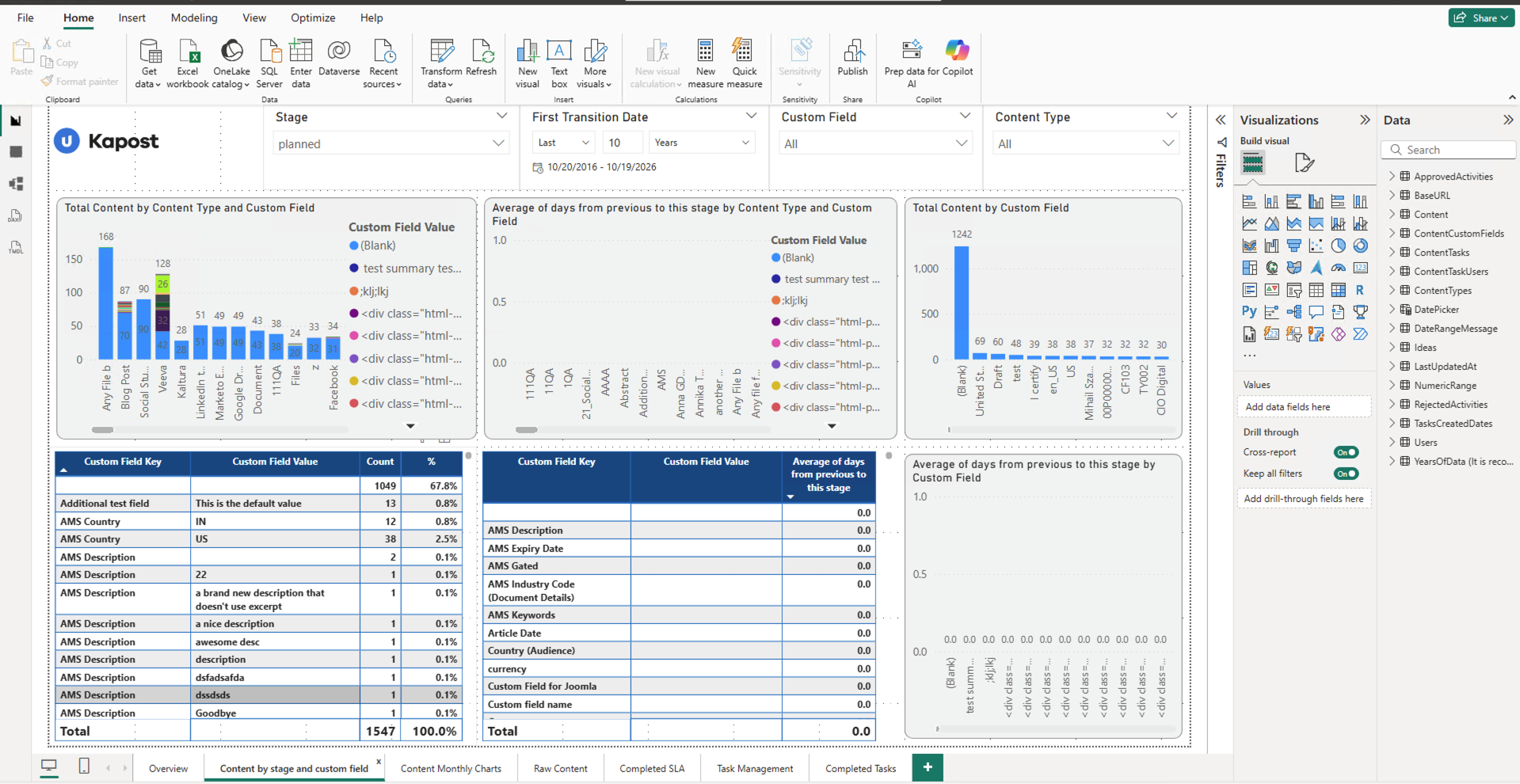
This page breaks down content by content type and the custom fields your team uses to classify content. It helps users see which content types and custom field values are most common, and how long content takes to reach a selected stage.
Filters
-
Stage: Planned, in_progress, or complete.
-
First Transition Date: The date range in which content first entered the selected stage.
-
Custom Field: Limit the page to specific custom fields.
-
Content Type: Limit the page to specific content types.
Visuals
-
Total Content by Content Type and Custom Field: Stacked column chart of content volume per content type, split by custom field value.
-
Average of days from previous to this stage by Content Type and Custom Field: Average number of days content took to arrive at the selected stage from the previous stage.
-
Total Content by Custom Field: Column chart ranking custom field values by content volume.
-
Custom field summary table: Lists each Custom Field Key and Custom Field Value with count and percent share.
-
Average days table: Lists each Custom Field Key and Custom Field Value with the average days from previous to this stage.
-
Average of days from previous to this stage by Custom Field: Chart view of the same timing metric by custom field value.
Tip: Content with no custom field value appears as (Blank).
Content Monthly Charts
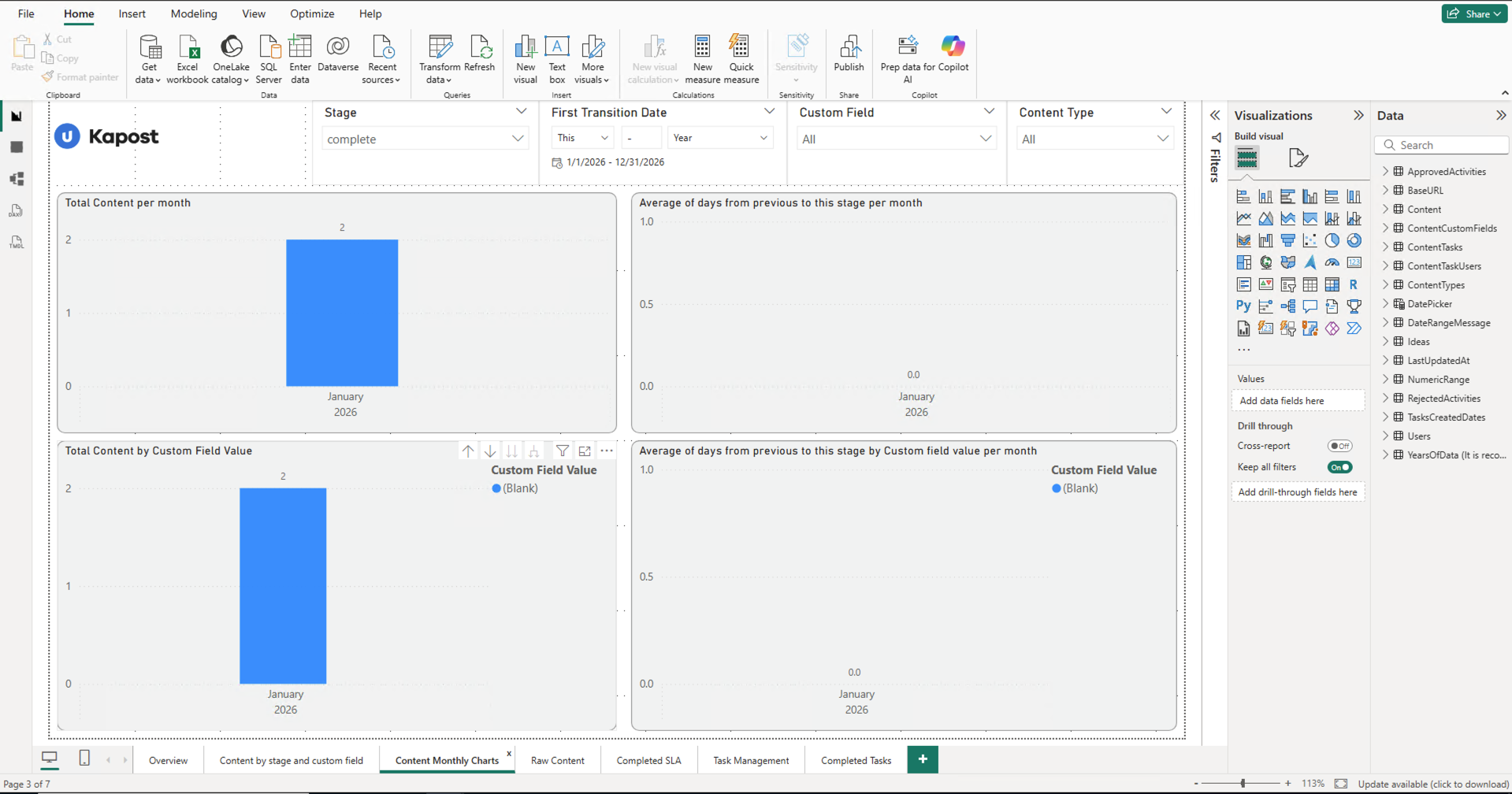
This page shows month-by-month trends for content reaching a selected stage and the time it took to get there.
Filters
-
Stage: The stage to analyze.
-
First Transition Date: The period to display.
-
Custom Field: Limit the page to specific custom fields.
-
Content Type: Limit the page to specific content types.
Visuals
-
Total Content per month: Number of content items that entered the selected stage each month.
-
Average of days from previous to this stage per month: Average time content took to reach the selected stage by month.
-
Total Content by Custom Field Value: Monthly content volume split by custom field value.
-
Average of days from previous to this stage by Custom field value per month: Monthly average transition time split by custom field value.
Use this page to spot seasonality, throughput changes, and whether stage-to-stage time is improving or worsening over time.
Raw Content
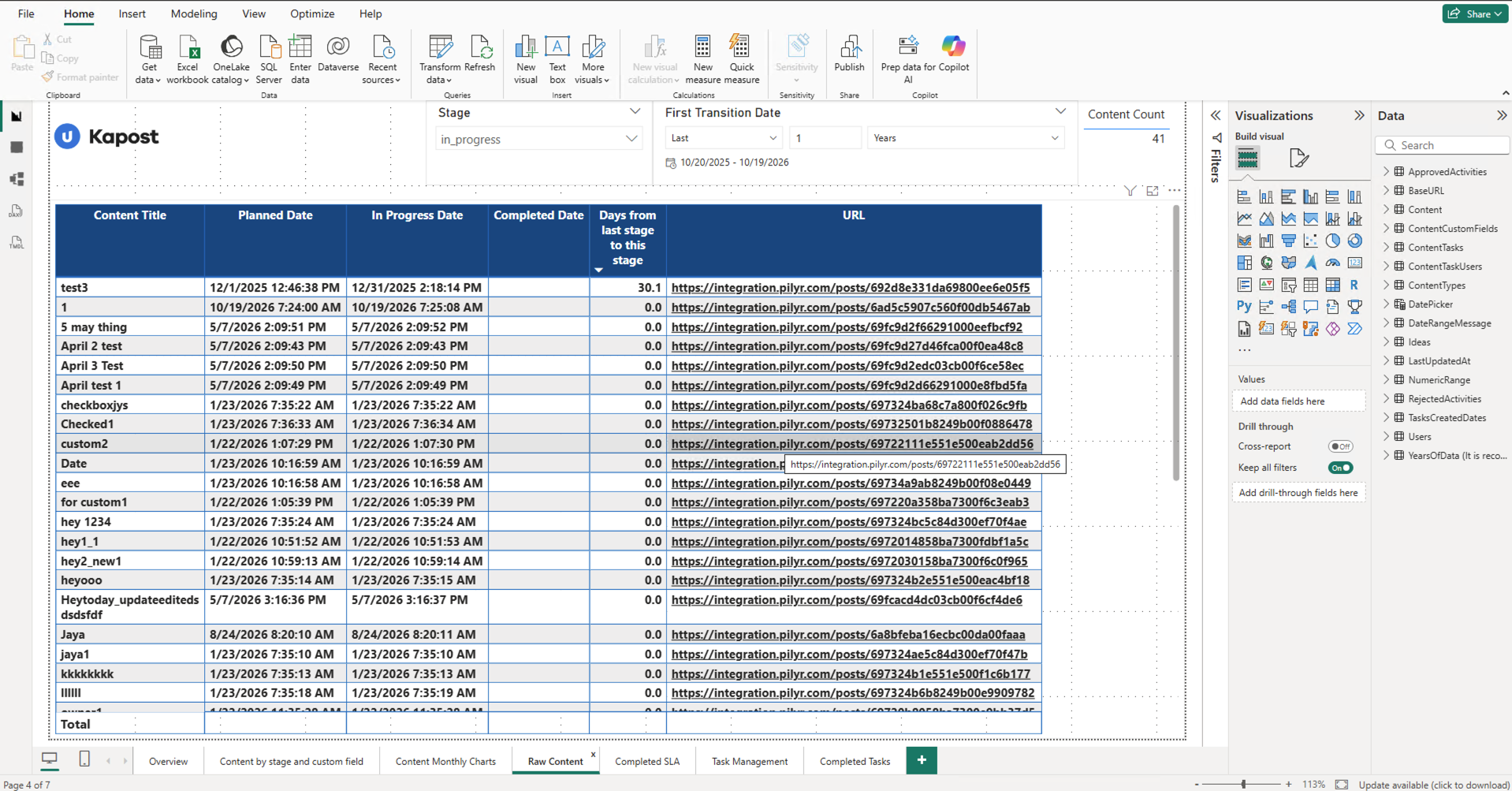
This page provides a detailed, item-level list of content for a chosen stage. It is useful for finding the individual items behind the summary numbers on other pages.
Filters
-
Stage: The stage to list.
-
First Transition Date: The period in which content first entered the stage.
-
Content Count: A card showing the number of content items listed.
Table columns
| Column | Description |
|---|---|
| Content Title | Title of the content item |
|
Planned Date |
When the content entered the planned stage |
| In Progress Date | When the content entered the in_progress stage |
|
Completed Date |
When the content entered the complete stage |
| Days from last stage to this stage |
Days between the previous stage and the selected stage |
|
URL |
Link that opens the content item in Kapost |
Use this page for audits and follow-up. Users can sort by any column and open the URL to review the source item in Kapost.
Completed SLA
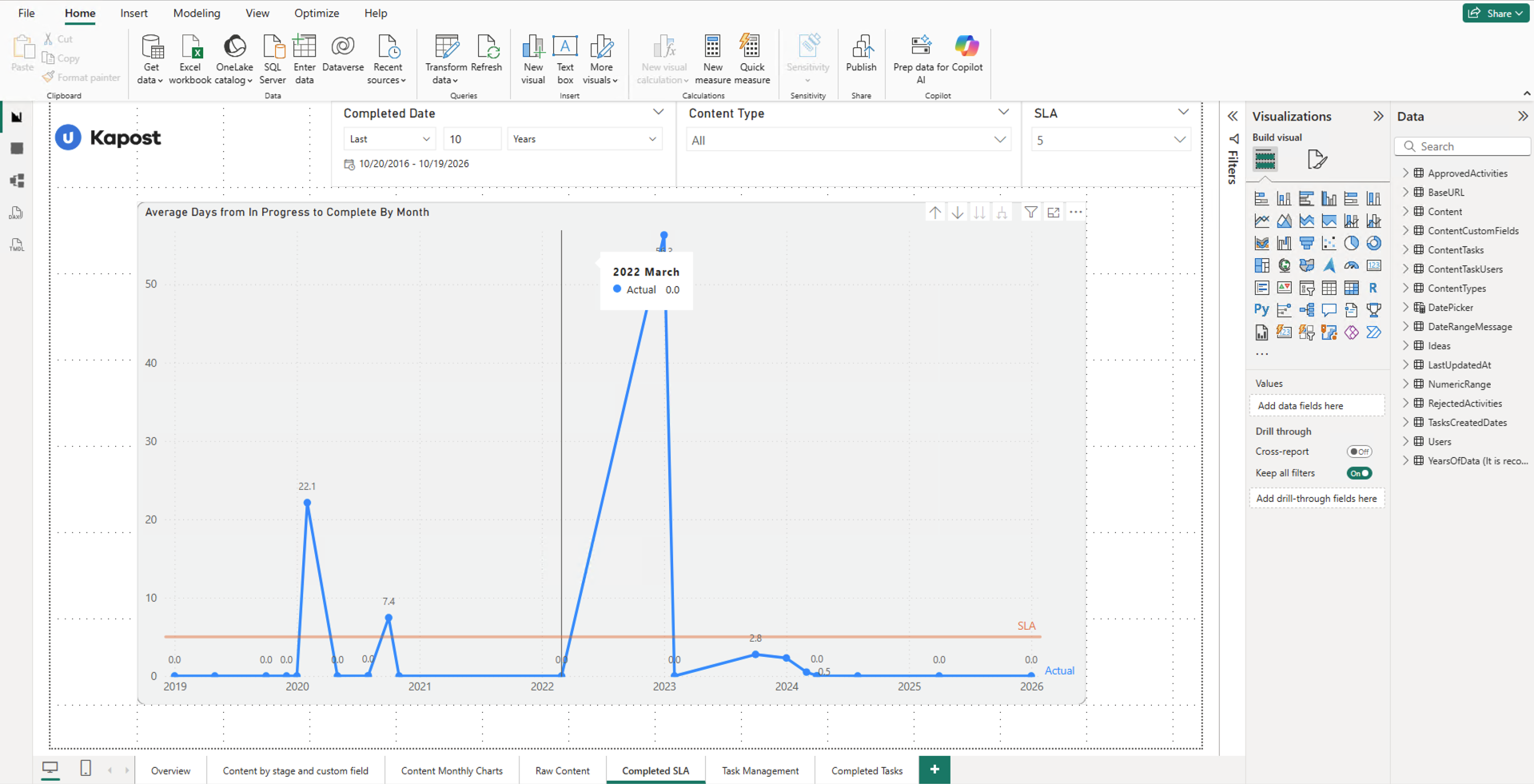
This page compares actual completion time from In Progress to Complete against a selected SLA target.
Filters
-
Completed Date: The period in which content was completed.
-
Content Type: Limit to specific content types.
-
SLA: A dropdown that sets the target number of days; the chart's SLA line changes based on this selection.
Visual
-
Average Days from In Progress to Complete By Month: Line chart showing the actual monthly average with the SLA target as a horizontal reference line.
How To Read It?
-
Points below the SLA line mean content was completed faster than the target.
-
Points above the SLA line mean content took longer than the target.
-
Hover over a point to see the month and exact average.
Use this page to identify whether the team is meeting delivery commitments and which months slipped beyond target.
Task Management
Note: These are content tasks. They belong to content in Kapost, such as a publish task on a blog post. They are not initiative tasks.
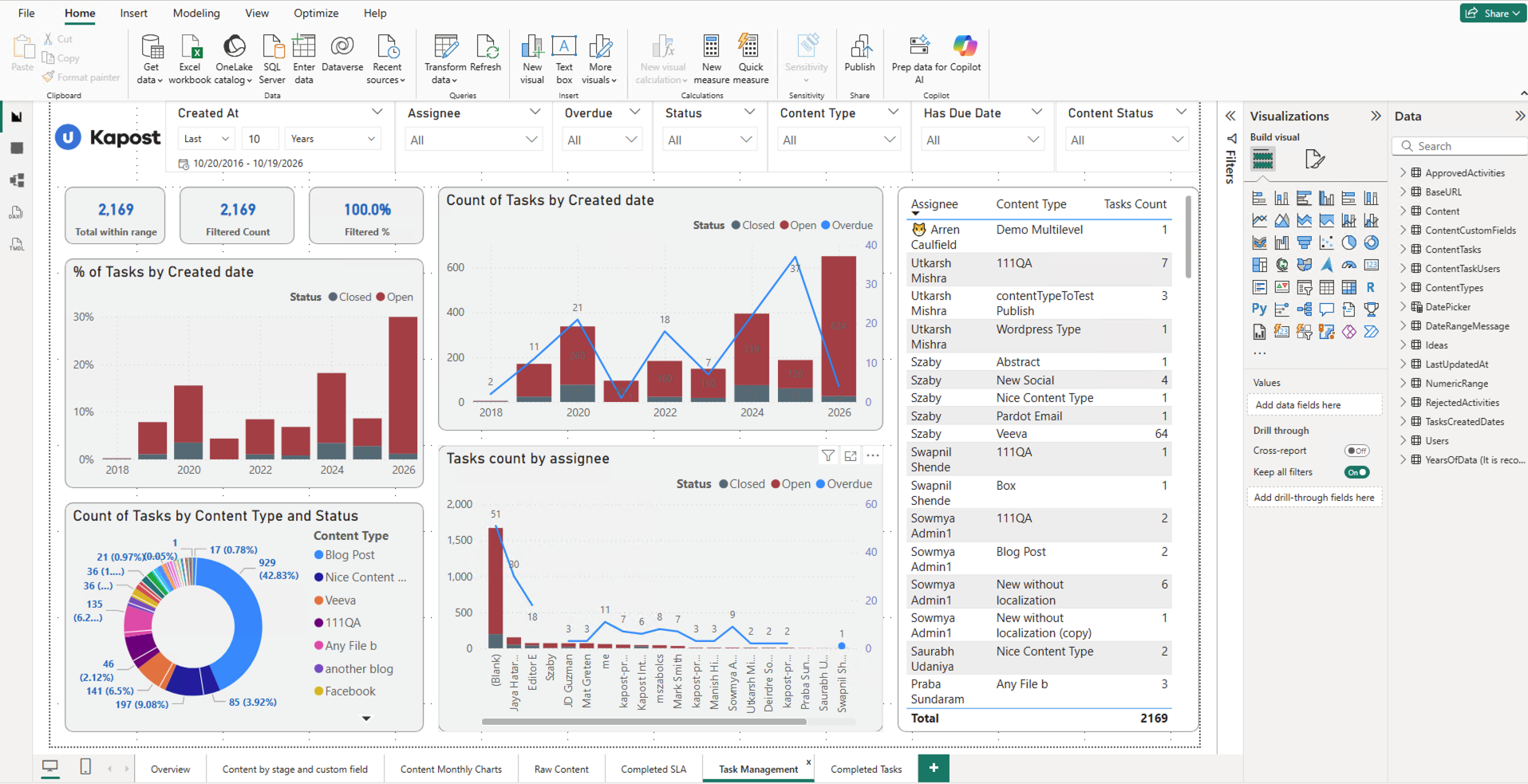
This page provides a complete view of content tasks: how many exist, how they are distributed across time, content types, and assignees, and what their status is.
Filters
-
Created At: The period in which tasks were created.
-
Assignee: The person the task is assigned to.
-
Overdue: Whether the task is overdue.
-
Status: Open, Closed, or Overdue.
-
Content Type: The type of content the task belongs to.
-
Has Due Date: Whether the task has a due date.
-
Content Status: The stage of the related content.
KPI Cards
| Card | Description |
|---|---|
| Total within range | All tasks created in the selected date range |
| Filtered Count | Tasks that match all applied filters |
| Filtered % | Filtered Count as a percentage of Total within range |
Visuals
-
Count of Tasks by Created date: Tasks created per year, stacked by status, with a line for overdue tasks.
-
% of Tasks by Created date: Share of tasks created in each year, split by Closed and Open.
-
Count of Tasks by Content Type and Status: Donut chart showing which content types generate the most tasks and their status.
-
Tasks count by assignee: Tasks per assignee, stacked by status, with an overdue line.
-
Assignee table: Tasks per Assignee and Content Type with a total at the bottom.
Use this page to balance workload, find assignees with many overdue tasks, and see which content types create the most work.
Completed Tasks
Note: As on the Task Management page, all tasks shown here are content tasks. Initiative tasks are not included.
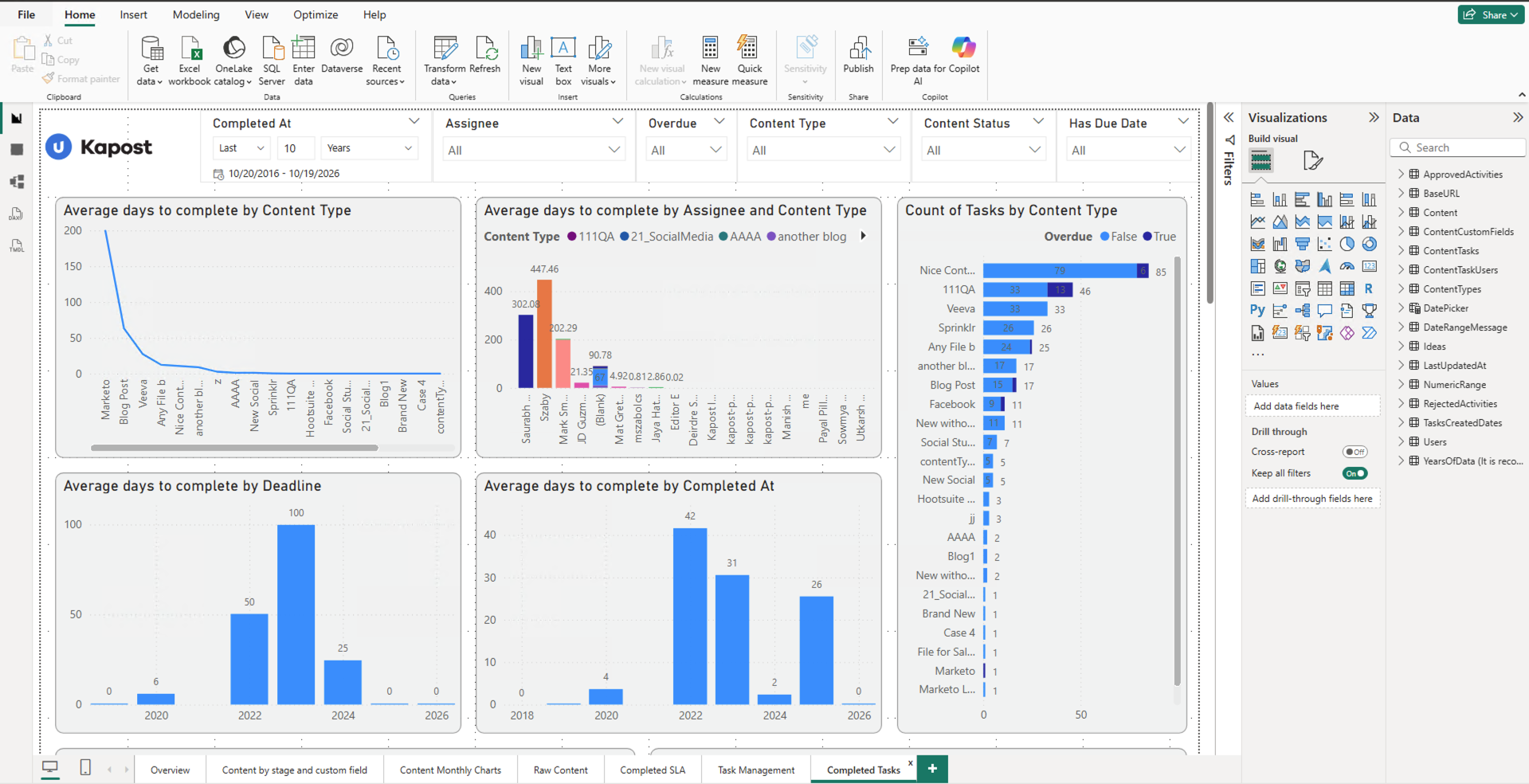
This page focuses on completed content tasks and how long they took.
Filters
-
Completed At: The period in which tasks were completed.
-
Assignee, Overdue, Content Type, Content Status, Has Due Date: Same meaning as on the Task Management page.
Visuals
-
Average days to complete by Content Type: Which content types take longest to complete.
-
Average days to complete by Assignee and Content Type: Average completion time per person, split by content type.
-
Count of Tasks by Content Type: Completed task volume per content type, split by whether the task was overdue.
-
Average days to complete by Deadline: Average completion time grouped by deadline year.
-
Average days to complete by Completed At: Average completion time grouped by year completed.
-
Count of Tasks by Content Type and Completed At: Completed tasks per year, stacked by content type.
-
% of Tasks by Content Type and Completed At: Same view as a percentage of all completed tasks.
-
Count of Tasks by Content Status and Completed At: Completed tasks per year, stacked by the stage of the related content.
-
% of Tasks by Content Status and Completed At: Same view as a percentage.
-
Count of Tasks by Assignee and Completed At: Completed tasks per year, stacked by assignee; tasks without an assignee appear as (Blank).
-
% of Tasks by Assignee and Completed At: Same view as a percentage.
-
Completed task table: One row per task with Content Type, Assignee, Task Title, Created At, Completed At, Deadline, and Days ahead from deadline.
Scroll down on this page to see the Content Type, Content Status, and Assignee charts and the completed task table.