Archiving Content Type
Users can archive content types that are no longer actively used but should remain available for historical reference. Archiving helps keep your content types organized and prevents outdated content types from being used for new content creation.
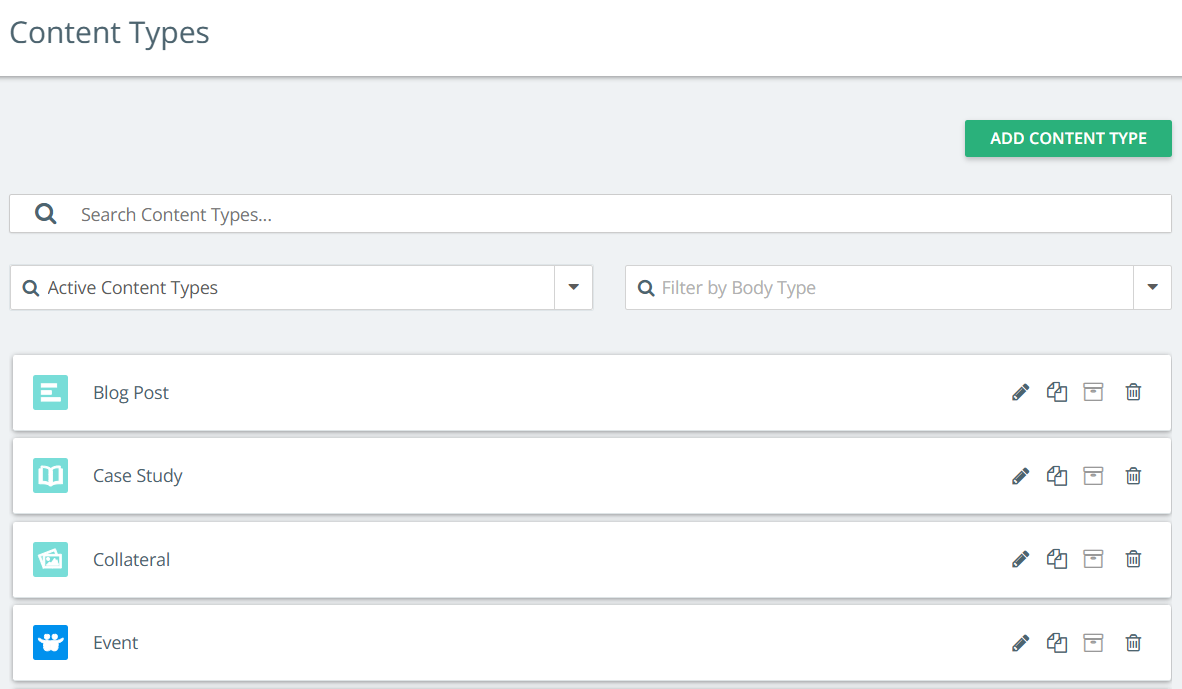
To archive a content type:
-
From the left navigation panel, go to Content Types and Workflow settings.
-
Locate the content type you want to archive and click the Archive icon
 . A confirmation modal appears.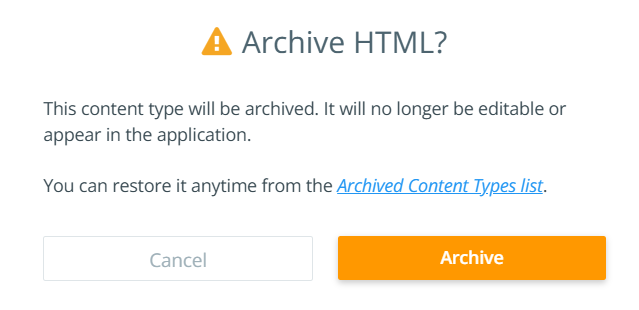
-
Click Archive.
Note: Archived content types cannot be edited and are not available anywhere across Kapost.
To view archived content types:
-
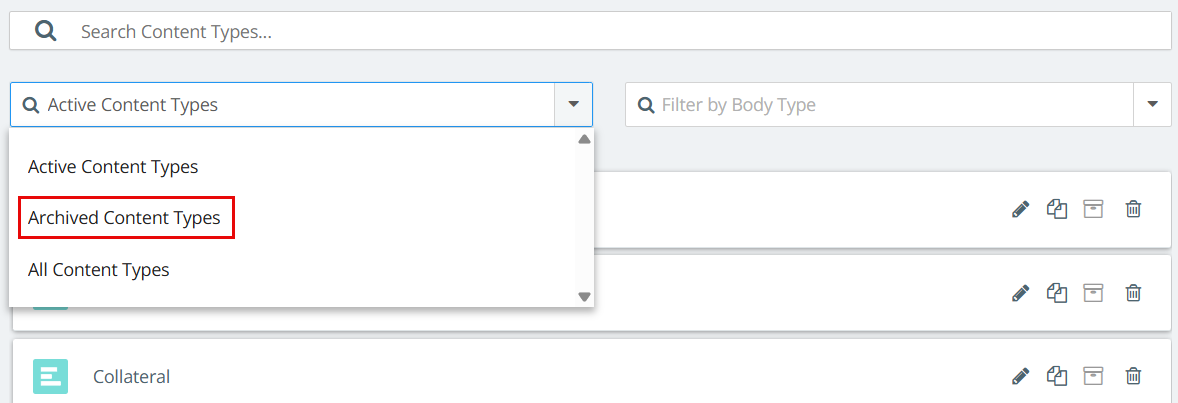
On the Content Types page, open the Content Types filter drop-down.
Tip: By default, the filter is set to 'Active Content Types' when the page loads.
-
Select Archived Content Types to view all archived content types.
To unarchive a content type:
-
From the list of archived content types, locate the content type you want to restore.
-
Click the Unarchive icon
 . A confirmation modal appears.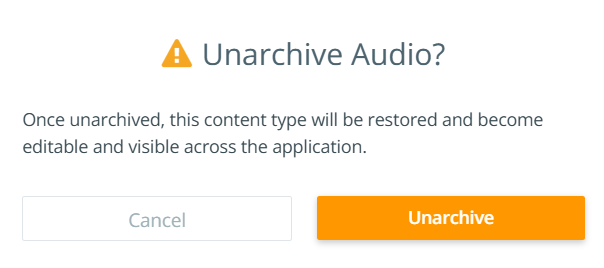
-
Click Unarchive.
Note:
-
Archived content types can be deleted or unarchived for future use.
-
New Content and Ideas cannot be created using an archived content type. Users can continue working with existing Content and Ideas associated with the archived content type.
-
Archived content types remain available in filters, allowing users to continue filtering data associated with those content types.
-
Ideas that were submitted before a content type was archived cannot be approved while they remain associated with the archived content type.
-
To duplicate or localize Content, or approve Ideas associated with an archived content type, update the content type to an active one before proceeding.
-
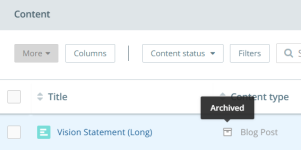
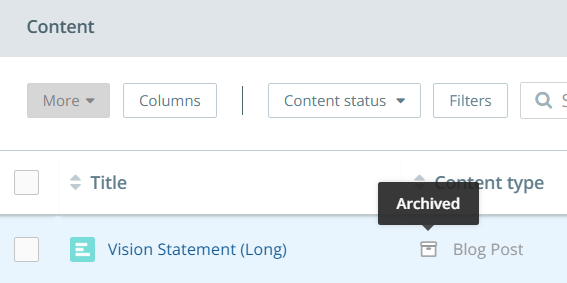
Archived content types are displayed with an archive icon in Studio, Gallery, and Settings to clearly indicate their archived status.
-
Admins can track archived and unarchived content types in the Member Activity page.
To lean more about content types and their filtering, refer to Content Types and Workflow Settings.