Two-Factor Authentication
Two-factor authentication adds an extra layer of security to your account by requiring a second form of verification in addition to your password. This could be a code sent by email, text message, or a code generated by an authenticator app. This helps prevent unauthorized access even if your password is compromised.
Although two-factor authentication may not be required for all users or applications, enabling it is recommended to strengthen account security, particularly for sensitive applications and accounts with administrator privileges.
Note: Admins can enable two-factor authentication for all users from General Settings. If two-factor authentication has not been enabled for the instance, individual users can enable it for their own accounts from the Edit Your Profile page.
Setting Up Two-Factor Authentication
To set up the two-factor authentication:
-
Select your name in the top right corner and click View Profile > Edit Profile.
-
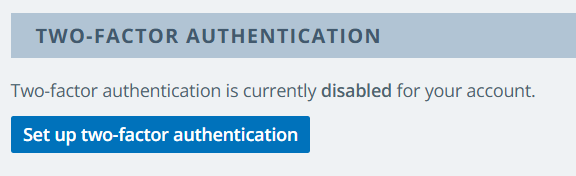
In the Two-Factor Authentication section, click Set up two-factor authentication.
-
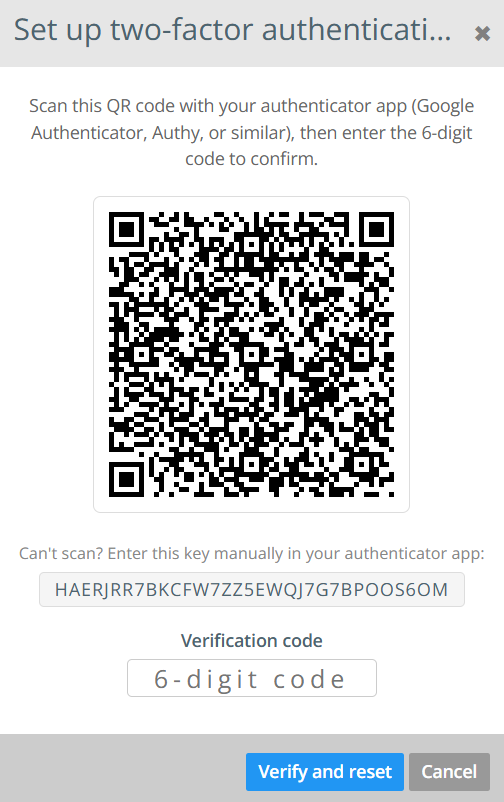
In the pop-up window, scan the displayed QR code using your authenticator app such as Google Authenticator, Microsoft Authenticator, Authy, or a similar app.
-
In the Verification code field, enter the 6-digit code generated by your authenticator app to verify your identity.
Alternatively, if you cannot scan the QR code, manually enter the displayed key in your authenticator app.
-
Click Verify and reset to complete the set up. A set of new recovery codes is displayed.
Caution: Save the recovery codes in a secure location. Each code can be used only once to regain access to your account if you lose access to your authenticator app.
-
Click Done.
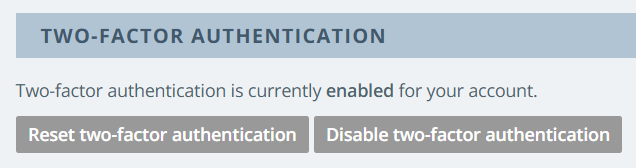
Once the user or admin has enabled two-factor authentication for the instance, the options to reset or disable it are displayed.
-
To change your authenticator app, click Reset two-factor authentication. The QR code is displayed again. Scan it using your preferred authenticator app, enter the six-digit code generated by the app in the Verification code field, and verify the code to complete the setup.
-
To disable the two-factor authenticator, click Disable two-factor authenticator and confirm your choice.
Note: Once two-factor authentication is set up, you will be prompted to enter a verification code generated by your authenticator app each time you log in to Kapost.
Signing in using Two-Factor Authentication
To sign in to your Kapost instance:
-
Sign into your Kapost instance as usual. Refer to Signing in.
-
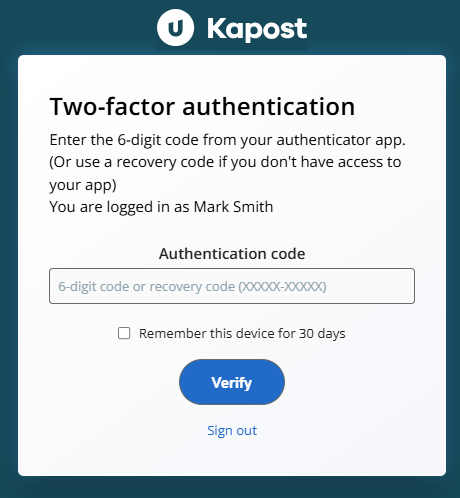
Open your authenticator app and enter the code in the Authentication code field.
-
Select Remember this device for 30 days checkbox to remember your authenticator device when you log in.
When you select Remember this device for 30 days, Kapost will not ask you to enter a two-factor authentication code if your session expires automatically in the same browser. You will still need to log in with your email address and password.
However, if you log out manually, you will be asked to enter a two-factor authentication code the next time you log in. The Remember this device option applies only when your session expires automatically, not when you log out manually.
-
Click Verify.
Note: If Two-Factor Authentication is not enabled for the instance, users can continue to log in with their email address and password without any changes to the existing authentication flow.