Filtering In Studio
This document explains how to use filtering in Studio across the Ideas, Initiative, and Content catalogs.
Ideas Catalog
-
From the left navigation panel, open the Ideas catalog.
-
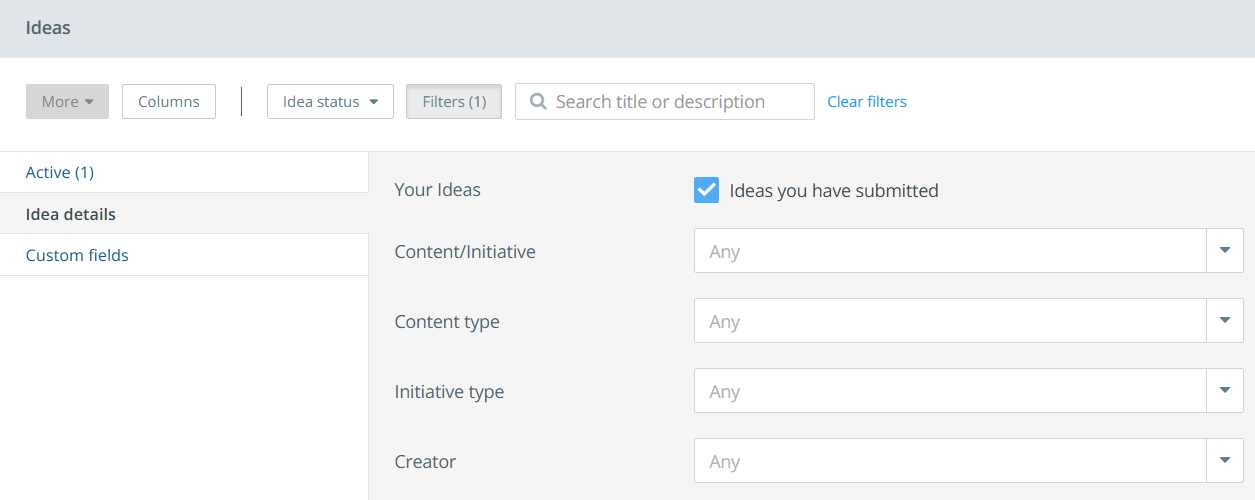
Select Filters to configure filtering options.
-
Add filters using Idea Details and Custom Fields available in your instance.
-
Select Clear Filters to remove all applied filters.
Tip: Filters that are currently applied are displayed in the Active section.
Content Catalog
-
From the left navigation panel, open the Content catalog.
-
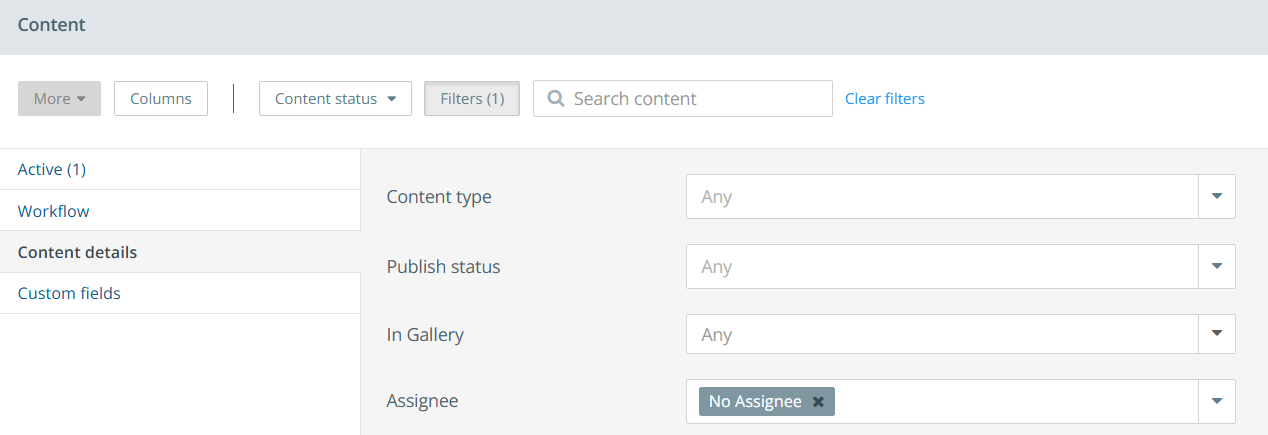
Select Filters to configure filtering options.
-
Add filters using Workflow, Content Details, and Custom Fields available in your instance.
-
Select Clear Filters to remove all applied filters.
Tip: Filters that are currently applied are displayed in the Active section.
Initiatives Catalog
-
From the left navigation panel, open the Initiatives catalog.
-
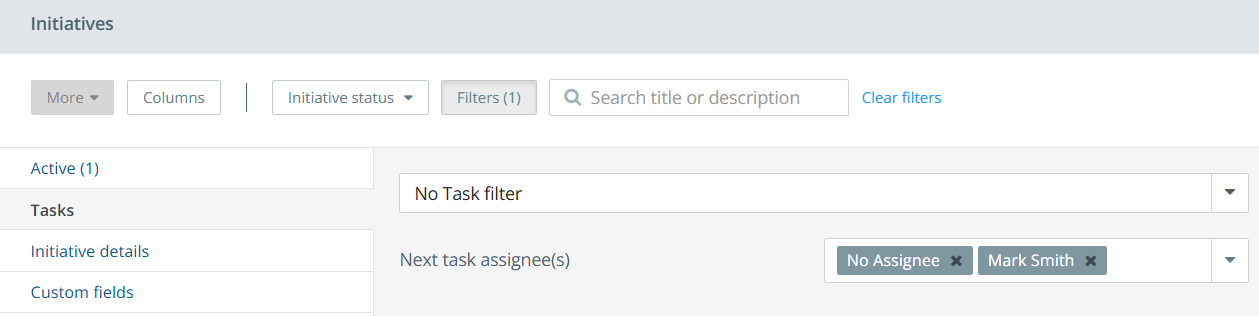
Select Filters to configure filtering options.
-
Add filters using Tasks, Initiatives Details, and Custom Fields available in your instance.
-
Select Clear Filters to remove all applied filters.
Tip: Filters that are currently applied are displayed in the Active section.
Note: To filter items with no assigned value in multi-select filter, select "No Value" from the drop-down. For example, to find tasks without an assignee, select "No Assignee". To find content not linked to any initiative, select "No Initiatives". This filtering option is available in the Ideas, Initiatives, and Content catalogs.
To learn more about filtering tasks, refer to Filtering in Task Catalog.