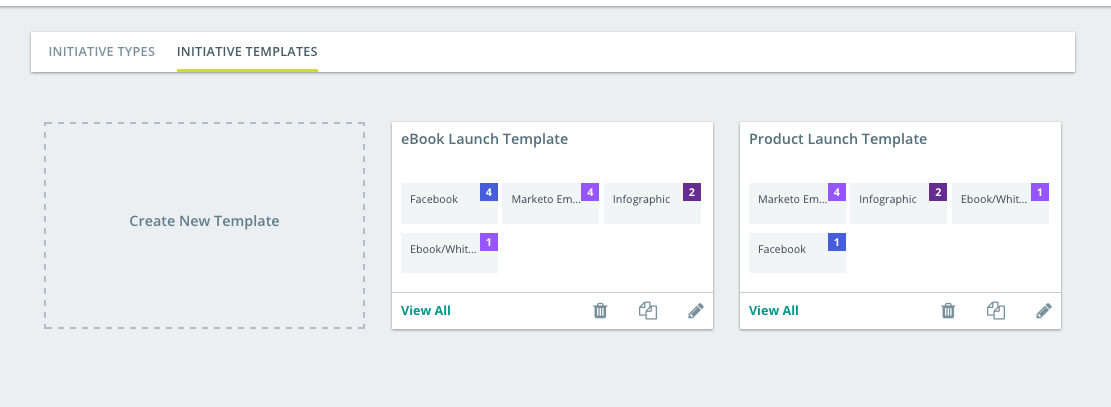
- From the left navigation menu select Initiative Types & Templates.
- Select the Initiative Templates tab.
- Select the Create New Template option.
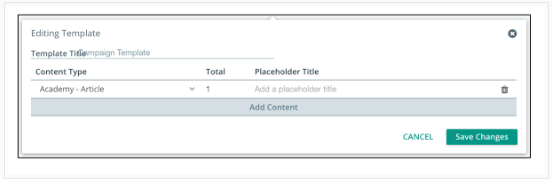
- (Optional) In the Template Title field, enter the initiative template title.
-
Click the downward arrow
 next to the content type to open the drop-down menu displaying all the available initiative templates. Select a content type from the drop-down menu to replace the default selection.
 -
To change the number of assets created when you apply the template, select the default value of 1 and replace it with the desired value.
-
Enter the desired placeholder title in the field displaying "Add a placeholder title".
-
Click Add Content and repeat steps 5–7 to add more content assets to the Initiative Template.
- To delete an asset type from the initiative template, click the
 icon.
icon. - Click Save Changes to save the template.
-
To cancel the creation of an Initiative Template, click Cancel or the X icon.
- To view the detailed information of the initiative template select the View All option at the bottom of the thumbnail. An expanded view of the initiative template will display.
- To delete an initiative template select the icon on the bottom of the thumbnail.
- To copy an initiative template click the
 icon on the bottom of the thumbnail.
 - To edit an initiative template click the
 icon on the bottom of the thumbnail.