Edit An Initiative Type
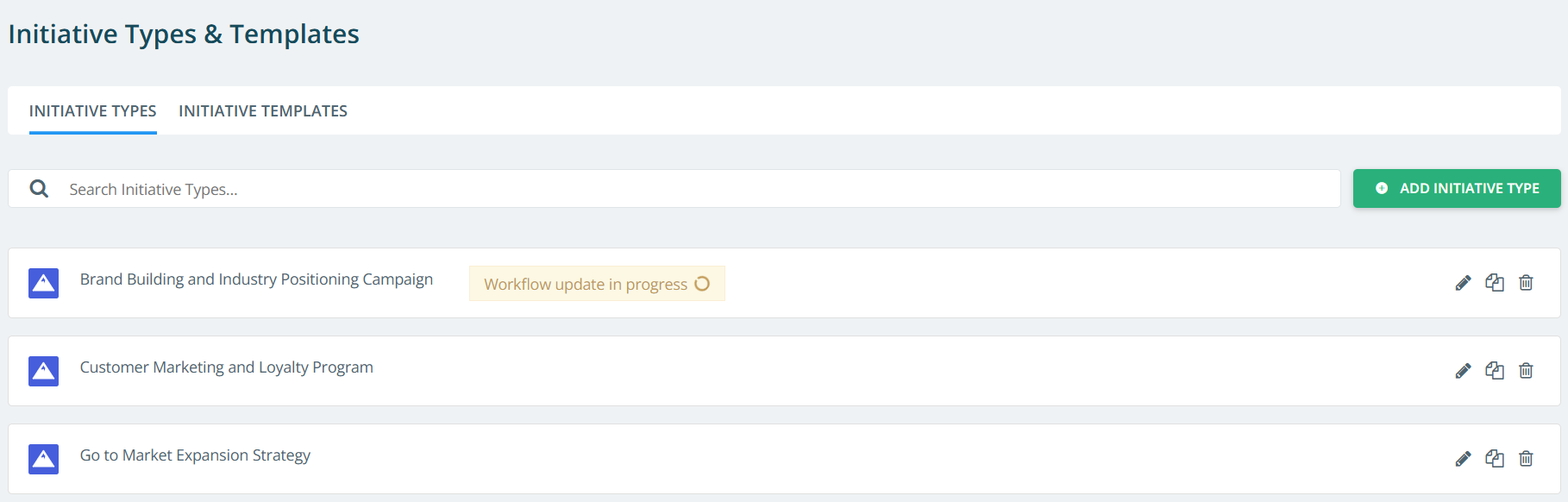
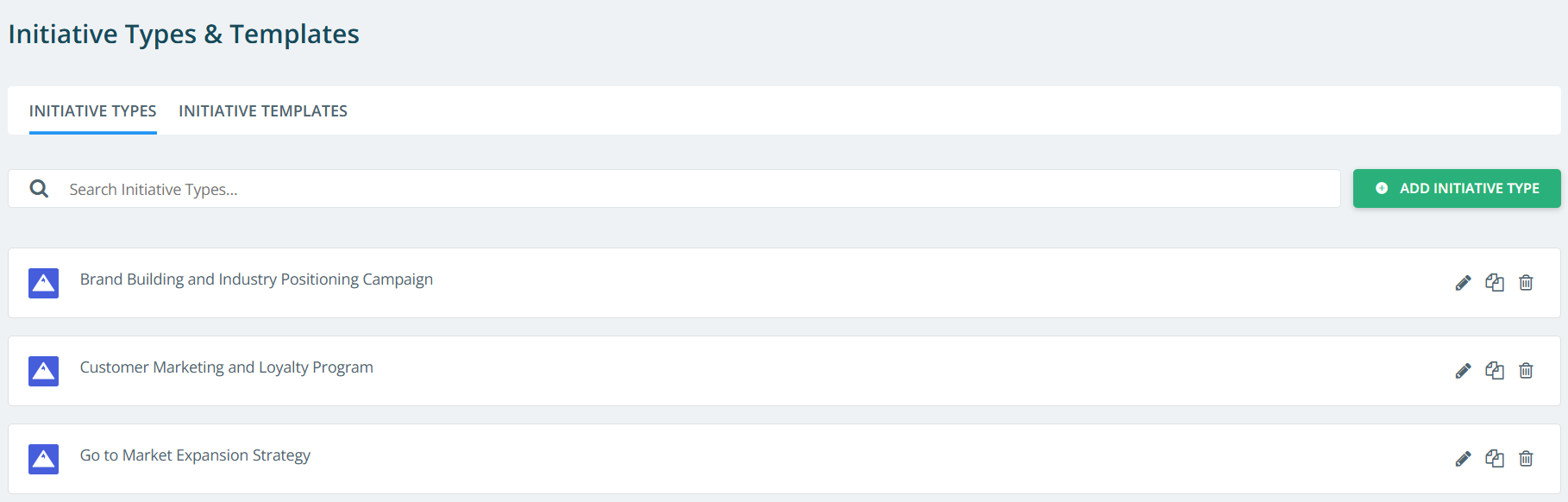
- From the left navigation menu select Initiative Types & Templates.
- Select the
 icon on the Initiative type you want to edit.
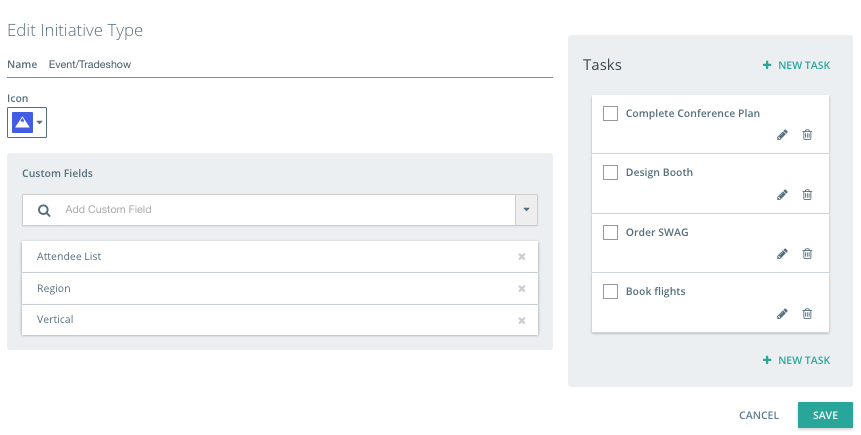
- Add, delete, or change the order of custom fields from the listing of custom fields.
- To add, select the drop-down menu for the full list or type the title of the custom field. Select the checkbox to add the custom field to the initiative type.
- To delete, select the X to the right of the custom field name.
- To reorder, drag and drop the custom fields.
Click Save after changes are complete.
If you change the order of the custom fields or add custom fields to the initiative types, all associated initiatives will be impacted.
- Add, delete, or edit tasks in the Workflow.
- To add a new task, select the New task button, add a task title and other details then click Add.
- To reorder tasks, click and drag the task name to the desired position in the listing.
- To edit a task, click the edit icon and then make the necessary changes. Click Update when changes are complete.
Click Save. If you change the workflow steps, a dialog is displayed to select either Only update new Initiatives or Update all Initiatives. It is recommended that you select the option to only impact new initiatives.
Upon clicking Update Initiative Type, a notification is displayed indicating that workflow updates are in progress. It is recommended that you do not make any further changes until the ongoing updates are completed because sometimes due to a large number of initiatives associated with the initiative type, it takes time for changes made in the initiative type workflow to be reflected across all the associated initiatives.
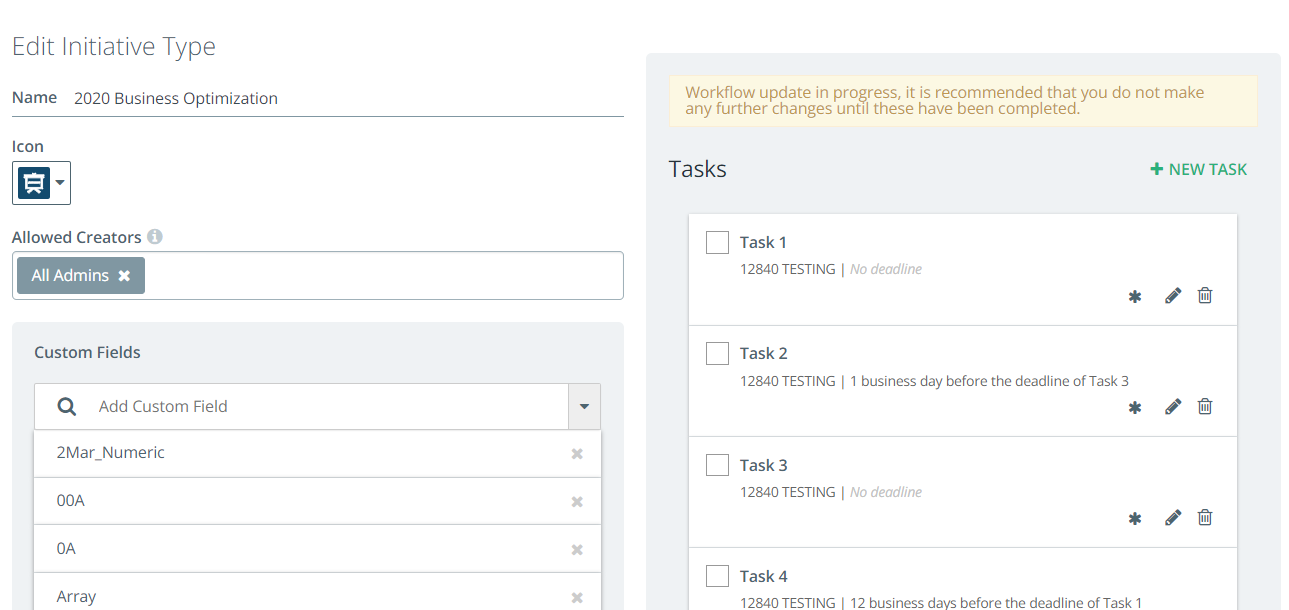
The notification can also be seen next to the initiative type name in the initiative types list. Once the update is completed, the notification will disappear automatically.