Enabling multifactor authentication (MFA)
As an administrator, you can enable multifactor authentication (MFA) using email or SMS. When MFA is enabled for your company, users will be required to provide an emailed six-digit code to complete their log-in process.
To enable multifactor authentication:
-
On the right side of the title bar, select your profile picture.
-
Select Configure Company.
The Edit Firm page opens.
-
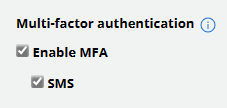
In the Multi-factor authentication section, select the authentication options.
-
To enable multifactor authentication using email, select Enable MFA
-
To enable multifactor authentication using email and SMS, select Enable MFA and then select SMS.
Note: Using SMS for MFA requires that users have provided a mobile phone number within their profile setup. For users without a mobile phone number, email will remain the default channel for MFA verification.
-
-
When you are done, select Update at the bottom of the page.
When users next log in, they will be prompted to provide validate their account with an access code that is emailed to them.