Setting up quiet hours
As an administrator, you can avoid sending text messages at times that are inconvenient for the recipient, such as late at night or early in the morning. For most messages, the quiet hours are based on your company's time zone setting. Messages based on a selected time zone, however, adapt quiet hours to the recipient's time zone setting.
To set up quiet hours:
-
On the right side of the title bar, select your profile picture.
-
Select Configure Company.
The Edit Firm page opens.
-
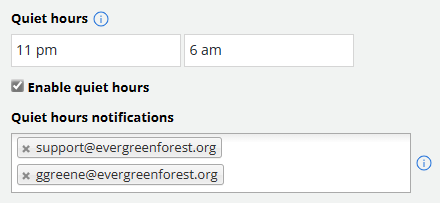
In the Quiet hours section, specify a quiet hours time range. Enter a start time and an end time, for example, 10 PM to 6 AM, during which text messages will not be sent from your company.
Tip: For most messages, quiet hours are based on your company's time zone setting, so be sure to consider the time zones for your recipients when you set up the time range. For messages that are scheduled based on the recipient's time zone, however, the quiet hours time range will be adapted to the recipient's time zone.
-
To avoid sending text messages at inconvenient times, select Enable quiet hours.
-
In the Quiet hours notifications text box, add one or more email addresses for users who support and monitor text messaging for your company, for example, the support contact and communications manager. You can add addresses individually or enter multiple addresses separated with a comma (,) or space. To remove an email address, select x Remove next to the entry.
Note: If a broadcast is in the process of sending messages when your quiet hours begin, any remaining messages to be sent will be held aside with DRAFT status. An email reminder will be sent to the contacts in your notification list, so they can reschedule the unsent messages.
-
When you are done, select Update at the bottom of the page.