Managing your account settings
You can change your personal account settings, including your user name, photo, notifications, and password.
To access your account settings:
- In the upper-right corner of the title bar, select your profile picture.
- Select My Account.
The Edit User page contains your account settings.
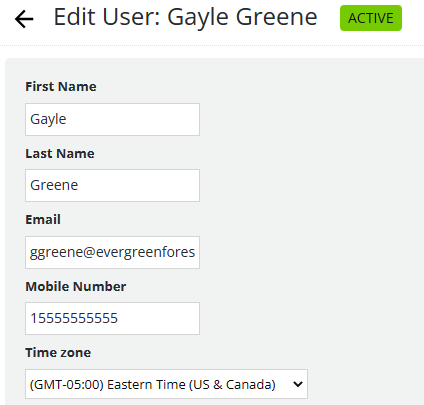
Your account information includes your name and password. You can change your name but not your email address.
Note: If you need to change your email address, send a request to Support (mc_support@uplandsoftware.com).
-
To change your name, which appears in forms, make changes to the First Name and Last Name fields.
-
To add a photo, which will represent you in Mobile Commons, work with Gravatar (https://en.gravatar.com/) or other service to create a 32 x 32 pixel image. Paste the URL for the image file in the Photo URL field.
-
To set up notifications, select or clear the checkbox next to the Email Preferences option to add or remove. For more information, hover over the
 icon next to an option.
 -
To change your password, enter a new password in the Password and Password Confirmation fields. To confirm your access to change the password, enter your old password in the Current Password field.
For guidelines on adding passwords, hover over Password Rules below the Password field.
Tip: Protect your account by changing your password regularly. Some companies require that you change your password every 30, 60, or 90 days. Check with your supervisor for your company's requirements.
- When you are done, select Update.
If you have reset your password, a message with instructions is sent to the email address registered to you.