Resetting your password
If you forget your Mobile Commons password, you can reset it.
To reset your password:
-
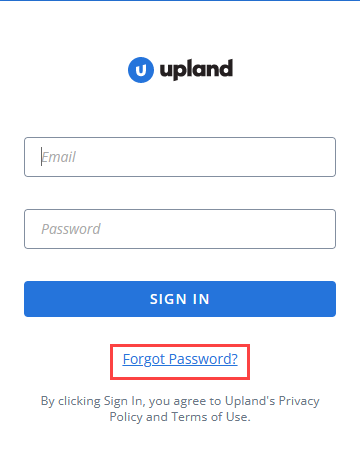
Go to the Mobile Commons sign-in page.
-
At the bottom of the page, select I forgot my password.
-
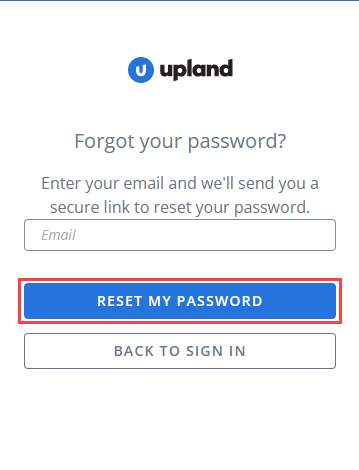
Enter your email address.
-
Select Reset my password.
You see confirmation of your reset request.
-
In your email program, open the message from Mobile Commons.
-
Select the unique, one-time-only link.
The Reset your password screen opens.
-
Enter a new password, making sure that it meets the following password criteria:
-
At least eight characters, but no more than forty
-
Both upper-case and lower-case letters, without using any letters more than two times in a row.
-
At least one number
Note: Do not use your name or email address or repeat a password you have used previously.
-
- Re-enter the password in the Repeat password field.
-
Select Reset.
You see a confirmation message that your password has been reset. You can now sign in with your new password.