Working with the broadcast report
To open the Broadcast report:
-
Select
 Text Messaging in the left pane, and then select Broadcasts.
 -
Locate the broadcast in the Broadcasts table, and then select
 Report at the end of the row.
The Broadcast report displays the messaging statistics and broadcast responses graph at the top of the page.
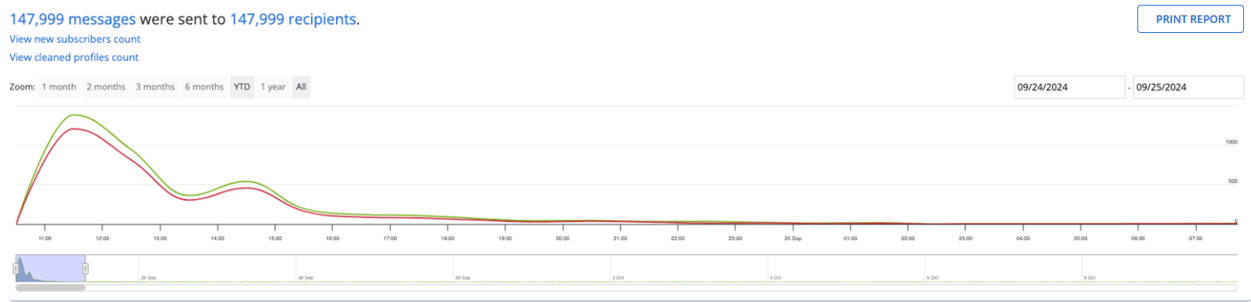
To print the broadcast report, click the PRINT REPORT button located at the top right of the broadcast report page. The browser’s print modal will open, allowing you to print the broadcast report .
Note: Test messages will be included in the broadcast report if they have been sent. A tooltip stating, "Please note that the data shown includes test messages." will appear if test messages have been sent.

The Broadcast report includes three sections:
Messaging statistics and broadcast responses graph
The messaging statistics section at the top of the page displays the number of messages sent and the number of recipients, the number of new subscribers added to the campaign, and the cleaned profiled count. Click on the number of messages sent link to view the outgoing messages report that display filters based on various statuses and types. To view the filtered results, click on any specific status or type.
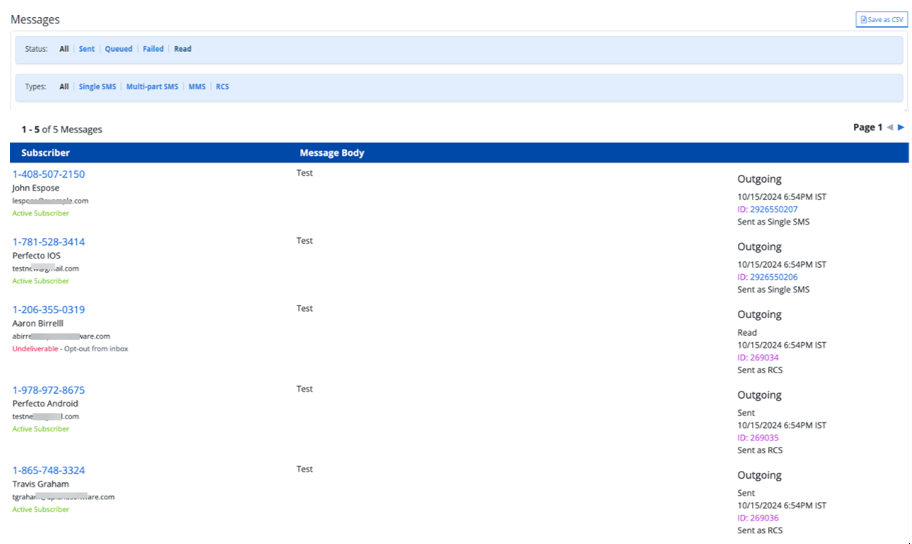
Above the table, select Save as CSV. The records for all the messages in the table are saved in a .CSV file.

The broadcast responses graph at the top of the page illustrates the responses to the broadcast message.
Tip: To see the statistics for a specific date, hover the cursor over the date in the graph.
To change the date range:
-
In the upper-left corner, select a standard date range:
-
Zoom narrows the current date range displayed in the campaign graph.
-
1 month displays the most recent month.
-
2 months display the most recent month.
-
3 months display the most recent three months.
-
6 months display the most recent six months.
-
YTD displays the year to date.
-
1 year displays the most recent year.
-
All displays the entire available date range.
-
-
In the upper-right corner, select the current date range and specify a new date range from the calendar selector.
-
At the bottom of the graph, drag the left and/or right handles of the blue slider to select a new date range.
Current conversation
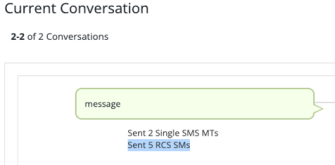
The Current Conversation section displays the broadcast message sent.
Sent messages
The Sent messages section displays information on responses to the broadcast message sent by your company or organization.
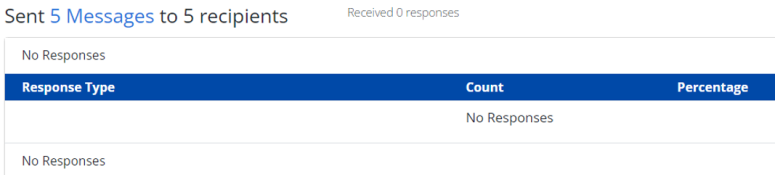
For each message, the Sent Messages table lists one of the following response types, along with the number of responses and percentage of recipients who responded to the message:
- Opt-out
- Reply
- Phone call
- mConnect
- Info response
The broadcast report also shows the count for unique link clicks along with total link clicks.
