Working with the Opt-In Path report
To open the opt-in path report:
-
Select
 Text Messaging in the left pane, and then select Opt-In Paths.
 -
Locate the opt-in path in the Opt-In Paths table, and then select
 Report at the end of the row.
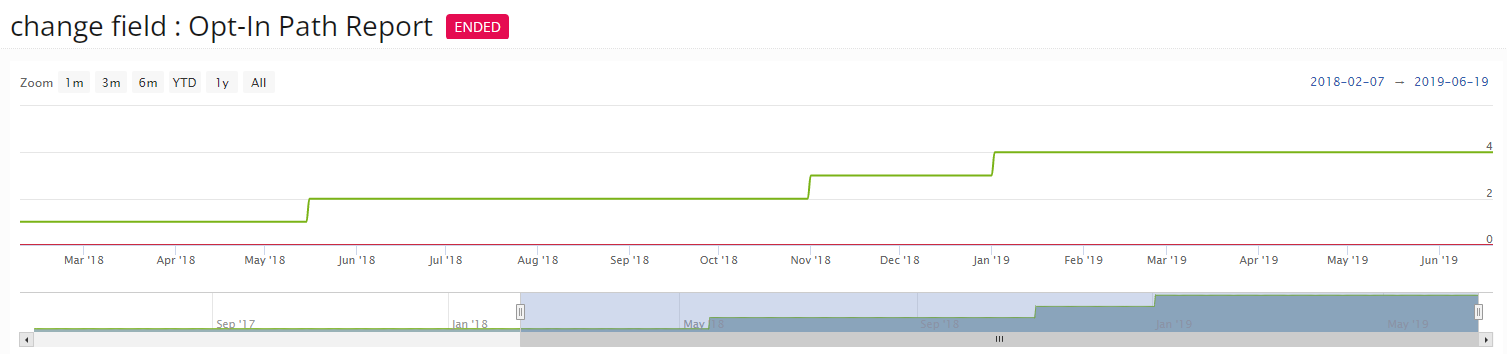
The Opt-In Path report displays the opt-in responses graph at the top of the page.
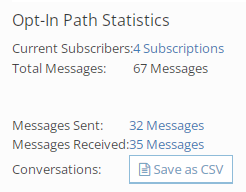
Subscription statistics appear below the opt-in graph.
The Opt-In Paths report contains the following sections:
Opt-in responses graph
The opt-in responses graph at the top of the page illustrates the number of opt-ins and opt-outs in response to the opt-in path message.
Tip: To see the statistics for a specific date, hover the cursor over the date in the graph.
To change the date range:
-
In the upper-left corner, select a standard date range:
-
Zoom narrows the current date range displayed in the campaign graph.
-
1m displays the most recent month.
-
3m displays the most recent three months.
-
6m displays the most recent six months.
-
YTD displays the year to date.
-
1y displays the most recent year.
-
All displays the entire available date range.
-
-
In the upper-right corner, select the current date range and specify a new date range from the calendar selector.
-
At the bottom of the graph, drag the left and/or right handles of the blue slider to select a new date range.
Opt-in path statistics
The Opt-In Path Statistics section displays the number of current subscribers and total number of messages, as well as number of messages sent and received.
-
If statistics are not available, select Click to Load Count to update each field.
Exporting opt-in path statistics
To save the opt-in path data in a CSV (comma-separated values) file:
-
From the opt-in path report page, in the Opt-In Path Statistics section, select Save as CSV.
The opt-in path response records are saved in a CSV file containing the following columns:
Column Description Mobile number The user's mobile phone number. Campaign description The description added when the campaign was created. Campaign name The campaign name. First response The date and time of mobile user's first response. Keyword The keyword texted by the mobile user to join the campaign. Responses For a conversation that includes multiple messages, additional responses from the mobile user.
Note: Each response is reported in a separate column next to the Responses column.
-
To download the CSV file, select
 Home in the left pane, and then select Reports.
 -
Locate the CSV file in the Exports table, select the link in the Name column, and then open the downloaded file.
Keyword statistics
The Keyword Statistics section displays the Subscribers table, which lists all the keywords for the opt-in path, the dates when activated and ended (if not active), and the total number of subscriptions that were added using the keyword.

-
If Subscriptions statistics are not available, select Click to Load Count to update the field.
Sent messages
The Sent messages section displays information for each message sent by your company or organization in response to an opt-in text containing the keyword.
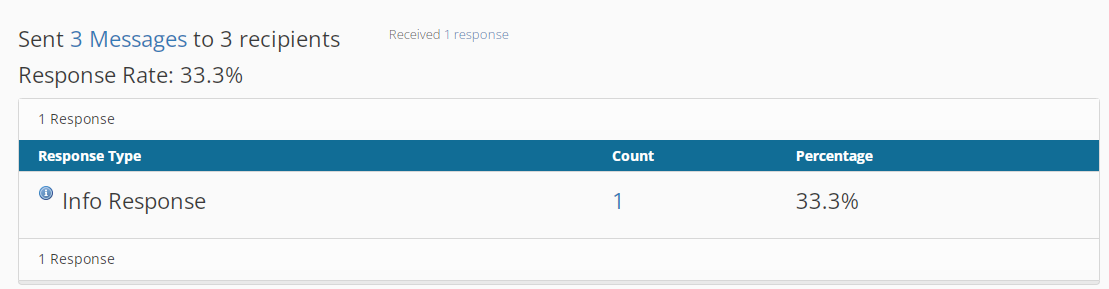
For each message, the Sent Messages table lists one of the following response types, along with the number of responses and percentage of recipients who responded to the message:
- Opt-out
- Reply
- Phone call
- mConnect
- Info response