Organizing campaigns using tags
You can organize your efforts in Mobile Commons by adding any organizing label that makes sense for your company. This is a good way to view related efforts across your different campaigns, including opt-in paths, web opt-ins, and broadcasts. You can also tag Smart Campaigns and mConnects.
Tip: Develop a consistent naming strategy for your tags.
To access and manage the tags used to organize your campaigns:
-
Select
 Home in the left pane, and then select Tags.
The Tags table lists all of the tags for your company and the number of times each tag is used in your campaigns. The total number of tags appears in the lower-right corner.
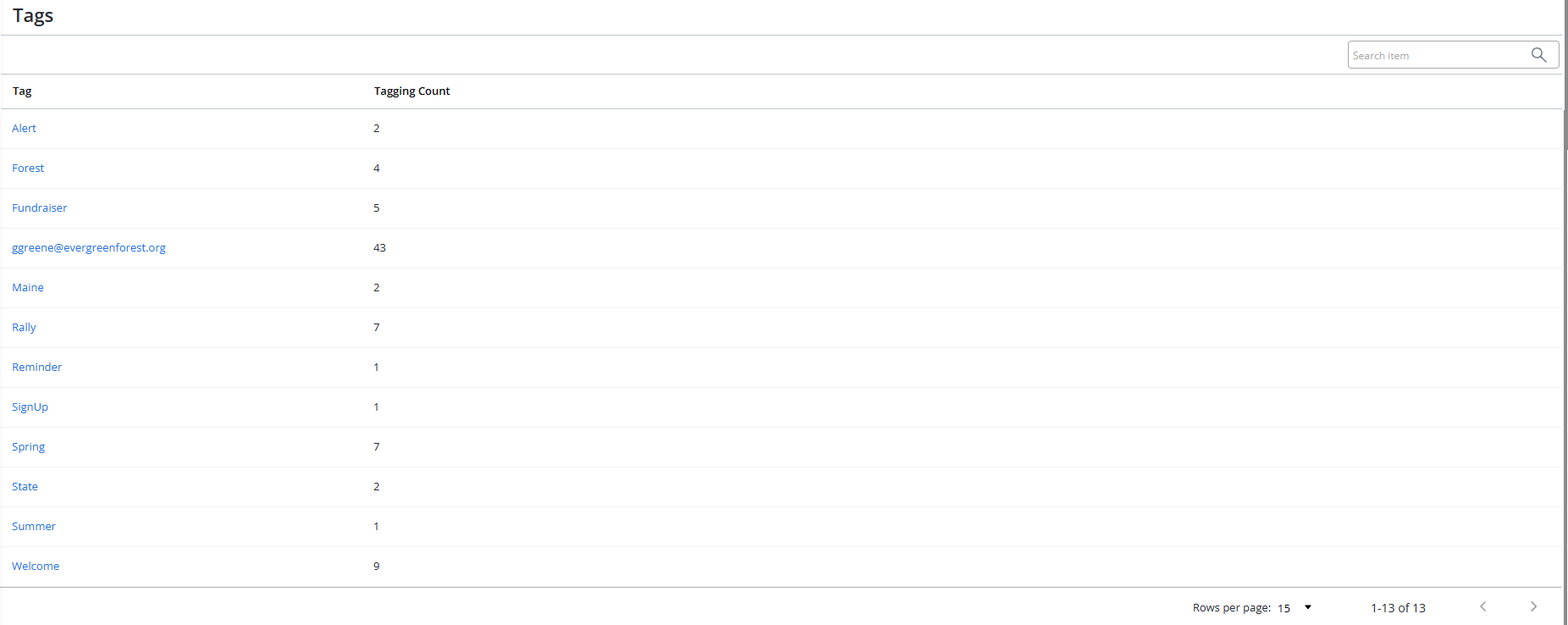
If the table is longer than one page, use the page-navigation options on the lower-right to select the number of rows per page and to navigate to the
 next or
  previous page.
Tip: To navigate directly to a specific page, select the page field, enter the page number, and then press ENTER.
From the Tags table:
Searching the Tags table
To find a tag in the Tags table:
-
Select
Home in the left pane, and then select Tags. -
Above the Tags table, on the right, enter the tag name in the Search field and then select
 Search.
 The Search results returns a list of matching tags that are available in your campaigns and the number of times each is used.
Accessing a tagged item
The Tags table lists all of the tags for your company and the number of times each tag is used in your campaigns.
From the Tags table:
-
Select
Home in the left pane, and then select Tags. -
Locate the tag in the Tags table, and then select the tag name link.
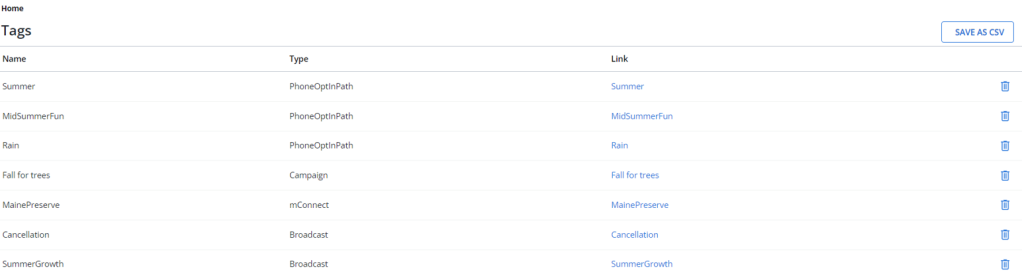
You see a list of tagged items by name and tag type and a link to the place where the tag was entered.
-
To view the original tagged item, locate the item in the Tags table and then select the link name.
Above the Tags table, select SAVE AS CSV to download the CSV file with tag name, type, and link.
Deleting a tagged item
To delete a tagged item from the Tags table:
-
Select
Home in the left pane, and then select Tags. -
Locate the tag in the Tags table, and then select the tag name link.
You see a list tagged items by name and tag type and a link to the original place where the tag was entered.
-
To delete an item, locate the item in the Tags table and then select
 Delete at the end of the row.
 -
Select OK to confirm.