Setting up a location-based mData
Before you begin, be sure to have the following in hand:
-
A list of one or more keywords available on the short code you will use for your searches. For more information, see Adding keywords for mData searches.
-
A list of input/output pairs (keyword or search term input and response output based on location coordinates or street addresses) to populate the mData database. For more information, see Creating and uploading an mData spreadsheet.
For information on setting up an mData search that is not based on location, see Setting up a non-location mData.
To set up location-based mData searches:
-
Select
 Text Messaging in the left pane, and then select mData.
 -
At the top of the page, select
 New mData.
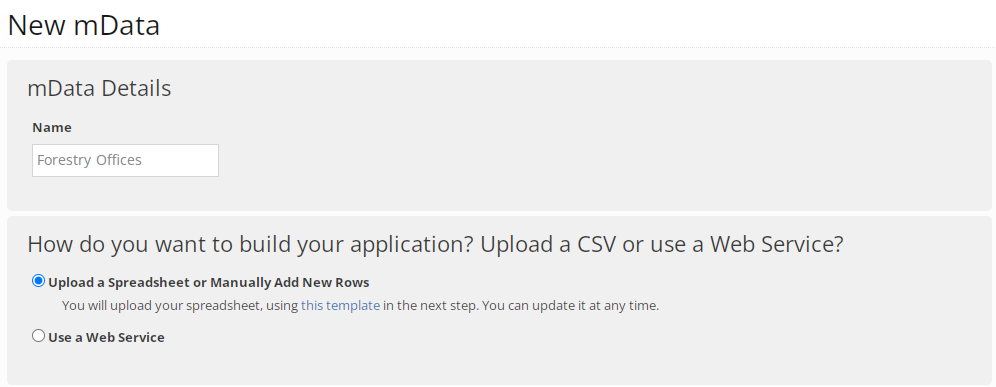
The New mData form opens.
-
In the mData Details section, enter a descriptive name for the mData.
Note: Even though this name is available to internal users only, take the opportunity to assign a descriptive name that is meaningful to your organization.
-
If more than one short code is available to your company, select the short code from the drop-down list.
-
In the How do you want to build your application? section, select Upload a spreadsheet or manually add new rows.
-
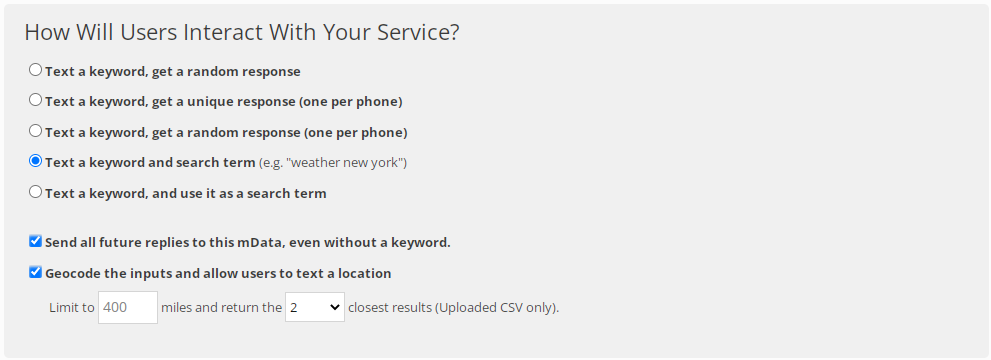
In the How will users interact with your service? section, select Text a keyword and search term.
 Interaction options
Search method Result Text a keyword, get a random response Returns a random response from your spreadsheet.
For example, you could have a spreadsheet database of jokes, and users would text in a keyword to receive one of your jokes randomly.
Text a keyword, get a unique response (one per phone) When a user texts in from the same phone, mData returns the same response from your spreadsheet.
For example, if you are using unique coupon codes, each code will only be used once and will be sent to the user over and over again. This helps avoid the problem of people hoarding multiple coupon codes.
Text a keyword, get a random response (one per phone) When a user texts in from the same phone, mData returns the same random response from your spreadsheet.
For example, if you are using coupon codes but do not care if multiple people get the same coupon code, each random code will be sent to the user over and over again. This helps avoid the problem of people hoarding multiple coupon codes, but multiple users could end up with the same random coupon code.
Text a keyword and search term (default) mData returns the search results.
For example, if a user texts weather new york, weather is the keyword and new york is the search term. mData returns the weather for New York.
You can also set up this option to return an automatic response to a keyword alone.
For example, if a users texts the keyword weather, mData returns an automatic response asking for a search term, such as What city would you like the weather for? If the user texts New York in response, mData returns the weather for New York.
Text a keyword, and use it as a search term Returns the response that corresponds to that keyword in your spreadsheet. -
(Recommended) Leave the Send all future replies to this mData, even without a keyword option selected.
This option allows users to send consecutive searches for the same keyword for up to 72 hours. For example, if a user texts Boston veterinary clinics, mData returns a list of veterinary clinics in Boston. If the same user then texts animal shelters, mData returns a list of animal shelters in Boston.
-
Select the Geocode the inputs and allow users to text a location checkbox.
-
Select the settings for the search results:
-
In the Limit field, select the location range for the search results, up to 50 miles.
-
Select the number of results to return, up to 4, starting with the closest. This option is available only to results from an uploaded CSV file.
-
-
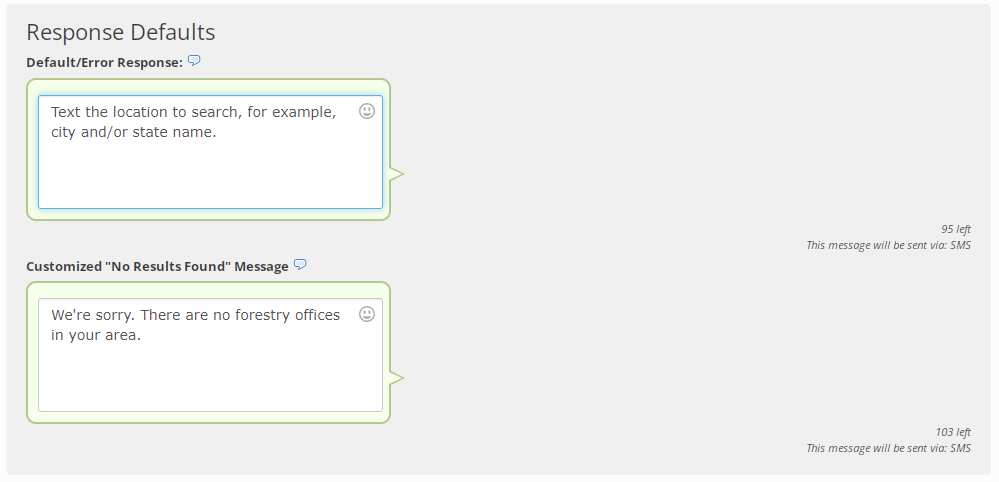
In the Response Defaults section, review each of the default error messages and make any changes in the corresponding text box.
-
The Default/Error response is sent when mData does not recognize the search query sent by the user.
-
The No Results Found response is sent when the search query sent by the user does not return a result.
-
When you are done, select Create.
Adding keywords for mData searches
You can add one or more keywords to the short code that you will use for your searches.
Tip: If your mData is a keyword search type, take the time to brainstorm user-friendly keywords.
To add keywords:
-
Select
Text Messaging in the left pane, and then select mData. -
Locate the mData in the Active mDatas table or Inactive mDatas table, and then select the mData name link.
The mData page opens.
-
Select Actions at the top of the page, and then select Keywords.
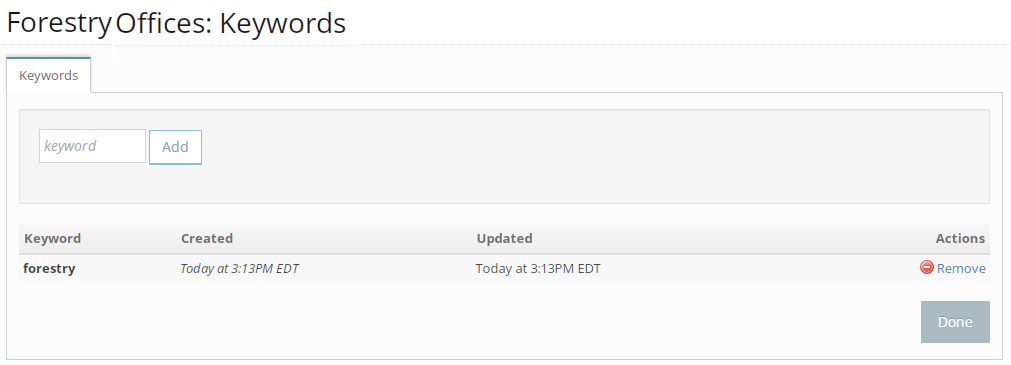
The Keywords table for the short code opens.
 About the Keywords table
The Keywords table contains the following information:
Column Description Keyword The name of a keyword that is available for the short code. Created System-generated date when the keyword was added. Updated System-generated date when the keyword was last updated. Actions Available action for a keyword:
-
 Remove
-
-
Type a unique keyword or keyword phrase (between 2 and 20 characters) in the Keyword field above the table.
Tip: Do not use special characters in your keywords. If you enter a keyword phrase, use a space between each word, not a period (.) or an underscore (_).
Mobile Commons validates the keyword to determine that it is available. If the keyword is not valid or available, you cannot add it. Try to add another keyword.
-
If the keyword is valid and available for your short code, select Add.
-
When you are finished, select Done.
Creating and uploading an mData spreadsheet
To build the mData database, you can upload a spreadsheet with input/output pairs. Mobile Commons provides a template to help you create a properly formatted spreadsheet.
Caution: If you are updating a database file, be sure to include all entries in the database, not just new additions, because the new file will overwrite the existing mData database.
To create and upload an mData spreadsheet:
-
Select
Text Messaging in the left pane, and then select mData. -
To download the template, select Actions at the top of the page, and then select Download CSV template.
The template includes two columns, headed input and output.
-
Using the column headings in the template, build your mData input and output pairs, using the following guidelines:
-
Enter location coordinates (longitude, latitude) or street addresses, which can be converted to geolocation data, in the Input column.
-
Add the corresponding description in the Output column.
Pay attention to the length of the responses. Messages over 160 characters will automatically be broken up into two text messages.
-
- Save the file in CSV format with a new name.
Tip: Be sure to save the file in CSV format; other file types will not be accepted.
-
When the mData spreadsheet is complete, locate the mData in the Active mDatas table or the Inactive mDatas table, and then select the mData name link.
The mData page opens.
-
Select Actions at the top of the page, and then select Upload database.
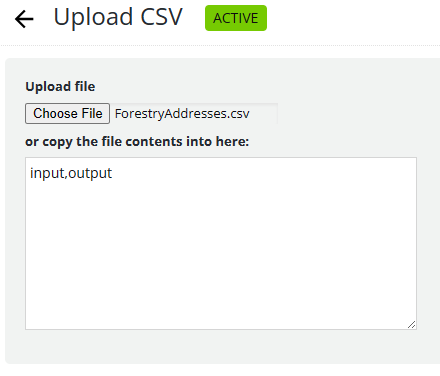
The Upload CSV page opens.
-
To upload a CSV file, select Choose File, navigate to the CSV file to upload, and then select Open.
-
To upload a few entries, copy the input/output pairs into the text box, under the input,output headers. Be sure to add a comma between input and output entries.
-
-
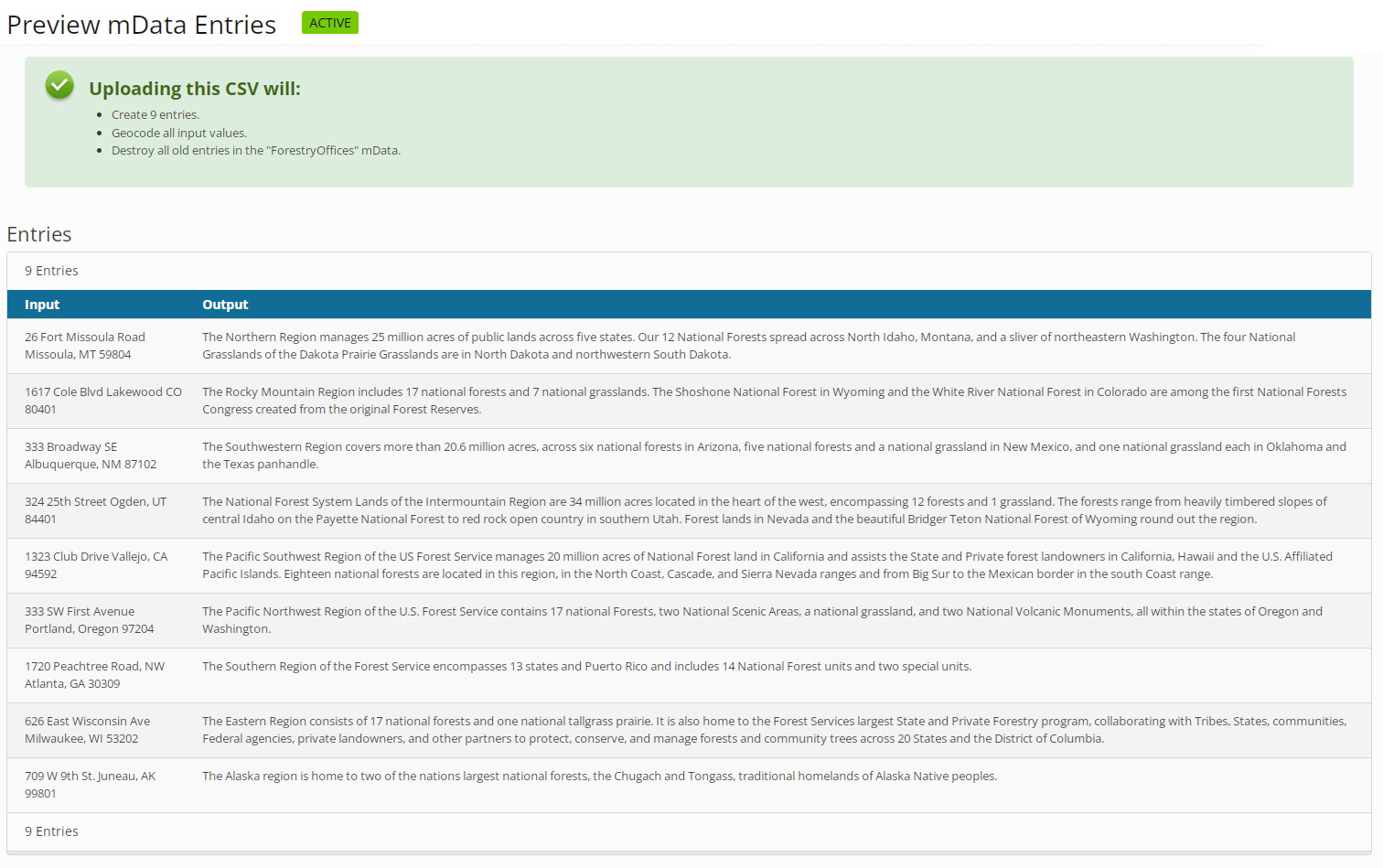
To validate the input/output pairs, select Preview Entries.
-
Review the entries in the file, and if they are correct, select Create mData Entries in the lower-right corner.
-
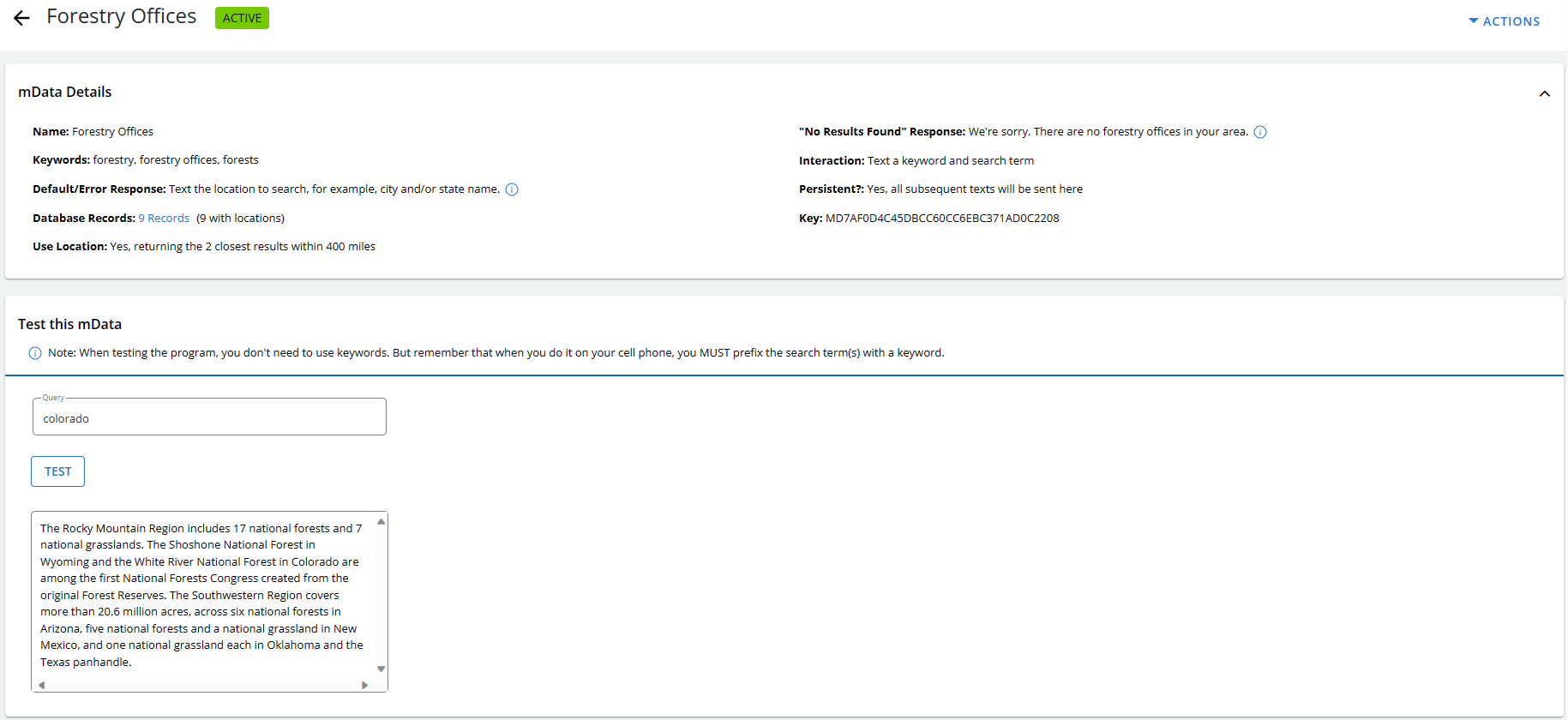
To test the mData search, enter an input term in the Query field and then select Test!
Note: You do not need to use keywords when you test your mData search, but the keyword is required when texting an mData query from a mobile phone.