Setting up mData on a web service
Note: Mobile Commons offers a Polling Place Locator mData, which we can set up for you. For more information, contact your customer success manager.
To set up mData on a web service:
-
Select
 Text Messaging in the left pane, and then select mData.
 -
At the top of the page, select
 New mData.
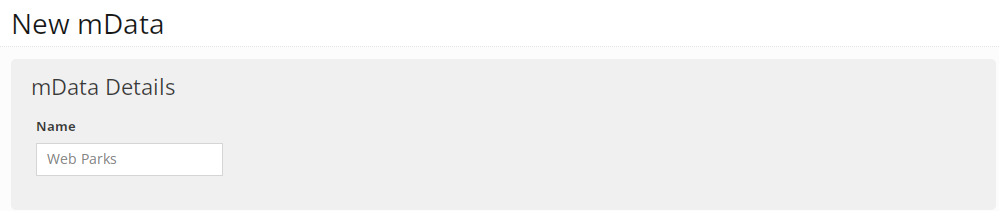
The New mData form opens.
-
In the mData Details section, enter a descriptive name for the mData.
-
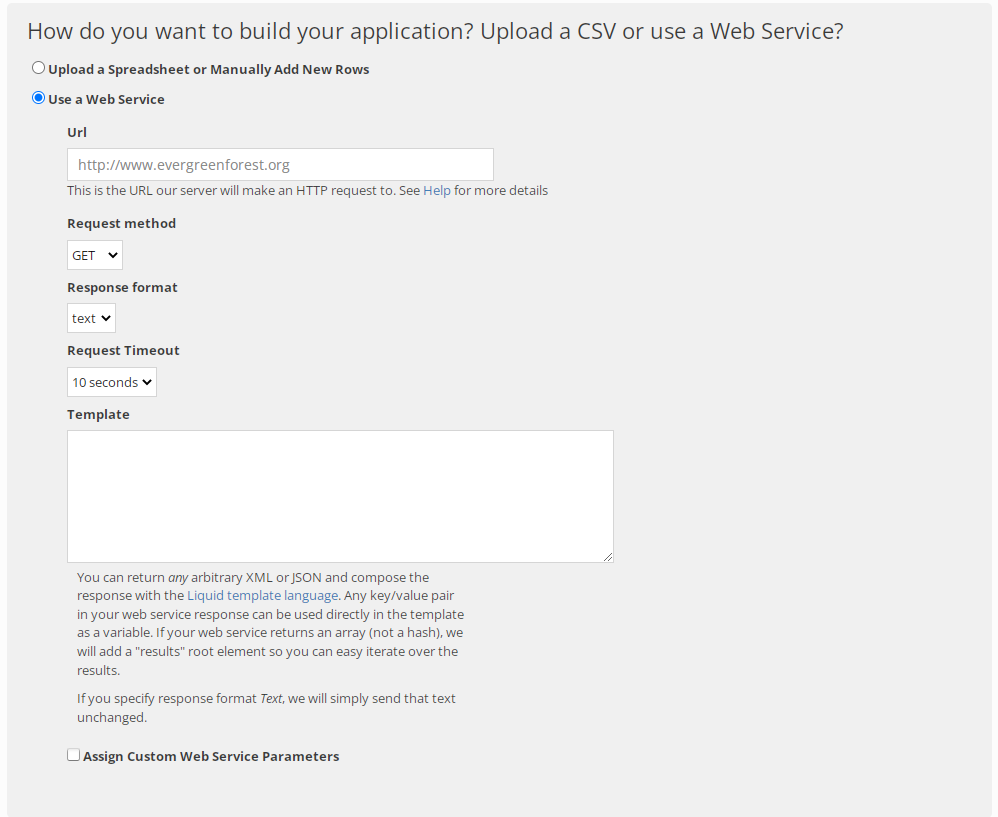
In the How do you want to build your application? section, select Use a Web Service.
-
Fill in the web service URL.
-
Select the Request method: GET or POST.
-
Select the Response format: xml, text, or json.
-
Select the request timeout: 5, 10, 15, 20, 25, or 30 seconds.
-
If you would like results returned in a format other than our specified mData format, you can compose the response using Liquid Template Language, in the Template box.
-
To set up custom parameters, select the Assign Custom Web Service Parameters checkbox.
Note: For assistance with setting up custom parameters, work with you customer success manager.
-
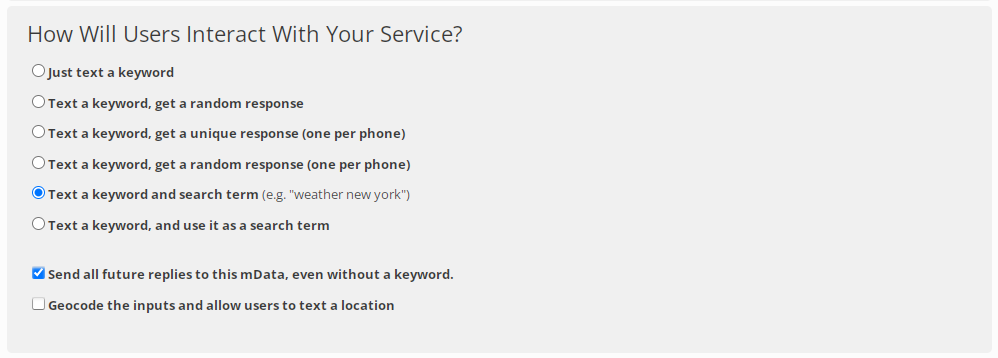
In the How will users interact with your service? section, select the search/response interaction for this mData:
 Interaction options
Search method Result Text a keyword Returns the response that corresponds to that keyword in your spreadsheet. Text a keyword and search term, for example, (default) mData returns the search results.
For example, if a user texts weather new york, weather is the keyword and new york is the search term. mData returns the weather for New York.
You can also set up this option to return an automatic response to a keyword alone.
For example, if a users texts the keyword weather, mData returns an automatic response asking for a search term, such as What city would you like the weather for? If the user texts New York in response, mData returns the weather for New York.
-
(Recommended) Leave the Send all future replies to this mData, even without a keyword option selected.
This option allows users to send consecutive searches for the same keyword for up to 72 hours. For example, if a user texts Boston veterinary clinics, mData returns a list of veterinary clinics in Boston. If the same user then texts animal shelters, mData returns a list of animal shelters in Boston.
-
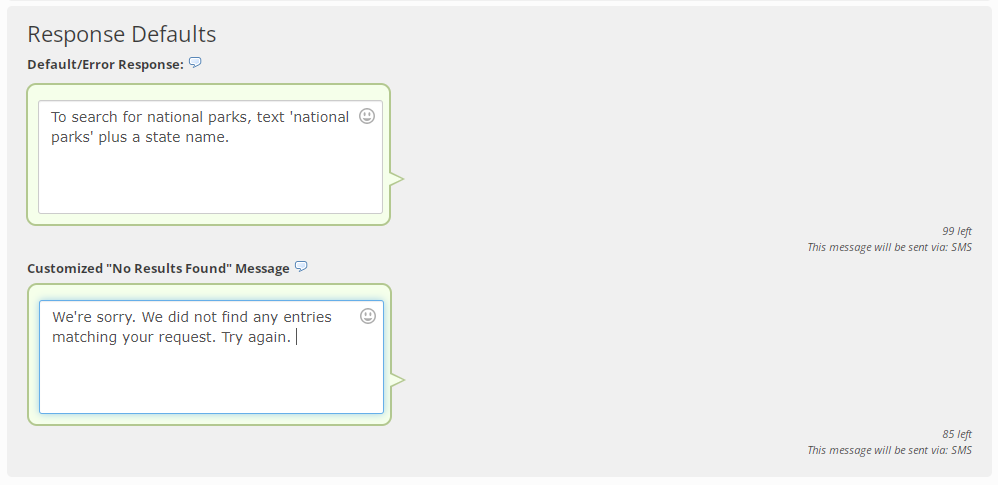
In the Response Defaults section, review each of the default error messages and make any changes in the corresponding text box.
-
The Default/Error response is sent when mData does not recognize the search query sent by the user.
-
The No Results Found response is sent when the search query sent by the user does not return a result.
-
Note: Even though this name is available to internal users only, take the opportunity to assign a descriptive name that is meaningful to your organization.
-
When you are done, select Create.
Configuring responses from your web service
You specify the URL for your web service when you set up your mData. Mobile Commons will ping that URL whenever a message is received and append ?args= to the end of the request. You can then parse the args parameter, generate a dynamic response, and then return text, XML, or JSON.
Mobile Commons will parse your response and send the dynamic message back to the user. If the response is long, Mobile Commons will automatically paginate it for you as follows: 1/2), 2/2).
Note: Mobile Commons splits messages intelligently and will never break words in half.
You can return any arbitrary XML or JSON and compose the response with the Liquid template language. Any key/value pair in your web service response can be used directly in the template as a variable. This makes it very easy to integrate with your existing web services, no coding required.
If you specify response format Text, Mobile Commons will send that text back unchanged.
Tip: Returning plain text is by far the easiest way to do it.
Request parameters
Mobile Commons will pass the following URL parameters to your web service:
| Parameter | Description |
|---|---|
| args | The body of the message sent by the user, with the keywords removed; for example, if the keyword is CELSIUS and the user texts CELSIUS 100, Mobile Commons will pass args=100 to your web service. |
| phone | The phone number of the user who sent the message, for example, phone=2125551234 . |
| keyword | The keyword that the user actually texted to query your service. You can set up multiple keywords for a single mData and customize your service to behave differently for each. |
| profile_first_name | The first name of the user who texted in, if it's available from their Mobile Commons profile. |
| profile_last_name | The last name of the user who texted in, if it's available from their Mobile Commons profile. |
| profile_email | The email address of the user who texted in, if it's available from their Mobile Commons profile. |
| profile_street1 | The first line of the address of the user who texted in, if it's available from their Mobile Commons profile. |
| profile_street2 | The second line of the address of the user who texted in, if it's available from their Mobile Commons profile. |
| profile_city | The city of the user who texted in, if it's available from in their Mobile Commons profile. |
| profile_state | The state of the user who texted in, if it's available from their Mobile Commons profile. |
| profile_postal_code | The 5- or 9-digit postal code of the user who texted in, if it's available from their Mobile Commons profile. |
| profile_CUSTOM_FIELD | If you have custom fields set up for your profiles, they will be prefixed with profile_ (underscore), for example, profile_favorite_color=red. |
| longitude | If your mData uses location-based queries, Mobile Commons will geocode the user's query and send you the longitude, if available. |
| latitude | If your mData uses location-based queries, Mobile Commons will geocode the user's query and send you the latitude, if available. |