Article Information
- Type: HOWTO
- ID: 1511
- Created: 2011-10-28 at 13:15
Applies To
- Product: PSW (PrintShop Mail Web)
- Applies To: All Versions
HOWTO-1511: Installing an SSL Certificate on PrintShop Mail Web
Description
These instructions describe how to activate HTTPS/SSL support in PrintShop Mail Web 7.X and how to install an existing SSL certificate on the server. The assumption is made that the reader already has an SSL certificate (in the form of a .cert file).
Contents
PrintShop Mail Web comes pre-installed with the openssl.exe executable as well as mod_ssl.so , the SSL module needed for SSL to be available.
Activating the SSL module:
This is only necessary if “https” was not checked during the PrintShop Mail Web installation
- Open the Apache configuration, which is located in:
C:\Program Files\PrintShop Mail Suite 7\PrintShop Mail Web\Apache\conf\httpd.conf - Locate the list of LoadModule commands (search the file for LoadModule to find it)
- At the end of the list of existing LoadModule lines, add the following entry:
LoadModule ssl_module modules/mod_ssl.so - Save the file and close it.
PrintShop Mail already has a pre-made self-signed SSL certificate, which is automatically used when the SSL module is activated. A self-signed certificate can be generated locally, or an authorized certificate can be purchased from an SSL vendor, which should provide the .cert and .key files necessary for the configuration. Note that self-signed SSL certificates will very often trigger a strong warning response from browsers, from a dialog indicating invalid/untrusted certificate or even a bright red full page warning requiring the user to add the certificate manually. This is a strong deterrent for regular users, so self-signed certificates should only be used for testing.
Creating a self-signed SSL certificate:
- In order to create a self-signed certificate, a configuration file must be used, generally called openssl.cnf. A copy of this file is attached to these instructions. Save it in the following folder:
C:\Program Files\PrintShop Mail Suite 7\PrintShop Mail Web\Apache\bin - Open a command prompt by going to Start, Programs, Accessories, Command Prompt. Alternatively, do WIN+R on the keyboard, type cmd and click OK.
- In the command prompt, navigate to the apache bin folder using the following command:
cd "C:\Program Files\PrintShop Mail Suite 7\PrintShop Mail Web\Apache\bin"
(please do not omit the double-quotes) - To generate a certificate, use the following command (change “mysite” to a descriptive name for the printshop mail website, such as “companyABC” or “acmeprinting”):
openssl req -config openssl.cnf -new -out mysite.csr -keyout mysite.pem - This will start a small procedure that asks a few questions in regards to the certificate to be generated. There are 2 important points that need special attention:
- The PEM pass phrase is useless, so “none” or “blank” can be used.
- The Common Name must be set to the URL at which PrintShop Mail Web will be accessed, including the https://. So if the PSMW address (unsecured) is http://www.myprintshop.com/ , enter https://www.myprintshop.com/ (notice the extra S). Failing this, warnings will be displayed in the browser about the certificate being invalid.
- In the same command prompt, a second command is required to generate the files used by Apache (which is not protected by a key since it is used locally). Note that the passkey is the PEM pass phrase (none or blank):
openssl rsa -in mysite.pem -out mysite.key - Finally, one last command that converts the .key file into a format that mod_ssl can recognize:
openssl x509 -in mysite.csr -out mysite.cert -req -signkey mysite.key -days 365
Once the certificate and key files are generated, they need to be placed in the /certificate folder. This holds true also for certificates generated online or provided by the SSL vendor. In the case of downloaded/purchased keys, copy them from the location where they have been downloaded (such as My Documents or Downloads).
Copying a certificate to the correct PrintShop Mail Web folder:
- Navigate to the bin folder seen above, and copy the .cert and the .key file using CTRL+C.
- Go to the “certificate” folder found in the “Apache” folder (C:\Program Files\PrintShop Mail Suite 7\PrintShop Mail Web\Apache\certificate) and paste the two files using CTRL+V.
Pointing PrintShop Mail Web’s SSL configuration to the correct certificate:
- Open the ssl.conf file located in:
C:\Program Files\PrintShop Mail Suite 7\PrintShop Mail Web\Apache\conf\ssl.conf - Locate and change the SSLCertificateFile and SSLCertificateKey lines to reflect the name of the .cert and .key files (make sure it ends with .cert and not .crt):
SSLCertificateFile certificate/mysite.cert
SSLCertificateKeyFile certificate/mysite.key - Save and close ssl.conf
Testing the certificate installation:
- Navigate to the PrintShop Mail website using the HTTPS protocol, such as https://www.myprintshop.com/ or https://intranet-printshop/
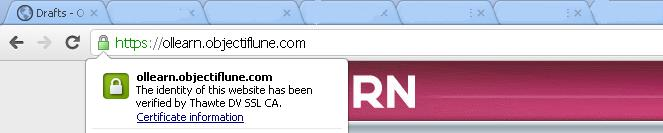
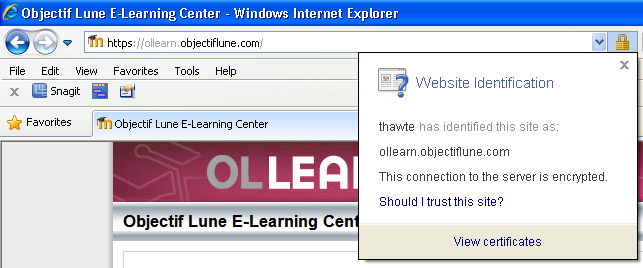
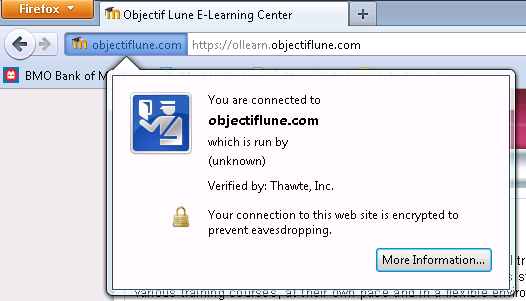
- If no warning is shown, the certificate installation should be completed and correct. The authenticity of a certificate can be verified by looking at the browser’s address bar (depending on the browser and its version). Shown here is the certificate for our E-Learning website:
- Google Chrome:
- Internet Explorer 8:
- Mozilla Firefox 7:
- Google Chrome: