Use environment variables in flows
Using environment variables to define folder paths is a more flexible and portable approach than hardcoding paths. This is especially useful when deploying across multiple environments (e.g., development, test, acceptance, production), as the flow remains unchanged. Only the environment-specific values need to be configured.
Benefits
-
Decouples machine specific variables, like folder paths, from flows.
-
Simplifies deployment to different machines.
-
Improves maintainability and portability.
Define environmental variables
The recommended method for defining environment variables is set them during installation using the OL Connect Automate Installer. Click Add in the Environment variables window, then enter the Name and Value for the environment variable.
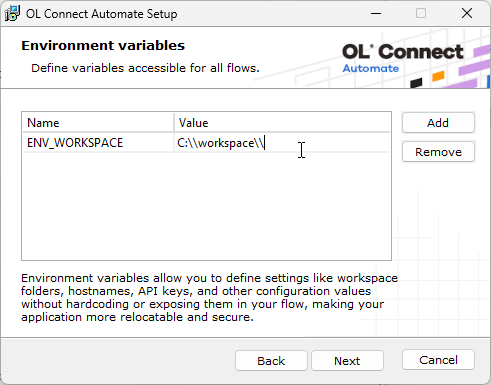
The entered environment variables are stored in the olca.environment.json file, located in the user data folder (typically under C:\ProgramData\Objectif Lune\OL Connect Automate). After the installation, this file can be edited manually to define or update variables.
{
    "ENV_WORKSPACE": "C:/workspace",
    "ENV_TUTORIAL_IN": "C:/workspace/tutorials/in"
}
A user interface for managing these environment variables within the flow editor is planned for a future release.
Using the olca.environment.json file is the preferred method, as the file is preserved across application updates.
Use settings.js for environmental variables
Caution: This method is not recommended, as updates to OL Connect Automate may overwrite settings.js. Use olca.environment.json instead, for persistent configuration.
You can define environment variables in settings.js, the standard Node-RED configuration file. This file is located in the OLCA User Data folder.
-
Open settings.js in a text editor.
-
Add the environment variable before module.exports, for example:
// Windows path (escaped)
process.env.ENV_WORKSPACE = "C:\\workspace";

// Alternative Linux path style formatting
process.env.ENV_TUTORIAL_IN = "C:/workspace/tutorials/in";
-
Save the file and restart OL Connect Automate.
Use Environment Variables in Flows
Full path reference
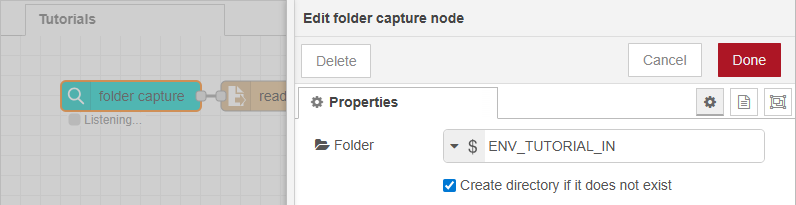
Environment variables can be used in nodes to define the full path to a folder. For example, setting a value of ENV_TUTORIAL_IN for the Folder, in the Properties of the folder capture node, point the node to the appropriate input directory.
Dynamic path construction
You can also use environment variables to define a workspace root, and build subfolder paths using JSONata expressions. The following example uses forward-slashes for readability:
$env("ENV_WORKSPACE") & "/tutorials/in/"
This is helpful when organizing multiple flows under a shared workspace directory. The backend automatically resolves both escaped backslashes (C:\\workspace) and forward slashes (C:/workspace), so either format is supported.
