Node-RED OIDC Authentication with Azure Active Directory
OIDC authentication is possible with the Azure Active Directory.
-
To install the relevant passport package, open the Command Prompt and enter:
Copy$ npm install passport-azure-ad -
Create an Azure app with a redirect URL configured to:
http://localhost:1880/auth/strategy/callback -
Following the installation, configure the settings.js file.
On line 119 there is the start of a section called securing Node-RED. If enabled, you will need to disable the default form of authentication.
Replace any auth admin blocks with the code snippet below, adding the tenant GUID, client ID and client secret.
CopyadminAuth: {
type: "strategy",
strategy: {
name: "azuread-openidconnect",
label: "Sign in with Azure",
icon: "fa-windows",
strategy: require("passport-azure-ad").OIDCStrategy,
options: {
identityMetadata: "https://login.microsoftonline.com/###TENANT-GUID###/v2.0/.well-known/openid-configuration",
clientID: "###CLIENT-ID###",
clientSecret: "###CLIENT-SECRET###",
responseType: "code",
responseMode: "query",
redirectURL: "http://localhost:1880/auth/strategy/callback",
allowHttpForRedirectUrl: true,
scope: ['email', 'profile'],
verify: function (profile, done) {
profile.username = profile.displayname;
done(null, profile);
},
},
},
users: function(user) {
return Promise.resolve({username: user, permissions: "*" }];
},
},Note that:
-
The callback URL is simply the URL of the Node-RED homepage followed by ‘/auth/strategy/callback’.
-
OIDC is very similar to SAML in how it responds to authentication requests: it posts a response back to the server. However, the response type can be modified by defining response type as "code" and response mode as "query" within the passport implementation. These settings instruct the identity provider to use a redirect with an authorization token to grant a user access to the service.
-
The profile image must be set via a modification to the
verifycallback function. From the code snippet you can see that the image is applied to the profile object from the processed OAuth response.
-
This is an open ID strategy and that it authenticates all users on the same Azure Tenant. This is if application-level permissions have been set in Microsoft Entra.
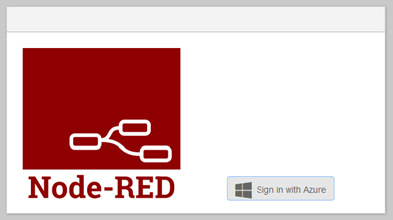
Log in
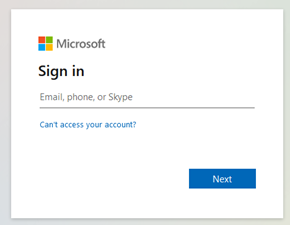
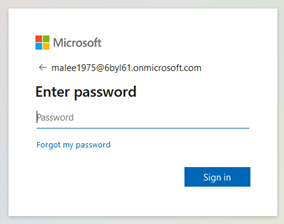
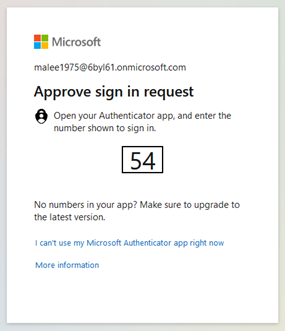
The following images illustrate the authentication flow, from login through to 2FA via Microsoft Online. After authentication with 2FA the user is redirected back to Node-RED. As with OAuth based systems, a user once validated does not need to revalidate their identity to login.