SAML: single login strategy for Node-RED
The SAML protocol provides a single login strategy for Node-RED. This is a basic overview of how this works; not a recommendation. As an organization you may want to add more layers of security.
Creating an SSO with SAML via the Azure Portal
One way to create an SSO that implements SAML is to utilize the Enterprise apps feature available within the Azure Portal.
-
Go to the Azure portal (https://portal.azure.com/#home), then go through to the Manage Entra ID section.
-
In the left-hand side menu under Manage click Enterprise Registrations.
-
Then click New application to register a new Enterprise application.
-
Download the certificate from the SAML configuration page in the Azure portal. The required certificate is the base64 formatted one.
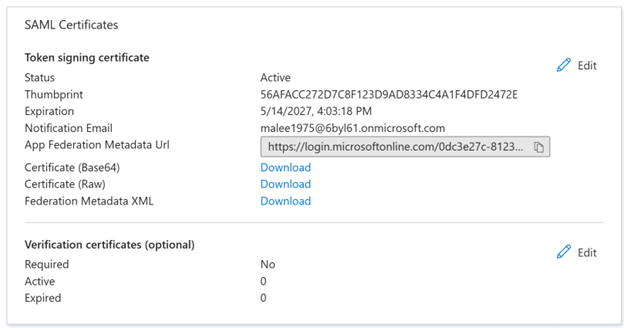
-
Copy the certificates downloaded from the identity provider over to the same directory as the settings.js file.
There may be a limit of one SAML-based application per tenant or per developer account subscription.
More can be read on SAML with enterprise apps in the Microsoft documentation: https://learn.microsoft.com/en-us/entra/identity/enterprise-apps/add-application-portal-setup-sso.
Integrating SAML into Node-RED
-
To install the relevant passport package, open the Command Prompt and enter:
Copy$ npm install passport-samlThe passport saml library defined in the passport JS documentation has since node v4.0 been deprecated. It is advisable to use the new library: https://www.npmjs.com/package/@node-saml/passport-saml.
-
Following the installation, configure the settings.js file.
On line 119 there is the start of a section called securing Node-RED. If enabled, you will need to disable the default form of authentication.
Replace any auth admin blocks with the code snippet below:
CopyadminAuth: {
type: "strategy",
strategy: {
name: "saml",
label: "Sign in with Entra ID",
icon: "fa-windows",
strategy: require("@node-saml/passport-saml).Strategy,
autoLogin: false,
options: {
issuer: "azure-saml-test",
entryPoint: "https://login.microsoftonline.com/0dc3e27c-8123-4477-922f-9bd3863cc219/saml2",
idpCert: require("fs").readFileSync(
require("path").join(_dirname, "sso.cer"),
),
callbackURL: "http://localhost:1880/auth/strategy/callback",
callbackMethod: "POST",
verify: function (profile, done) {
profile.username = profile.nodeREDadmin;
done(null, profile);
},
},
},
users: function(user) {
return Promise.resolve({username: user, permissions: "*" }];
},
},Note that:
- SAML differs slightly from OAuth and OIDC. An issuer, entry point, certificate, path and call back method need to be defined.
-
Unlike OAuth there is no prerequisite for client and secret tokens. Instead, the certificate downloaded from the identity provider needs to be copied over to the same directory as the settings.js file.
-
The issuer is the identity providers entity ID. The entry point is the SAML-P entry point (this is IdP specific).
-
Node-RED’s auto login feature is useful for bypassing the Node-RED admin login. However, this feature is not fully compatible with SAML. Setting
autoLogintofalsedisables the feature and allows a user to log out of Node-RED whilst they are signed in to other services authenticated via the IdP. -
By default, Node-RED sends the callback to an endpoint listening for GET requests. To allow SAML to send a POST request instead, the callback method needs to be defined.
-
The profile image must be set via a modification to the
verifycallback function. From the code snippet you can see that the image is applied to the profile object from the processed OAuth response. -
Auto login can be enabled, but with SAML it is advisable to set this to false. If you have logged into other system wide services, it is not possible to logout.
-
SAML unlike OAuth allows you to add claims to the response. These claims contain user related meta data. As only the user email address is readily available in the processed SOAP response, we added to the identity provider a claim called ‘nodeREDadmin’.