Advanced flow scheduling with function node
The inject node allows a flow to be triggered at defined intervals, for example, every 15 minutes, once every 24 hours, or between specific times on selected days. This configuration covers most common scheduling scenarios.
In OL Connect Workflow, additional scheduling options are available, such as running a process during the first week of the month. While the inject node in OL Connect Automate does not include this functionality by default, it can be implemented by adding a function node.
Before starting, ensure you’re familiar with the essential concepts of OL Connect Automate and Node-RED, including editor features and flow design. See Documentation, Training, and Support for links to getting started topics and information about using samples and tutorials. Nodes shown in flow example images may display their entered names, set in the node Properties panel, instead of their default names.
Overview
Set the regular schedule in the inject node, then handle more specific timing conditions (such as week, month, or day logic) in the function node using JavaScript’s Date() object.
Steps
-
Add an inject node to your flow.
-
Double-click to enter the Properties.
-
Set your desired Repeat interval. For example, select at a specific time, set the time, and select every day.
-
Add a function node to your flow, following the inject node.
-
Initialize the date in the function node, by creating a variable to capture today's date using Javascript's
Date()object. See https://developer.mozilla.org/en-US/docs/Web/JavaScript/Reference/Global_Objects/Date for more information. -
Add custom logic using methods such as
getDay()orgetMonth()to determine when the flow should proceed.For example, to allow the flow to continue only in January:
const today = new Date();
// getMonth() returns 0 = January, 1 = Feb, ...
if (today.getMonth() === 0) {
return msg
} 
Check if today is the last day of the month
This is another example of custom logic that can be used to determine when the flow should proceed. This example combines several JavaScript Date methods, including getFullYear() and getDate(), to determine if the current day is the last day of the month.
const today = new Date();
// Determine the last day of the current month
const lastDayOfMonth = new Date(today.getFullYear(), today.getMonth() + 1, 0).getDate();
// Compare today's date to the last day
if (today.getDate() === lastDayOfMonth) {
// It's the last day of the month
return msg;
}How it works
-
new Date(today.getFullYear(), today.getMonth() + 1, 0creates a date object representing the last day of the current month (day 0 of the next month rolls back one day). -
getDate()extracts the day number (e.g., 28, 30, 31). -
The condition compares today’s date to that value.
Multiple outputs
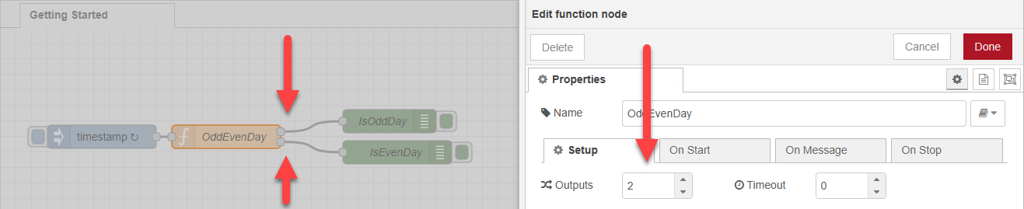
By default, a function node has a single output. However, you can configure additional outputs in the Setup tab by adjusting the Outputs property.
When multiple outputs are defined, the function can send messages to specific outputs by returning an array, where each element corresponds to an output in order.
Using multiple outputs allows you to route messages based on specific conditions. For example, the following function sends the message to the first output when today’s date is an odd day, and to the second output when it’s an even day.
const today = new Date();
const day = today.getDate();
if (day % 2 !== 0) {
// Output 1: Odd day
return [msg, null];
} else {
// Output 2: Even day
return [null, msg];
}The flow for multiple outputs is shown below.
How it works
-
getDate()returns the numeric day of the month (e.g., 1–31). -
day % 2 !== 0uses the modulus operator to determine if the number is odd. -
Returns the message (
msg) only if the current date is odd.