OL Connect Chromium Release Notes 2026.1.2
OL Connect based on Chromium
This new OL Connect Designer provides a significant upgrade to OL Connect by incorporating the Chromium Embedded Framework (CEF), replacing the older Mozilla Gecko engine.

This transition brings the latest HTML, CSS, and JavaScript standards to the software, opening up new possibilities for future UI enhancements and introducing new output options, such as the ability to generate accessible PDF output using PDF/UA (PDF Universal Accessibility).
The new architecture will enable seamless engine updates with each release, ensuring that OL Connect remains up to date with evolving web technologies.
These release notes should be read in conjunction with the general Mozilla Gecko OL Connect Release Notes 2026.1.2, as the changes listed within are common to both versions.
Note: It is safe to open existing Templates in the OL Connect Chromium version. You will be prompted to save a backup of the original Template, so you can always return to the backup.
Caution: It’s important to note that the Chromium-based version of OL Connect Designer is not fully backwards compatible with previous Mozilla Gecko-based releases.
To assist you with transitioning to the new standards, we have implemented a template migration dialog that performs several checks to help ensure templates are updated correctly. The newer web standards may conflict with features previously used in the older Mozilla engine, such as deprecated JavaScript language features or CSS vendor prefixes (such as -moz for Mozilla ).
The migration dialog will notify you of most potential issues, and will provide options to either create a backup of the template before proceeding or to export a detailed report to a text editor or spreadsheet. This gives you an efficient way to review and address any necessary changes, ensuring that the update process is streamlined and manageable.
We recommend you test any existing templates before going live to production, as the migration dialog cannot be guaranteed to capture all potential issues, given how complex templates might be.
Enhancements
Supports Latest Web Standards
By adopting the Chromium Embedded Framework (CEF), OL Connect Designer and Merge Engines support cutting-edge HTML, CSS, and JavaScript features, enabling more advanced designs.
Our users increasingly rely on CSS and JavaScript snippets found online or generated by AI tools. These snippets often utilize modern techniques that may not be compatible with the outdated Mozilla Gecko engine and older internal JavaScript engine. This made the transition to a more modern and up-to-date browser engine essential.
CSS features
CEF supports all modern CSS keywords. If a CSS feature is supported in the current version of Chrome, it is almost certainly also supported in OL Connect CEF. It has proper support for grid layout, clip-path, text-align-last, text-decoration, and object-fit, to name a few important features.
Some related usability improvements are:
-
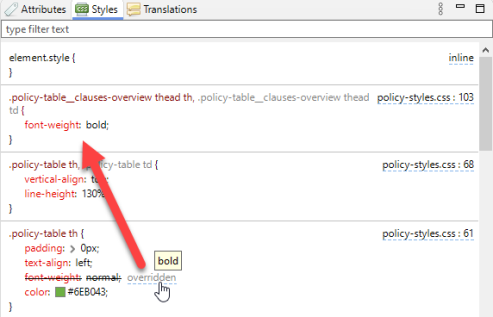
Improved Styles pane. For example:
-
If a style is overridden, a hyperlink allows jumping to the active style. Hovering over this hyperlink shows the style's computed value.
-
You can hover over a CSS variable to see its computed value. Where appropriate, color previews for CSS variables are shown.
-
Improved syntax coloring.
-
If a selector part is not applicable it is grayed out.
-
Better representation of nested selectors, multiple occurrences of the same property name, pseudo element groups, and variables.
-
-
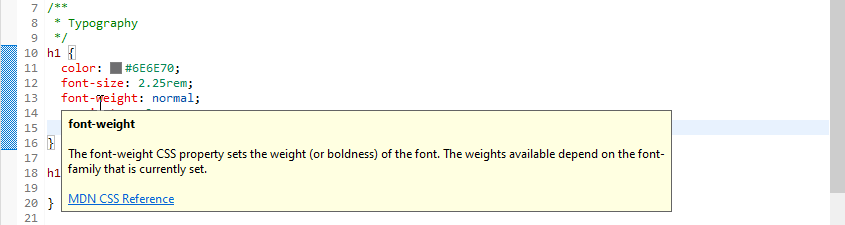
CSS editors now show a tooltip when you hover over a CSS property name, with a short description and a link to MDN.
-
The CSS style
text-align:justifynow works correctly for Chinese and Japanese text. -
Many references can function as a hyperlink to open the target resource in an editor.
For example: @use, @forward, @import, CSS variables, SCSS variables, @function, @include, and @extend. This works in regular CSS editors as well as in SCSS editors. In JavaScript editors the same applies to variables and function references.Note: The Ctrl key must be pressed down before you can see and click the hyperlink. Alternatively, select the reference and press F3.
After navigating by clicking or by pressing F3 you can press Alt + left arrow to return to the original location. -
Validation in editors. As an example, validation errors are shown while editing a JavaScript resource.
-
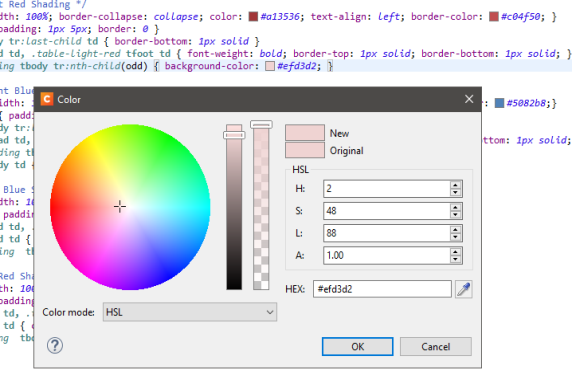
Color previews in CSS, SCSS, and HTML editors (in local and remote files). Clicking a color preview opens the Color Picker dialog if the resource is not read-only.
-
The Color Picker dialog now has an opacity slider, and its brightness slider has been flipped. Hexadecimal colors now use lowercase.
-
The Sass compiler has been updated. It has a number of additional features, such as:
-
The @use and @forward keywords are supported.
-
SCSS partials are validated, but only if they are referenced by at least one regular SCSS resource.
In addition to annotations for errors (one per resource), annotations for warnings (potentially multiple per resource) are supported. -
The error dialog that pops up if SCSS compilation fails contains a hyperlink to the file and the line that caused the error.
-
SCSS files have proper syntax coloring.
-
Compiled CSS files have a source map link at the bottom. This allows the Styles pane to refer to locations in the original SCSS file rather than the compiled CSS file.
-
Enhanced Source Editors
OL Connect source editors, such as snippet and script editors, have undergone significant enhancements. These include better syntax highlighting, enhanced code completion for JavaScript editors, real-time syntax validation for CSS, SCSS, and JavaScript resources, and the ability to quickly navigate to the definition of functions and variables. Additionally, CSS and JavaScript editors now feature links to online documentation for CSS properties and OL Connect Designer Scripting API functions.
Source view
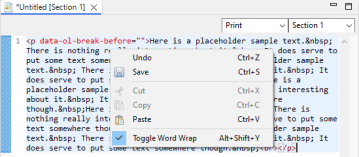
You can now easily word wrap text in Source view mode (the Source tab).
Element highlighting
Hovering over a script in the Scripts pane displays a more advanced tooltip. Margins and padding have distinct colors, and the width and height of the first matching element are shown.
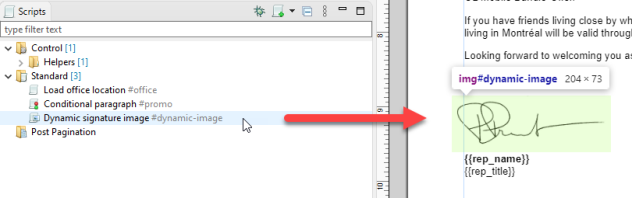
The content color (light-green by default, i.e. #7fff0025) can be overridden in the preferences. The other highlight colors cannot be changed.
OL Connect CEF also highlights matching element(s) in the main editor if you hover over an entry in the Outline pane, breadcrumbs, and Styles pane.
Holding the Ctrl key while hovering scrolls the highlighted element(s) into view.
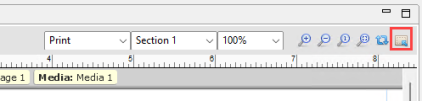
An Inspect Mode toggle button has been added to the editor toolbar. With Inspect Mode turned on, elements in the main editor are highlighted if you hover over them. This includes extension lines that connect to the rulers, if rulers are visible.
Holding the Shift key highlights child elements (one level deeper).
Handlebars built-in Helpers
Many of the built-in Helpers for Handlebars accept more arguments than before. For example, you can pass three or more arguments to or, and and log.
Example: {{log "a" "b"}}.
Script editors: tooltip with help text
The help text for code completion proposals includes one or more links to the Online Help or other websites, as appropriate. This help text is now also shown when the user hovers over a word in a script editor.
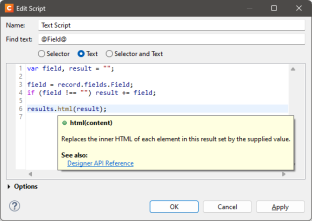
The message that is displayed when hovering over a warning or error annotation in a script editor includes relevant help text.
Note: If help text or a link is missing or should be changed, please let us know!
Font embedding
Fonts that are loaded from the template itself or loaded using a CSS @font-face rule that uses the url() function might be embedded differently in the output PDF.
Instead of their original name they can get generic names such as "F0, F1, F2, etc." and can get converted to Type 3 fonts.
Workarounds include not loading the fonts from the template or remotely but installing them on the machine itself or using TrueType Fonts which do not have the Restricted License Embedding flag set.
Unlocks Future UI Improvements
The new browser engine sets the stage for several upcoming user interface enhancements, responding to popular requests. Some improvements are already integrated into the software. For instance, tasks like aligning text to the bottom of a box (which was challenging with the Mozilla Gecko engine) and automatically scaling images to fit within a specific bounding box have already been implemented.
Theme support
Choose between a dark or light theme for the Designer user interface, with matching color schemes for source editors. The theme can be selected under Window > Preferences > Theme.
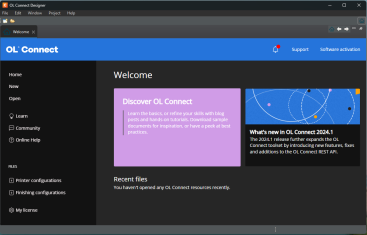
Note that this feature is still under construction.
Also note that a dark theme is only fully supported if the operating system supports themes, which is not the case with a Core installation of Windows Server.
New Output Option – PDF/UA (Universal Access)
OL Connect CEF supports the generation of accessible PDF documents using PDF/UA (Universal Access) output type.
This allows individuals with disabilities to access and navigate content using assistive technologies. Such as making documents navigable via keyboard for users with varying motor skills and compatible with screen readers for those with visual impairments.
Additionally, it ensures compliance with regulatory standards such as the ADA, Section 508, and the European Accessibility Act (EAA) (June 28 2025).
While web and email content could already be accessible (depending upon the capabilities of web browsers and email clients) generating documents for digital distribution to individual recipients requires the ability to produce PDFs using the PDF/UA standard.
Whether your documents are accessible depends on their content. Simply generating PDF/UA documents doesn't automatically ensure compliance with standards like EAA, ADA and Section 508. To meet these requirements, you should follow WCAG guidelines (such as Web Content Accessibility Guidelines (WCAG) 2.1), which may require extra effort before generating PDF/UA output.
WCAG (Web Content Accessibility Guidelines) are a set of standards designed to make web content more accessible to people with disabilities. These guidelines ensure that digital content is usable by individuals with various impairments, such as visual, auditory, cognitive, and motor disabilities.
Template designers must, for example, ensure a logical reading order, proper tagging of content, adequate color contrast, and the conversion of essential image-based information into selectable text. Images should be tagged with meaningful alternative text, generic tags like "image1" are not sufficient for accessibility.
These steps are essential for making PDFs truly accessible and ensuring compliance with industry standards. See the
Differences
Output
The output that the CEF version generates from existing templates may not be identical to the output of the standard version.
Text is rendered differently, which means the output will look slightly different overall. Text is drawn at different offsets, which may affect word wrap. As a result, content that fits on a page in the standard version of OL Connect might be (partially) pushed to the next page or run shorter with OL Connect CEF, which may affect the page count.
PCL output from the CEF version can be larger due to the different handling of the section backgrounds.
Preview view
In Preview view mode (the Preview tab) content is read-only; it cannot be edited.
Note: If there is a circumstance where it is important to be able to edit a template in preview mode, please let us know.
Insert helpers
While editing in the Design tab we no longer automatically add temporary helpers to make it easier to insert content directly before and after certain element types (table, form, div, article). This means you may need to switch to the Source tab more often.
We may revisit this at some point.
Formatting of numbers and dates
Formatting is now based on the latest CLDR standard. This means there may be differences in the way numbers and dates are formatted, compared to previous versions of OL Connect.
Currencies now consistently use standard-currency rather than accounting-currency, which means negative values are not enclosed in parentheses by default, but instead have a minus sign.
Example: In content with the en-US or fr-CA locale, a negative amount of 28,50 (formatted as Currency) will be displayed as follows in the CEF version: -$28.50
In the standard version it looks like this: ($28.50)
An option to select either standard-currency or accounting-currency will be added in a later version.
Colors
The following differences are related to colors:
-
2026.1.1 currently behaves quite different to the Mozilla based Designer in how it handles color spaces and profiles of images used within the Template.
Tip: For color critical images we recommend putting the image in a PDF file and using that PDF file as the image in the Template, rather than placing the image directly into the template.
-
Custom color names (or "color swatches") are now case-sensitive.
-
Renaming a Custom color (or "color swatch") now cascades the update in all (non-remote) CSS and HTML resources.
-
To refer to a custom color in CSS or HTML, you must use the var() function and add two hyphens.
Example:
color: var(--WebGreen)It is no longer possible to directly refer to a custom color (e.g.
color: WebGreen).
When you select a custom color from a color drop-down, the style value is automatically set using the var() function (e.g.var(--WebGreen)).
To make working with variables easier, CSS editors provide completion proposals for variables starting with "--". -
The non-standard cmyk() function is no longer supported. When an older template is opened, cmyk (c, m, y, k) references are automatically changed into var(--cmyk-c-m-y-k), with appropriate values for c, m, y, and k.
Note: While most older styles are automatically updated, styles in read-only resources like remote CSS or JavaScript cannot be updated.
-
The preference in Editing > CSS > Sass CSS preprocessor that allows users to configure the output style offers two settings - Compressed and Expanded (the default) - rather than four.
-
The Box Formatting and Paragraph Formatting dialogs show the current font color in the various border color fields if no border color style is present.
-
The Color Picker dialog opens when "Other" is clicked in the Color drop-down (opened via Format > Color, or the Text color toolbar button), instead of the Text Formatting dialog. .
User scripts
The following differences are related to user scripts:
-
Each user script now runs in its own isolated scope. Functions and variables declared with
const,varorletcan only be accessed from the script (or function) in which they are declared.Scripts in existing templates may rely on global variables declared with
const,varorletin a Control Script.
Remove theconst,varorletkeyword to make these scripts work again.Example:
x = 123;To make a function global you should use a function expression.
Example:
fn = function() { … } -
The
resultsobject is now iterable. This means you can loop over it like this:Copyfor (const result of results) {
...
}You can now break out of a
results.eachloop by returningfalsein the callback, just like with jQuery. -
The behavior for
record.indexused to be inconsistent.
The property was 1 based for the main record, but 0 based for detail records.
In the Chromium version it is now consistently 1 based.
This can also be seen in the Clone Section script wizard. In the Chromium version the expanded script subtracts 1 fromrecord.indexbefore applying it tometa["detail-table-record"]. -
Fields and tables are now plain objects rather than arrays/object hybrids. This means the
lengthproperty is no longer supported forrecord.fieldsandrecord.tables, and it is no longer possible to access a field or table through a numeric index.
The following script will now produce errors:Copyfor (let i = 0; i < record.fields.length; i++) {
logger.info(record.fields[i]);
}Tip: If
record.fieldsorrecord.tablesreally need to be treated as an array, they can be transformed with eitherObject.keys,Object.values, orObject.entries.The above script could be rewritten as:
Copyfor (const name of Object.keys(record.fields)) {
logger.info(name);
}Note: A detail table is still an array. For example, if you have a detail table with the name mydetailtable then
record.mydetailtableandrecord.tables.mydetailtableare still arrays. This still allows you to get data from a specific detail record in a script. -
Query function: You can now call
queryin a control script, which allows you to manipulate the HTML returned byresource.htmlusing functions that are normally reserved for standard scripts. -
Resource names (sections, master pages, media) are now case sensitive.
If you refer to a section in a script you will need to make sure to use the same casing as in the Resources pane. -
Validation for user scripts in Design mode is now limited to syntax errors.
In Design mode, in the Scripts pane and in script editors you will no longer get runtime warnings (such as when a table or field name is unknown) or runtime errors (such as when unknown properties are referenced).
Warnings and runtime errors are still visible in Preview mode. -
All properties underneath
sheetConfig.positions.allare now write-only. -
The Rhino library is no longer used for user scripts, which means that scripts are no longer affected by bugs or limitations in that library. For example: it is now possible to use the
constkeyword for the variable in afor...ofloop.
Previousy that would trigger a syntax error because of a limitation of Rhino.Note: In DataMapper scripts, the underlying architecture has not changed. They still rely on Rhino.
Note: We have noticed that some customer templates make use of Rhino-specific syntax.
Since scripts now run directly in a browser, this syntax will no longer work.
For example:String.substr(name, 1, 3)works fine with Rhino but produces an error in CEF.
The proper syntax isname.substr(1, 3), which works with both Rhino and CEF. -
String functions.
The followingString.prototypefunctions are Rhino-specific and are no longer supported:-
equals
Use “==” or “===” instead -
equalsIgnoreCase
Convert both sides to lowercase or uppercase and use “==” or “===” instead
The same applies to the following static
Stringfunctions:-
String.charCodeAt
-
String.charCodeAt -
String.concat -
String.equals -
String.equalsIgnoreCase -
String.indexOf -
String.lastIndexOf -
String.localeCompare -
String.localeCompare -
String.match -
String.replace -
String.replaceAll -
String.search -
String.slice -
String.split -
String.substr -
String.substring -
String.toLocaleLowerCase -
String.toLowerCase -
String.toUpperCase
-
-
The Script Debugger has been simplified and been made more user-friendly. Some examples: the call stack has been removed; hovering over a script now highlights the selector results in the main editor and scrolls them into view if necessary; the debugger automatically pauses when an error is thrown instead of continuing with the next script; if a line consists of multiple statements, you can step through each statement.
-
When
merge.section.paginate()is called in a post pagination script, pagination is no longer triggered immediately, but is postponed until the script is done. Code that relies on the new state will need to be placed in a separate post pagination script. -
Broken Image detection has also been moved to post pagination.
OL Connect Chromium 2026.1.2 Enhancements
The following issues were resolved in the OL Connect Chromium 2026.1.2 release:
-
We now discard any leftover anchor attributes in master pages when we load a template. This aligns with how older version of Connect behave, and it prevents issues with positioning in certain scenarios. (97990)
-
Fixed an issue where template-embedded fonts were not applied properly in output and in external previews. (98051)
-
Fixed an issue where a job got canceled when it contained a record for which all sections were disabled. (98056)
-
Fixed an error processing some PDF backgrounds when printing. (98059)
-
Fixed an error that occurs when a section background uses “From Image Resource” with a blank path. (98193)
-
Fixed an issue that caused selectors in CSS that refer to a snippet to be inactive during output. For example:
article[source="snippets/foo.html"](98208) -
Fixed an issue that could cause the main editor in the Designer to skip pagination after a DOM modification, requiring a manual refresh.
Note that this issue only occurred in the Designer, not during output. (98287) -
Fixed a “Widget is disposed” error that could occur when importing a resource into a Template. (98294)
-
Fixed a resource validation issue that was experienced on some machines. (98297)
-
Fixed an issue with passing ‘nulls’ in the JSON HTTP body to the Email Rest API endpoint which resulted in errors in the Server and emails not being sent. (98367)
-
Fixed an issue where translations in a template in some specific circumstances were not applied if the element to be translated contained multiple other HTML elements. (98376)
OL Connect Chromium Enhancements from Early Access version
We provided an Early Access release of the Chromium version as a preview. This section lists the improvements made since then.
-
Improved behavior and error messaging for missing images in production runs. (93798)
-
Section background images can be targeted by a post pagination script with selector
img. This is an improvement over the Mozilla Gecko-based Connect, which did not allow scripts to access section background images. (94469) -
HTML comments that may be added to web and email templates are not included in the web and email outputs. (94889)
-
A language attribute (
lang) is set for elements of the document structure tree, based on the locale setting, when preparing accessible PDFs. (95386) -
Resolved an issue with duplicate document nodes in the structure tree for accessible PDFs. (95388)
-
Resolved an issue with potential incorrect language attribute when separating output PDF documents from a single intermediate file. (95390)
-
Barcode Properties and Chart Properties dialog boxes can now be opened in Preview mode, making adjustments faster and more intuitive. (95461)
-
Output creation incorrectly handled UTF-16 encoded strings within marked content of tagged PDFs generated by OL Connect's content creation. This problem could result in copying incorrect text. For instance, when using Ctrl+C in a PDF reader, or assistive technologies, such as screen readers, rendering the wrong text. This issue has been fixed in this release. (95501)
-
Improved how section backgrounds are identified when testing for accessibility for PDF/UA-1 output. (95584)
-
Improved the Template Compatibility dialog. It now has greater accuracy, improved functionality/usefulness. (95595/95760/95848/97205)
-
Copy and pasting an abs box led to unintended content duplication. This has now been fixed. (95607)
-
Improved template conversion. The deprecated
-moz-box-sizingin HTML resources is automatically converted tobox-sizing. (95618) -
Minor errors in the Script debugger have been fixed. (95653)
-
The “Keep Tagged PDF” option has been removed from the Output Preset, as it is no longer relevant. This functionality has been integrated into the implementation of the PDF/UA-1 option as one of the supported PDF types. (95655)
-
Improved efficiency and speed of PDF/UA generation. (95717)
-
Added an option to set the Object Position directly from the Image section of the Attributes panel. (95752)
-
The trial period has been reduced to a standard 30 days, to keep it consistent with the Mozilla version of OL Connect. (95760)
-
Cloned sections were remaining visible in the Resources pane after switching from Preview mode to Design node. This has been fixed. (95770)
-
Fixed a problem in the CEF Early Access version which prevented using PCL input. (95891)
-
The Mozilla Rhino library, used for scripts in the data mapper and output engine, has been updated to the current version (1.9.0). Template scripts do not use Mozilla Rhino, as they run directly in Chromium. (95964)
-
Fixed a CEF Early Access version problem, whereby empty logical structures caused PDF/UA output to abort. (95979)
-
Added support for resetting the zoom level to the default, using CTRL + 0 or CTRL + Keypad 0 → Reset to default size in the script source and JSON sample data editors. (96014)
-
Improved support for high DPI monitors when Windows scaling is higher than the default 100%. (96037)
-
Added tab order specification to pages with annotations in PDF/UA output, as required by the specification. (96082)
-
PDF Options have been updated to remove the default variable if no title is entered. While this default worked under the Mozilla based version of OL Connect, it is not consistent with the behavior of other metadata fields. The title is as defined in the template. (96186)
-
Date and time functions have been updated for clarity and to provide information about using language tags in date and time functions. A warning message is generated if a language tag is missing or invalid. (96411)
-
Filters for the Resources pane and Scripts pane now allow you to specify case sensitive and whole word matches, making it easier to find the desired resource or script. (96502)
-
Fixed a CEF Early Access version error that could occur in PCL output if input files contain blank pages. (96921)
-
In the CEF Early Access version, when printing with virtual stationery enabled and outputting to grayscale, the virtual stationery did not convert to grayscale and appeared in its original colors. This has been fixed. (96929)
-
The Resources link on the Welcome screen has been updated to show more relevant content in the OL Resources Center. (97068)
-
The Template Save a Copy option includes warnings about lost or affected features that display if you are down-saving a template from a Chromium version to a Gecko version. (97081)
-
The Template Compatibility dialog includes new warnings regarding color options:
-
Any Opacity setting applied to CMYK and spot Tint Color swatches is only applicable to PDF output formats. In other formats, Tint Color swatches are always fully opaque. This may cause visual differences and reduced design accuracy for non-PDF outputs. (97119).
The preflight check on a template also warns if Tint Color swatches are present in a non-PDF output. (97121)
-
The CMYK/Color Swatch conversion message includes a detailed overview of all affected resources, allowing faster identification and resolution of color-related issues in converted templates. However, line numbers displayed may not be accurate when switching to Source mode. (97202)
-
-
The Template Compatibility dialog can now be opened from a menu option in the File Menu. This allows rechecking any existing warnings related to the Chromium conversion of the currently open template.
-
Microsoft Visual C++ 2013 Redistributable is not required by OL Connect Chromium 2026.1. (97376)
-
The data-broken-image attribute is present on for
imgelements that failed to load during the post pagination stage. This means theimg[data-broken-image]selector only works for post pagination scripts. -
Automatically generated color names now use a more consistent format. (97640)
For example:-
cmyk was c100m60y100k0 and is now cmyk-100-60-100-0
-
rgb was r20g60b100 and is now rgb-20-60-100
-
-
The CSS properties
page-break-beforeandpage-break-afterare deprecated and have been replaced withbreak-before: pageandbreak-after: page, as shown on the updated help pages. For more information about the syntax of these properties, see https://developer.mozilla.org/en-US/docs/Web/CSS/Reference/Properties/break-before and https://developer.mozilla.org/en-US/docs/Web/CSS/Reference/Properties/break-after. (96953) -
Fixed an issue where static tables using the 2019 table splitter could split across page boundaries in Preview and output, but not in Design view. Static table rendering is now consistent across Design, Preview, and output. (97477)
OL Connect Chromium 2026.1 Known issues and limitations
The following features are waiting to be implemented in OL Connect Chromium.
-
Missing email attachments are treated as warnings instead of errors. This will be fixed in the 2026.2 release.
-
Color management (i.e. support for color profiles) is not supported for images.
-
CMYK output is supported for custom colors, but images in CMYK format (with or without a color profile) will be changed to RGB format.
-
When printing to PDF, the non-RGB custom color of an element is lost when its parent is transparent, such as CMYK colored text inside a transparent paragraph. Transparency for custom colors is not recommended for non-PDF output due to compatibility and performance issues.
-
The Facing pages feature, which alternates the side margins in Print output, is not supported in this version of OL Connect. If you require Facing Pages, please open this template or document in a previous Mozilla Gecko-based version of OL Connect.
-
There are some minor usability issues. For example: formatting multiple boxes at the same time is not yet possible.
-
There is currently a known limitation in the line thickness values that can be applied in the Chromium version. Lines are always converted to whole-pixel values. This causes any line thickness below 1 pixel to be converted to 0.75 points (the equivalent of 1 pixel), and any line thickness between pixel values will be rounded up or down to the nearest whole-pixel equivalent.
-
Templates using the CSS style
position: fixedmay no longer produce correct output.To ensure correct rendering, use
position: absoluteinstead. Existing templates that rely onposition: fixedshould be updated accordingly.
PDF image pass-through issues
Using PDF files as images has limitations in the Chromium version of Connect due to the lack of the support in the browser engine.
-
Using a PDF file for an image fails when using the grayscale conversion feature. Workarounds and fixes are being tested.
-
Using a PDF as an image source (via
<img>or CSS backgrounds) in a template can fail silently and produce visual artifacts when the rendered or visible portion is very small, heavily clipped, repeated, or combined with long filenames. As a workaround, use a rasterized version (e.g., PNG) for small or partially displayed PDF images.
+PReS Enhance issues with Chromium version
The +PReS Enhance Read Connect plugin is not yet fully compatible with a job set generated by OL Connect Chromium 2026.1.
This plugin is typically used by a custom +PReS Enhance Workflow Configuration.
This issue will be fixed in a later release.
Scripting issue with non-existent properties
In OL Connect Chromium 2026.1, if a script tries to use typeof to determine whether a property is defined and that property does not actually exist, then a ReferenceError is triggered. The rest of the script is not executed.
A workaround for typeof being used to determine if a record is the first record of a job (a common usage) is to instead check for record.index == 1.