PDF/UA-1 (Universal Access)
This option is currently only available in the Chromium based version of OL Connect.
Note: PDF/UA output requires a license.
With the Chromium engine, OL Connect utilizes Tagged PDFs for the intermediate files generated during paginated output creation, a substantial step towards achieving PDF/UA compliance. This enhances document accessibility, benefiting users, including those with disabilities, by making content easier to access and interact with using assistive technology.
As the European Accessibility Act comes into effect in 2025, this feature ensures that OL Connect is aligned with evolving accessibility regulations.
Creating accessible PDFs involves following best practices in design, but more importantly, it requires empathy for users with disabilities who will use your documents. Accessibility means ensuring all users, regardless of their abilities, can access the information they need. This includes making documents navigable via keyboard for users with varying motor skills and compatible with screen readers for those with visual impairments.
Are my OL Connect documents Accessible out of the box?
Whether your documents are accessible depends on their content. Simply generating PDF/UA documents doesn't automatically ensure compliance with standards like EAA, ADA and Section 508. To meet these requirements, you should follow Web Content Accessibility Guidelines guidelines, which may require extra effort before generating PDF/UA output.
Web Content Accessibility Guidelines (WCAG) are a set of standards designed to make web content more accessible to people with disabilities. These guidelines ensure that digital content is usable by individuals with various impairments, such as visual, auditory, cognitive, and motor disabilities.
Template designers must, for example, ensure a logical reading order, proper tagging of content, adequate color contrast, and the conversion of essential image-based information into selectable text. Images should be tagged with meaningful alternative text, generic tags like "image1" are not sufficient for accessibility.
These steps are essential for making PDFs truly accessible and ensuring compliance with industry standards.
Accessibility features
These are the accessibility features available in OL Connect:
-
Enable Accessibility for the Print Context
-
Logical Structure tree
-
Language selection
-
Document Title
-
Alternate text for images
-
Font Embedding
-
XMP metadata
Accessibility options for the Print Context
When PDF/UA output is selected, the Merge Engines generate intermediate PDF files in Tagged PDF format, which is the foundation for PDF/UA output.
However, generating files in this format may slightly impact performance. To minimize disruption, we've made this feature optional, ensuring that users focused on print output are not affected by any potential decrease in performance.
Note: In the CEF Early Access Preview an intermediate PDF document is generated for each record. This will negatively impact performance. However, this approach ensures that the tag tree functions correctly for each recipient's document at this stage. The final implementation will employ more performance-optimized techniques and will group multiple documents/records into a single intermediate file.
Enabling Universal Accessibility for the Print Context
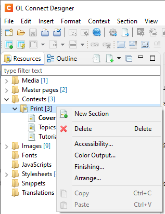
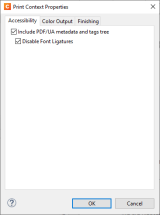
To enable this option for the print context, choose: Context (main menu bar) > Accessibility (or right click the Print folder in the Resource panel) and choose Accessibility from the contextual menu. Then select the Accessibility options. Upland OL recommends selecting both PDF/UA options.
|
|
An information icon will appear on the Print Context folder to indicate that the option is enabled.
Logical Structure Tree
The Logical Structure Tree in PDF/UA is a hierarchical framework that defines the content structure within a PDF document. It outlines the document’s elements, such as headings, paragraphs, lists, tables, and more. Presented in a logical reading order, it ensures easier navigation for users relying on assistive technologies. For instance, screen readers often provide shortcuts to jump from one heading to the next, while also explaining the content under each heading and its respective level, making the document easier to navigate and understand.
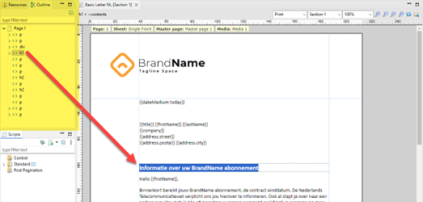
This structure closely aligns with the Outline pane in OL Connect Designer, which displays the layout of the template, including all HTML tags on each page. It serves as a useful tool for previewing the logical tree structure. Additionally, it provides options to highlight elements on the page and allows for the repositioning of elements within the structure.
Tips :
-
Change position/move elements: When adding an address block container (a
<div>element) or positioned box to the Template, it is initially placed at the end of the logical tree. To establish the correct semantic order, the element can be moved by simply dragging it within the Outline view to a more appropriate position or change it’s position in the Source view. -
Headings: Headings indicate the start of important content. It is possible for assistive technology users to access the list of headings and to jump directly to the appropriate heading and begin reading the content.
Ensure the first heading in the document is of type Heading 1 (<h1>). This indicates the start of the main content. In a letter document, this would typically correspond to the subject of the letter. Subsequent subheadings should follow a proper hierarchical order, using<h2>,<h3>, and so on. Additionally, you may need to adjust the appearance of the<h1>element to align with the desired typography.
The subject is usually a standard paragraph, optionally with some specific styling to make it stand out. To convert it to a Heading 1, place the text cursor in the paragraph and select "Heading 1" from the Element Type dropdown in the formatting/styles toolbar. Alternatively this could be changed manually in the Source view.
Use styling (for example using the Stylesheet manager or via manually crafting a CSS stylesheet file) to apply the appropriate styling.
Document Language
Setting the document language is a key requirement of PDF/UA, enabling screen readers to correctly "speak" in the appropriate language.
In OL Connect, this language is determined by the language code in the Locale setting. The Locale option is found in the Edit menu of OL Connect Designer and allows the user to define the document's locale.
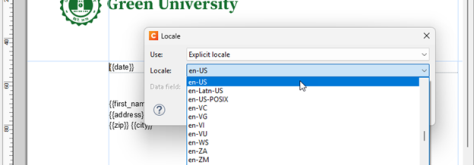
The Locale dialog in OL Connect Designer.
The Locale serves multiple purposes: it controls date and number formatting and acts as the identifier for OL Connect’s Translation feature.

Date format after changing Locale from en-EN to fr-FR
For PDF/UA output, the language component is used to specify the required document language. The Locale can be set as a static value or dynamically determined based on a data field.
For example, the locale "fr-CA" refers to the language and region setting where:
-
"fr" stands for French (the language code)
-
"CA" stands for Canada (the country code)
So, "fr-CA" indicates French as spoken in Canada. It's used to tailor content, date formats, number formatting, and other region-specific elements to the conventions used in French-speaking regions of Canada, such as Quebec.
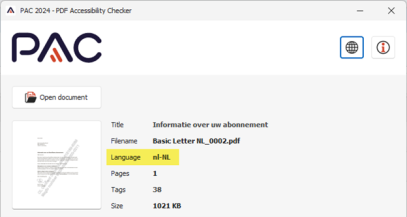
The language set by the template is displayed in the PAC Accessibility Checker
Document Title
To ensure PDF/UA compliance, it’s essential to set a meaningful document title that can be easily identified by assistive technologies. In OL Connect, you can configure the document title either via the Template's Properties (or through scripting) or set it on the PDF options page of the Output Preset, just like for other PDF formats. This allows you to set a static name or include dynamic values.
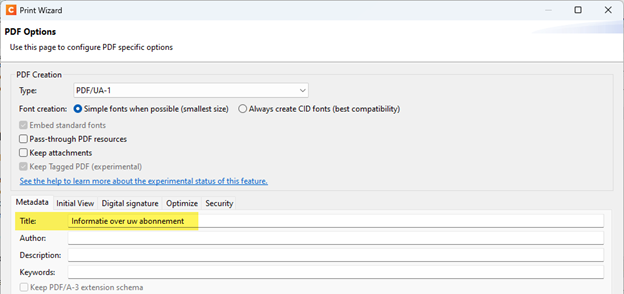
Alternate text for images (alt attribute)
Alternate text should provide a written description of visual elements, such as images and signatures, for users who rely on screen readers or braille output devices to access the content in documents. Screen readers read the alternate text aloud, helping users understand the content of the image or graphic.
The alternative text for images can be added through the OL Connect Designer interface by selecting the image and entering the text in the Alternate Text field within the Attributes panel. Alternatively, it can be defined in the <img> element in the Source view or set dynamically via a script.
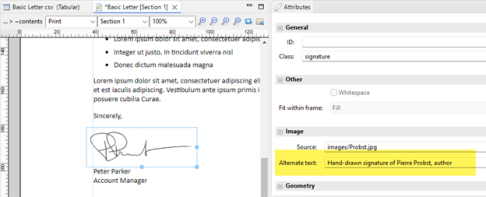
The alt text set for an image in the Attributes view of OL Connect Designer.
Font Embedding
Embedding fonts is a mandatory requirement for PDF/UA compliance. When generating PDF/UA output, OL Connect automatically embeds all necessary fonts to meet this standard. This ensures that screen readers and other assistive technologies can accurately interpret and present the text content, maintaining both accessibility and document fidelity.
XMP metadata
XMP metadata stores important accessibility information about the document, such as the document title, language, author, and the version of PDF/UA the document adheres to. This data allows assistive technologies like screen readers to process the document more effectively. For example, the document title stored in XMP metadata can be read aloud by screen readers, helping users identify the document easily.
Accessible Rich Internet Applications (ARIA)
Accessible Rich Internet Applications (ARIA) is a set of roles and attributes designed to enhance the accessibility of web content and web applications for people with disabilities. It complements HTML by providing a way for interactive elements and widgets commonly used in applications to be recognized by assistive technologies when no other mechanism exists. OL Connect currently supports the following ARIA roles and attributes, with additional ones planned for future versions.
Aria-hidden Adding aria-hidden="true" to an element removes that element and all of its children from the accessibility tree. This means assistive technologies like screen readers will ignore it, even though the element remains visible in the output and appear the same to sighted users. This can improve the experience for assistive technology users by hiding:
-
Purely decorative content, such as icons or images
-
Duplicated content, such as repeated text
See: aria-hidden
PDF/UA Best Practices
This section provides practical techniques for creating accessible documents using OL Connect.
Adding a Pause
Using a colon (:) in writing helps introduce new information and creates a natural pause for better clarity, both visually and in most screen readers (for example Read Out Loud in Acrobat Reader). It makes it easier to separate the label from its value. Compare the following examples:
Original content without colon:
<p>Date {{dateMedium Date}}</p>
Suggested content:
<p>Date: {{dateMedium Date}}</p>
Note: Some screen readers pronounce the colon instead of pausing, whereas using a comma may create a smoother pause, though it wouldn't be grammatically correct.
Breaks versus Paragraphs
Instead of using breaks (<br>) to move content to new lines, it's better to enclose the content in individual <p> elements. Some screen readers may not properly interpret or pause at line breaks, which can make navigation challenging for users depending on screen readers. Compare the following examples:
Original content with <br>:
<p>
    Date: {{dateMedium Date}}<br>
    Account Number: {{CustomerNumber}}<br>
    Order Number: {{OrderNumber}}
</p>
Suggested content with <p> elements:
<p>Date: {{dateMedium Date}}</p>
<p>Account Number: {{CustomerNumber}}</p>
<p>Order Number: {{OrderNumber}}</p>
Using <p> elements ensure a well-structured layout and provides the necessary pauses for smoother navigation. To maintain the visual effect of line breaks, you may need to set margin-bottom: 0; on these paragraphs.
This can be managed by either applying an inline style or, preferably, by creating a class and defining the style in the CSS stylesheet.
Avoid ligatures
If ligatures are embedded in a PDF as part of the text (e.g., "fi" or “ti” as a single character rather than two separate characters), screen readers might misinterpret or fail to recognize them correctly.

The characters t and i in the Calibri font presented using a ligature
Use fonts that don't require embedded ligatures, or disable them in CSS by setting the font-variant-ligatures property to none to prevent ligatures from being applied.
p {
    font-family: Calibri;
    font-variant-ligatures: none; none;
}
Or disable Ligatures in the Print Context Properties dialog.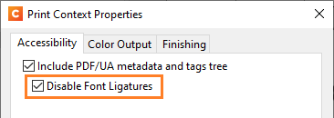
OL Connect PDF/UA Known Issues and issues with PDF Accessibility Tools
There are several tools available to check PDF accessibility, such as Acrobat Professional and the PDF Accessibility Checker (PAC). These tools help ensure that PDFs are accessible to people with disabilities and meet guidelines like Web Content Accessibility Guidelines (WCAG). They find accessibility issues and provide advice on how to fix them.
However, it's important to note that warnings and errors from these tools don't always mean the document is inaccessible. For example, the PAC tool might flag missing tags on the bullet points of list items, but the document could still be accessible.
These tools focus on technical aspects and don't cover all accessibility issues. A document might be technically correct but still not accessible. For example, if a bank account number is in a background image on an invoice (virtual stationery), screen readers will not be able to read it. For more practical tips on issues not covered by these tools and suggestions to improve accessibility, check the Best Practices section.
Below is an overview of warnings that may be raised but don't necessarily make the document inaccessible:
Non-tagged elements
The PAC tool may show errors for content not tagged. A typical example are the dots of list items. Although this throws an error the document could still be a perfectly accessible document.
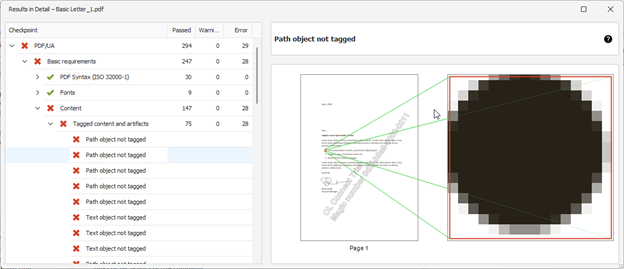
Bullet items flagged as "not tagged" in the PAC tool
Other non-tagged elements could be coming from stationery background images. These elements will be marked as decorative in future versions (aria-hidden=”true”).
Image boundaries warnings
The PAC tool currently reports warnings regarding missing image boundaries in PDF/UA documents. It is uncertain whether this is a significant accessibility concern, or if it is simply an aspect of the specification that is not widely utilized in practice. This issue is under investigation by Upland OL.
Watermarked output
In trial mode or under certain license restrictions, paginated output includes a watermark from OL Connect. This watermark disrupts the reading order, may cause the document to be flagged during accessibility checks, and generates errors as the characters are not properly tagged.
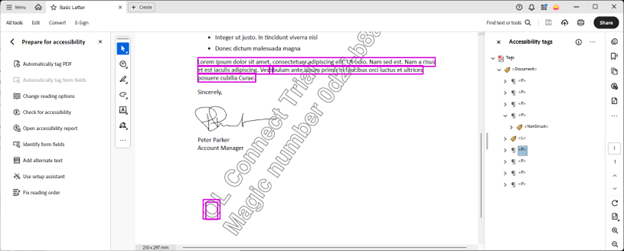
The watermark causing reading order warnings seen in Adobe Acrobat
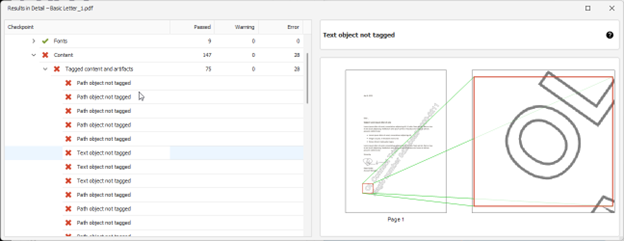
Tagged content errors caused by the watermark are shown in the PAC tool.
Impositioning
For impositioned output, multiple pages are arranged on a single sheet of paper. For example, a printer might place four pages of a booklet on one large sheet, so that when the sheet is folded, the pages appear in the correct order. Accessibility features are not available when generating impositioned documents.
Additional Content
The OL Connect output engine enables content to be added after the Merge process, where data is combined with the OL Connect template by the browser engine. Content added using the Additional Content feature is not tagged and will not be included in the structural tree of the PDF/UA output.
Future enhancements
Accessibility Preflight
There are multiple variables that determine the accessibility level of documents created in OL Connect. Currently, this relies on the knowledge of the person creating the Templates. In future versions of the software, we will introduce features to perform accessibility checks on documents during the design phase. This will assist and guide template designers in creating accessible documents more efficiently.
Expand ARIA support
The Chromium-based version currently supports some Accessible Rich Internet Applications (ARIA) features. In future updates, we plan to improve this by researching and adding support for more ARIA roles and attributes. These improvements may involve changes to the Chromium engine and/or updates to our internal Weaver output engine.