Data Tokens for Custom PowerPoint Slides
A data token is a text entry on the slide that links to data in PowerSteering. For example, the data token {Custom1.WorkID} will produce the project ID of a work item on the slide when the PowerPoint template is used. Each data token must be in its own text placeholder or cell of a table on the PowerPoint slide. The list of available tokens is below. If a token requires an explicit object name, the object is enclosed in $. For example, the token {Custom1.WorkGateStatus[$GATE_NAME$]} should be entered in the PowerPoint template file with an explicit gate name. The finished token might be {Custom1.WorkGateStatus[Define]}, which would show the status of the Define gate.
| Data Token | Will Display | Example |
|---|---|---|
| {Custom1.WorkActiveGate} | For gated work, the name of the active gate. | |
| {Custom1.WorkActualDuration} | For completed work, the work's actual duration. | |
| {Custom1.WorkActualEnd} | For completed work, the work's actual end date. | |
| {Custom1.WorkActualStart} | The work's actual start date. | |
| {Custom1.WorkChampions} | Names of the users assigned as the work's champions. Note: Champion is a replaceable term in PowerSteering. This term may appear differently on your PowerSteering site. | |
| {Custom1.WorkCustomField250[$CUSTOM_FIELD_NAME$]} | The first 250 characters of the specified custom field entry. | {Custom1.WorkCustomField250[Background and Overview]} |
| {Custom1.WorkCustomFieldFull[$CUSTOM_FIELD_NAME$]} | The specified custom field entry in its entirety. | {Custom1.WorkCustomFieldFull[Background and Overview]} |
| {Custom1.WorkDeliverablesAllGates} | For gated work, the names of all deliverables. | |
| {Custom1.WorkGateDeliverables[$GATE_NAME$]} | For gated work, the names of all deliverables for the specified gate. | {Custom1.WorkGateDeliverables[Scoping]} |
| {Custom1.WorkGateEndDate[$GATE_NAME$]} | For gated work, the system/scheduled end date for the specified gate. | {Custom1.WorkGateEndDate[Acceptance]} |
| {Custom1.WorkGateMilestones[$GATE_NAME$]} | For gated work, the name of all milestones associated with the specified gate. | {Custom1.WorkGateMilestones[Acceptance]} |
| {Custom1.WorkGateOwner[$GATE_NAME$]} | For gated work, the name of the user assigned as the specified gate's owner. | {Custom1.WorkGateOwner[Scoping]} |
| {Custom1.WorkGateStartDate[$GATE_NAME$]} | For gated work, the system/scheduled start date for the specified gate. | {Custom1.WorkGateStartDate[Execute]} |
| {Custom1.WorkGateStatus[$GATE_NAME$]} | For gated work, the status of the specified gate. | {Custom1.WorkGateStatus[Execute]} |
| {Custom1.WorkID} | The work's PowerSteering ID. | |
| {Custom1.WorkName} | The work's name. | |
| {Custom1.WorkObjective250} | The first 250 characters of the work's Objective field entry. | |
| {Custom1.WorkObjectiveFull} | The work's Objective field entry in its entirety. | |
| {Custom1.WorkOwner} | The name of the user assigned as the work's owner. | |
| {Custom1.WorkPercentComplete} | The % complete for the work. | |
| {Custom1.WorkPlannedDuration} | The work's planned/constraint duration. | |
| {Custom1.WorkPlannedEnd} | The work's planned/constraint end date. | |
| {Custom1.WorkPlannedStart} | The work's planned/constraint start date. | |
| {Custom1.WorkPriority} | The work's priority. | |
| {Custom1.WorkRole[$ROLE_NAME$]} | The name of the users assigned to the specified role. | {Custom1.WorkRole[Finance]} |
| {Custom1.WorkScheduledDuration} | The work's system/scheduled duration. | |
| {Custom1.WorkScheduledEnd} | The work's system/scheduled end date. | |
| {Custom1.WorkScheduledStart} | The work's system/scheduled start date. | |
| {Custom1.WorkSequenceNumber} | The work's sequence number. | |
| {Custom1.WorkStatus} | The work's status. | |
| {Custom1.WorkStatusDate} | The date that the work's status was last changed. | |
| {Custom1.WorkStatusReportCustomField[$CUSTOM_FIELD_NAMES$]} | For status reports, the value of the specified tag. | {Custom1.WorkStatusReportCustomField[Project Maintenance for Status Report]} |
| {Custom1.WorkTag[$TAG_NAME$]} | The value for the specified tag. | {Custom1.WorkTag[Alignment]} |
| {Custom1.WorkMeasure["Measure name",measure parameter]} |
The value of the work item's Measure at a given point in time. The time is outlined by the parameter.
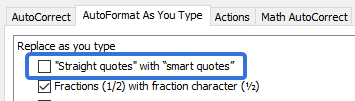
Note: The quotation marks on either side of the Measure name must be straight quotes |
{Custom1.WorkMeasure["Customer Satisfaction Score",MostRecent]} |
| {Custom1.WorkMetric["Metric Template name","Metric view name","Metric line item name","Metric beneficiary name",Metric period/date paremeter]} |
This will capture a specific Metric value from one of the work item's attached Metrics. The following parameters are not always required, depending on the Metric Template used:
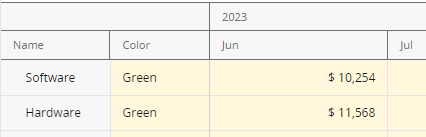
Whenever the Metric view name or Metric beneficiary name is not included in the data token, empty quotes ("") should be put in their place (except for the Metric period/date, which does not use quotation marks in the first place). The Metric period/date parameter can be represented by a period from the Metric Template or a specific date parameter. Metric periods must include both the period name and the corresponding year. For example, take the Metric Template below:
To display the value from June of 2023, both the period and the year must be included exactly as they are displayed on the Metric. The period must come before the year. Therefore, Jun 2023 would be included in the data token. Date parameters, on the other hand, will provide values that are not directly based on Metric periods. Users can insert the following parameters in the data token to receive the corresponding results:
|
{Custom1.WorkMetric["Expenses","Actual","Software","",CurrentPeriod]} |
|
{Custom1.WorkCost["Cost type",Cost date/relative date range]} |
This will capture a specific cost on the work item. The Cost type parameter must be used to specify which type of cost is being captured. Users can insert the following into the data token in the place of Cost type:
On the other hand, the Cost date/relative date range parameter must specify the date(s) of the cost. Note: The second parameter is not required for Budget or Baseline Budget cost types. Users can insert the following into the data token in the place of Cost date/relative date range:
|
{Custom1.WorkCost["Estimated Total",2023-01-01, 2024-01-01]} |
 , not smart quotes
  . Although the quotation mark key on standard keyboards inserts straight quotes, PowerPoint is often configured to automatically transform straight quotes into smart quotes by default. To disable this in PowerPoint, navigate to