Add a New Project Report
Project reports, also referred to as Project Summary reports, are run and viewed from the Summary page. They are designed to output all information related to a work item such as schedule, team, and metric information. Project reports use pre-defined templates, and reported information can be modified by editing report filters.
Note: Users must have the Report Design permission in order to use project reports.
1. Click Project
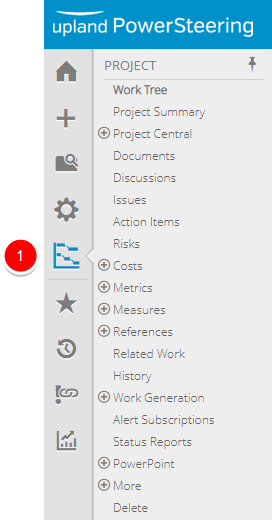
- On the Icon Bar, click the Project button.
Note: Clicking the Project button on the side menu will take you directly to the Summary page of the last work you visited. If this does not bring you to your desired work, navigate to it in the Work Tree.
2. Click Add New
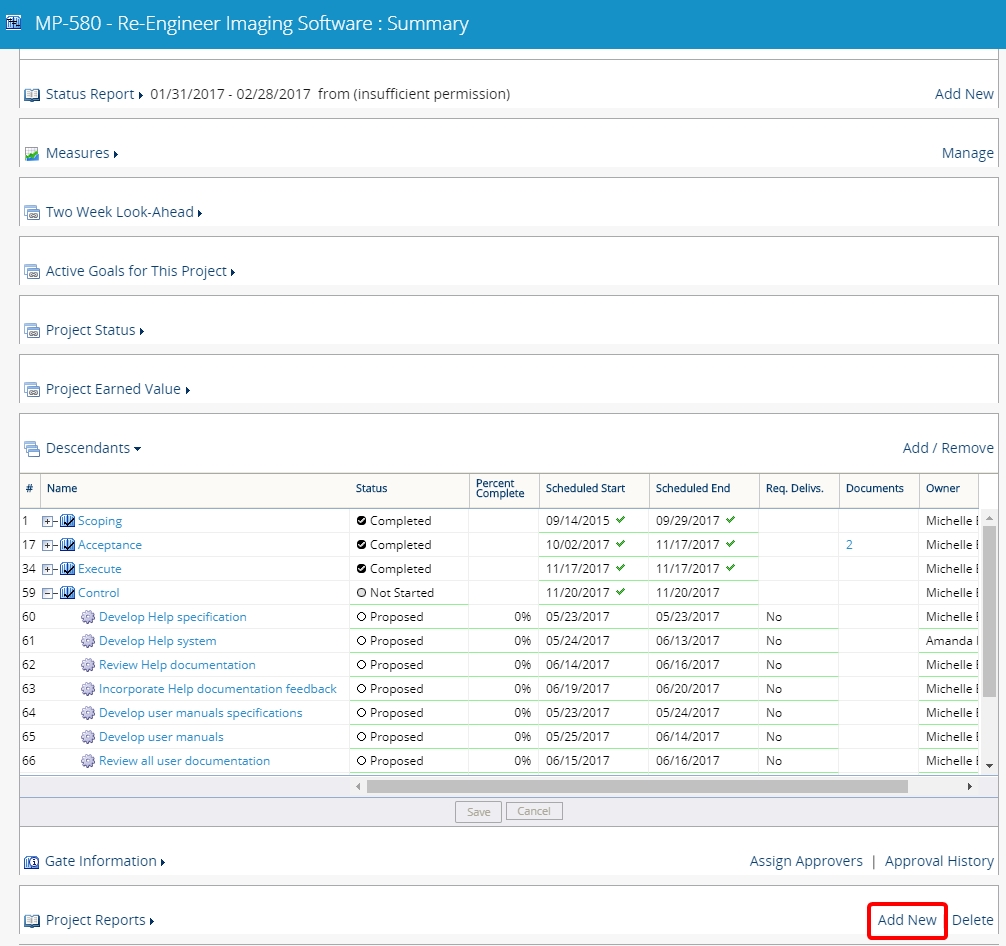
- Scroll down to the Project Reports section and click Add New.
3. Edit Report Details
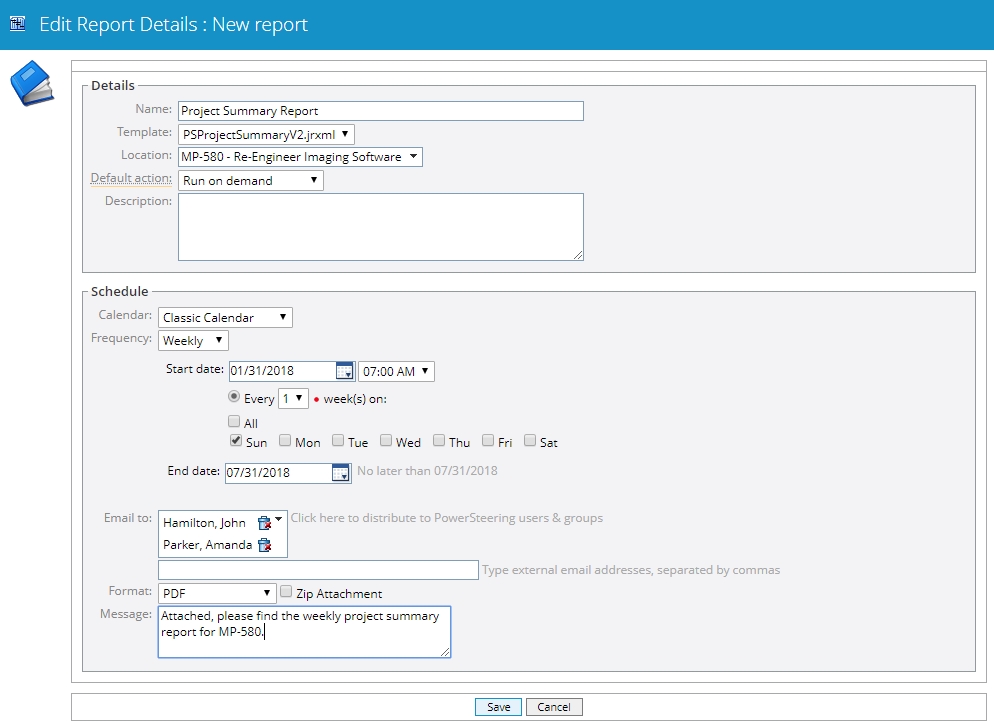
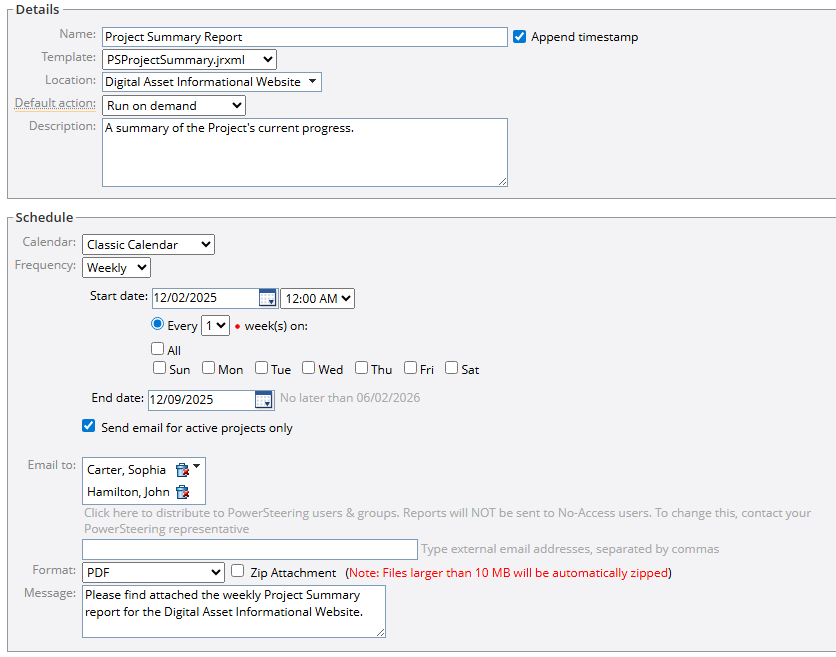
- Enter report details and schedule information.
- Click Save.
Name: The name of the report.
Append Timestamp: If selected, the date and time the report runs will automatically be added to the report's file name.
Report Template: The .jrxml template that the report will use.
Location: The location where your report will be saved. The current project is the default selection for this field.
Default action: There are two options for this field. Run on Demand means that the report will be run each time a users wants to view the output. Retrieve from Last Run will display the output from the last time the report was viewed.
Description: The description is optional but can be helpful for those that want to understand what the report will present.
Frequency: This option is used to schedule reports to run and send automatically. You can select a frequency of Never, Daily, Weekly, and Monthly.
Send email for active projects only: If selected, notification emails will not be sent to the "Email to" addresses (below) when the work item contains an "Inactive" status.
Note: See the Work Status Names page to see which work statuses are considered "Active" and "Inactive".
Email to: For a scheduled report, this field determines to which PowerSteering groups or users will receive the report. The report can also be distributed to external email addresses.
Format: For a scheduled report, this field determines the output file format.
Zip Attachment: If selected, the output file will be emailed as a zipped file.
Message: For a scheduled report, this field determines the text that appears in the body of the email message.
Note: The PSProjectSummaryV2.jrxml template is the newest project report template and provides users with more configuration and layout options.
4. Click Project Reports
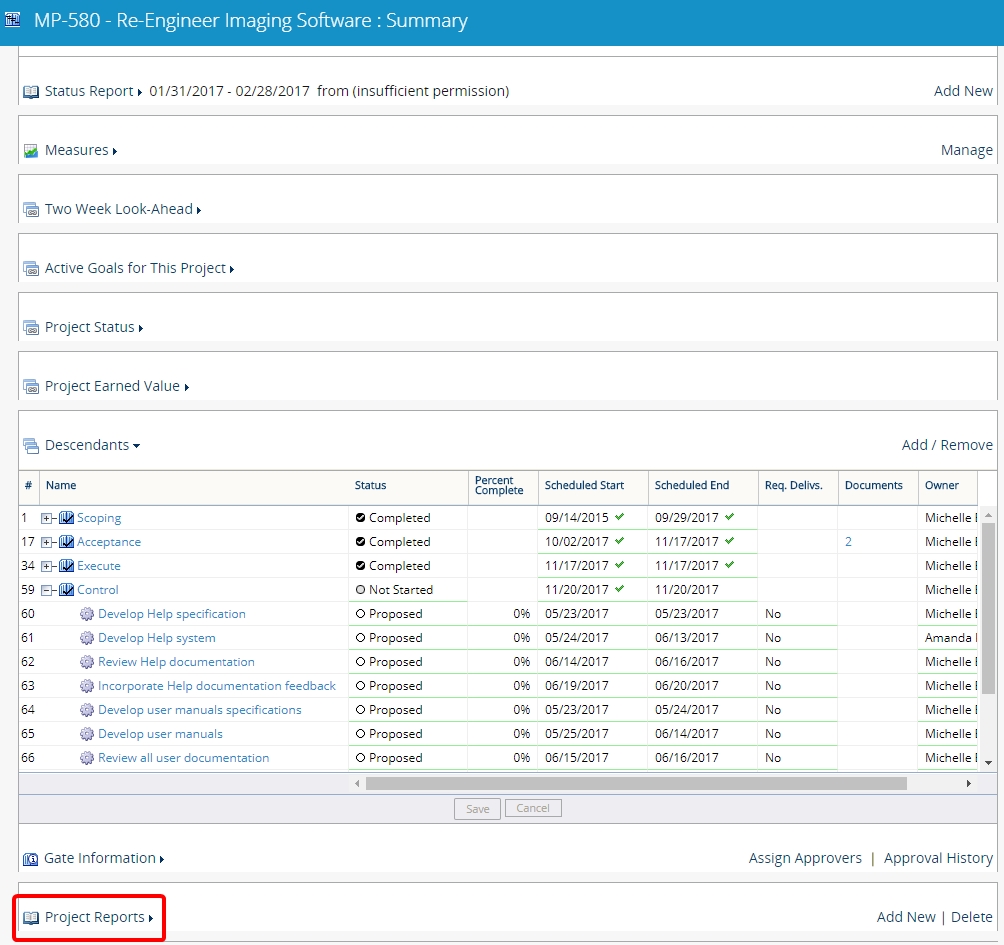
- Click Project Reports to expand the section.
5. View Project Report

- View newly added project report.