Adding Users to Microsoft Team Space (Syncing Microsoft Teams)
Project Team Members can easily be added to a Team Space by "syncing" a Project in PowerSteering. After a sync takes place, all of the Project Team Members will automatically be added to the Team Space, which saves the Project Owner or Project Manager from having to manually invite each Team Member to the Team Space by email. This is especially useful in the case of Projects with a large number of Team Members; it would otherwise take a while to manually add each user to the Microsoft Teams Space.
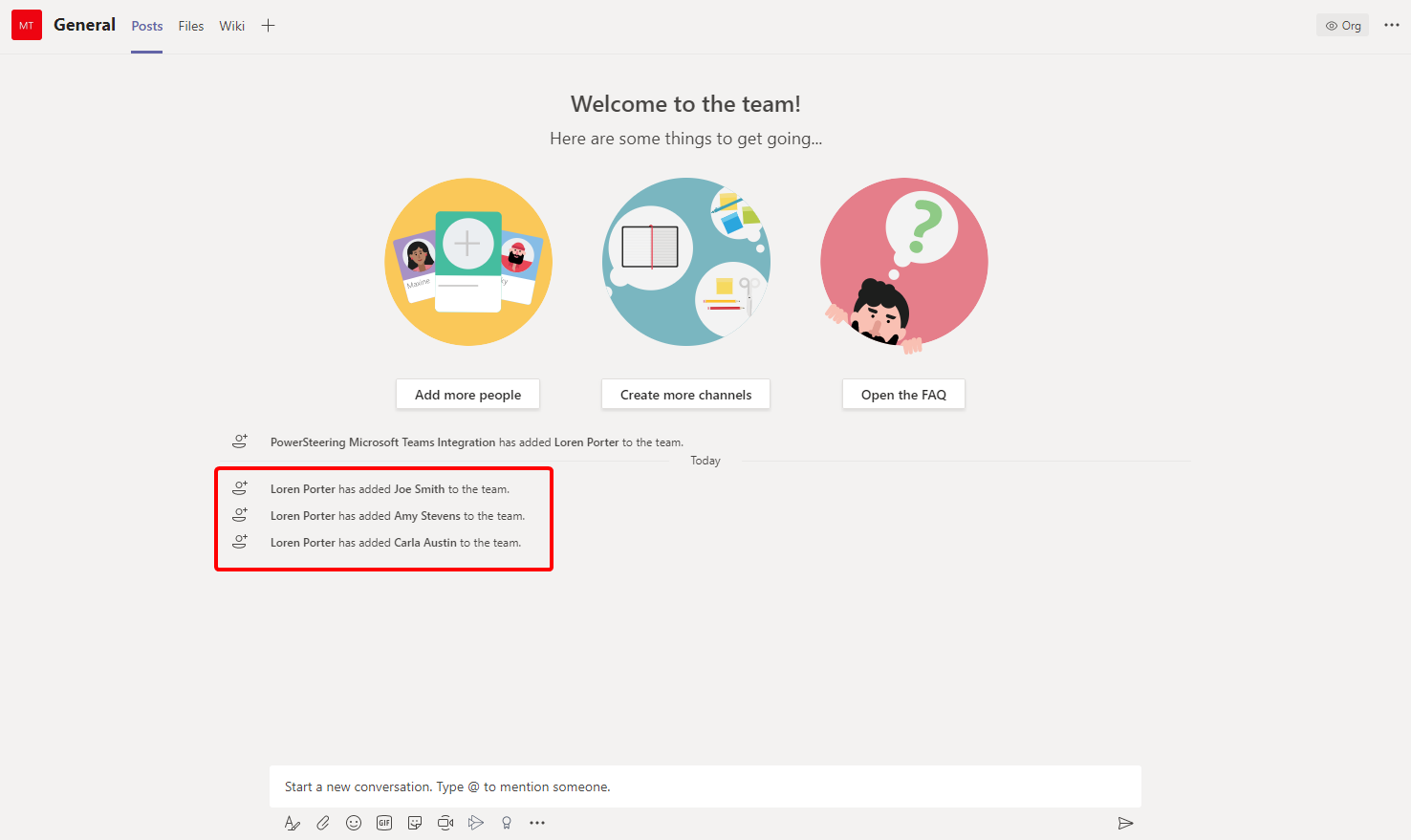
Click to enlarge.
Syncing the Microsoft Team in PowerSteering will add all of the Project Team Members to the Team Space. Additionally, if any Team Members have been removed from the Project in PowerSteering, those members will be removed from the Team Space after another sync.
Note: A sync is a one-way street; a change in PowerSteering data can change the Team Space, but not the other way around. For example, if a member was removed from a Team Space, that member will not be removed as a Team Member in PowerSteering after a sync.
Syncing the Microsoft Team will also check whether or not the Project Owner is a Team Owner. If not, the sync will automatically remove the previous Team Owner and instate the Project Owner as the new Team owner. For a description of Team Owners, see this page of the Microsoft website.
As an additional bonus, syncing the Microsoft Team will also check the name of the Team Space. If the name of the PowerSteering Project does not match the name of the Team Space, the name of the Team Space will automatically change to the new Project Name.
To add Project Team Members to a Team Space:
-
Navigate to a Project in PowerSteering.
Note: This must be a Project that already has a Team Space. See Creating a Team Space for more information.
-
Click the Edit All Details button in the top right-hand corner of the Project Summary page:

-
Select the Standard Details tab.
-
Use the "Team Members" portal to assign Team Members to the Project:
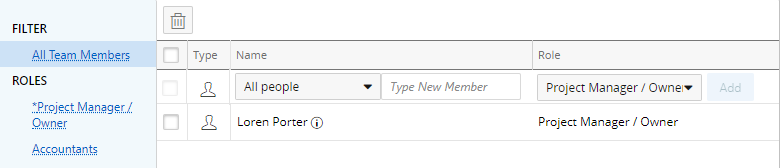
Note: For more information on using the "Team Members" portal, see Assign People to Roles.
-
Click the Save All button to save your new Team Members.
-
Click the Sync Microsoft Team button in the top right-hand corner of the Project Summary page:

Note: It may take up to a few minutes for the new members to appear in the Team Space after a sync.
After performing a sync, all of the Team Members will be added to the Team Space. The Project Owner will be given credit for adding the new members:
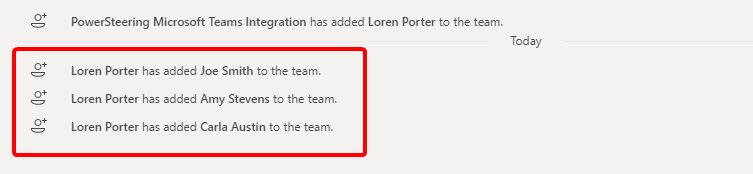
The new members may take advantage of Microsoft Team's features, including the Team Chat, uploading/downloading files, and viewing/editing the Team Wiki.