Setting up a Microsoft Teams Integration with Microsoft Azure
Before creating Microsoft Teams spaces for PowerSteering work items, a connection needs to be established through Microsoft Azure. Once an app is created in Azure, an integration between PowerSteering and Microsoft Teams can be configured.
Setting up an integration between PowerSteering and Microsoft Teams requires multiple steps. Follow these procedures in the order they are listed:
-
Obtaining a Certificate Thumbprint in Azure OR Creating an application secret in Azure
Note: Although only one of the above authentication methods is required, the Certificate Thumbprint is the more secure option.
Creating an app in Azure
Registering a new application in Microsoft Azure allows Azure to recognize and authorize PowerSteering to interact with Microsoft products. It is the first step in creating the integration between the two.
To create an app in Azure:
Before You Start: Your organization will need to set up an account in Microsoft Azure. If you need credentials or you are unsure whether your organization has an account, speak to an IT representative.
-
Log into your Azure portal through portal.azure.com.
-
Open up the Navigation Menu in the top left-hand corner of the screen.

-
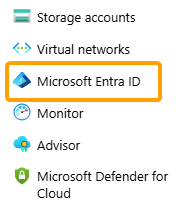
Select Microsoft Entra ID:
-
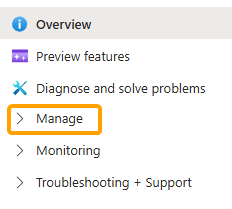
Open the "Manage" menu:
-
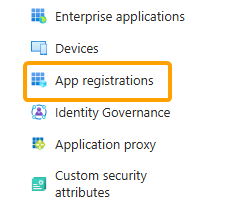
Select App registrations:
-
Select New registration:
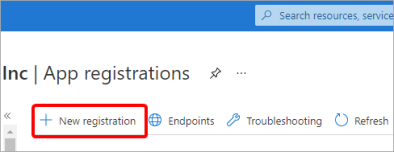
Note: You may be denied access to this feature if you have not been given permission to register applications for your organization. If this is the case, speak to your Azure administrator.
-
Enter a meaningful Name for your new application.
-
Specify who can use the application.
Note: Selecting "Accounts in this organizational directory only" is the recommended choice if members of your organization will be using this feature. However, you should consult your Azure administrator to find out the preferred choice for your organization.
-
Click Register.
-
Take note of both the "Application (client) ID" and the "Directory (tenant) ID" from the new applications Overview page:
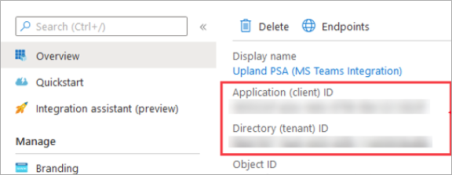
Note: You should copy and paste both of these somewhere secure on your computer.
Once these IDs are saved, you can either obtain a certificate thumbprint (recommended) or create an application secret.
Obtaining a Certificate Thumbprint
A certificate thumbprint provides one of two methods for allowing PowerSteering to authenticate with Microsoft Azure and obtain access tokens. You may also create an application secret instead, but a certificate thumbprint is considered the more secure option.
To obtain a Certificate Thumbprint:
-
Select Certificates and secrets from the "Manage" menu on the left-hand side of the application's page:

Click to enlarge.
-
Select the Upload certificate button.
-
Copy the Thumbprint that appears:

-
Paste the Thumbprint somewhere secure on your computer
OR
Paste the Thumbprint into the "Certificate Thumbprint" field in PowerSteering while configuring the integration.
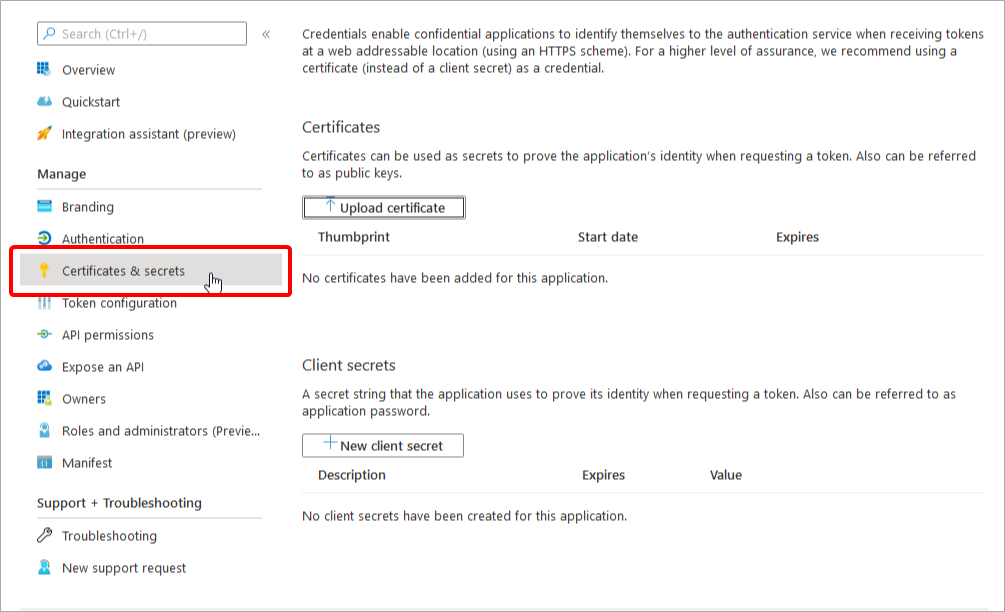
Once the Thumbprint is somewhere safe, you can add API permissions.
Creating an application secret
An application secret (also referred to as a client secret) provides one of two methods for allowing PowerSteering to authenticate with Microsoft Azure and obtain access tokens. You may obtain a certificate thumbprint instead (which is considered the more secure option), but creating a secret is the easier option.
To create an application secret:
-
Select Certificates and secrets from the "Manage" menu on the left-hand side of the application's page:
Click to enlarge.
-
Select the New client secret button.
-
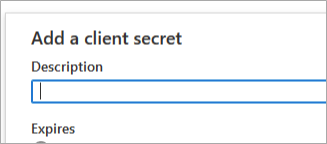
Enter a brief description for the secret in the "Description" field.
-
Select one of the expiry options from the "Expires" drop-down menu.
Note: Take note of the expiration date so you can renew your keys when required.
-
Select the Add button.
-
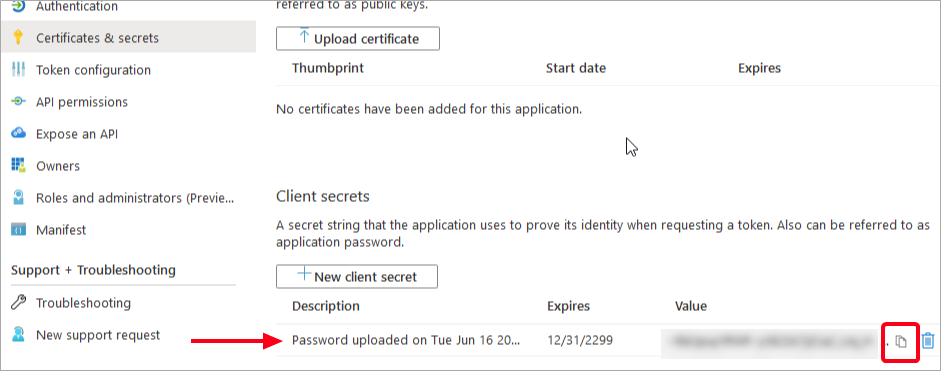
Select the Copy button for your newly-created secret under "Client Secrets":
-
Paste the secret somewhere secure on your computer
OR
Paste the secret directly into the "Client secret" field in PowerSteering while configuring the integration.
Caution: This client secret can be copied once and cannot be recovered after performing another action or leaving the page. However, new client secrets can be generated if needed.
Once the secret is somewhere safe, you can add API permissions.
Adding API permissions in Azure
The API permissions define what PowerSteering is allowed to access or do when it authenticates with Microsoft Azure. Adding the permissions outlined in the procedure below allows you to take full advantage of your Teams Space.
Note: Microsoft recommends waiting approximately 15 minutes for changes to propagate before using the integration.
To add API permissions:
-
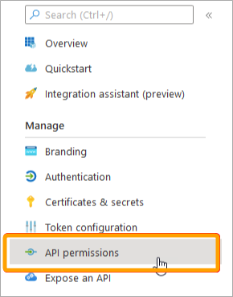
Select API permissions from the "Manage" menu on the left-hand side of the application's page:
-
Select the Add a permission button.
-
Select Microsoft Graph under the "API / Permissions name" column.
-
Select Application Permissions.
-
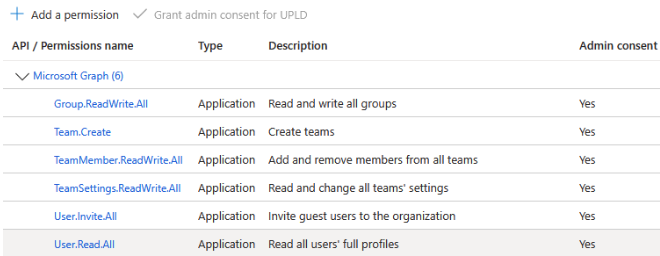
Grant the following permissions:
-
Files.ReadWrite.All
-
Team.Create
-
TeamMember.ReadWrite.All
-
TeamSettings.ReadWrite.All
-
User.Invite.All
Note: This permission is only required if you wish to add users from outside of you organization to the Teams Space.
-
User.Read.All
-
-
Select the Grant admin consent for button.
Once you have granted admin consent for the API permissions, you can set up your integration in PowerSteering.
Setting up the Microsoft Teams integration in PowerSteering
Once everything is set up in Microsoft Azure, you can finalize your integration by logging in to PowerSteering and configuring the integration.
To set up the Microsoft Teams integration in PowerSteering:
-
Log into PowerSteering.
-
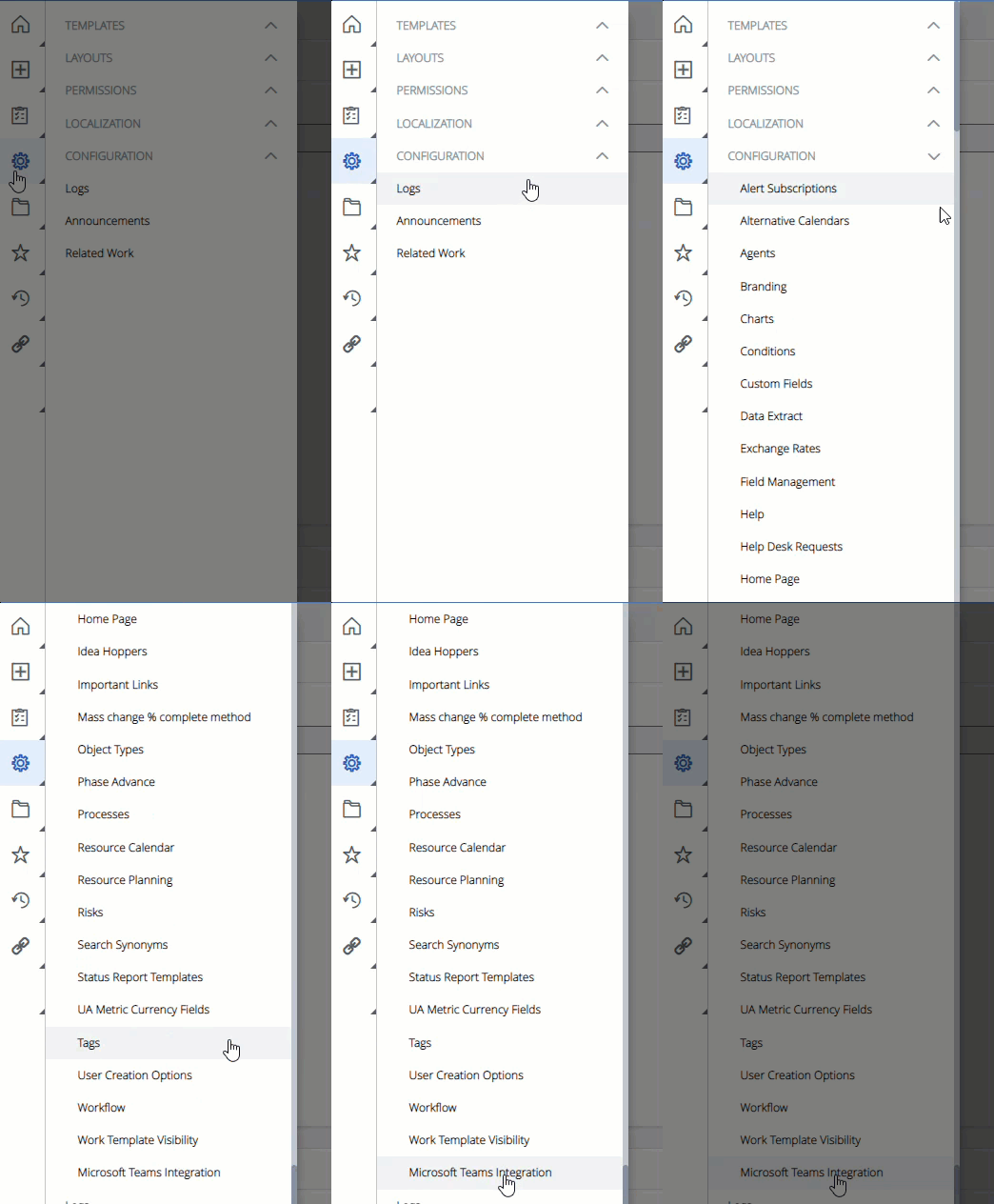
Select Microsoft Teams Integration under "Configuration" in the "Admin" menu:

Click thumbnail to play.
-
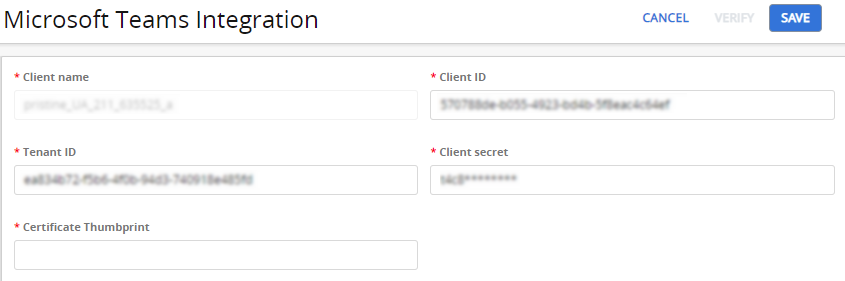
Enter the following information:
-
Tenant ID: Enter the "Directory (tenant) ID" from Step 10 of creating an app in Azure.
-
Client ID: Enter the "Application (client) ID" from Step 10 of creating an app in Azure.
-
Certificate Thumbprint: Enter the "Thumbprint" from Step 3 of obtaining a certificate thumbprint.
Note: Despite the red asterisk, this field is unnecessary if a Client secret is provided instead.
-
Client Secret: Enter the "secret" from Step 6 of creating an application secret.
Note: Despite the red asterisk, this field is unnecessary if a Certificate Thumbprint is provided.
-
-
Click Verify to test the connection.
Note: A green "Success" banner will appear to indicate that the connection works. If the connection is not successful, ensure that all of the provided information is accurate before contacting an IT representative.
-
Click Save.
After successfully integrating PowerSteering and Microsoft Teams, Project Owners will have the option to create a Microsoft Teams Space for Projects:

Note: Only the Owner of a Project can create a Microsoft Teams Space.