Create a New Report Folder or Subfolder
"My Reports" and "Public Reports" are organized in the same manner, using folders and sub-folders for optional report classification.
Note: The term "Subfolder" also refers to top-level folders within the category. For example, even though you might be selecting the Add Subfolder button from the "Public Folders" page, you will still be adding a top-level Public Folder.
This page covers the following topics:
Adding a top-level report folder
Top-level report folders will appear once a user selects Browse My Folders / Browse Public Folders from the top of the "My Reports" or "Public Reports" page.
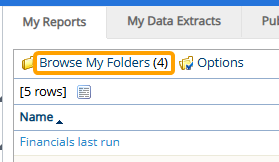
These folders will be visible right away; no other folders need to be expanded to view them.
To add a top-level report folder:
Before You Start: Users require the "View Reports" Context permission to access "My Reports" and "Public Reports", as well as create any folders under "My Reports".
Users require the "Create Public Reports" Context permission to create any folders under "Public Reports".
-
Select Review
 → Reports → My Reports or Review → Reports → Public Reports from the Navigation Menu.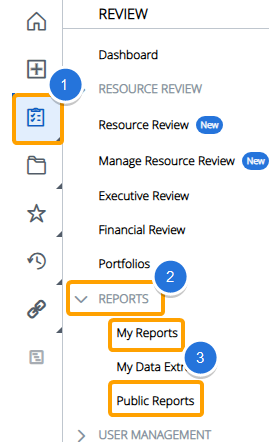
-
Select Options.
-
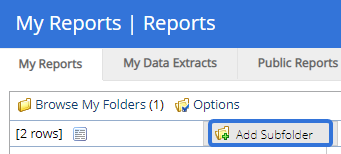
Select Add Subfolder:
-
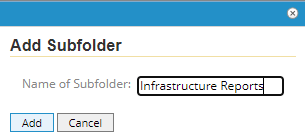
Enter a name for your new folder in the window that appears:
Tip: Folders can be renamed at any time.
-
Select the Add button.
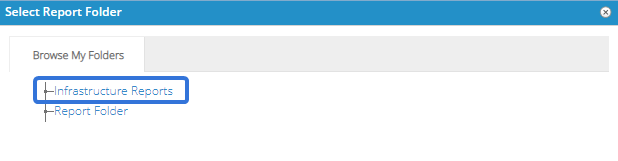
After clicking Add, the folder will be created. You can view it when you select Browse My Folders from the "My Folders" page or Browse Public Folders from the "Public Folders" page:
Adding report subfolders
Subfolders can be seen when users select Browse My Folders / Browse Public Folders from the top of the "My Reports" or "Public Reports" page.
These folders belong to other folders; users will need to expand certain folders to access them.
To add a report subfolder:
Before You Start: Users require the "View Reports" Context permission to access "My Reports" and "Public Reports", as well as create any folders under "My Reports".
Users require the "Create Public Reports" Context permission to create any folders under "Public Reports".
-
Select Review
→ Reports → My Reports or Review → Reports → Public Reports from the Navigation Menu.
-
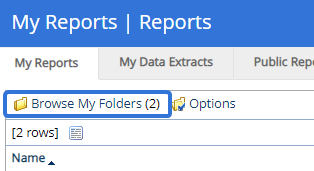
Select Browse My Folders from the "My Folders" page or Browse Public Folders from the "Public Folders" page:
-
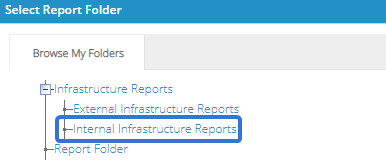
Select the folder that you would like to like to add subfolder directly under:
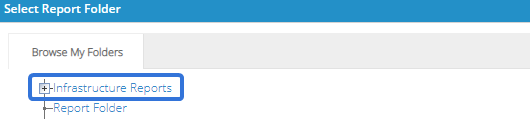
Tip: You can add subfolders to other subfolders. Simply select the
 next to a folder to view its subfolders, and then select which one you would like to add a new subfolder to.
 -
Select Options.
-
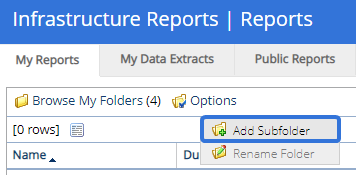
Select Add Subfolder:
-
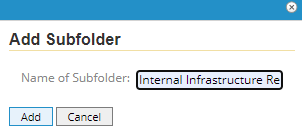
Enter a name for your new subfolder in the window that appears:
Tip: Folders can be renamed at any time.
-
Select the Add button.
After clicking Add, the folder will be created. You can view it when you select Browse My Folders from the "My Folders" page or Browse Public Folders from the "Public Folders" page: