Feature Release Notes for 2015 R2 version
This article covers the new or upgraded features included in this 2015 R2 release.
- Mobile Enhancements
- Timesheet Template Administrator
- Rule Inheritance
- Impersonation
- API's
- Timesheet Disclaimer (Electronic Signature)
- Multiple Leave Time Tasks
- One Leave Time Bank for Multiple Leave Tasks
- Leave Time Dependency
- Filter Leave Time Task from Leave Request Form
- Architectural Changes: a. Enterprise Library; b. Consolidated CSS; c. Workflow Viewer
- Resource Management - Non-Working Planned Hours added to the Legend
- Financial Planner - Manual Entry
- Upgraded Upland Analytics Engine
- Newly Added Supported Integrations
Addendum:
- Removed "Financial Planner Automation Service to Create Baselines and Process Baselines" as it was incorrectly included in the list.
1. Mobile Enhancements
The following user experience improvements were made to PSA Mobile:
- Defaulting of required fields for Expense Entry
- Expense Report Entry UI Changes
- Quick-Add Receipt
- Quick View of Receipts
- Embedded PDF Viewer
- Selection of Unassigned Tasks when creating Expense Entries
- Quick View of Timesheet Notes
1.1 Defaulting of required fields for Expense Entry
Fields that are required for Expense Entry with a default value defined will now inherit that value. This change reduces the number of actions a User is required to perform to create an entry. Therefore, the following were added to the Expense Entry Edit page:
- A default Tax Group value to the Expense Entry Edit page of PSA Mobile, which displays when creating a new Expense entry for a taxable expense item. The default value will either be: The same as the Tax Group defined for the Active Site, or the system-level Purchase Tax Group when there is no Tax Group defined for the Active Site.
- A default Payment Method value to the Expense Entry Edit page of PSA Mobile, which displays when creating a new Expense entry. The default value will be the first payment method listed.
1.2 Expense Report Entry User Interface Changes
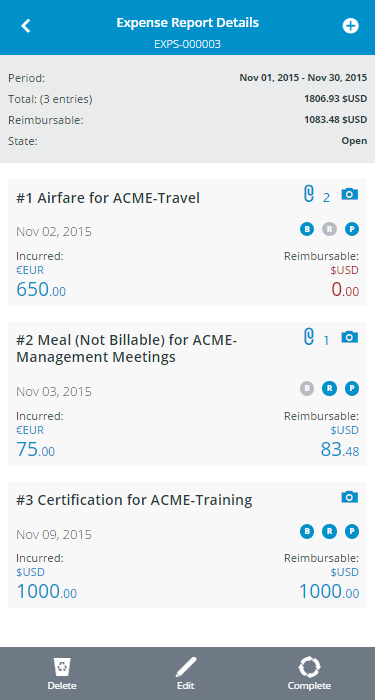
Improvements have been made to the user interface of an Expense Report to provide a cleaner view of Expenses:
- Added the Reimbursable amount and currency, displayed at the bottom-right, for the applicable Expense entries on the list page of a given Expense Report in PSA Mobile. Non-reimbursable items will display 0.00 with the in red. The existing system-level currency will only show on the assigned expense reports page and not for the entry. Further additions made on the Entry list page include:
- The Attach button (denoted by a paperclip) available at the top-right.
- Attribute bubbles displays to right side. Unless attributes are hidden, they will be displayed: checked items in blue, unchecked items in grey.
- Bottom-left amount will display in entry currency and labeled "Incurred".
- Added the Ref (reference) Number to display for each Expense entry on the list page of a given Expense Report in PSA Mobile, making it part of the newly added item line number that will display on any of the list pages. The format of the line item number will be "#N <ExpenseItem> for <TaskName>. Editing the Ref Number will be available through the Tenrox Portal and the updated item line number will display on Mobile accordingly. Whereas overriding of the expense item line number will not be available through PSA Mobile.
- Introduced a count and paperclip icon to represent the number of attached receipts to an expense entry. If no receipts exist, no number and clip will be displayed. Once a receipt is attached, the paperclip will be displayed along with the number of attachments for that expense item.
1.3 Quick-Add Receipt
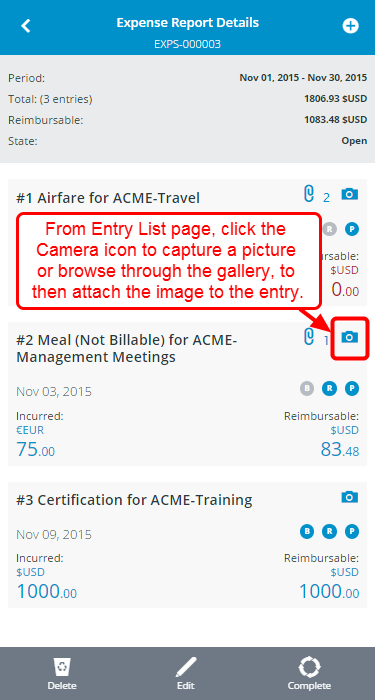
There is now the ability to easily attach receipts to an Expense Entry, without having to edit the entry and running through the wizard, through a few different avenues:
- From Entry Page: Introduces the Add Receipt option when viewing the details of an expense entry without needing to go through the entry wizard. Clicking the button will prompt the user to either take a picture or browse their gallery, and then attached the selected image to the expense entry. This decreases the click-through currently required for adding receipts to an entry.
- From Entry List Page (as shown in the screenshot above): Introduced a camera icon to allow for uploading a receipt directly from the expense report entry list page without needing to open the entry and go through the entry wizard. Clicking the camera will prompt the user to either take a picture or browse their gallery, and then attach the selected image to the expense entry. This decreases the click-through currently required for adding receipts to an entry.
1.4 Quick View of Receipts
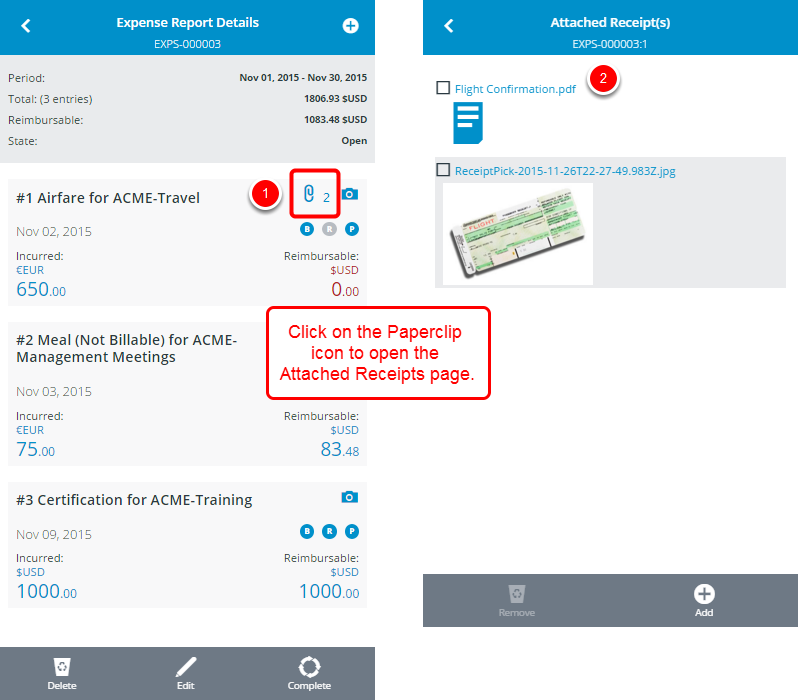
- The Attached Receipt(s) page provides a thumbnail preview of all receipts attached to an entry, facilitating the approval of Expenses at times when viewing all receipts from one page is sufficient. This also eliminates having to drill into the expense entry itself. To access this page, click the paperclip icon on the entry list page. This new page will allow for zooming into an expense receipt, attaching new receipts, or deleting existing receipts attached to the entry.
1.5 Embedded PDF Viewer
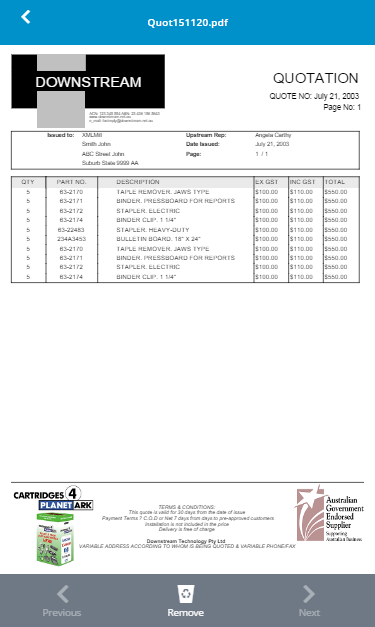
- The embedded PDF viewer allows previewing of PDF documents, attached as Expense Receipts, directly within PSA Mobile, therefore no longer requiring a PDF app on the device.
1.6 Selection of Unassigned Tasks on creating Expense Entries
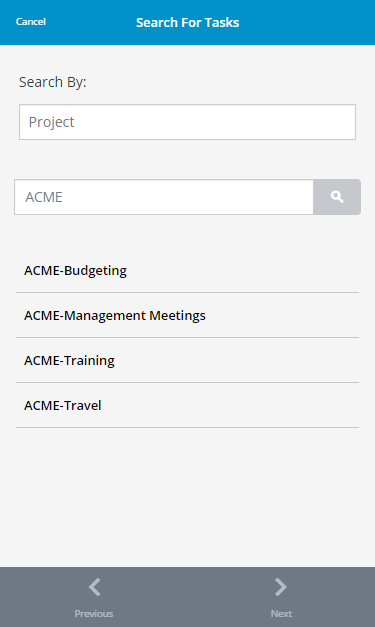
- Upon creating Expense Entries, provided the appropriate security rights have been granted, unassigned Tasks can now be selected, eliminating the need to assign tasks to Users for access in Mobile.
1.7 Quick View of Timesheet Notes
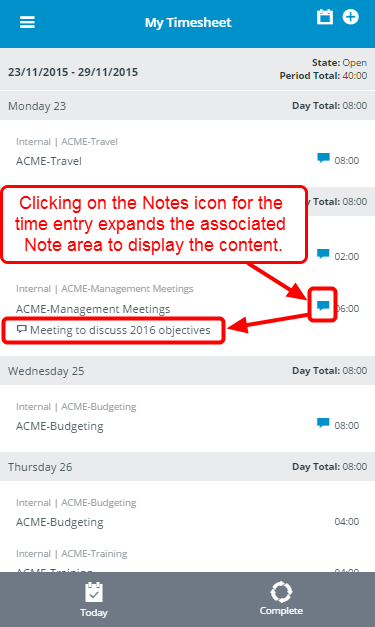
- Notes associated to a Time Entry can now be seen from both My Timesheet and Assigned Timesheets, which facilitates the review/approval process particularly when notes are mandatory. Clicking the Note icon on the Time Entry List will expand to show the notes associated to the time entry. The notes must be set as Public in order for them to be visible on the Assigned Timesheets page.
2. Timesheet Template Administrator
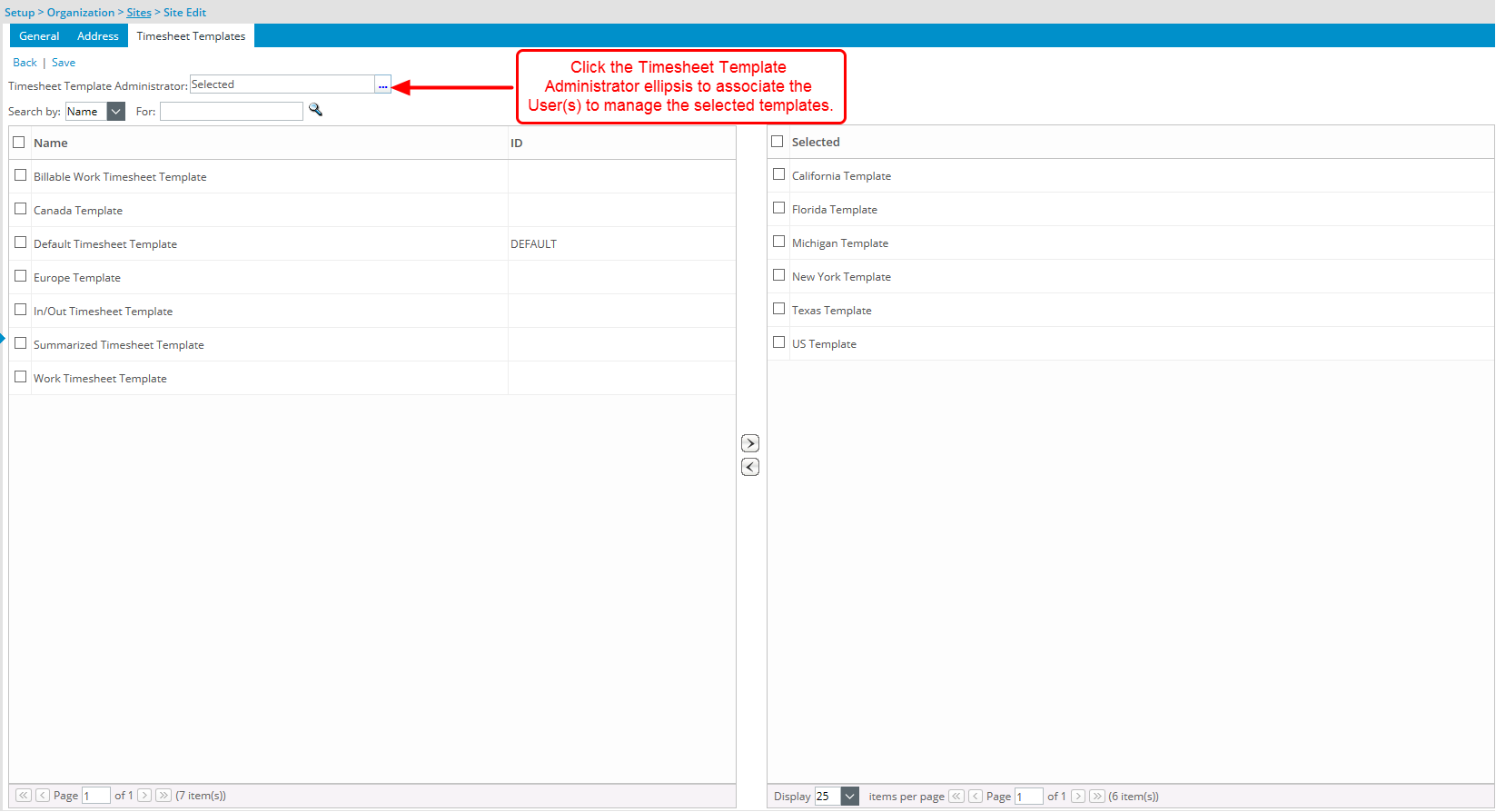
- The addition of the Timesheet Template Administrator option allows a company to assign timesheet template management at a Site (Location) level. From the newly added Timesheet Templates tab (Setup > Organization > Sites > Site Edit) under the Site Edit page, one or more Users can be associated to manage a selection of a Site's templates. This accommodates larger organizations wherein multiple system administrators may exist, contrary to the typical single administrator organization.
3. Rule Inheritance
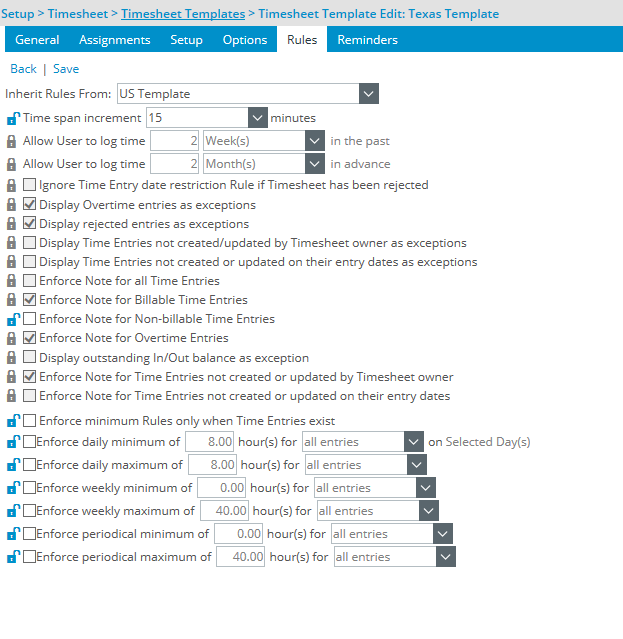
- The addition of Timesheet Template Rule Inheritance facilitates the management of multiple timesheet templates that have very similar settings. This allows the setup of a master rule template from which other templates can inherit rules. Therefore, any update made to the master template will automatically apply to all the inheriting configurations. The Rule Inheritance applies when a template is selected from the Inherit Rules From list box, found on the Rules tab under the Timesheet Template Edit page, which flags the selection as the master from which the current template follows. Moreover, there is the flexibility to select which rules inherit from the master, and which can be modified at the template level. This could accommodate such settings as all billable time entries are mandatoraly applicable for the entire organization, while enforcing the minimum number of hours in a week can be defined on a per template basis.
4. Impersonation
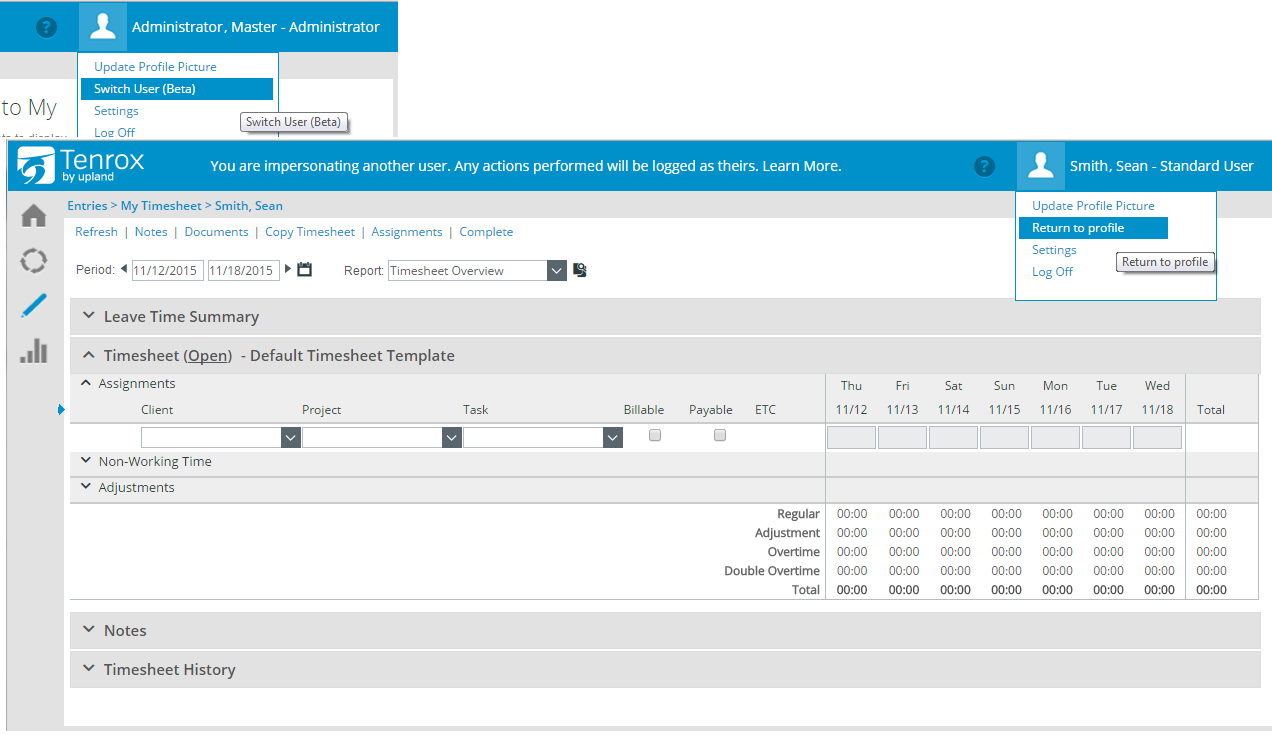
- The Impersonation capability allows a user to assume the identity of another user and navigate throughout Tenrox as such. This will facilitate in the configuring of access rights, going through use-cases as different user profiles, and improving the troubleshooting of reported problems experienced by an organization's user base. For this release, this is an opt-in beta feature.
5. API's
- Tenrox can now be interacted with programmatically via a new set of APIs that leverage the Tenrox business logic. Users can now make REST requests to their Tenrox instance to query, create, edit or delete records in their system as if they were interacting with the Tenrox user interface. This enables technical clients to build tools for their user base to input and extract data from Tenrox and automate processes that currently require manual intervention. Moreover, the APIs will now enable the development of seamless integrations to 3rd party systems by connecting endpoints together for data exchange.
6. Timesheet Disclaimer (Electronic Signature)
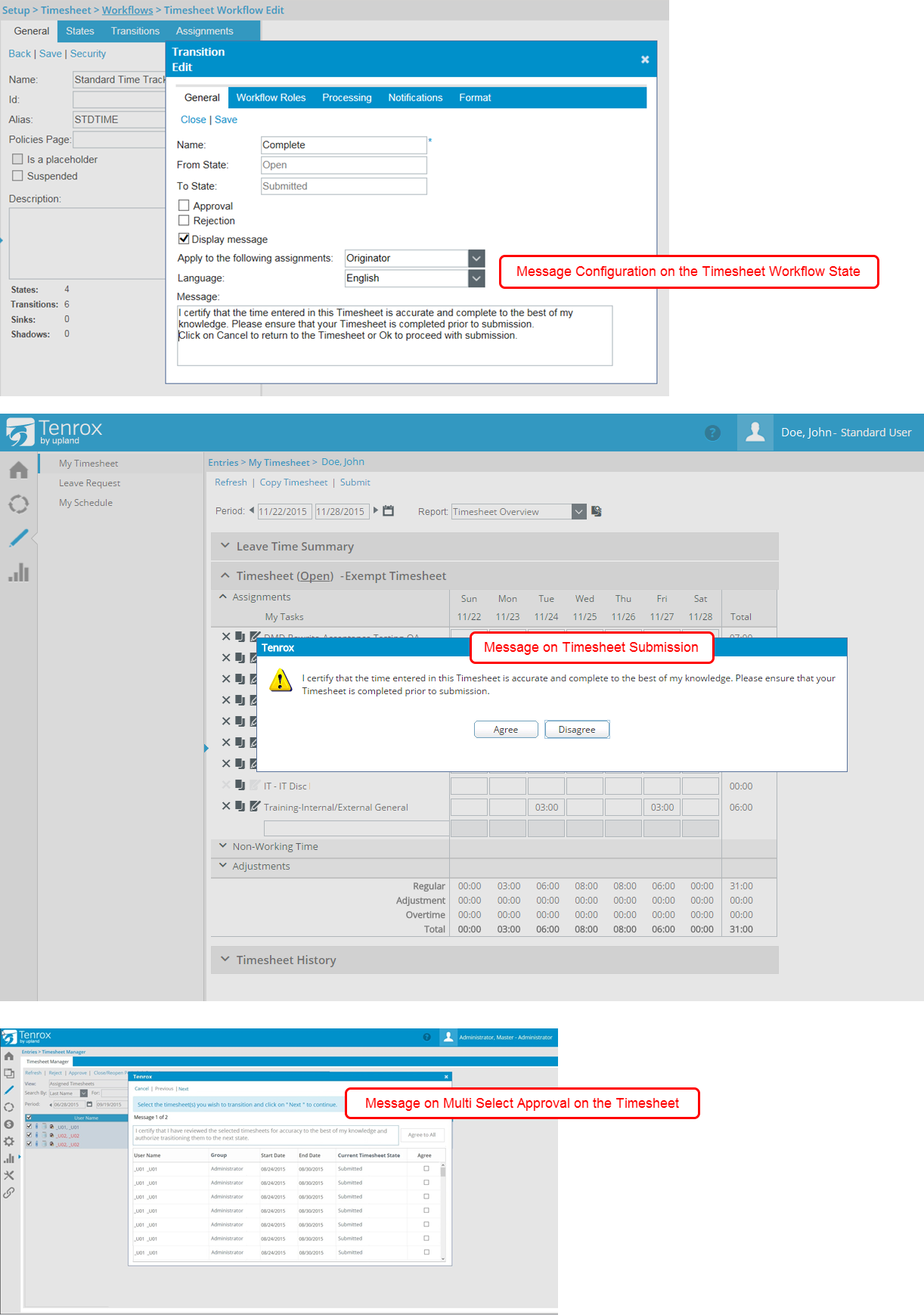
- The Timesheet Disclaimer allows the customization of a disclaimer message(s) on the transition of a timesheet from one state to another (Setup > Timesheet > Workflows > Timesheet Workflow Edit). Therefore, the message(s) will display upon a timesheet transitioning from one state to another. Additionally, the message(s) can be used as electronic signatures at the time of submission or approval.
7. Multiple Leave Time Tasks
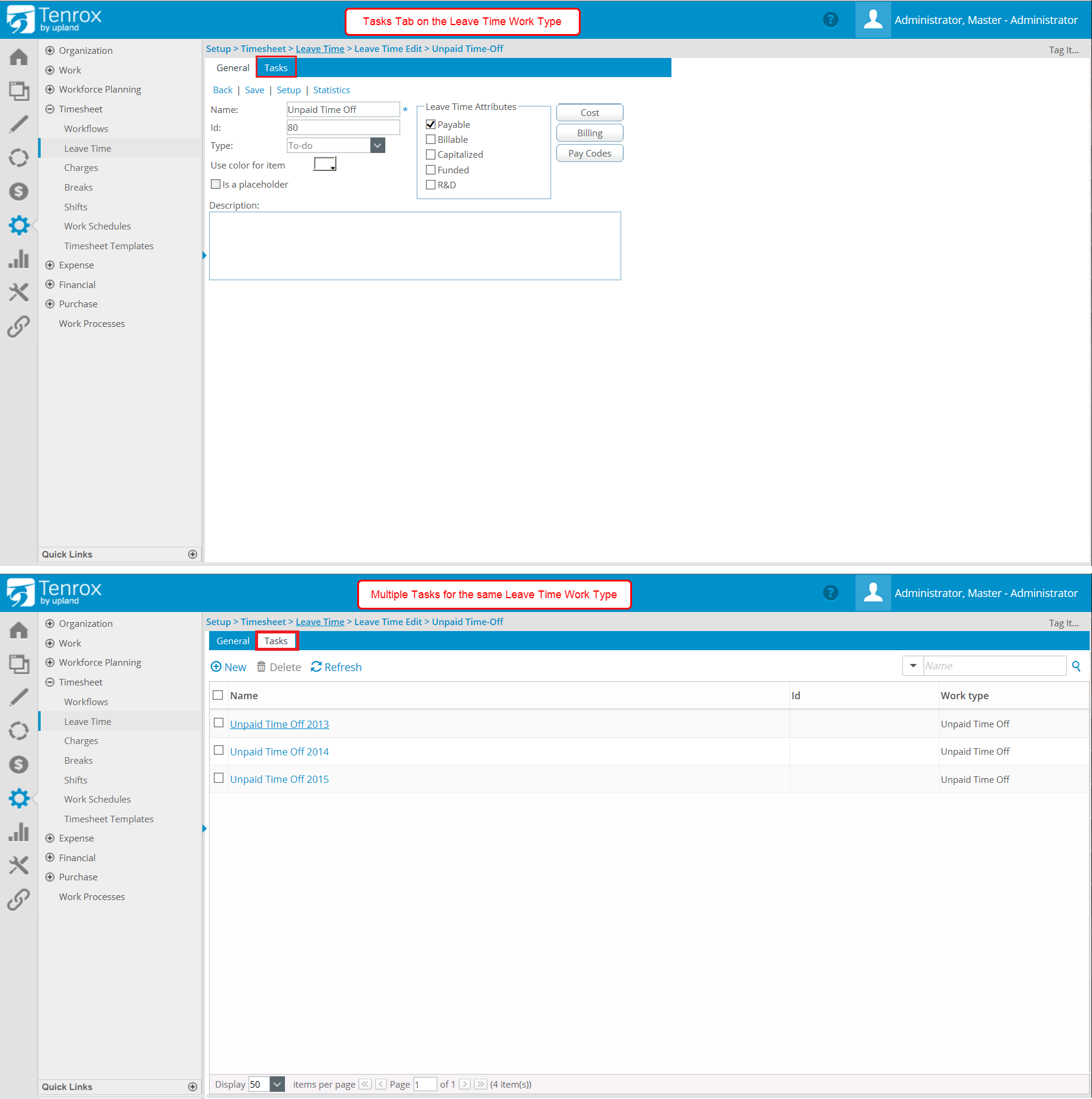
- The addition of the Multiple Leave Time Tasks feature allows using the same Work Type to create multiple Tasks. Moreover, this can facilitate the use of the Payroll module wherein this will provide the option to configure just one Leave Time Work Type for each Pay Code.
8. One Leave Time Bank for Multiple Leave Tasks
- This features allows multiple leave time tasks to be associated to the same back of leave time hours, yet still accommodate a need to individually track the leave time tasks on the timesheet.
9. Leave Time Dependency
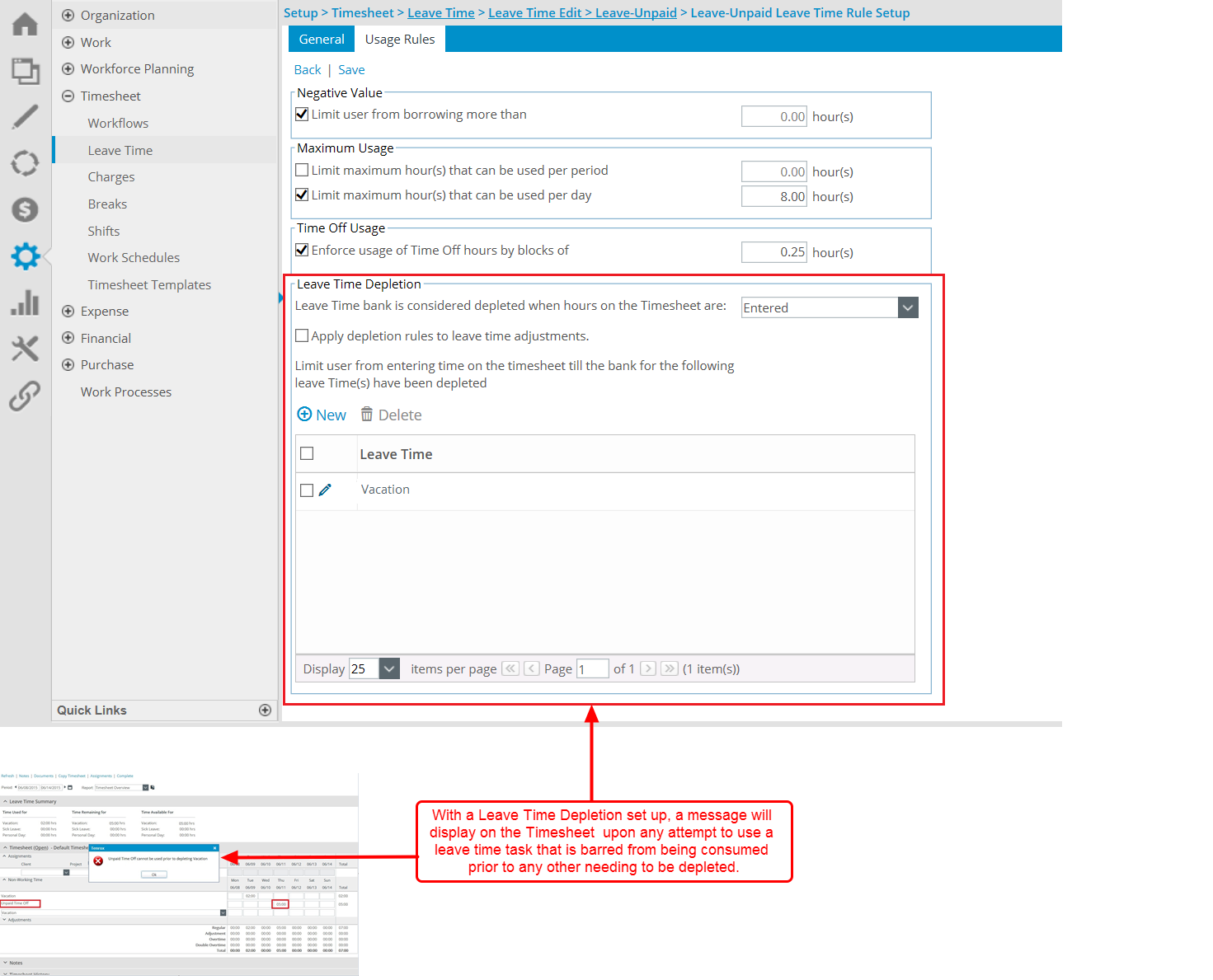
- The addition of the Leave Time Dependency feature allows the restriction of using specific leave time tasks prior to depleting banks of other leave time tasks. For example, this accommodates an organization's policy of a bank of vacation/PTO from previous years to be completely consumed prior to using vacation/PTO hours for the current year.
10. Filter Leave Time Task from Leave Request Form
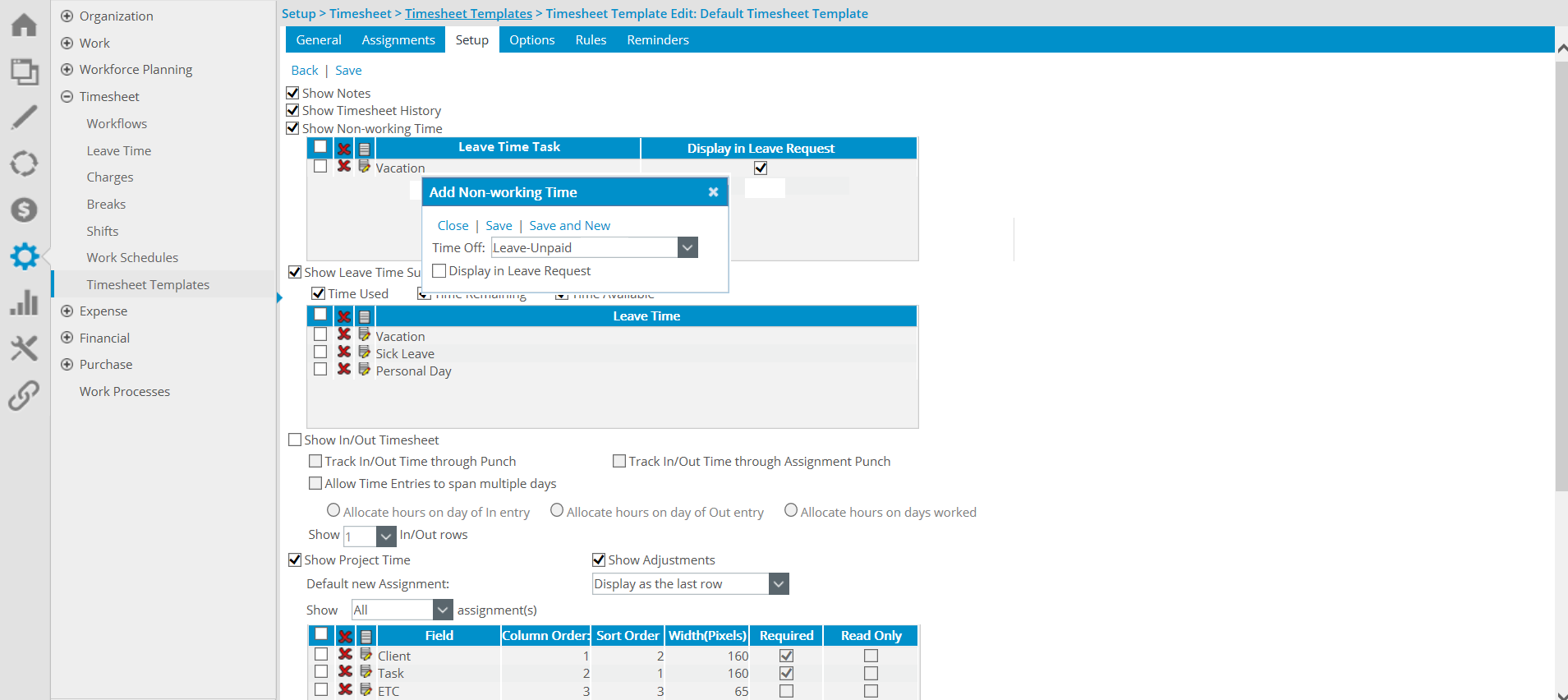
- This feature allows defining which Leave Time Tasks are to be used on the Leave Request form, and as a result, the Leave Time Task list option on the Leave Request Workflow can now be filtered.
11. Architectural Changes

Multiple architectural changes have been made to the Tenrox application including:
- Enterprise Library: The upgrade of the .NET Entity Framework to the latest version (6) has improved the activity logging and caching on server side and will allow our infrastructure to further scale.
- Consolidated CSS: A globalized stylesheet has been introduced, which is the first part of a major architecture change to standardize the User Interface.
- Workflow Viewer: This involved the replacement of the Workflow Viewer from Silverlight to HTML5, which addresses the removal of support for Silverlight in non-Internet Explorer browsers. This change allows the continued ability to view the status of a Workflow through the Workflow Visualizer.
12. Resource Management - Non-Working Planned Hours added to the Legend
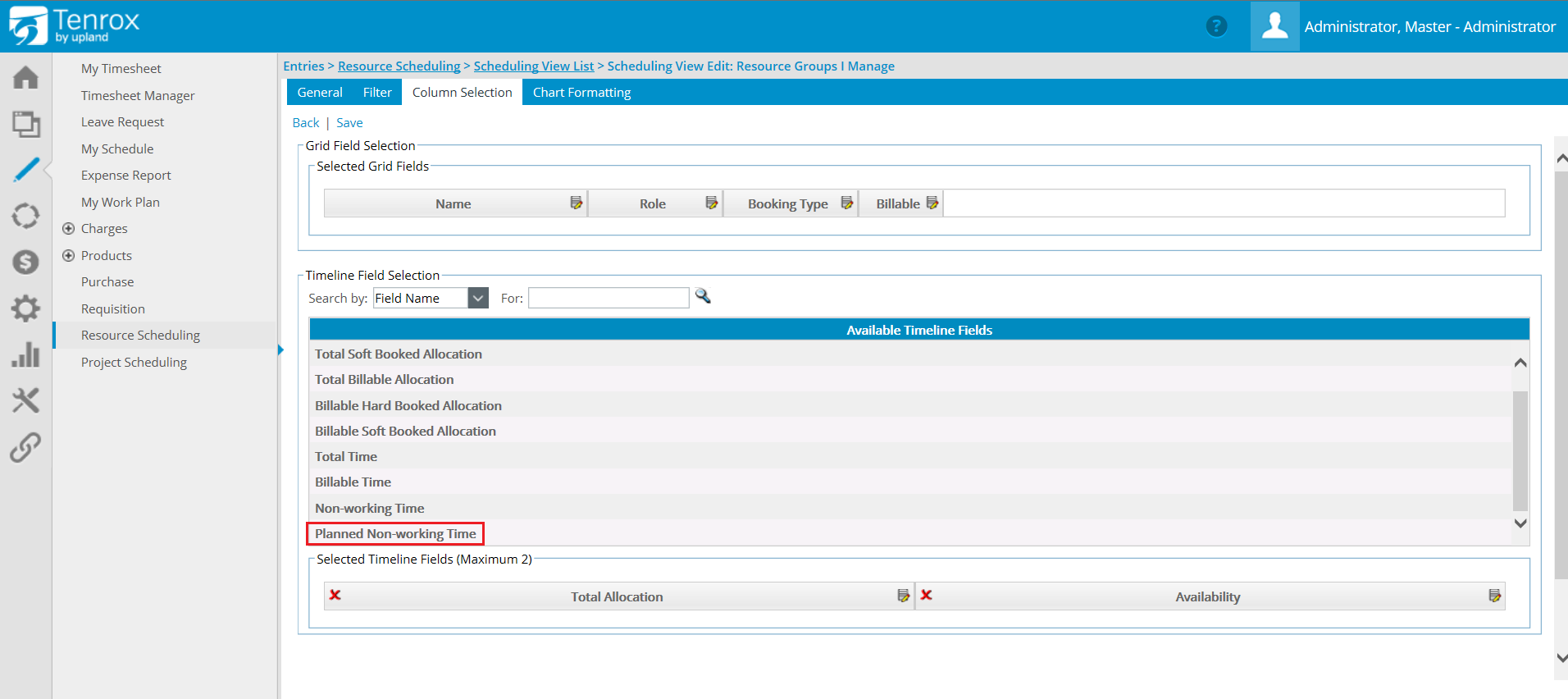
- The addition of the Planned Non-Working hours now being available for inclusion in the Legend allows the viewing of the non-working hours on the user's calendar, excluding the weekends.
13. Financial Planner - Manual Entry
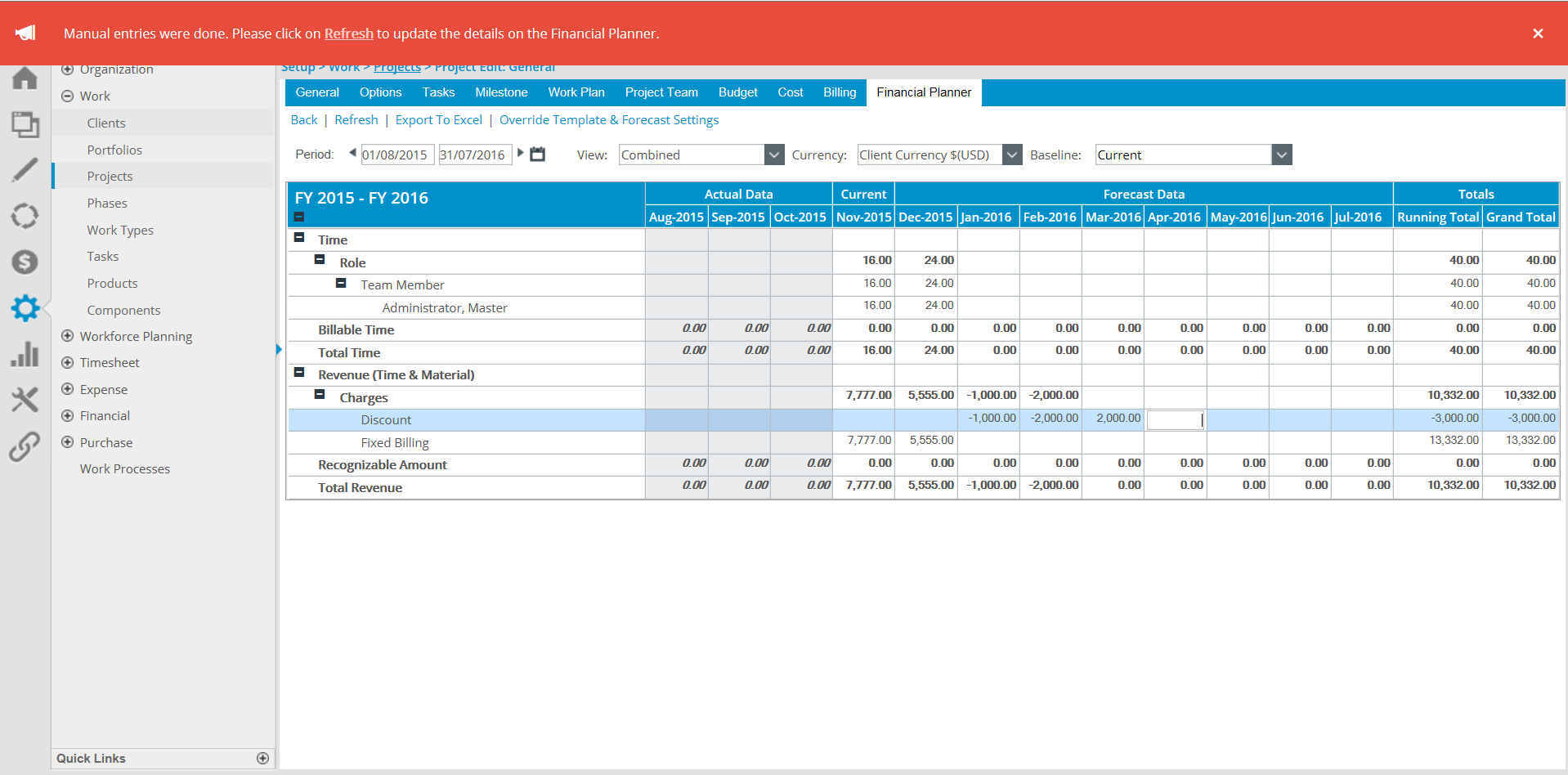
- The manual entry capability in the Financial Planner has been improved by not requiring constant refreshing of the page, therefore only once manual entries have been done will a message display to instruct that the page is to be refreshed. And, this must be done to view the updates on the financial planner.
14. Upgraded Upland Analytics Engine
Upland Analytics has been updated to include multiple bug fixes and performance improvements, one of which includes:
- Enhanced the Upland Analytics report design to prevent joining views with different transaction types as it corrupts the data viewed in the report e.g. report design cannot link a Time entry basic view with the expense entry basic view as they are different types. When saving or viewing a report with multiple views, validation will trigger to verify all the transactional views are of the same type, and when otherwise an error message will display to indicate that the some of the Data Sources cannot be used together, and that the report design should be reviewed.
15. Newly Added Supported Integrations
As of this release, both 2016 QuickBooks Desktop and 2016 Quickbooks Online are supported:
QuickBooks Desktop
- 2016 Pro, Premier and Enterprise Version US and Canada
QuickBooks Online
- 2016 US, Canada, Australia and UK