Administrators can modify Homepage Templates to keep Dashboards aligned with evolving business needs, user roles, and organizational changes. By editing an existing Template, you can update settings, adjust layouts, add or remove widgets without recreating the Template. This flexibility helps ensure users continue to see relevant, role-specific information on their homepage while maintaining consistency across users and groups.
This article details how to modify an existing Homepage Template.
- From the Icon Bar click Setup
 .
. - From the Navigation Menu click Homepage Templates.
- From the Homepage Templates page, click the Name of the Template you want to modify.
- On the General tab, you can update the template Name and adjust the Is Default or Suspend options.
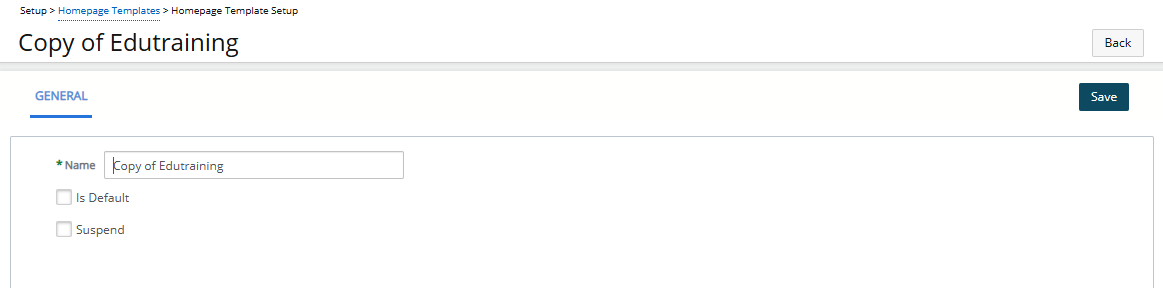
- Click Save to confirm your changes.
- Navigate to the Designer tab to update the layout and content:
- Available widgets, such as Quick Links, Reports, and dashboards, are listed in the right-hand panel.
- Use the drag-and-drop canvas to add, or rearrange widgets.
- Widgets are placed in the first available space starting from the top-left corner.
- Resize and reposition widgets as needed to fine-tune the layout.
- For detailed widget descriptions, see Widget Library Overview.
- Click Preview to open a modal window that displays the Homepage exactly as an end user would see it. Preview mode shows all configured widgets, including their order, size, layout, and any KPIs or filters using placeholder data. The preview does not alter the Designer state. To make changes, close the preview window, return to the Designer, update the layout or widget configuration, and click Preview again to immediately review the updated design without saving.
- Navigate to the Associations tab where you can assign the template to individual Users, Security profiles, Functional Groups, Master Sites, or a combination of these.
- Update assignments to control who sees the modified template.
- Select the required Users, Security profiles, Functional Groups, Master Sites from the available table.
- Click the right arrow (
 ) to add them to the selected table on the right.
- Review your changes and ensure assignments reflect the intended audience.
- Once saved, users will see the updated homepage layout and Widgets as interactive Tiles the next time they open their homepage.