This article details how to access the Forecast Rate page and manage Forecast Rate Rule associations for specific Roles. Administrators can create, edit, and delete associations to control which Cost and Billing Forecast Rate Rules apply to a Role.
Access the Forecast Rate Page
- From the Icon Bar click Setup
 .
. - From the Navigation Menu click Organization.
- From the available options select Roles.
- Upon the Roles list page displaying, click the name of the Role you wish to edit, to access the Role Edit page.
- From the Role Edit page, navigate to the Forecast Rate tab.
Add a New Cost Forecast Rate Rule Association to a Role
- From the Cost tab, click New.
- A new line appears, allowing you to create or select a Cost Forecast Rate Rule.
- If you have permission to create new Cost Forecast Rate Rules, the first option in the list is Create New. When creating a new rule:
- If the new Cost Forecast Rate Rule is not hourly, it does not appear in the list.
- If the new rule is hourly, once saved, it is automatically selected (highlighted in blue) in the list.
- If you do not have permission to create new rules, you can only select existing Forecast Rate Rules from the list.
- If you have permission to create new Cost Forecast Rate Rules, the first option in the list is Create New. When creating a new rule:
- After selecting a Cost Forecast Rate Rule, the From and To dates populate automatically based on the rule definition.
Tip: When you hover over a rule name in the Cost tab on the Role Forecast Rate page, a tooltip displays the current forecast rates for Regular Time, Overtime, and Double Overtime, along with the applicable currency.
These rates are drawn directly from the Cost entries that match the Role’s Cost rule association date range.
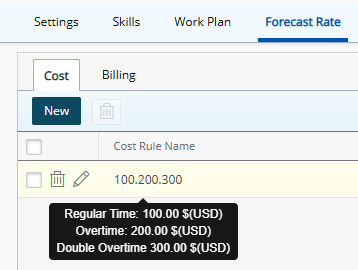
Example:
Regular Time: 100.00 $(USD)
Overtime: 200.00 $(USD)
Double Overtime: 300.00 $(USD)
Add a New Billing Forecast Rate Rule Association to a Role
- From the Billing tab, click New.
- A new line appears, allowing you to create or select a Billing Forecast Rate Rule.
- If you have permission to create new Billing Forecast Rate Rules, the first option in the dropdown list is Create New. When creating a new rule:
- If the new Billing Forecast Rate Rule is not hourly, it does not appear in the dropdown list.
- If the new rule is hourly, once saved, it is automatically selected (highlighted in blue) in the dropdown list.
- If you do not have permission to create new rules, you can only select existing Forecast Rate Rules from the dropdown list.
- If you have permission to create new Billing Forecast Rate Rules, the first option in the dropdown list is Create New. When creating a new rule:
- After selecting a Billing Forecast Rate Rule, the From and To dates populate automatically based on the rule definition.
Tip: When you hover over a rule name in the Billing tab on the Role Forecast Rate page, a tooltip displays the current forecast rates for Regular Time, Overtime, and Double Overtime, along with the applicable currency.
These rates are drawn directly from the Billing entries that match the Role’s Billing rule association date range.
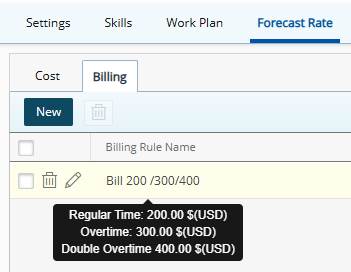
Example:
Regular Time: 200.00 $(USD)
Overtime: 300.00 $(USD)
Double Overtime: 400.00 $(USD)
Validations When Creating a New Cost/Billing Forecast Rate Rule Association to a Role
When saving a new association, the following validations apply:
- Gaps are allowed between rule associations.
- Overlaps are not allowed between rule associations.
Error Message: “There are overlaps in the rate association. The information will not be saved.”
- If the From date is after the To date:
Error Message: “From date of a rate rule cannot be after the To date.”
- If the To date is before the From date:
Error Message: “To date of a rate rule cannot be prior to the From date.”
- If the From date is earlier than the rule’s From date:
Error Message: “The association must be within the time span of the Rate Rule Entries.”
- If the To date is later than the rule’s To date:
Error Message: “The association must be within the time span of the Rate Rule Entries.”
Modify a Cost/Billing Forecast Rate Rule Association
- Navigate to either the Cost or Billing tab.
- Select one row and click Edit
 .
.Note: Only one row can be edited at a time.
- Modify the required details. The following business rules apply when modifying an association:
- If the Forecast Rate Rule associated to the role changes, the Current Baseline of the Financial Planner updates automatically (either when viewed or when the automation service runs).
- If the association dates are modified and remain within the valid date range, the changes are saved and the Current Baseline updates accordingly.
- Saved Baselines and locked Financial Calendar periods are not affected.
- Gaps are allowed between associations.
- Overlaps are not allowed.
Error Message: “There are overlaps in the rate association. The information will not be saved.”
- If the From date is after the To date:
Error Message: “From date of a rate rule cannot be after the To date.”
- If the To date is before the From date:
Error Message: “To date of a rate rule cannot be prior to the From date.”
- If the From date is before the Forecast Rate Rule’s From date:
Error Message: “The association must be within the time span of the Rate Rule Entries.”
- If the To date is after the Forecast Rate Rule’s To date:
Error Message: “The association must be within the time span of the Rate Rule Entries.”
Delete a Forecast Rate Rule Association
Use this procedure to remove one or more Forecast Rate Rule associations from a role.
- Navigate to either the Cost tab or Billing tab
- Select one or more Forecast Rate Rule associations.
- Click Delete
 .
.Note: The selected associations are removed, and the Current Baseline of the Financial Planner updates automatically (either when viewed or when the automation service runs).
Caution: Deleting a Forecast Rate Rule association does not remove data from saved Baselines or locked Financial Calendar periods.