The Project End Date Reminder Notifications processes the Project End Date Reminder System Notification and ensures it is sent automatically according to your setup. You can configure when reminders are triggered, such as a few days before or after a project’s end date, across all applicable projects in the system.
This article details how to configure and automate Project End Date Reminder Notifications to alert project managers before or after a project’s end date. Set processing schedules, define reminder conditions, and manage exclusions to ensure timely notifications for active projects across the system.
Project End Date Reminder Notifications Automation Service
- From the Icon Bar click Setup
 .
. - From the Navigation Menu click Organization.
- From the menu click System.
- Click the Automation button to open the Automation Processing Options page.
- Click the Project End Date Reminder Notifications Service Name to access the Automation Service Setup page.
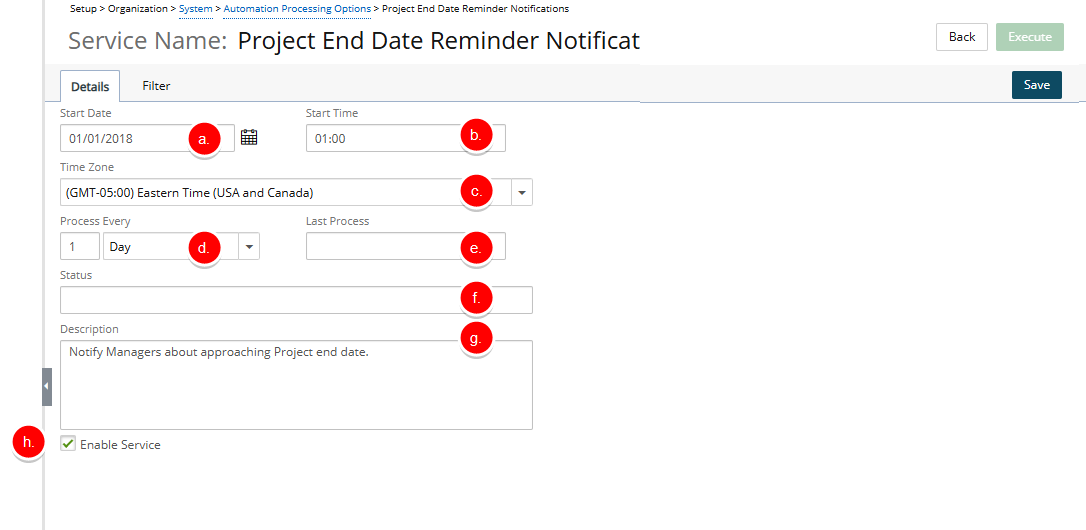
- From the Details tab you can setup the general details of the Project End Date Reminder Notifications Service:
- Start Date: Start date of processing; set by default to the date when batch service was initialized through the Server Administration application.
- Start Time: Time the service starts the processing; set by default to 01:00.
- Time Zone: Time zone of the processing time; by default, set to the server time zone.
- Process Every: frequency the service is processed; by default, 1 Day is displayed.
- Last Process: Date and time of the last automated background process. This field is read-only.
- Status: Status of the last automated background process. This field is read-only.
- Description: Description of the service: Notify Managers about approaching Project end date.
- Enable Service: Select or clear the box to enable or disable the automation of this service.
- Navigate to the Filter tab where, you can specify when reminders are sent by configuring conditions such as five days before the project end date or two weeks after the project end date..
- To set up the Filter click the Add
 button.
 - Inline editing will be enabled allowing you to pick the Project End Date Field.
- Select the Required Condition for the available options: =, <>, >=, <=, < >, Between, Not between, < Today, > Today, Today, This Week, Last Week, This Month, Last Month, This Quarter, Last Quarter, This Year, Last Year, Year to Date, This Fiscal Month, Last Fiscal Month, This Fiscal Quarter, Last Fiscal Quarter, This Fiscal Year, Last Fiscal Year or Fiscal Year to Date.
- Then choose the required date for Value 1.
-
Note: Value 1 and Value 2 are disabled for the following options: < Today, > Today, Today, This Week, Last Week, This Month, Last Month, This Quarter, Last Quarter, This Year, Last Year, Year to Date, This Fiscal Month, Last Fiscal Month, This Fiscal Quarter, Last Fiscal Quarter, This Fiscal Year, Last Fiscal Year or Fiscal Year to Date.
- If you chose Between, Not between then choose a date for Value 2.
- If you chose < Today, > Today then select the required Day, Weeks, Months or Years for Value 2.
- Click Save to apply your changes.
- Click Execute to run the service.
- Click Back to return to the previous page.
- From the Automation Processing Options page: Click Save and then Back to save your changes and return to the previous page.
The Process
When the process runs, the Project Manager will receive the notification by email and also see an alert in the Notification Center  .
.
Note: If the Project Manager is marked as Out of Office in PSA, the notification is sent to the Alternate Project Manager instead.
Projects Excluded from Processing
The following projects will not be processed by the Project End Date Reminder Notifications service:
- Open-ended projects: Projects without a defined End date are excluded, as no reminder can be calculated.
- Suspended projects: Projects that are currently suspended are not included, since no active management is expected.
- Placeholder projects: Projects created as placeholders or templates are excluded, as they do not represent real deliverables.
- Projects without an assigned Project Manager: Projects that do not have a Project Manager assigned are skipped, because there is no recipient for the notification.
- Projects with Project Manager or Alternate Manager missing email: Projects where the assigned Project Manager or Alternate Manager has an empty email field in the User Setup page are excluded, because the notification cannot be delivered.