The Assignment Auditing feature provides administrators with visibility into all changes made to assignments, including creation, modification, deletion, completion, and uncompletion (Insert, Update, Delete, Complete, and Uncomplete). This ensures accountability, promotes transparency, and supports compliance during audits and timesheet reviews.
This article is divided into two sections:
- How to Set Up Auditing – This section covers the steps to enable auditing for Time Entries (Setup > Organization > System > Security > Audit Trail).
- How to View the Audit Trail – This section explains how to access and view Time Entry Audit Trail (Tools > Audit Trail).
By following these steps, you can effectively track changes made to Time Entries and maintain full visibility over time-tracking activities within your organization.
Setting Up Auditing for Assignments
- From the Icon Bar click Setup
 .
. - From the Navigation Menu click Organization.
- From the menu click System.
- From the System page click the Security button to access the Security setup page.
- From the Security page click the Audit Trail button to open the Audit Setup page.
- From the navigation, click Time located under the Entry category.
- Select the required option(s) for Assignment:
- Insert (creation)
- Update (modification)
- Delete (removal)
- Complete (mark as complete)
- Uncomplete (reopen assignment)
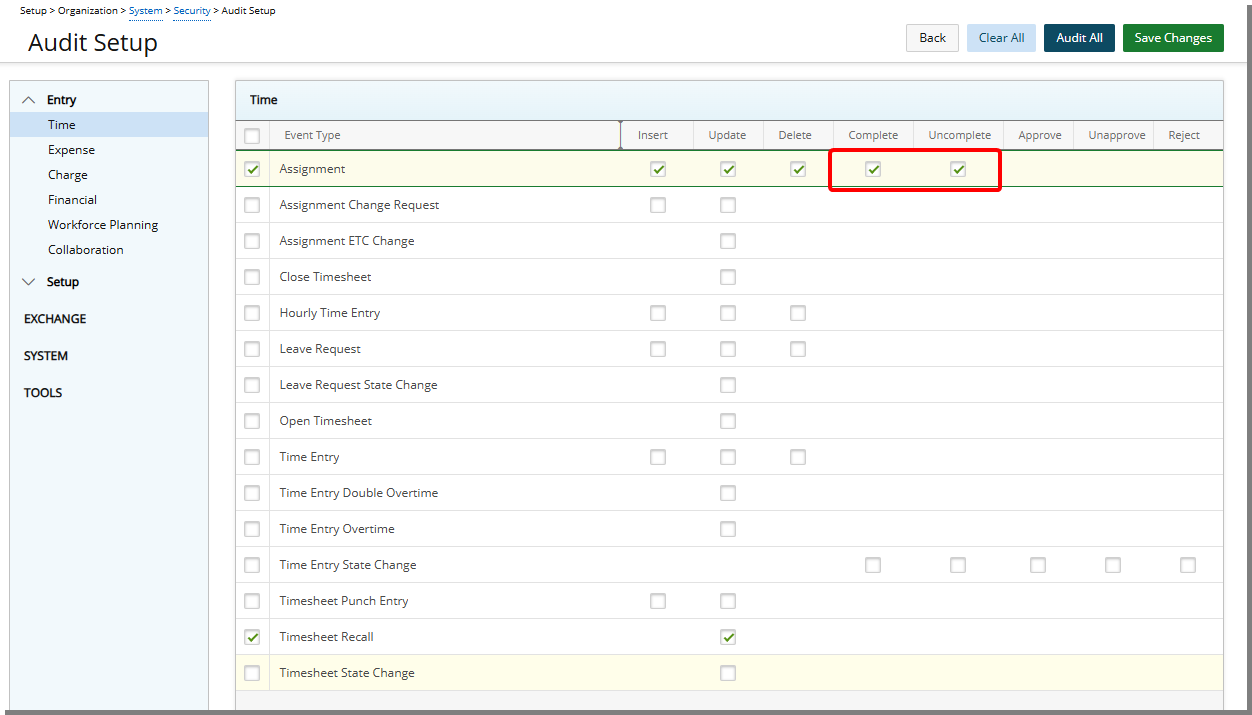
- Click Save and then Back to save your changes and return to the previous page.
Viewing the Audit Trail
- Access the Audit Trail events list page
- From the Icon Bar click Tools
 .
. - From the navigation menu click Audit Trail.
- From the Icon Bar click Tools
- Click the Search criteria arrow then select Event Type.
- Enter Time Entry and then click the Search
 button.
 - The search will return all Assignment Audit Events within the selected Period.
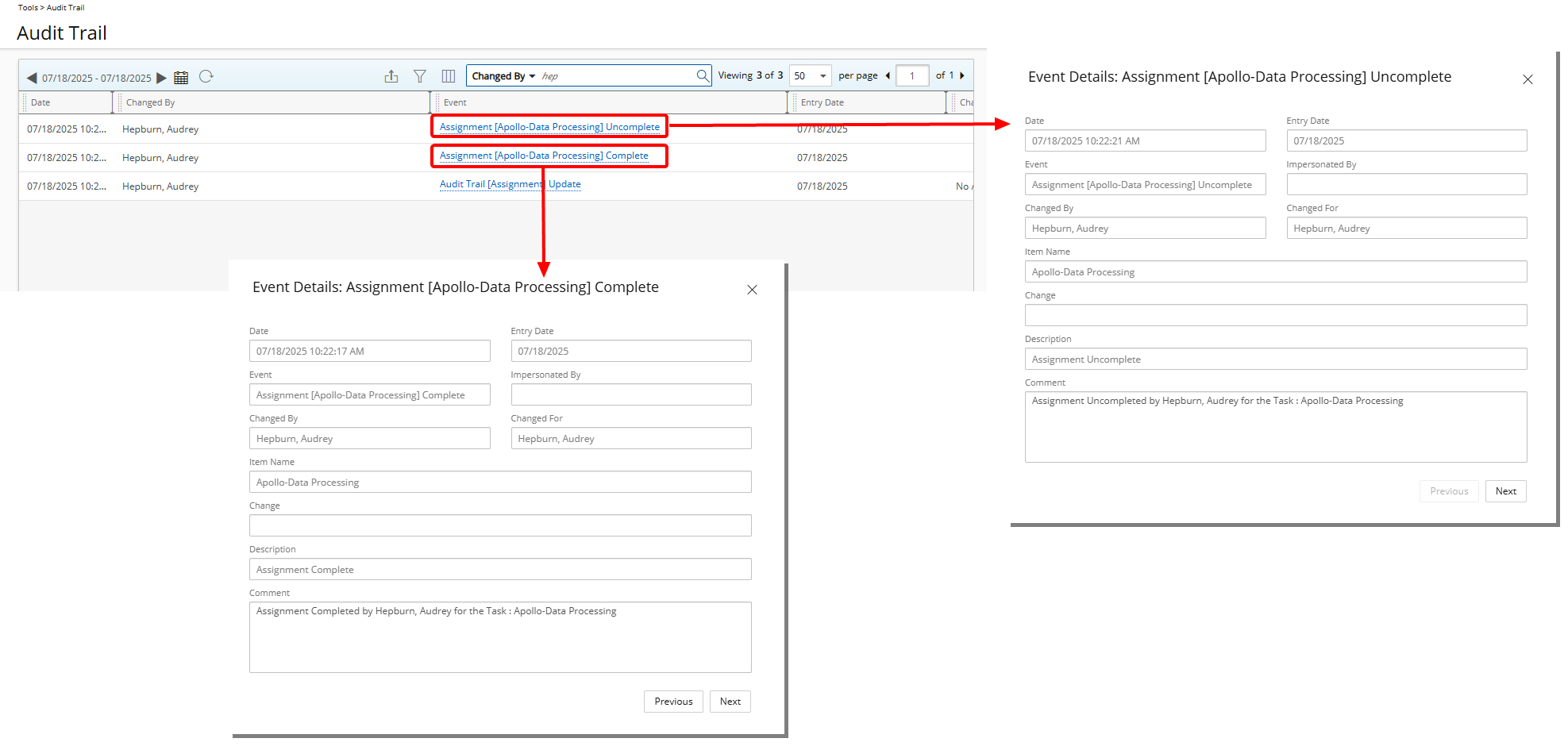
- Click the required Event to view the Event Details dialog box where the following information is displayed:
- Date: Date on which the change was made
- Entry Date: Date the Entry was made
- Event: [Time Entry] Event name (Insert/Update/Delete)
- Impersonated by: Impersonated by User name
- Changed By: Who made/modified the change
- Changed for: Who the change was made/modified for
- Item Name: The name of the Task (Assignment) marked as Insert, Update, Delete, Complete, or Uncomplete.
- Change: The change that was made
- Description: A label indicating the type of action performed.
- Comment: Additional system-generated message showing user and task details for the action.