You can configure Browse for User Data type User Defined Fields (UDFs) associated with Projects to receive Project Workflow Notifications. This allows workflow-driven communication to automatically reach users assigned via UDFs, improving flexibility and alignment between project data and notifications.
Create the User-Defined Field
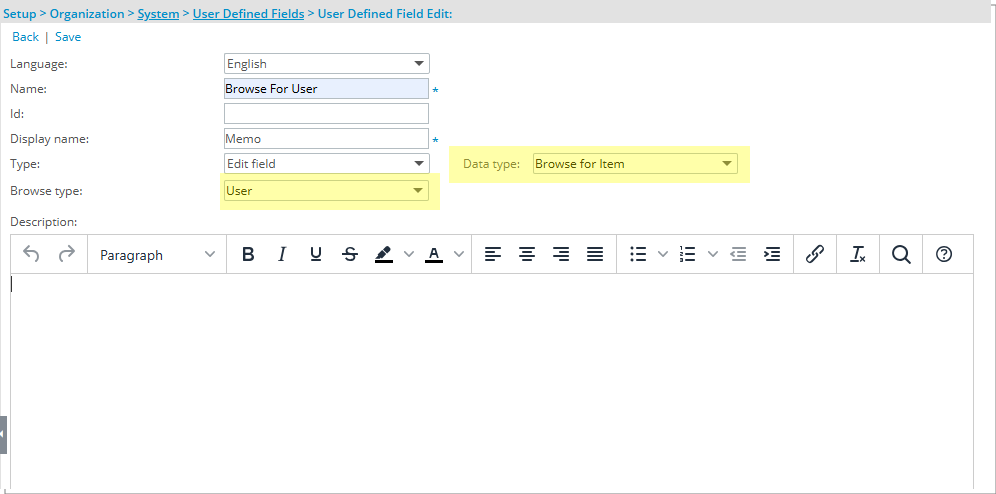
To get started, create a User-Defined Field (UDF) with the Edit Field type and the Browse for Item Data type. Set the Browse type to User.
- From the Icon Bar click Setup
 .
. - From the Navigation Menu click Organization.
- From the menu click System.
- From the Organization System page, click the User Defined Fields link.
- On the User Defined Fields page, click New.
- In the Name field, enter a name for the UDF.
- In the Display Name field, enter the name you want shown in the UI.
- Click the Type list, and then select Edit Field.
- Click the Data Type list, and then select Browse for Item.
- Click the Browse type list, and then select User.
- In the Description field, enter a short explanation or guidance (optional)
- Click Save.
Associate the UDF to Projects
After creating the User Defined Field, the next step is to associate it with the Projects object so it can be used and displayed within project edit page.
- From the Icon Bar click Setup .
- From the Navigation Menu select User Defined Fields to access the Associate User Defined Fields page.
Tip: The Menu will automatically hide (collapse or minimize), allowing for more space on the Associate User Defined Fields page. While the menu is minimized, click the blue Collapse/Expand arrow to turn it back on.
- Click the Associate to box and select Projects.
- From the Available Fields list, drag the previously created Browse For User User Defined Field into the Layout area.
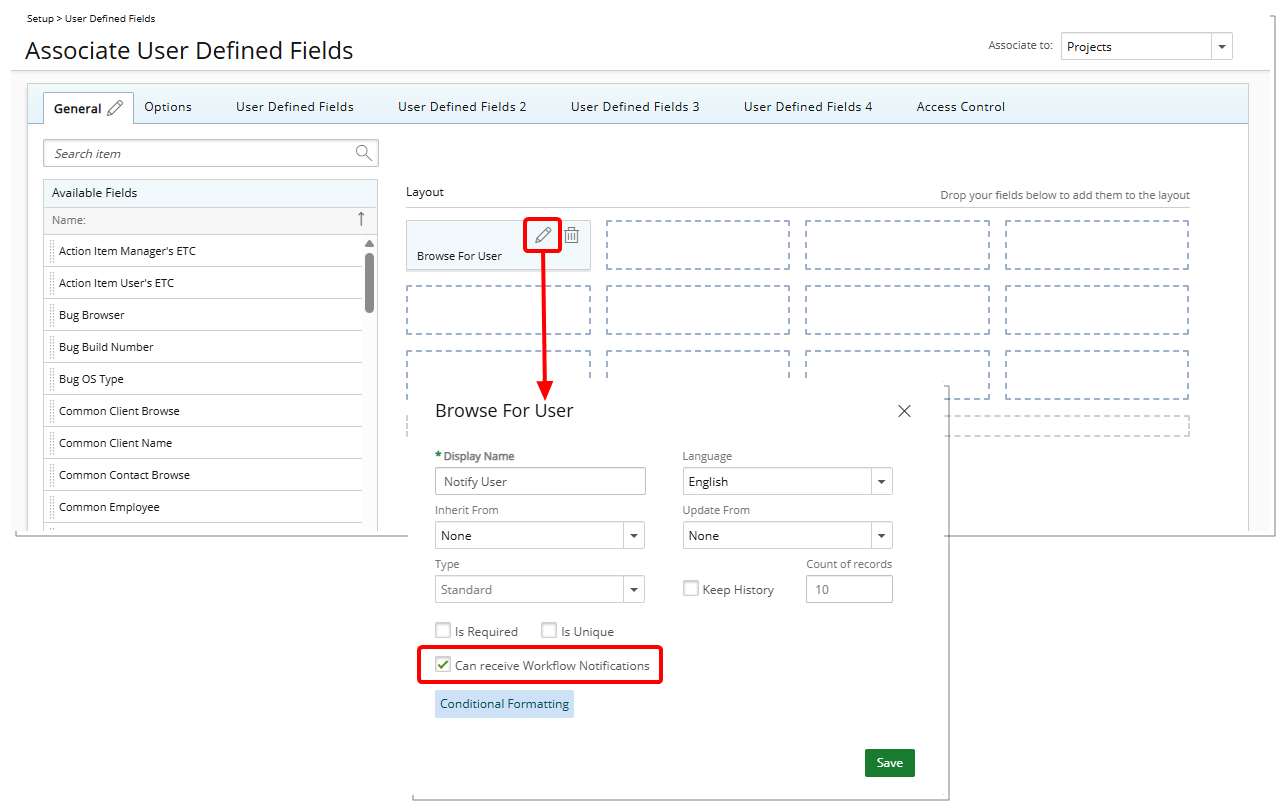
- In the Browser for User properties dialog box select the Can receive Workflow Notifications checkbox.
- Click Save to apply your changes.
- Click the Close
 button to exit the dialog box.
Define Recipients for State or Transition Notifications in a Project Workflow
When configuring a Project Workflow and defining Recipients for State or Transition Notifications, any associated Browse for User UDFs with the Can receive Workflow Notifications setting enabled will appear in the Notify list.
These UDFs are clearly labeled using the format UDF: [UDF Display Name] to distinguish them from standard User or Role-based recipients.
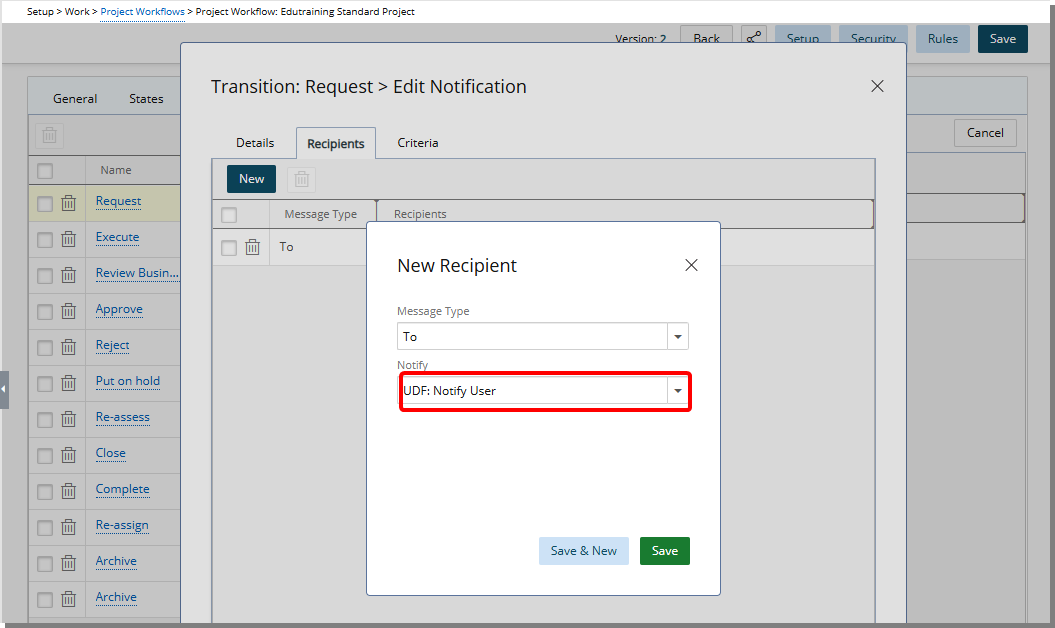
For example, if a UDF is named Notify User, it will appear in the list as “UDF: Notify User.”
View the Impact
When a Project Workflow Notification is triggered, the system sends the notification to all assigned recipients for that State/Transition. If a User-type User Defined Field (UDF) is configured to receive Workflow Notifications and is selected as a Recipient, the Notification is automatically sent to the User currently selected in the associated UDF on the Project.
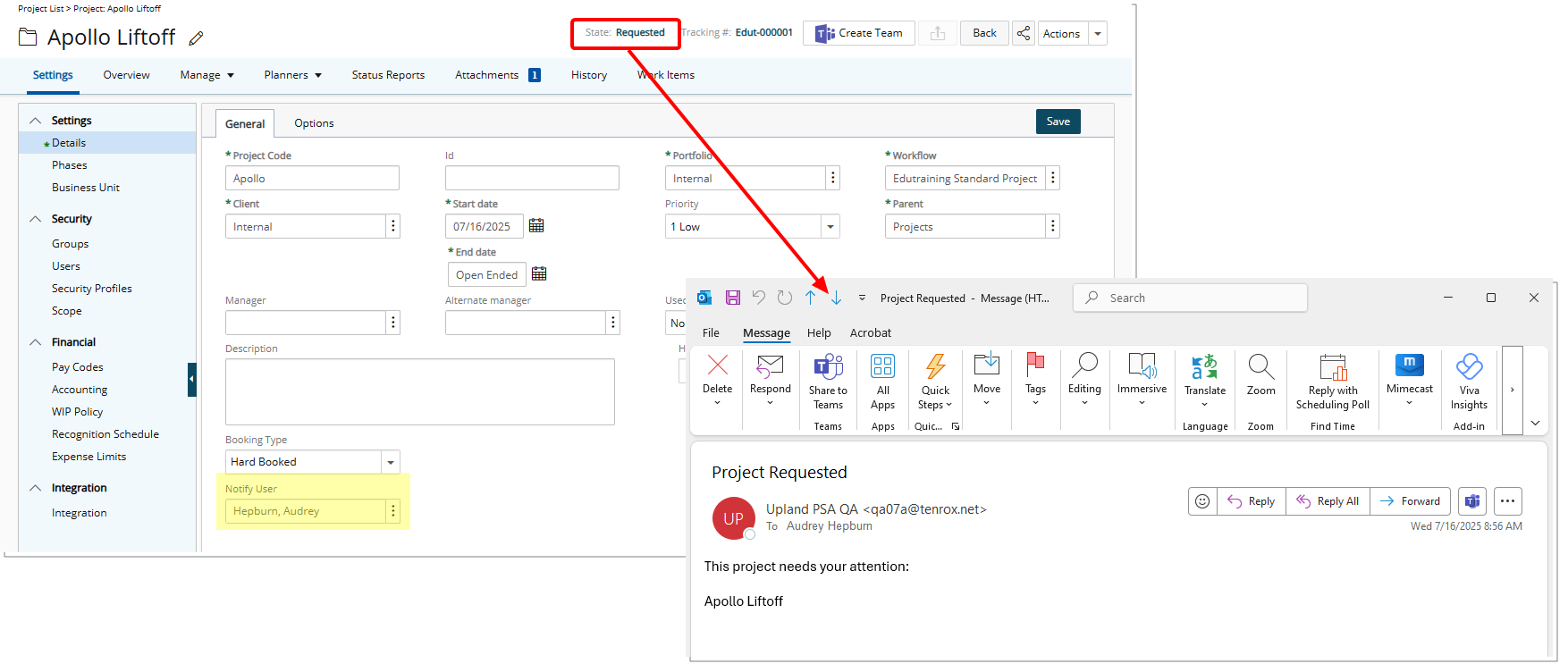
If the Can receive Workflow Notifications option is not enabled for a given UDF, it will not appear in the Notify list.
Note: To maintain consistency and data integrity, once a User-type UDF is being used as a Workflow Notification Recipient, the system will prevent it from being modified in ways that would break the association. Specifically, the Can receive Workflow Notifications checkbox cannot be unchecked, and the UDF cannot be disassociated from the Workflow while it is in use. If such an action is attempted, an error message will be displayed: Error! You cannot modify or delete this record. Please replace or remove the Notification Recipient associations before making any such modification.