Memo User-Defined Fields (UDFs) associated with Projects and Work Item Workflows can be configured to span multiple columns in the layout.
Increasing the column span provides additional horizontal space, making longer text entries easier to read and work with. Administrators can adjust this setting when associating Memo UDFs to ensure the layout best supports the information being captured.
This article explains how to configure Memo User-Defined Fields to span multiple columns in Project Edit and Work Item Workflow layouts.
Create the User-Defined Field
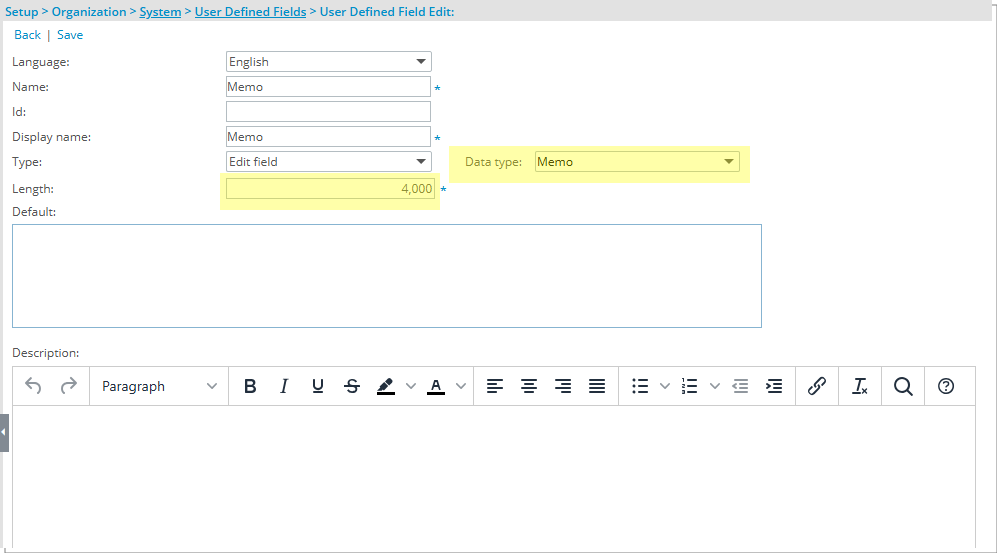
To get started, create a User-Defined Field (UDF) with the Edit Field type and the Memo Data type.
- From the Icon Bar click Setup
 .
. - From the Navigation Menu click Organization.
- From the menu click System.
- From the Organization System page, click the User Defined Fields link.
- On the User Defined Fields page, click New.
- In the Name field, enter a name for the UDF.
- In the Display Name field, enter the name you want shown in the UI.
- Click the Type list, and then select Edit Field.
- Click the Data Type list, and then select Memo.
- Specify the maximum number of characters allowed in the Memo box by setting the Length.
- Enter a Default Value for the Memo field (optional).
- Click Save.
Associate the UDF
After creating the User Defined Field, the next step is to associate it with the Projects object so it can be used and displayed within project edit page or with the required Work Item Workflow so it can be used and displayed within the Entry page.
Associate to Projects
- From the Icon Bar click Setup .
- From the Navigation Menu select User Defined Fields to access the Associate User Defined Fields page.
Tip: The Menu will automatically hide (collapse or minimize), allowing for more space on the Associate User Defined Fields page. While the menu is minimized, click the blue Collapse/Expand arrow to turn it back on.
- Click the Associate to box and select Projects.
- From the Available Fields list, drag the previously created Memo User Defined Field into the Layout area.
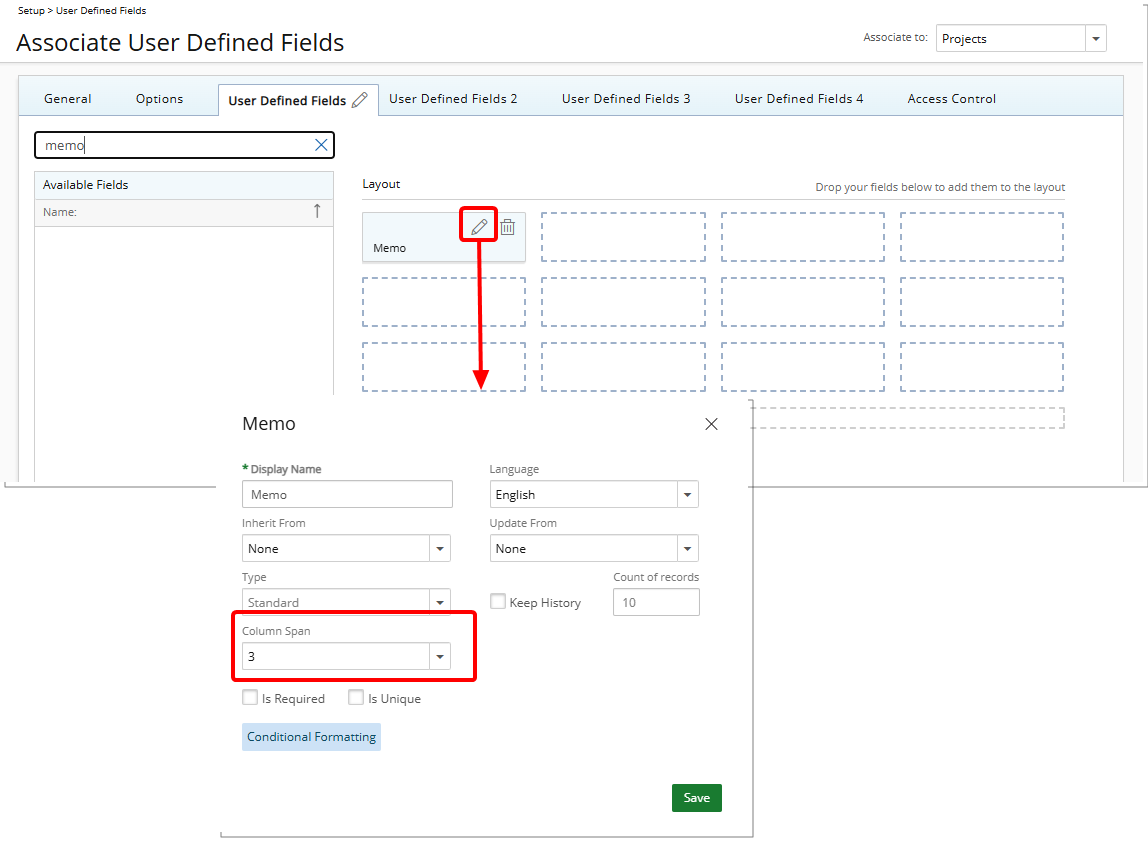
- In the Memo properties dialog box select the required Column Span for the Memo field. Available options are 1, 2, 3, or 4. Select values 2, 3, or 4 to extend the Memo field across additional columns.
Note: Invalid column spans (for example, four fields in a row with one set to span two columns) are automatically adjusted at run-time to maintain layout integrity. This ensures that the maximum of four columns per row is not exceeded, keeping the page organized and readable.
- Click Save to apply your changes.
- Click the Close
 button to exit the dialog box.
Associate to Work Item Workflows
After creating the User Defined Field, the next step is to associate it with the required Work Item Workflow so it can be used and displayed within the Entry page.
- From the Icon Bar click Setup .
- From the Navigation Menu click Work to expand the corresponding menu.
- From the Work menu items, click Work Item Workflows.
- From the Work Item Workflows list that displays, click the Name of the workflow you wish to access.
- Click the Setup button to access the Work Item Setup dialog box.
- Navigate to the tab where you want to associate the User-Defined Field.
- From the Available Fields list, drag the previously created Memo User Defined Field into the Layout area.
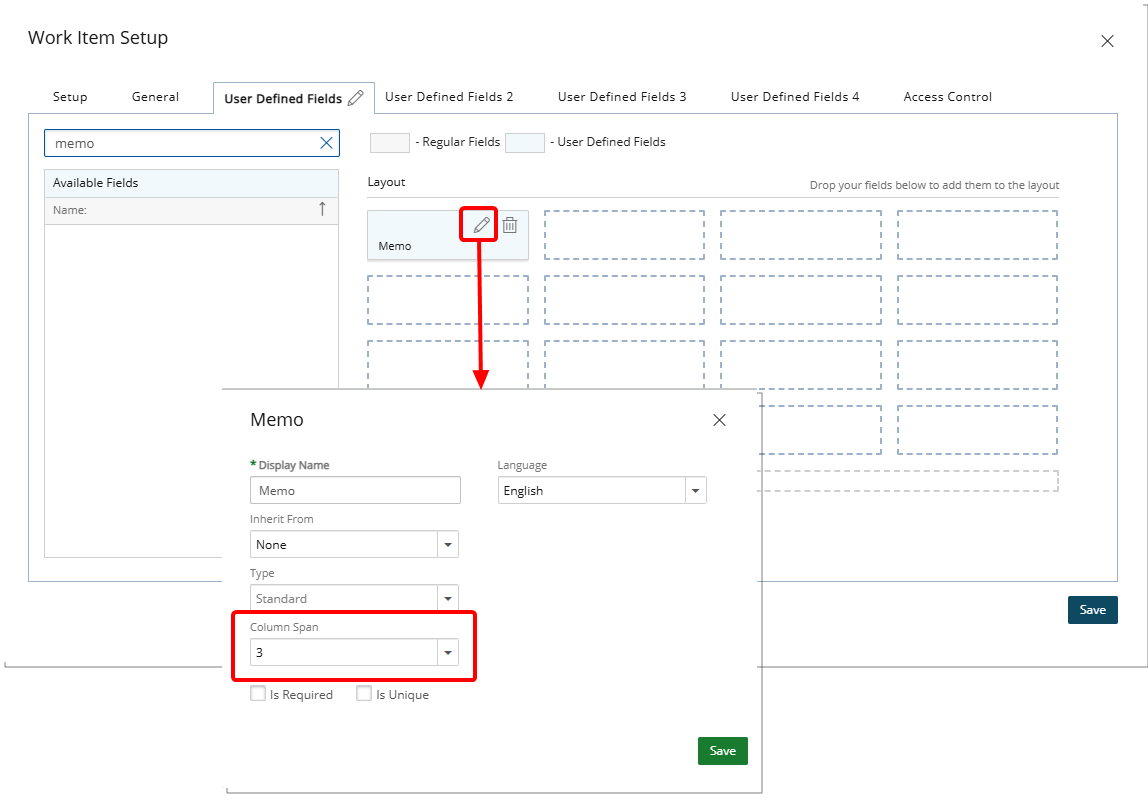
- In the Memo properties dialog box select the required Column Span for the Memo field. Available options are 1, 2, 3, or 4. Select values 2, 3, or 4 to extend the Memo field across additional columns.
Note: Invalid column spans (for example, four fields in a row with one set to span two columns) are automatically adjusted at run-time to maintain layout integrity. This ensures that the maximum of four columns per row is not exceeded, keeping the page organized and readable.
- Click Save to apply your changes.
- Click the Close button to exit the dialog box.
Impact of Multi-Column Memo User-Defined Fields
Expanding Memo User-Defined Fields across multiple columns significantly improves readability and usability for end users. Longer text entries are easier to view, edit, and navigate without excessive scrolling or cramped display areas. This section illustrates how multi-column Memo fields appear in both Projects and Work Item Workflows.
Projects
When a Memo UDF is associated with a Project and configured to span multiple columns, the field occupies more horizontal space in the Project layout. This allows users to view the full content more clearly, enhancing comprehension and reducing the need to scroll.
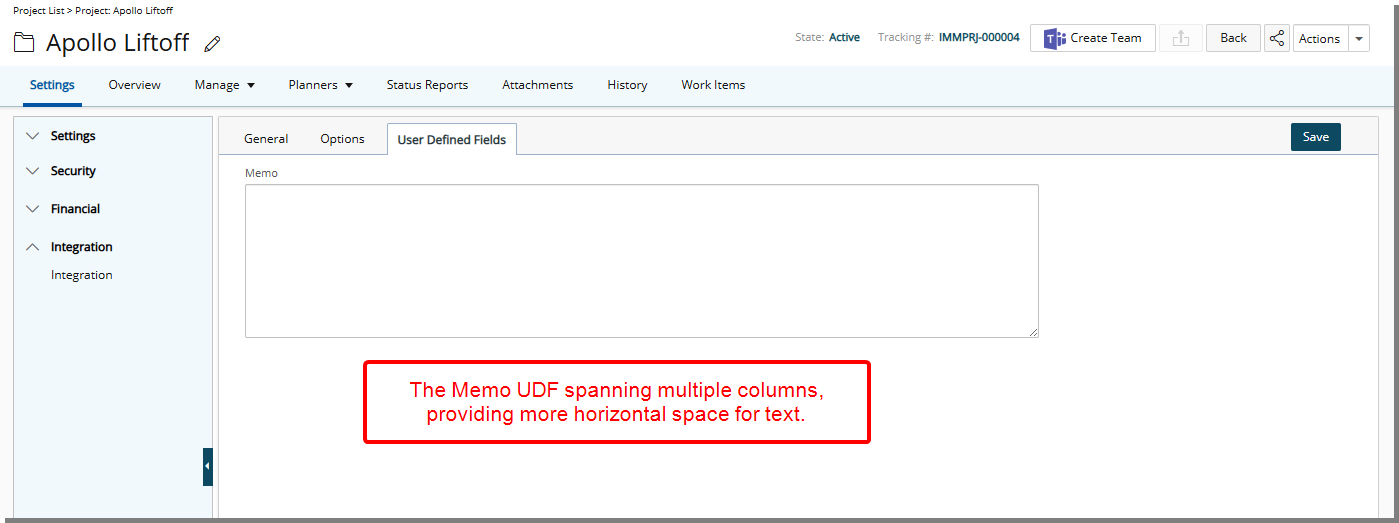
Tip: You can click and drag the bottom-right corner of the Memo box to adjust its height, allowing more lines of text to be visible without scrolling.
Work Item Workflows
In Work Item Workflows, a multi-column Memo UDF provides a similar benefit. Workflow participants can see detailed notes or instructions in a wider field, which improves efficiency when reviewing or updating Work Items.
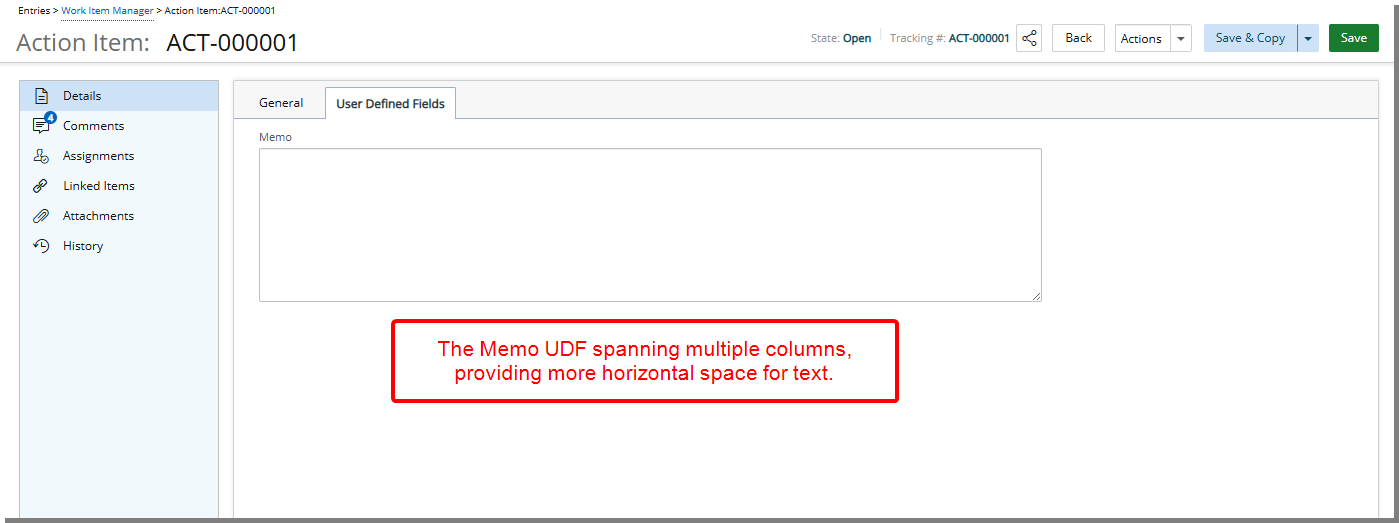
Tip: You can click and drag the bottom-right corner of the Memo box to adjust its height, allowing more lines of text to be visible without scrolling.