The Project Workflows List page provides a centralized view of all project workflows within the system. From this page, users with the appropriate permissions can access, review, and manage workflows that define the stages and approvals for project execution. You can open existing workflows, create new ones, or perform administrative actions such as exporting data or filtering results.
This article explains how to access the Project Workflow List page and outlines the available options that help you efficiently manage and navigate your workflows.
Access the Project Workflows List Page
- From the Icon Bar click Setup
 .
. - From the Navigation Menu click Work to expand the corresponding menu.
- From the Work menu items, click Project Workflows.
Available Options on the Project Workflows List Page
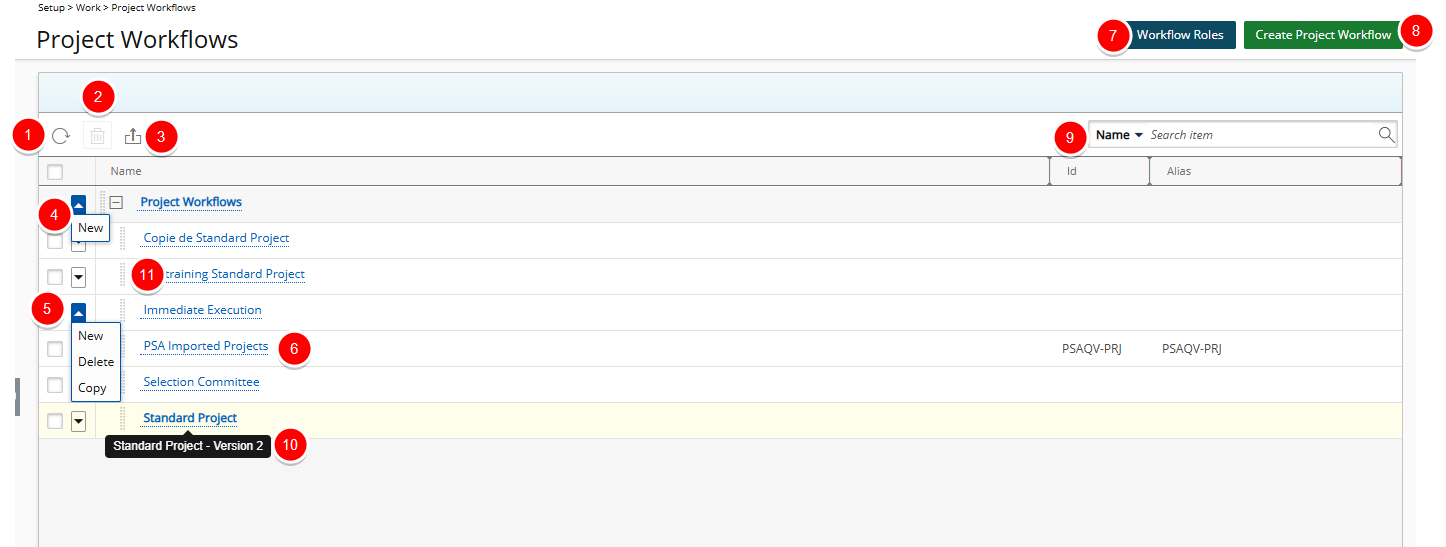
- Click Refresh
 to reload the page.
 - Delete
 selected Workflow(s): When one or more Workflow(s) are selected, the delete button becomes available. Note that the Delete option is not available for placeholder Workflows with child items.
 - Click to Export
 the list to Excel.
 - Access the placeholder Workflow context menu to create a New Workflow. Note that the Delete option is not available for placeholder Workflows with child items.
- Access the Workflow context menu to:
- Create a New Workflow.
- Delete the Workflow.
- Copy the Workflow
- Click the name of a Workflow to edit.
- Click Workflow Roles to create/manage the Project Workflow Roles.
- Click Create Project Workflow to create a new workflow.
- Search for a workflow by Name, Id or Alias.
- Hover over a workflow name to view a tooltip displaying the workflow name and version in the format "<WorkflowName> – Version <VersionNumber>".
- Click
 and drag a Workflow name to a new Parent placeholder.