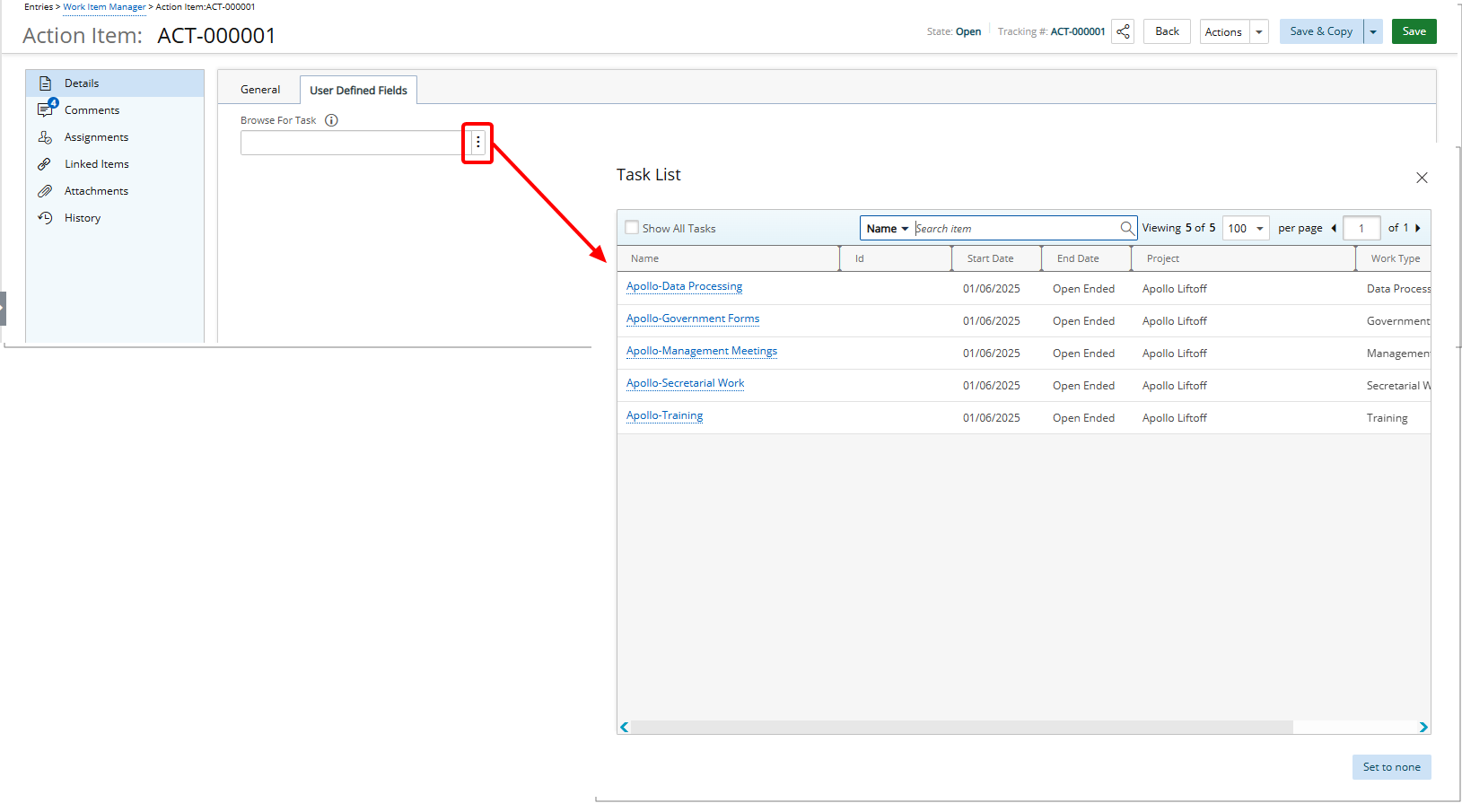
Administrators can now configure User Defined Fields (UDFs) of the Browse for Task type within Work Item Workflows to display only tasks associated with the currently selected project. This is achieved by enabling the Display only Project Tasks checkbox in the UDF settings. When this option is selected, the task browse list dynamically filters to show only the tasks linked to that specific project, ensuring users select from relevant project data and maintain consistency across entries.
Note: When the Project field is not included in the Work Item layout, any Work Item Entry created is automatically associated with the System Default Project. In this scenario, if a User Defined Field (UDF) of the Browse for Task data type is present and the Display only Project Tasks option is enabled, the Task list will show tasks from the System Default Project. This is expected behavior, as the system uses the available project context to determine which tasks to display. To ensure the correct project's tasks are shown in the UDF, include the Project field in the Work Item layout so that the Work Item can be explicitly tied to the appropriate project at creation.
- From the Icon Bar click Setup
 .
. - From the Navigation Menu click Work to expand the corresponding menu.
- From the Work menu items, click Work Item Workflows.
- From the Work Item Workflows list that displays, click the Name of the workflow you wish to access.
- Click Setup.
- Select the Tab where the UDF is to be added.
- From the Available Fields section select the desired field.
- Drop the selected Field in the Layout section.
Tip: To add more UDF layout areas, simply drag a Field into the gray doted rectangle. You will notice a new line with 3 dotted rectangles will appear above the gray dotted rectangle. You can now add more UDFs in the available slots.
- When associating a User Defined Field for the first time to an item, the User Defined Field properties dialog box displays automatically allowing you to configure the UDF.
- Select Display only Project Tasks.
- Click Save to apply your changes.
View The Impact
- Create or Modify and existing Work Item Entry using the Workflow you just modified.
- Click the Browse button against the UDF to access the Task List
- Note that the Task List displays only Project Tasks.