Use the Schedule Out of Office feature in PSA to manage your work availability in advance. This helps maintain accurate resource planning, task assignments, and timesheet visibility while you’re away. By setting start and end dates for your absence, PSA automatically updates your status to Out of Office during the scheduled period and reverts it to In Office once the period ends.
Note: This process is managed entirely within PSA and is separate from any Email or Calendar Out of Office settings.
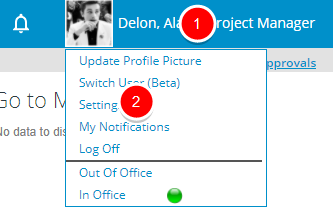
- Click your name or your profile picture to access the Profile Menu.
- Click Settings.
- On the General tab of the User Settings dialog box, go to the Out of Office section.
- Click the calendar control next to Start Date and select the first day of your absence.
- Click the calendar control next to End Date and select the last day of your absence.
- Click Save to apply your schedule.
- During the scheduled period, your status automatically changes to Out of Office and reverts to In Office once the period ends. Scheduled times are timezone-aware and follow your Active Site Timezone.
Note: The Out of Office flag is managed by the Update User Data Automation Service, which runs once per day. The service schedule is fixed and cannot be modified.
How Scheduled Out of Office Status Works with Other Entry Points
- User Edit / Excel Import / API: If an administrator changes a user’s Out Of Office status directly, the Schedule Out of Office fields are cleared, and the system reflects the new In Office status immediately.
- Profile Settings / General Tab: Users can create or clear Out Of Office schedules. The checkbox in User Edit reflects the scheduled status during the defined period.
- Override behavior: Any manual override (via User Edit, Excel Import, or API) clears scheduled fields to prevent conflicts.
This setup ensures user availability remains accurate and consistent, whether managed by the user or an administrator.