Power BI is an enterprise analytics platform for modeling data and building interactive reports. Integration with PSA provides secure, template-based access to PSA data and enables the creation of custom semantic models and reports tailored to business and operational requirements.
 Technical Support
PSA Technical Support is a team of Application Support Analysts trained to use, configure, and troubleshoot PSA in your specific enterprise environment.
If you have any questions, you can reach us by sending us an email.
Software License Agreement
The PSA Software license agreement was reviewed and accepted during the installation procedure of this software in your environment. Copyright © 2026 Upland Software. All rights reserved. You may not photocopy or share this document with any other party without express written permission from Upland Software Inc..
Table of Contents:
Use the links below to jump directly to specific sections of this article.
Purpose and Scope
This document provides technical guidance for integrating PSA with Microsoft Power BI using a template-based approach. It explains how PSA data is exposed through stored procedures and consumed in Power BI as Power BI Table, enabling developers to design semantic models and reports. The guide focuses on connection setup, understanding the sample Power BI Tables provided, and extending them to meet custom reporting requirements.
Intended Audience
This guide is intended for Power BI developers and technical users with prior experience in data modeling and Power Query (M language), as well as familiarity with Upland Analytics (UA) reporting concepts. It is also relevant for solution architects and PSA administrators who support analytics enablement within a PSA-driven environment.
Prerequisites
Before proceeding with the Power BI integration, ensure that the following software, system, and licensing requirements are met.
Install Power BI Desktop
Install Power BI Desktop by downloading and installing the latest version.
System Requirements
Refer to Microsoft Power BI documentation for system requirements and setup guidance.
Licensing
- Free License: Publish to your workspace only; no sharing or collaboration.
- Pro or PPU License: Required for sharing reports or publishing to additional workspaces.
Conceptual Alignment: Upland Analytics (UA) and Power BI
Power BI reporting in PSA follows a conceptual model that closely mirrors how Upland Analytics (UA) reports are designed and consumed. The sections below describe the corresponding architectures in each platform.
Upland Analytics Architecture
In Upland Analytics, reporting is structured as follows:
- Upland Analytics Data Source - The logical container that defines the data model for reporting.
- Upland Analytics View - A Data Source contains multiple Views. Each View represents a curated dataset exposed for reporting.
- Upland Analytics Fields - Views are composed of Fields, which map directly to columns sourced from underlying SQL objects (tables or views).
- SQL Layer - Upland Analytics Fields ultimately resolve to columns retrieved from SQL views or tables in the PSA database.
Power BI Architecture
Power BI applies a comparable abstraction model:
- Power BI Report - Equivalent to a Upland Analytics Report. It defines the visual layer (charts, tables, filters, slicers).
- Power BI Model (Semantic Model / Model View) - Equivalent to a Upland Analytics Data Source. The model defines tables, relationships, measures, and metadata used by reports.
- Power BI Tables - Equivalent to Upland Analytics Views. Each table represents a logical dataset exposed to the report layer.
- Columns and Measures - Equivalent to Upland Analytics Fields. Columns originate from SQL result sets, and measures provide calculated logic.
SQL Integration via Stored Procedures
Power BI accesses PSA data through a stored procedure–based query model that aligns with how data is exposed in Upland Analytics (UA).
Power BI communicates with PSA using the PSA Query API, which supports querying stored procedures and SQL views. These queries return structured result sets that Power BI materializes as tables in the semantic model.
In this integration:
- Power BI invokes a generic stored procedure to retrieve data from SQL views.
- The stored procedure accepts parameters that define selected columns, filters, sort order, and pagination.
- The result set is returned in a format optimized for Power BI consumption.
This approach allows Power BI developers to work with PSA data using familiar Upland Analytics concepts while retaining full control over modeling, transformations, and reporting within Power BI.
Use the links below to navigate to related sections:
Summary Mapping
| Upland Analytics | Power BI |
|---|---|
| Upland Analytics Report | Power BI Report |
| Upland Analytics Data Source | Power BI Model (Semantic Model) |
| Upland Analytics View | Power BI Table |
| Upland Analytics Field | Column / Measure |
| SQL View | SQL View accessed via Stored Procedure |
This design allows Power BI developers familiar with Upland Analytics to quickly understand how PSA data is exposed, modeled, and consumed within Power BI, while maintaining parity with existing Upland Analytics reporting concepts.
Important: No sample reports, visuals, or finalized data models are provided. The template is intentionally minimal and is designed to serve as a starting point for Power BI developers.
What Is Provided
Sample Power BI Tables
Two sample Power BI Tables demonstrate how to retrieve PSA data using the Query API and stored procedures. These tables serve as reference examples and are not intended for production use.
Power Query Infrastructure
A small set of parameters used for connection and authentication.
Custom M-language functions that handle API calls and data retrieval. These components are required for the integration to function and should not be modified.
Connecting to PSA
Power BI connects to the PSA instance using token-based authentication (supported in PSA 2025-R3 and later).
Use the links below to navigate to related sections:
Establish the Connection
To establish the connection, complete the following steps:
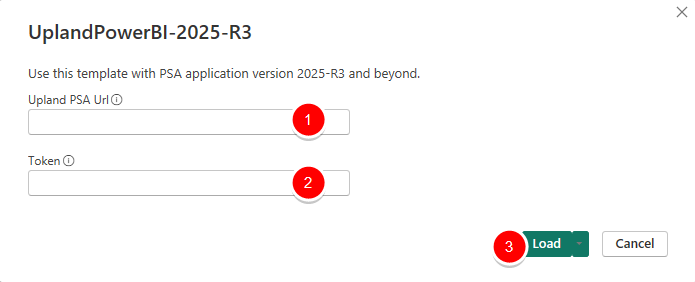
- Open the template file (UplandPowerBI-2025-R3.pbit) in Power BI Desktop.
- Enter the required connection parameters:
- Upland PSA URL:
https://yourcompanyname.tenrox.net Token: Generated from the Configuration Settings for Power BI in the PSA application:
- In PSA, click Integrations
 .
. - Select Power BI.
- From the Configuration Settings for Power BI page click Generate.
Click Copy to Clipboard.
- In PSA, click Integrations
- Upland PSA URL:
- Click Load.
- Power BI will connect to PSA and load the sample Power BI Tables defined in the template. Once the data is loaded, you can review and modify these Power BI Tables in Power Query and use them to build your own semantic model and reports.
Troubleshooting
To reset parameters or permissions, go to Transform Data → Data Source Settings, clear permissions, and re-enter parameters.
Notes for Users
- The template supports token-based authentication, which is recommended for security.
- Power BI supports both GET and POST requests. The PSA Query API uses POST requests to retrieve data required for reporting.
Customize a Table View
Only the requestBody parameters are intended for customization. Do not modify the GetDataPage function, pagination logic, or API call implementation.
- Navigate to Transform Data.
- Click Advanced Editor for the table you want to modify. You will see the M-language code that defines the table and API connectivity.
- The template includes helper functions to manage connectivity and pagination. These functions must not be modified, as they ensure secure and correct data retrieval:
fnCallPostQuery– Sends the API request to the PSA Query API.GetDataPage– Recursively retrieves paged results from PSA.
- Modify only the
requestBodyparameters. Do not change the function structure, recursion logic, or API call implementation.You can customize the following inputs in the
requestBodyJSON to fetch your desired data:Parameter Description Example P_VIEWNAMEUpland Analytics View Name* "UA_Project_List"P_COLSComma-separated list of columns to retrieve (Upland Analytics Fields**) "Project_Unique_ID,Project"P_WHEREXML-formatted filter definitions ""P_WHERE"":""<where> <w key=\""1\"" fieldname=\""Project\"" fieldcondition=\""Like \"" fieldvalue=\""Gen\""/> <w key=\""2\"" fieldname=\""Project_Priority\"" fieldcondition=\""Like \"" fieldvalue=\""1 Low\""/> <w key=\""3\"" fieldname = \""Project\"" fieldcondition = \""=\"" fieldvalue = \""Demo1\""/> </where>""P_CONDITIONLogical expression combining filters "$1"P_ORDERComma-separated columns for sorting "Project,Project_Code"P_PAGESIZENumber of rows per page defined in pageSize*** "25"P_PAGEINDEXPage number to retrieve "1"Tip: For advanced filtering scenarios, the
P_WHEREandP_CONDITIONparameters support complex, server-side conditional logic. See Conditional Filtering Reference (P_WHERE and P_CONDITION) for detailed syntax, supported operators, and examples. - After updating parameters, click Close & Apply in Power BI.
- The table will refresh with the requested data from PSA.
* Upland Analytics View Names can be obtained from Upland Analytics Settings > Data Views.
** Upland Analytics Field Names must be referenced in the M-language query using their underlying SQL column names. For example, the Upland Analytics field Project Unique ID must be specified as Project_Unique_ID in the P_COLS parameter. When modifying P_COLS, ensure the same columns are included in the Table.ExpandRecordColumn step. A mismatch will result in refresh errors.
*** The template uses server-side pagination to efficiently retrieve large datasets. Do not modify the pagination logic. Adjust the page size (P_PAGESIZE) only if required.
Conditional Filtering Reference (P_WHERE and P_CONDITION)
The PSA Query API supports flexible, server-side filtering through the combined use of the P_WHERE and P_CONDITION parameters. These parameters allow developers to define multiple filter criteria and control how those criteria are logically combined when retrieving data from PSA.
This filtering mechanism aligns with Upland Analytics (UA) filtering concepts and enables complex query logic without modifying the underlying stored procedures or API implementation.
Use the links below to navigate to related sections:
- P_WHERE – Defining Filter Conditions
- P_CONDITION – Combining Filter Conditions
- Usage Notes and Best Practices
P_WHERE: Defining Filter Conditions
P_WHERE defines individual filter conditions using an XML structure. Each filter condition is represented by a <w /> node.
Use the links below to navigate to related sections:
XML Structure
<where>
<w key="1" fieldname="Project" fieldcondition="LIKE" fieldvalue="Gen"/>
<w key="2" fieldname="Project_Priority" fieldcondition="LIKE" fieldvalue="1 Low"/>
<w key="3" fieldname="Project" fieldcondition="=" fieldvalue="Demo1"/>
</where>Each <w /> element represents a single conditional expression that is later referenced by P_CONDITION.
<w /> Attributes
| Attribute | Required | Description |
|---|---|---|
| key | Yes | Unique identifier for the condition. Referenced in P_CONDITION. |
| fieldname | Yes | Underlying SQL column name (Upland Analytics Field backing column). |
| fieldcondition | Yes | Operator to apply (see Supported Filter Conditions). |
| fieldvalue | Conditional | Value to compare against. Not required for NULL or NOT NULL conditions. |
Supported Filter Conditions
The following condition keywords are supported in P_WHERE and map directly to SQL operators.
| Condition Keyword | SQL Operator | Generated SQL Expression | Notes |
|---|---|---|---|
| = | Equals | [fieldname] = 'fieldvalue'
|
Exact match |
| <> | Not Equals | [fieldname] <> 'fieldvalue'
|
Excludes matching value |
| > | Greater Than | [fieldname] > 'fieldvalue'
|
Numeric or lexical comparison |
| < | Less Than | [fieldname] < 'fieldvalue'
|
Numeric or lexical comparison |
| >= | Greater Than or Equal | [fieldname] >= 'fieldvalue'
|
Inclusive lower bound |
| <= | Less Than or Equal | [fieldname] <= 'fieldvalue'
|
Inclusive upper bound |
| LIKE | Pattern Match | [fieldname] LIKE '%fieldvalue%'
|
Performs a contains search |
| IN | Set Membership | [fieldname] IN (fieldvalue)
|
fieldvalue must be comma-separated |
| NULL | Is Null | [fieldname] IS NULL
|
No value required |
| NOT NULL | Is Not Null | [fieldname] IS NOT NULL
|
No value required |
P_CONDITION: Combining Filter Conditions
P_CONDITION defines how the individual filters defined in P_WHERE are logically combined. It references filter conditions using the $<key> notation.
Use the links below to navigate to related sections:
Supported Logical Operators
- AND
- OR
- Parentheses ( ) for grouping and precedence
Example
$1 OR ($2 AND $3)
This expression means:
- Apply condition 1
- OR apply condition 2 AND condition 3 together
How P_CONDITION Is Resolved
Using the earlier P_WHERE example:
| Key | Condition |
|---|---|
| $1 | Project LIKE '%Gen%'
|
| $2 | Project_Priority LIKE '%1 Low%'
|
| $3 | Project = 'Demo1' |
The resulting SQL fragment generated by the PSA Query API is logically equivalent to:
[Project] LIKE '%Gen%'
OR (
[Project_Priority] LIKE '%1 Low%'
AND [Project] = 'Demo1'
)Usage Notes and Best Practices
- Always ensure that
P_CONDITIONreferences valid keys defined inP_WHERE. - Use parentheses to explicitly control logical precedence and avoid ambiguity.
- For LIKE conditions, the API automatically applies wildcard matching (%value%).
- Complex filtering logic should be implemented using
P_WHEREandP_CONDITIONrather than client-side filtering in Power BI for performance and scalability.